Best PC Graphics Settings | Doom: The Dark Ages
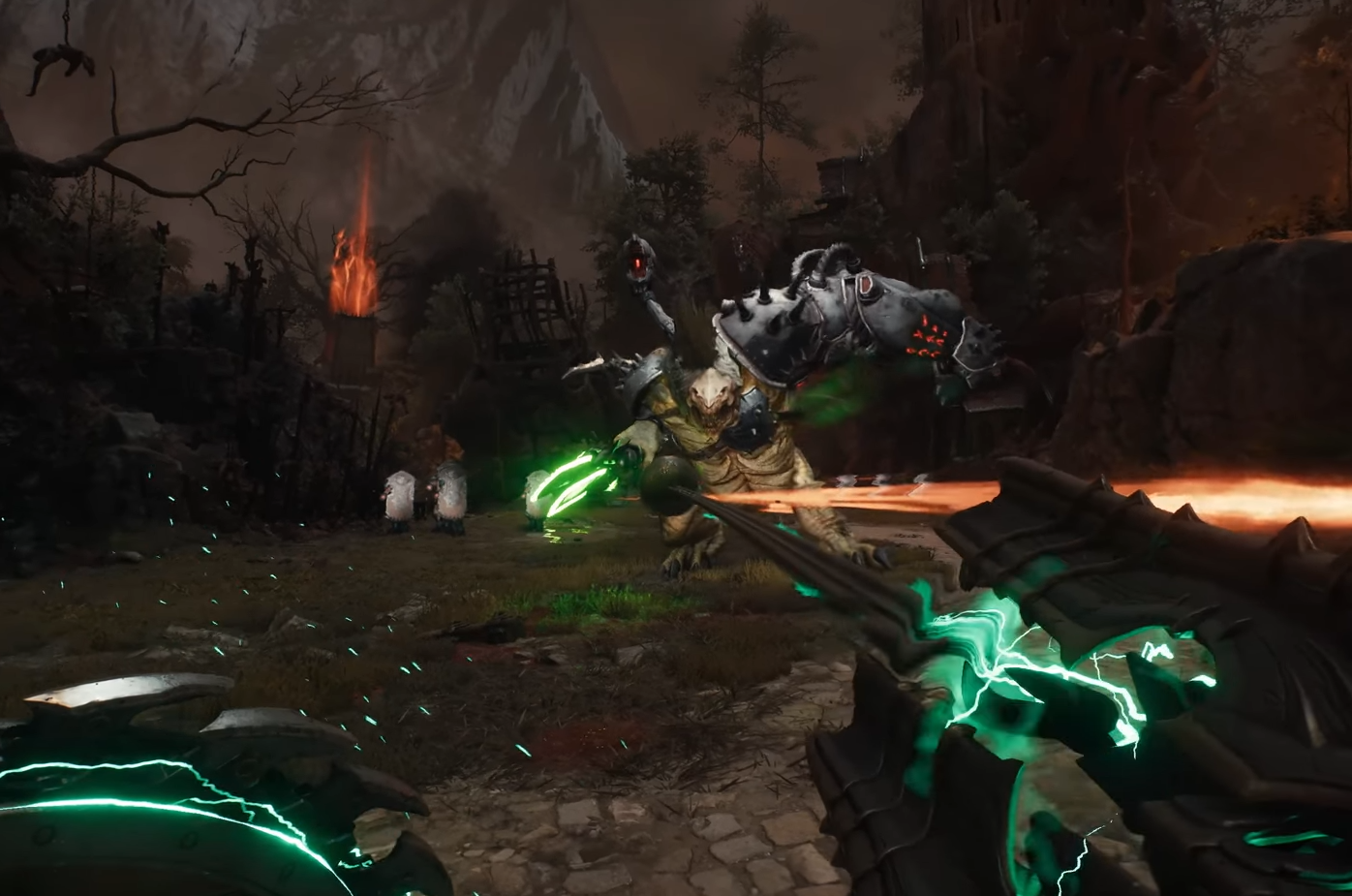
Image Credits: id Software, DOOM: Dark Ages
Doom: The Dark Ages brings a grimy medieval twist to the series, but it still pushes the id Tech engine hard. With wide battlefields, volumetric lighting, and absurd particle chaos, the game looks fantastic, but if your visuals are looking rough or your FPS is dipping during demon pileups, these settings will help you clean things up without gutting the spectacle.
Read More: All DOOM: The Dark Ages Achievements Guide
Display Settings
Window Mode: Fullscreen
Borderless works fine, but fullscreen usually squeezes out better performance and lower input latency.
Resolution: Native (1080p, 1440p, or 4K)
Don’t downscale unless you’re really struggling. Upscalers can help, so keep native and let DLSS or FSR do the lifting.
Refresh Rate: Max your monitor supports
No reason not to crank this up if you want fluid gameplay.
V-Sync: Off
V-Sync = input lag. Use G-Sync or FreeSync if you need to eliminate tearing.
Resolution Scaling Mode: Off
If you’re using DLSS or FSR, you don’t need this legacy option.
Present From Compute: On
Slightly improves performance. Turn it off only if you're experiencing crashes or overlays breaking.
Video Settings
Field of View: 95–105 is a sweet spot
Wider FOV gives better spatial awareness, but don’t max it—performance tanks beyond 110.
Film Grain: Off
It just muddies the visuals. Turn it off for a sharper, cleaner image.
Motion Blur: Off
Pure distraction. Disabling this makes things feel faster and more responsive.
Depth of Field: On or Off (your call)
Some like the cinematic look, others prefer full sharpness. Minor performance hit.
Chromatic Aberration: Off
A cosmetic-only effect that subtly blurs the screen edges. Not worth keeping.
Sharpening: 2.0 or adjust to taste
Especially useful if you’re using an upscaler like DLSS or FSR.
DLSS / FSR: Use “Quality” mode
DLSS Quality (for NVIDIA) or FSR Quality (for AMD) gives the best balance between clarity and FPS. Avoid Performance mode unless you're desperate.
Frame Generation: Optional
Helps boost FPS if you're using DLSS 3+ GPUs, but it can increase input latency. Use it if you’re CPU-bound or targeting 120+ FPS.
Advanced Settings (Tweak Individually)
| Setting | Recommended | Why |
|---|---|---|
| Texture Pool Size | GPU Dependent | Adjust based on VRAM usage. Don’t max it unless you have headroom. |
| Shadow Quality | High | Looks solid and avoids big FPS hits during daytime scenes. |
| Lighting Quality | Ultra | Boosts atmosphere and baked-in RT effects. |
| Reflections | High | Nice visuals on armor/surfaces with minor performance cost. |
| Particles | High | Ultra tanks FPS in big fights. High is the stable middle ground. |
| Volumetrics | High | Enhances fog and smoke for cinematic feel. |
| Decals | Ultra | Cranked gore and impact details. Minimal performance impact. |
| Water Quality | High | Looks great; Ultra is overkill unless water is everywhere. |
| Texture Filtering | Nightmare | Sharper surfaces. Costs almost nothing. |
| Shading Quality | Ultra | Helps lighting stay consistent and moody. |
| Directional Occlusion | Nightmare | Adds great depth to scenes. Worth the extra cost. |
Final Blurb
Doom: The Dark Ages might feel more grounded, but there’s still plenty going on under the hood. These settings give you a strong balance between high-end visuals and stable performanc, especially during chaotic arenas and boss fights. If you're still getting stutters, update your drivers and check for background apps like Discord overlays or recording software that may interfere.
FAQ
Q: Is there Ray Tracing in Doom: The Dark Ages?
Not traditional RT. The game uses baked-in lighting and shading effects that mimic RT, but it’s always on, no toggle needed.
Q: What’s the best upscaler to use?
DLSS for NVIDIA, FSR for AMD. Use Quality mode for the best image-to-FPS tradeoff.
Q: Should I use Frame Generation?
Only if you need more FPS and aren’t playing competitively. It adds latency.
Q: What settings affect FPS the most?
Shadow Quality, Volumetrics, and Particles. Turn those down first if you're struggling.
Q: My game looks blurry. What’s wrong?
Turn off Film Grain, bump up Sharpness, and check that you’re using the right DLSS/FSR quality mode, not Performance.
Recommended | View all DOOM: The Dark Ages