

Blue Protocol Star Resonance Low FPS & Lag Fix Guide
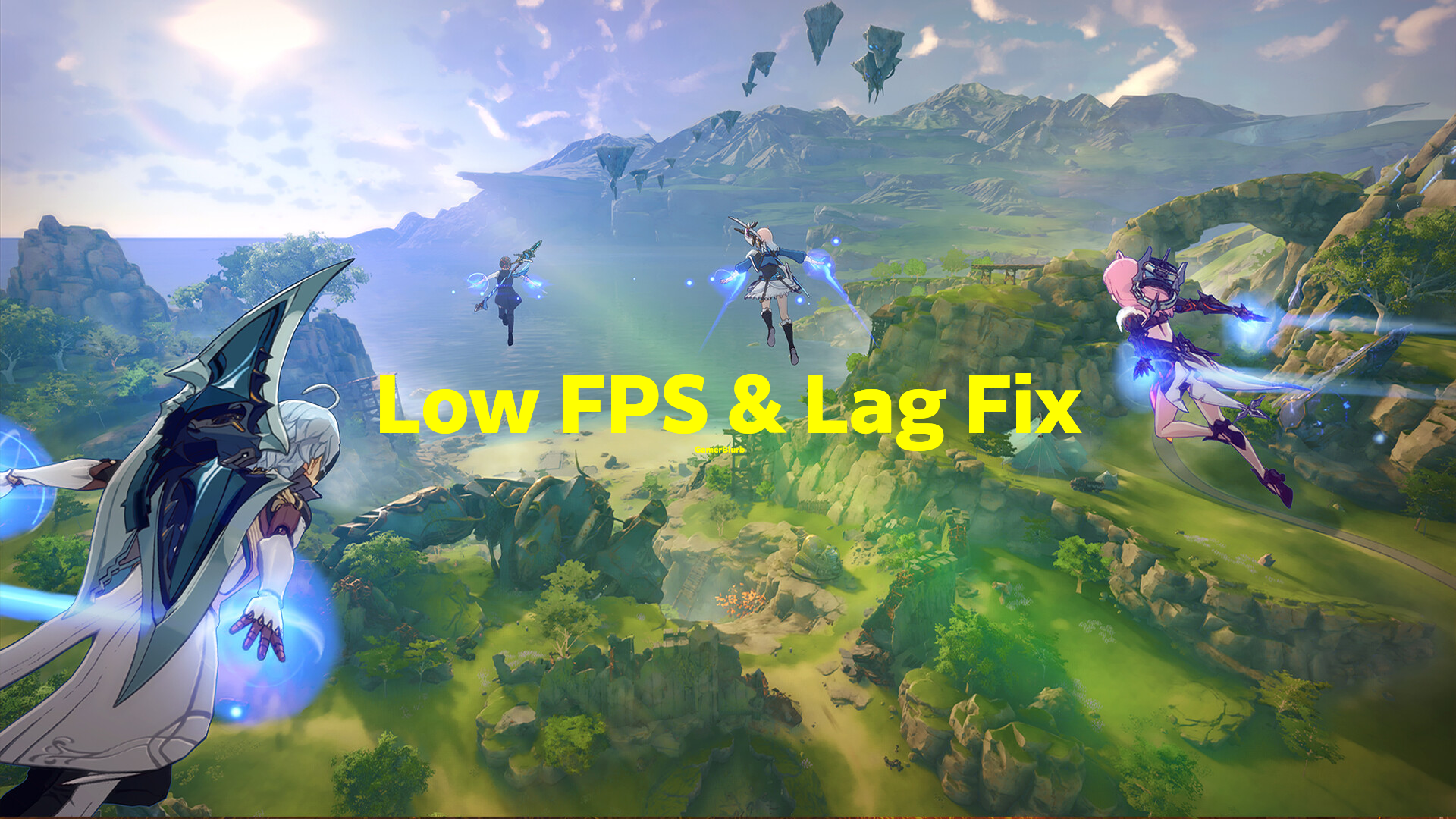
Even strong PCs struggle to keep Blue Protocol Star Resonance running smoothly. Players report drops to or even below 30 FPS, microstutters, and heavy frame dips no matter the graphics settings. The issue comes down to uneven optimization, background software interference, and hidden Windows settings throttling your hardware. Here’s how to fix it and get the game running at full speed.
How to Fix Low FPS in Blue Protocol Star Resonance
Below are the best proven fixes that actually make a difference. These are ordered from fastest to most in-depth.
Update Graphics Drivers
Old GPU drivers are one of the biggest FPS killers. Even brand-new cards perform badly if their drivers are months out of date.
Check your GPU brand (NVIDIA, AMD, or Intel).
Download the latest version from the official website.
Restart your PC after installation.
If performance still stutters, use Display Driver Uninstaller (DDU) to wipe old versions first.
Set Game to High Priority
Force your system to give Blue Protocol maximum CPU focus.
Launch the game, then open Task Manager (Ctrl + Shift + Esc).
Under Details, right-click BlueProtocol.exe.
Select Set Priority → High.
Avoid “Realtime,” it causes instability.
Disable Fullscreen Optimizations
Windows loves messing with performance under its fake fullscreen mode.
Right-click BlueProtocol.exe, select Properties, then Compatibility.
Check Disable fullscreen optimizations and apply.
This small tweak alone can reduce frame pacing issues dramatically.
Switch to Borderless Windowed Mode
Some users report that native fullscreen causes unstable frame timing. Set the game to Windowed and use Borderless Gaming software for smoother input and faster tabbing.
Lower GPU-Heavy Settings
If you’re still stuck at 40–50 FPS, start tweaking the right visuals. Don’t just drop everything to Low — some settings barely affect performance.
Shadows: Medium or Low
Post Processing: Off
Anti-Aliasing: Medium
Ambient Occlusion: Low
Texture Quality: High (barely affects FPS)
V-Sync: Off (use G-Sync or FreeSync instead)
Check for Power Limits
Windows defaults to “Balanced” mode, quietly cutting your CPU and GPU power draw.
Press Windows + R, type
powercfg.cpl, press Enter.Choose High Performance or Ultimate Performance.
Laptop users should also check manufacturer control apps for hidden power caps.
Monitor GPU Usage and Temps
If your GPU usage hovers below 70%, it’s being throttled.
Download MSI Afterburner or HWMonitor.
Keep temps under 80°C and clean your fans regularly.
If the GPU shows low utilization with stable temps, the game is likely CPU-bound — try closing background apps or enabling Resizable BAR in BIOS.
Disable Overlays and Background Recorders
Every overlay steals performance, especially on weaker CPUs.
Turn off:
Steam Overlay (Steam Settings → In-Game)
Discord Overlay (Settings → Game Overlay)
Xbox Game Bar (Windows Settings → Gaming)
NVIDIA GeForce Experience Overlay (Settings → General → In-Game Overlay Off)
Check Network Sync Settings
If you’re seeing stutter in online zones, it might not be FPS—it’s packet lag.
Use a wired Ethernet connection.
Disable Wi-Fi power saving in Network Adapter Properties.
Avoid streaming, downloads, or VPNs while playing.
Reinstall or Move Game to SSD
Installing the game on an SSD improves load times and helps avoid micro-freezes caused by slow asset streaming. HDD users see much smoother gameplay after moving the installation folder.
Advanced Fixes
Verify Game Files
If performance tanks after a patch, corrupted data could be the culprit.
Open your launcher, right-click Blue Protocol Star Resonance, and select Verify Files.
Wait for it to finish before restarting the game.
Disable Hardware-Accelerated GPU Scheduling
This feature sometimes introduces microstutter.
Go to Windows Settings → System → Display → Graphics → Default Graphics Settings.
Turn Hardware-Accelerated GPU Scheduling off.
Clean Boot and Startup Apps
Extra startup apps quietly eat performance.
Open Task Manager → Startup Apps, disable everything unnecessary.
Restart clean to free up CPU and RAM.
Final Blurb
Blue Protocol Star Resonance still needs optimization, but with the right tweaks, you can double your frame rate. Update your GPU drivers, disable overlays, set Windows to High Performance, and keep the game on an SSD. The difference between 40 FPS stutter and a stable 60 FPS is just a few settings away.
FAQ
Why is my FPS low even on high-end hardware
Because the game doesn’t fully utilize modern GPUs yet. Optimization patches are coming, but system tweaks help right now.
Should I use DLSS or FSR
Not yet. The current build shows little FPS improvement from scaling options.
Does lowering resolution actually help
Yes, but only slightly. It’s better to reduce Shadows and Post Processing first.
Why does my FPS drop in crowded areas
Server-side sync and particle effects in towns cause frame dips for everyone. Expect fixes in future updates.
Will switching to SSD really help
Yes. Faster asset streaming removes small stutters between areas.
© 2025 GamerBlurb. Linking is welcome with credit to GamerBlurb.com. Copying or reproduction without permission is prohibited.
More Blue Protocol: Star Resonance


