

Borderlands 4 Best Settings Guide (PC & Steam Graphics)
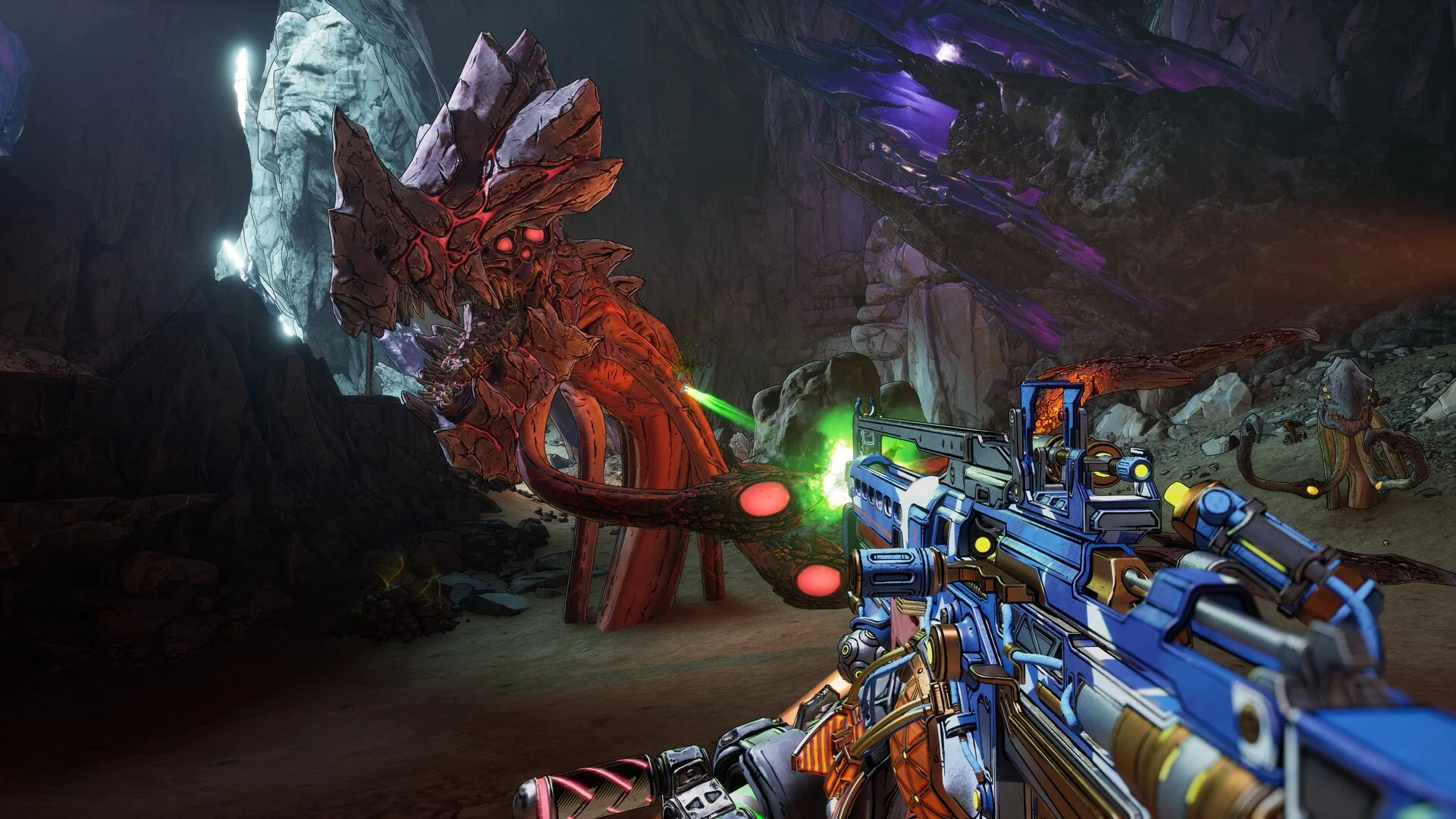
Borderlands 4 pushes visuals harder than any past entry, and that means your PC will sweat if you don’t tune it right. Knowing the best settings can be the difference between stutter in a firefight and smooth chaos while you slide-shotgun a bandit off a cliff. This guide covers the best Borderlands 4 graphics settings, how to tweak them for stability, and the full system requirements.
Best Borderlands 4 Graphics Settings
Start with Auto-Detect in the Advanced Visuals menu to see what the game thinks your system can handle. From there, adjust downward to keep performance smooth. The goal is a stable framerate, not just pretty screenshots.
General Settings
Graphics Preset: Low
Upscaling Method: DLSS (Nvidia) or FSR (AMD)
Upscaling Quality: Performance
Spatial Upscaling Quality: Disabled
Scene Capture Quality: Full Resolution
Frame Generation: Off
Nvidia Reflex Low Latency: Boost
Environment Settings
HLOD Loading Range: Near
Geometry Quality: Low
Texture Quality: Low
Anisotropic Filtering: x1
Foliage Density: Very Low
Volumetric Fog: Low
Shadow Quality: Low
Directional Shadow Quality: Low
Volumetric Cloud Shadows: Disabled
Lighting Quality: Low
Reflections Quality: Low
Shading Quality: Low
Post-Processing
Post-Processing Quality: Low
Motion Blur Amount: 0.0
Motion Blur Quality: Off
These cuts may not look flashy, but they’ll keep fights stable when explosions and elemental effects flood the screen. The single biggest boost comes from lowering upscaling quality. Balanced mode keeps visuals decent while giving a major FPS bump.
Borderlands 4 System Requirements
Before tweaking settings, make sure your rig even qualifies. Borderlands 4 is heavier than Borderlands 3 and requires modern parts.
Minimum
OS: Windows 10 / 11 (64-bit)
Processor: Intel Core i7-9700 / AMD Ryzen 7 2700X
Memory: 16 GB RAM
Graphics: NVIDIA GeForce RTX 2070 / AMD Radeon RX 5700 XT / Intel Arc A580
Storage: 100 GB SSD
Notes: Needs 8 CPU cores, 8 GB VRAM
Recommended
OS: Windows 10 / 11 (64-bit)
Processor: Intel Core i7-12700 / AMD Ryzen 7 5800X
Memory: 32 GB RAM
Graphics: NVIDIA GeForce RTX 3080 / AMD Radeon RX 6800 XT / Intel Arc B580
Storage: 100 GB SSD
If you’re anywhere below minimum, expect struggles even on low. With recommended parts, you can safely push textures and lighting higher without tanking framerate.
Final Blurb
Borderlands 4 runs best when you sacrifice some visual candy for steady framerates. Lower foliage, shadows, and post-processing first, then fine-tune upscaling to your GPU’s sweet spot.
A stable game beats a stutter-fest every time, especially when loot and enemies are flying at you nonstop.
FAQ
What setting gives the biggest FPS boost in Borderlands 4?
Upscaling quality (DLSS/FSR) gives the largest performance jump. Switching from Quality to Balanced or Performance will add dozens of frames.
Should I turn off motion blur in Borderlands 4?
Yes. Motion blur adds visual smear and costs frames. Keeping it off makes combat clearer and faster.
Can Borderlands 4 run on 16 GB of RAM?
Yes, but it’s tight. You may see hitching in larger fights or open zones. 32 GB RAM is strongly recommended for smoother play.
Do higher texture settings affect FPS much?
Textures mostly hit VRAM, not FPS. If your GPU has enough VRAM (8 GB+), you can safely run textures at Medium or High without much slowdown.
More Borderlands 4


