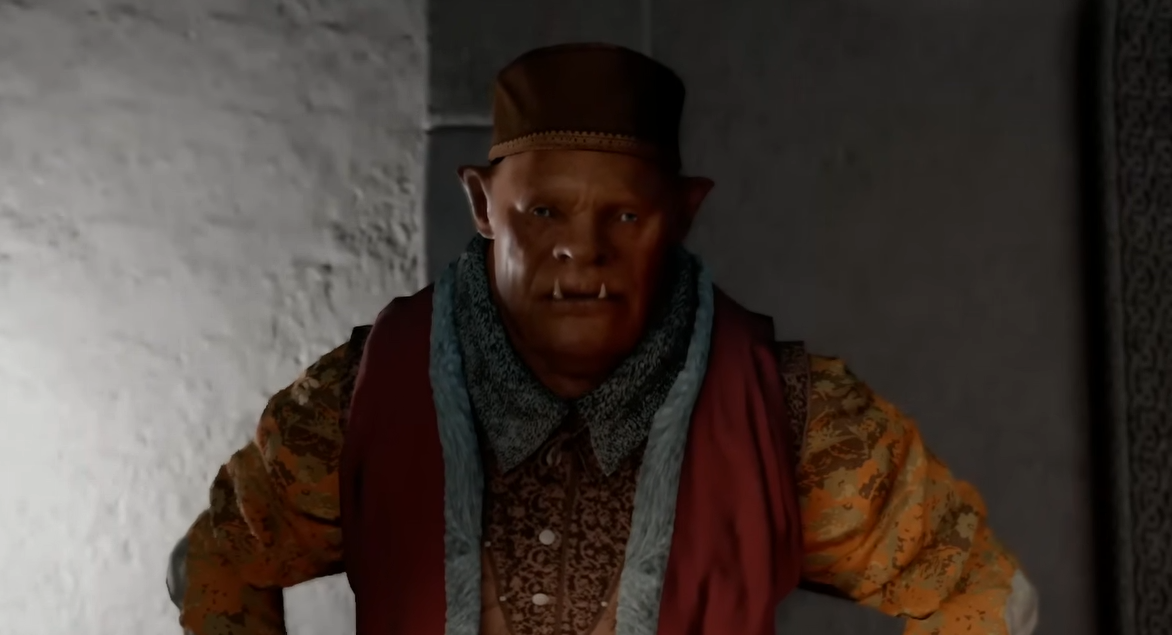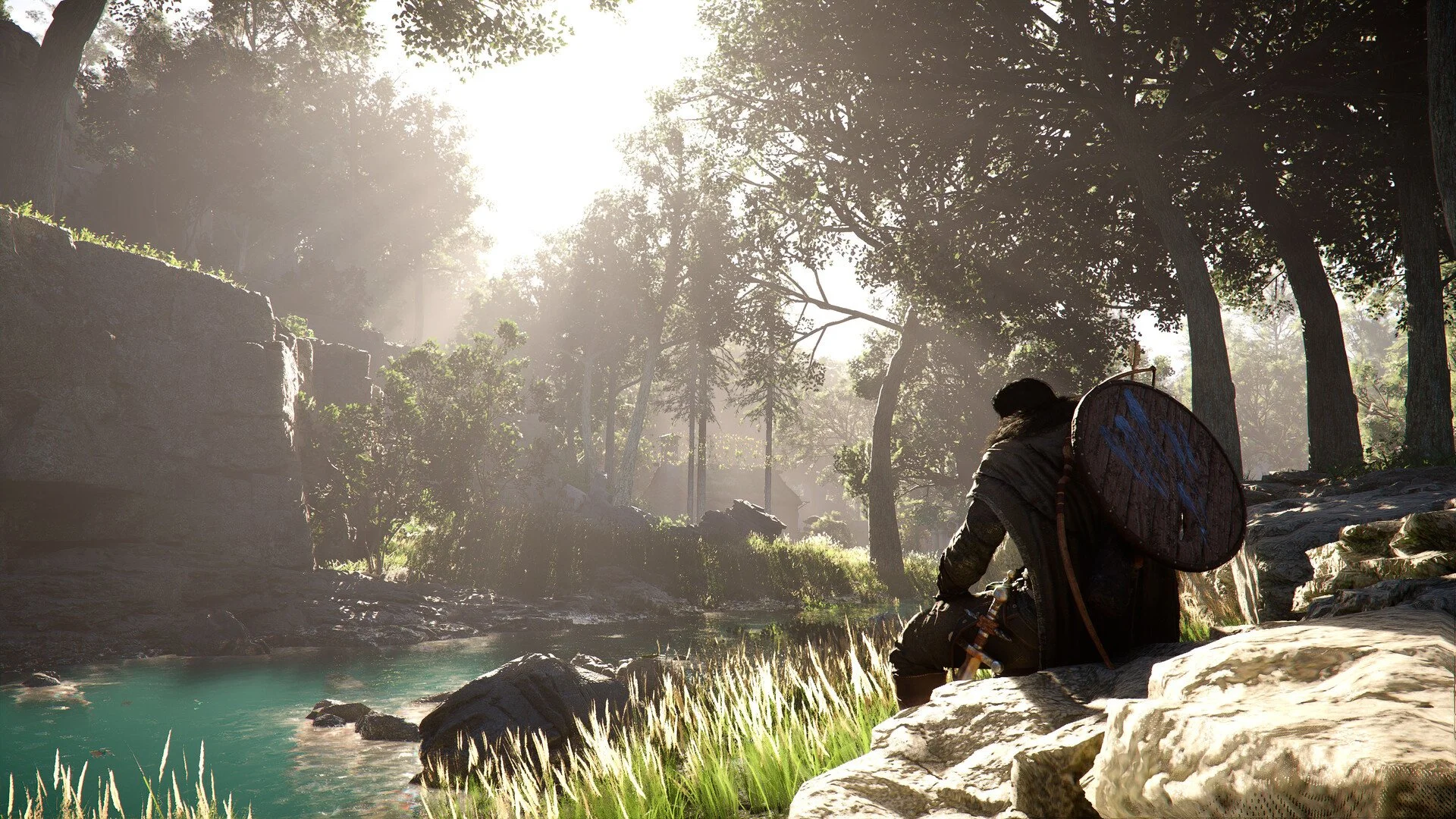
Crimson Desert looks either amazing or completely off depending on your HDR setup. The default settings can make the game look too dark, too grey, or weirdly bright. Once you fix a few key settings, the difference is immediate and very noticeable.
Best HDR Settings For Crimson Desert
Enable HDR, calibrate brightness until the symbol is barely visible, match your TV’s peak nits, and use Performance Mode with proper sync settings.
That combo gives you the cleanest image, better contrast, and smooth gameplay without crushing shadows or blowing out highlights.
How To Calibrate HDR In Crimson Desert
The in game HDR calibration is the most important part. If this is wrong, everything else looks off.
Go into display settings and turn HDR on, then follow the calibration screen.
Raise brightness until the symbol is just barely visible
Do not push it higher just because it looks brighter
Stop as soon as the symbol starts to fade
If the symbol is clearly visible, your HDR is too dim. If it disappears completely, you went too far.
Matching HDR Brightness To Your TV
This is where most people mess it up. The number you pick should match your display, not random guesses.
Here is a rough guide based on common displays.
LG OLED like C2 or similar, around 700 to 800 nits
Samsung OLED like S90 series, around 600 to 1000 nits
Newer high end panels, around 1500 to 2000 nits
If your game is telling you something like 2000 plus nits on a mid range OLED, that is not correct. That usually means tone mapping or settings are off somewhere.
Stick close to your real peak brightness and let the game do the rest.
Best Graphics And Sync Settings
HDR looks better when performance is stable, so your mode and sync settings matter a lot.
Here is what works best for most setups.
Use Performance Mode for smoother gameplay
Keep VRR on if your display supports it
Turn V Sync off on PS5 Pro for better frame pacing
There is one exception here. On base PS5, turning V Sync off can cause screen tearing. If that happens, turn it back on and accept the slightly lower smoothness.
Extra Visual Settings That Improve HDR
These settings clean up the image and make HDR look sharper.
Turn motion blur off
Lower or disable depth of field
Use Game Mode on your TV
Avoid Vivid or overly saturated presets
These changes remove blur and keep colors from looking fake or overdone.
HDR10 Plus And PC Issues
If you are on PC, you might notice HDR10 Plus is greyed out or not working correctly.
Right now, that setting is inconsistent.
It may stay locked even on supported displays
It mostly auto adjusts brightness anyway
Some setups show unstable brightness or visual artifacts
Standard HDR is usually more reliable for now.
Why Your HDR Might Look Bad
If your game still looks off, it usually comes down to a few common problems.
HDR brightness set way too high
TV settings using Vivid or heavy tone mapping
Game not fully updated
Wrong sync settings causing stutter or tearing
Fixing these usually solves the issue quickly.
Final Blurb
Crimson Desert HDR looks incredible once it is dialed in correctly. The biggest mistake is guessing brightness instead of matching your display. Take a minute to set it properly and the game goes from flat and dull to sharp and vibrant.
FAQ
Should I follow the in game HDR symbol or my TV specs
Use both together. Start with the symbol, then make sure the final value lines up with your TV’s peak brightness.
Why does my HDR look too dark or grey
That usually means the brightness is set too low or your TV is using the wrong picture mode.
Is V Sync better on or off
On PS5 Pro, turning it off with VRR helps performance. On base PS5, keeping it on prevents screen tearing.
Does HDR10 Plus make a big difference
Not really right now. It mainly adjusts brightness automatically and is often unstable or greyed out.