Dead as Disco: How To Add And Import Songs
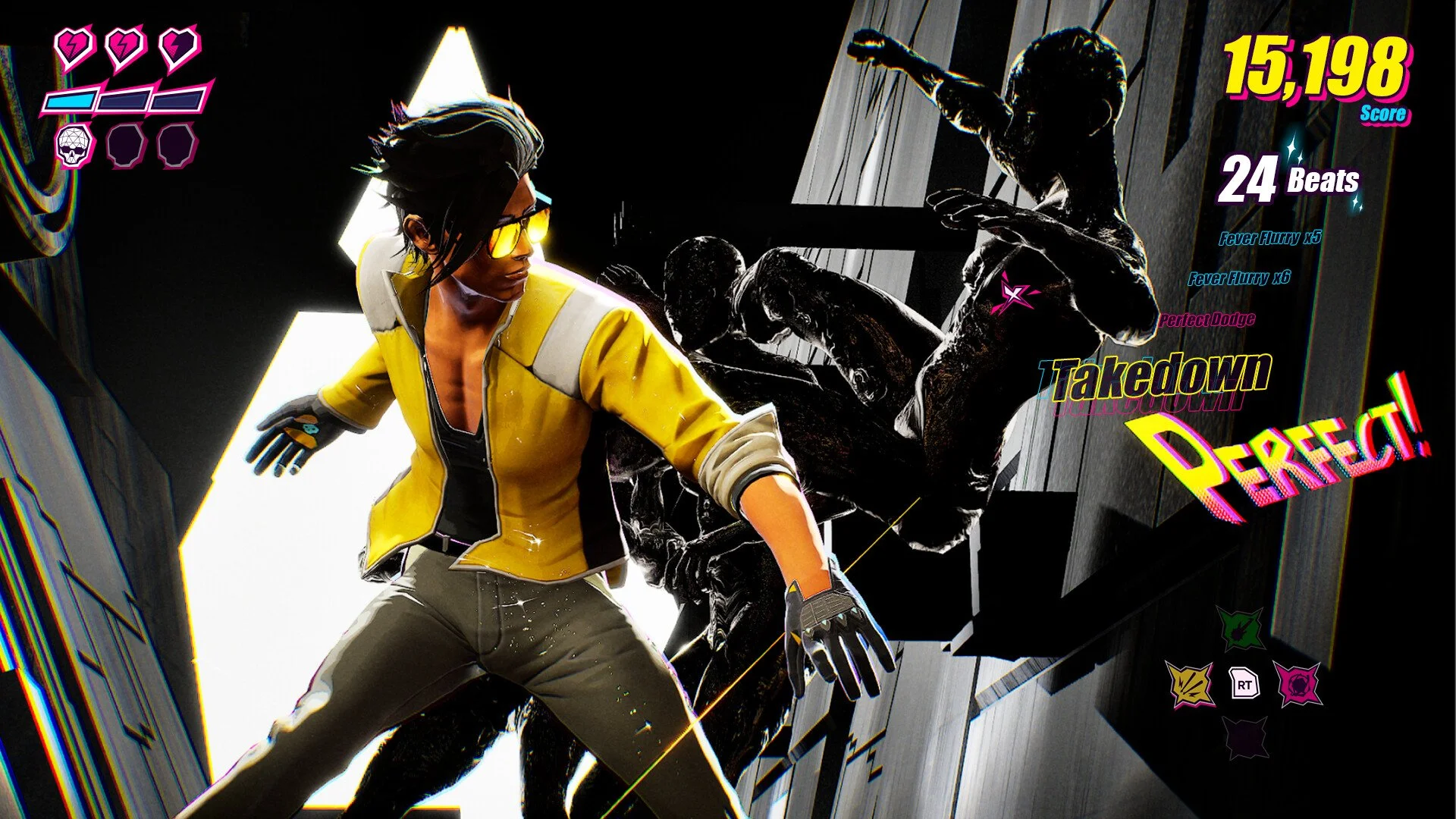
Dead as Disco lets players add custom songs through Infinite Disco mode, where imported MP3 tracks can be used for Free Play fights. The important part is not just adding the file, but setting the song’s tempo correctly so movement, attacks, enemies, and beat timing feel synced instead of slightly cursed.
Jump To
How To Add Songs In Dead As Disco
To add songs in Dead as Disco, open Infinite Disco from the main menu, go to Free Play, select Add My Music, then choose an MP3 file to import into the game.
Custom music is handled through Infinite Disco, not the main story flow. After entering Infinite Disco, Free Play is the mode used for imported songs. From there, the Add My Music button opens the file import process, letting the game bring in a local MP3 track.
The import itself is simple. The part that actually decides if the song feels good is the setup after import. A track with the wrong BPM can technically work, but it will make attacks and enemy movement feel out of sync. In a rhythm action game, that is basically asking the song and the combat system to argue for 3 minutes.
Quick Import Steps
The fastest way to import songs in Dead as Disco is to open Infinite Disco, enter Free Play, select Add My Music, choose an MP3 file, set the BPM, then test the track once before adjusting Beat Offset or using the Advanced Editor.
- Open Dead as Disco
- Select Infinite Disco from the main menu
- Go to Free Play
- Select Add My Music
- Choose an MP3 file from the computer
- Name the track if needed
- Set the song BPM
- Test the track in Free Play
- Adjust Beat Offset or Calibrate if the timing feels wrong
This order keeps the setup clean. BPM comes first because it controls the main timing of the song. Beat Offset and calibration should come after testing, since those tools are for fixing a track that is already close but still slightly early, late, or messy.
Where Imported Songs Work
Imported songs work in Dead as Disco’s Infinite Disco mode, specifically through Free Play.
Infinite Disco is the mode built around fighting waves of enemies to custom music. The normal campaign and other structured content are not the main place for imported tracks. The custom song system is meant for endless rhythm combat, where the game can use the uploaded track to shape the pace of the fight.
Free Play is important because Infinite Disco also has challenge content. When the goal is to use a personal song, move away from the challenge levels and into Free Play. On controller, the menu flow uses RT to move over to the Free Play option.
This setup keeps custom songs separate from the more fixed parts of the game. It also makes sense because imported songs need their own tempo settings, Beat Offset, and calibration to feel right. A custom track is more flexible, but it also needs more care before it becomes a clean fight.
Best File Type To Use For Custom Songs
The best file type to use for imported songs in Dead as Disco is MP3.
MP3 files are the supported format in the import flow, so the cleanest setup is to use a legally owned or properly downloaded MP3 file. A purchased music file, exported personal track, or other local MP3 works better than trying to force the game to read unsupported formats.
The song file also matters for timing. Clean audio is easier to sync than a messy file with long intros, crowd noise, skits, random silence, or music video sound effects. Dead as Disco can only feel as clean as the track being imported. A song with a steady beat is much easier to turn into a good Infinite Disco run than a track that changes tempo every 12 seconds like it is trying to win an argument with itself.
The safest song file has:
- A clear beat
- A steady tempo
- Minimal silence at the start
- No long spoken intro
- No random sound effects over the music
- A clean MP3 format
If a track starts with silence or extra noise, it can still work, but the Beat Offset and Advanced Editor become more important.
How To Set BPM For Imported Songs
BPM is the most important setting for imported songs because it controls how fast the song feels in gameplay and how well attacks and enemy movement line up with the beat.
After importing an MP3, Dead as Disco lets the track’s tempo be changed. The game recommends using a tempo between 120 and 200 BPM for the best results. That range tends to fit the rhythm combat better because it gives enough pace without making every beat feel either sleepy or completely unhinged.
The easiest way to set BPM is to look up the song’s BPM first, then enter that number during the track setup. This gives the game a cleaner starting point. If the beat still feels slightly late or early, use Beat Offset or the Advanced Editor to fine tune it.
BPM changes how the fight feels. A lower BPM can make the combat feel slower and more readable. A higher BPM can make movement and enemy pressure feel faster. The right number should make attacks feel natural with the beat, not like the game is one step behind the song.
How To Edit Imported Tracks
Imported tracks can be edited after upload, including the song name, tempo, Beat Offset, and deeper timing details through the Advanced Editor.
The name edit is mostly for organization. It helps keep custom songs readable once the library starts growing. The tempo edit is the real gameplay setting. If the BPM is wrong, the track can feel playable on paper but uncomfortable in actual combat.
Beat Offset is used when the BPM is close, but the beat still feels slightly early or late. This usually happens when the song file has a small delay at the start or when the beat does not begin exactly where the game expects. A small offset adjustment can make the difference between a track that feels sloppy and a track that suddenly clicks.
The best editing order is:
- Import the MP3
- Name the track clearly
- Set the BPM first
- Test the song in Free Play
- Adjust Beat Offset if the timing feels early or late
- Use Advanced Editor if the track still needs tighter syncing
Do not start by overediting. Get the BPM close first. Most songs only need a correct tempo and maybe a small offset correction before they feel good enough to play.
How To Calibrate Songs With The Advanced Editor
The Advanced Editor lets imported songs be calibrated more precisely, including a Calibrate option that allows tapping along to the beat.
This is the best tool when a song feels close but not clean. The Calibrate option helps line the game up with the track by letting the beat be tapped manually. That is useful for songs where the listed BPM is slightly wrong, where the beat starts after a short intro, or where the file itself does not begin cleanly.
Use calibration when:
- The song imports correctly but feels out of sync
- The BPM is known but attacks still feel late
- The beat starts after an intro
- The track has a small delay before the first real beat
- Beat Offset alone does not fix the timing
The Advanced Editor does not need to be used for every song. If the BPM is correct and the song feels good in Free Play, leave it alone. The editor is there for problem tracks and for cleaner timing. It is powerful, but not every MP3 needs a full rhythm surgery session.
Best Songs To Import In Dead As Disco
The best songs to import in Dead as Disco are tracks with a steady beat, clear rhythm, and a BPM between 120 and 200.
Fast, clean, beat driven songs usually work better than tracks with long slow sections or heavy tempo changes. Disco, electronic, dance, rock, pop, drum and bass, and other rhythm focused genres can all work well if the beat is easy to follow. The genre matters less than the structure of the song.
A good Infinite Disco track should make the combat feel readable. If the song has a clear pulse, it is easier to attack, dodge, and feel the fight moving with the music. If the song drifts, pauses, or changes rhythm constantly, the imported track may still be fun, but it will be harder to sync cleanly.
Good song traits include:
- Clear drums or bassline
- Consistent tempo
- Strong downbeat
- Short intro
- Minimal silence
- No random audio clips breaking the beat
The funniest song choice is not always the best gameplay choice. A meme track can work once. A clean beat works every time.
Why Imported Songs Feel Off
Imported songs usually feel off because the BPM is wrong, the Beat Offset needs adjustment, the file has silence at the start, or the track has tempo changes that are hard to sync.
The first fix is always BPM. If the song’s tempo is wrong, the entire fight will feel wrong. Look up the BPM, enter it manually, then test the track again. If the rhythm is close but still slightly misaligned, adjust Beat Offset.
If the song has a long intro, Beat Offset becomes more important. The game may be tracking from the start of the file, while the actual beat starts later. That delay can make the imported song feel like it is missing the mark even when the BPM number is correct.
If a track changes tempo heavily, there may not be a perfect fix. Dead as Disco can handle custom songs, but a track that constantly shifts speed is harder to sync than a steady one. In that case, the best answer may be using a cleaner edit of the song or choosing a different track.
| Problem | Likely Cause | Best Fix |
|---|---|---|
| Song feels too fast or too slow | Wrong BPM | Look up the song BPM and enter the correct tempo. |
| Beat feels slightly late or early | Offset issue | Adjust Beat Offset or use Calibrate. |
| Timing feels wrong after an intro | Silence or buildup before the beat | Use Beat Offset or a cleaner MP3 file. |
| Song never feels fully synced | Tempo changes or messy audio | Try the Advanced Editor or use a steadier track. |
The main thing is to fix one variable at a time. Change BPM first, then offset, then calibration. Changing everything at once makes it harder to know what actually fixed the track.
Custom Song Tips For Better Infinite Disco Runs
The best custom song setup is a clean MP3 with a steady BPM, a short intro, and timing that has been tested once before serious Free Play attempts.
Imported songs can make Infinite Disco feel completely different from the base soundtrack, but they need a little setup. A good song with bad BPM will feel worse than an average song with clean timing. Start with the tempo, test the track, then use Beat Offset or calibration only if the song still feels wrong.
For the smoothest results, use this setup order:
- Use a clean MP3 file
- Pick a song with a steady beat
- Keep the BPM between 120 and 200 when possible
- Look up the BPM before guessing
- Test the song once in Free Play
- Adjust Beat Offset only after the BPM is close
- Use Advanced Editor for tracks that still feel off
Once the track is synced, the fight should feel like it belongs to the song. Attacks, enemy movement, and the overall pace should feel connected to the beat instead of floating around it. That is when Infinite Disco starts showing why custom music is such a strong feature. It turns the playlist into the fight plan, which is a very stylish way to get punched.
Final Blurb
Adding songs in Dead as Disco is done through Infinite Disco’s Free Play mode by selecting Add My Music and importing an MP3 file. After that, the real setup is editing the tempo, checking the BPM, and using Beat Offset or the Advanced Editor if the timing needs cleanup.
The best imported songs have a clear beat, a steady tempo, and clean audio with little delay at the start. Get the BPM close first, calibrate only when needed, then jump into Free Play and let the track drive the fight. Infinite Disco works best when the song feels synced, not when the game is trying to survive a mystery MP3 with 14 seconds of silence at the start.