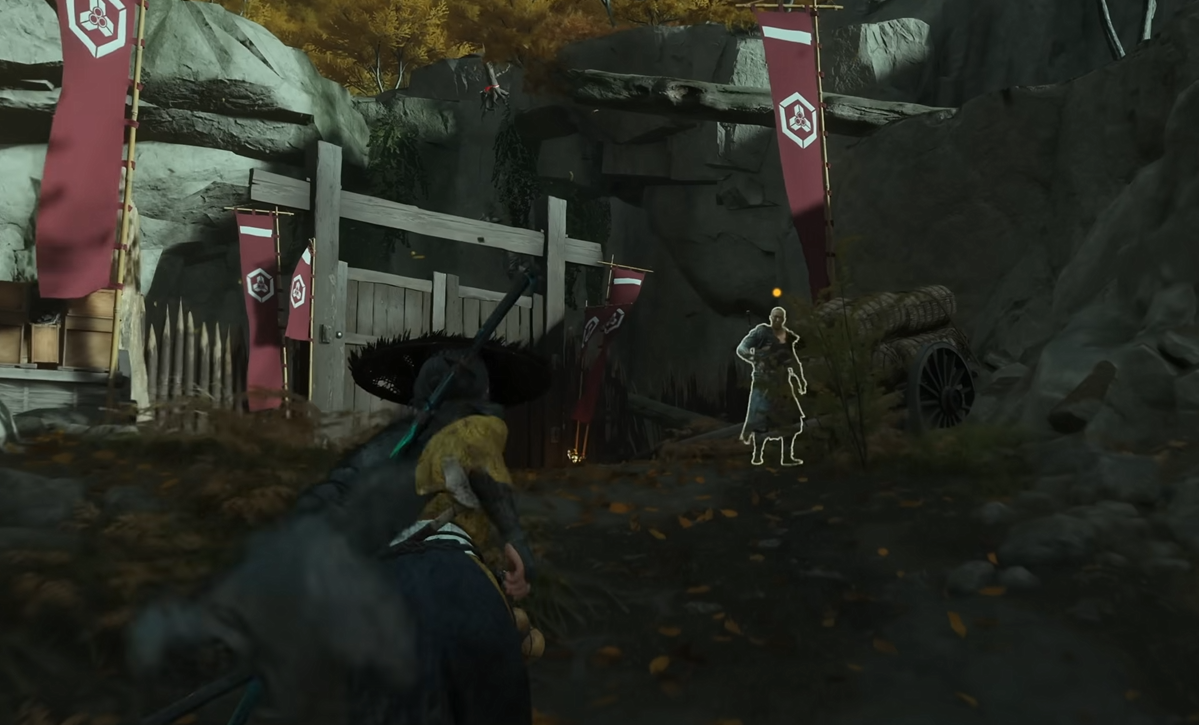
Ghost of Yotei How to Lock On Enemies
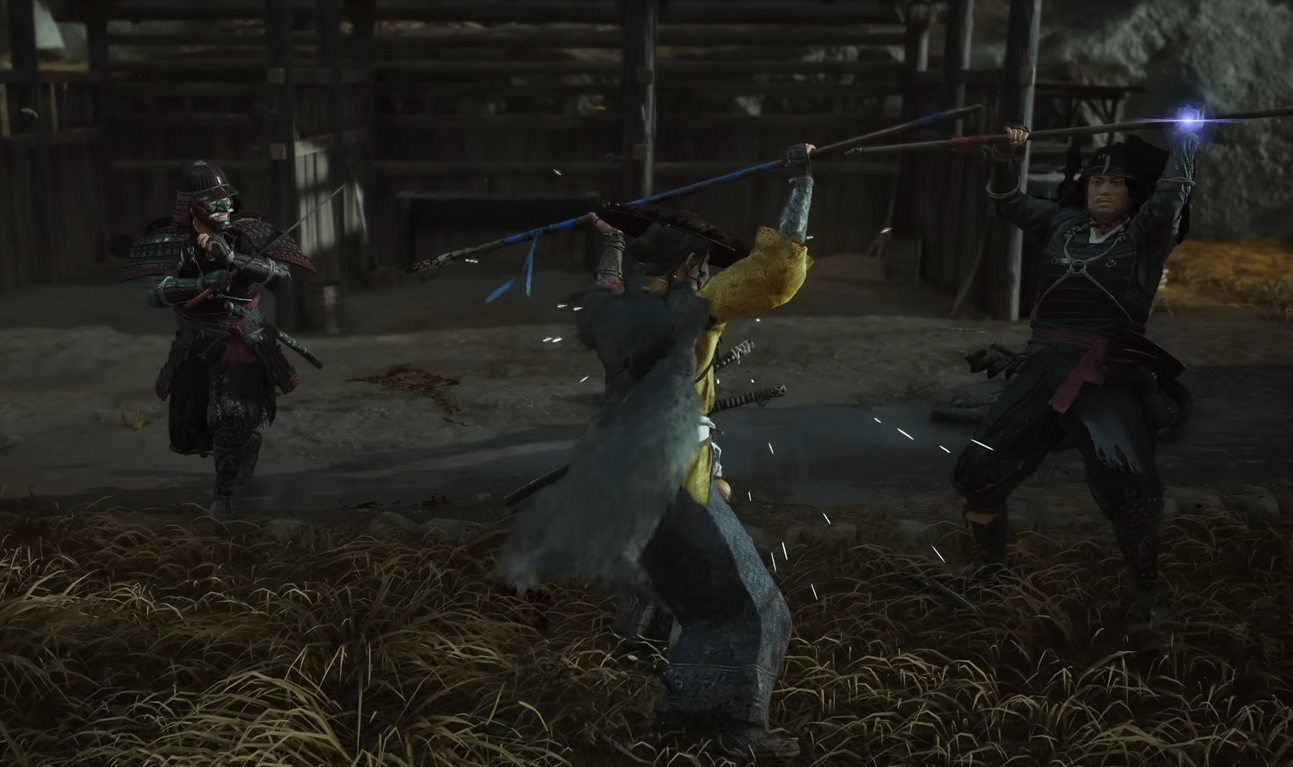
Locking on helps you stay focused on a single target during combat in Ghost of Yotei. By default, the feature is turned off, so many players miss it early in the game. This guide explains how to enable target lock, how to use it in fights, and which setting works best.
How to Change Your Lock On Settings
Target Lock is disabled when you start the game. To use it, open the Gameplay Settings menu and turn it on manually.
Go to the Pause Menu
Open Settings
Select Gameplay
Find Target Lock and turn it on
You will see two options when you enable it:
Enabled – lets you press the up button on the D-Pad to lock onto an enemy. You can switch targets by moving the right stick.
Swap on Defeat – works the same as Enabled but automatically switches to the next enemy when your current target is defeated.
Both settings work well, but Swap on Defeat keeps combat smoother by automatically cycling through enemies.
How to Lock On
Once Target Lock is enabled, you can activate it during combat.
Press the up button on the D-Pad to lock onto the nearest enemy
Move the right stick to change targets while locked on
Press up again to unlock or cancel
When locked on, the camera follows your target closely, making it easier to block, parry, and counter. This helps most against fast enemies or bosses that move frequently.
Best Tips for Locking On
Use lock on when facing one strong enemy or a boss
Disable it temporarily in large group fights to avoid losing awareness
Adjust camera sensitivity in settings for smoother tracking
Swap on Defeat is best for chain fights against multiple enemies
Locking on is optional, but mastering it gives you better control in tight encounters and one-on-one duels.
Final Blurb
To lock on in Ghost of Yotei, enable Target Lock from the Gameplay Settings, then press up on the D-Pad during combat. It helps track single enemies, improving reaction time and precision. Whether you prefer manual switching or automatic lock after each kill, turning this feature on makes every fight more controlled.
FAQ
How do you enable Target Lock in Ghost of Yotei?
Open Gameplay Settings, find Target Lock, and turn it on.
What button locks on to enemies?
Press up on the D-Pad to lock onto the nearest enemy.
How do you change targets?
Move the right stick to swap targets while locked on.
What’s the difference between Enabled and Swap on Defeat?
Enabled requires manual switching, while Swap on Defeat automatically locks onto the next enemy after a kill.
Should you use Target Lock?
Yes. It helps track fast enemies and improves timing during boss fights, though it’s best to disable it in large groups.
© 2025 GamerBlurb. Linking is welcome with credit to GamerBlurb.com. Copying or reproduction without permission is prohibited.
More Ghost of Yotei