Hozy: How To Rotate Furniture And Items
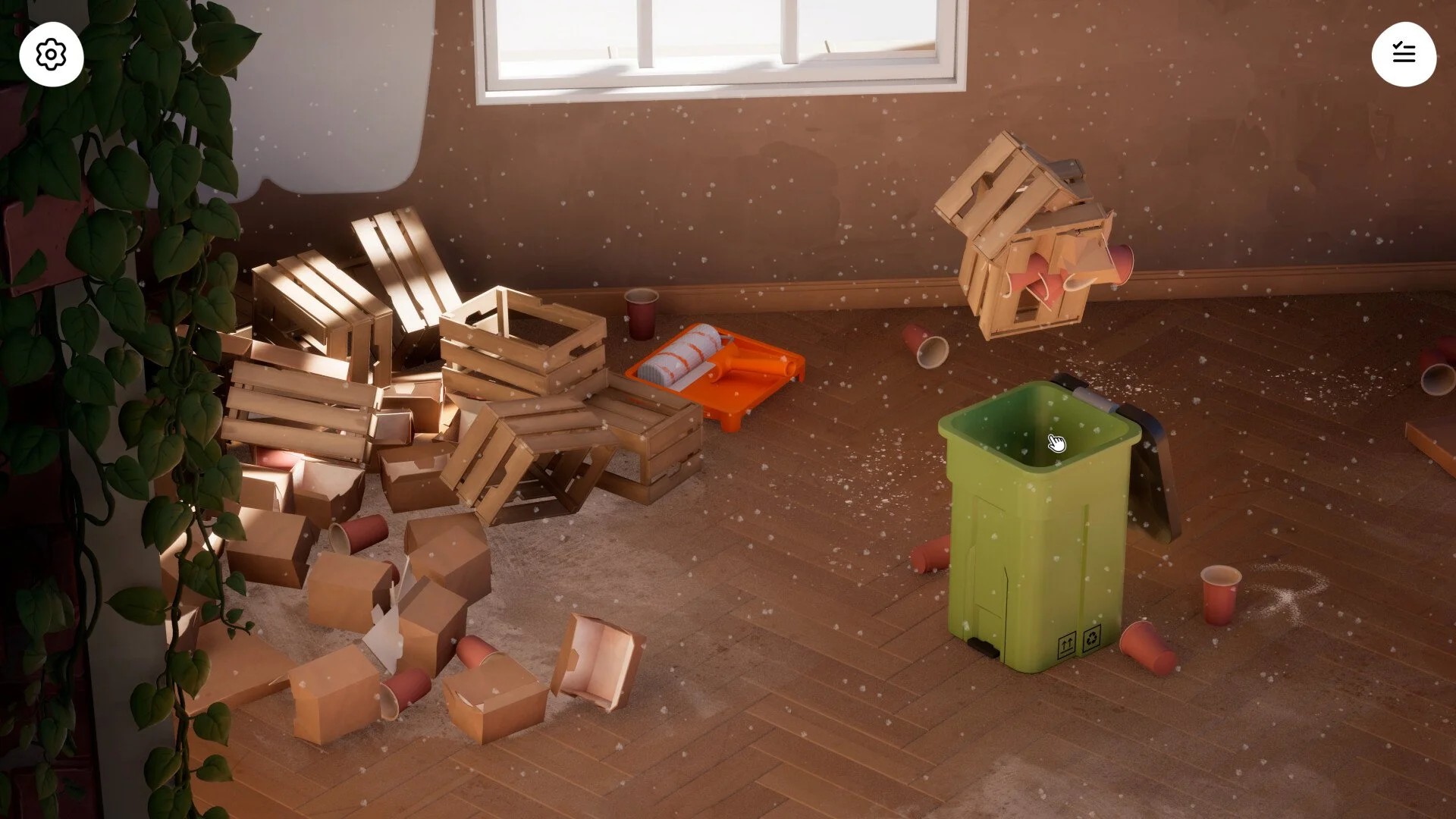
Getting furniture to face the right direction in Hozy feels weird at first, mostly because the game does not spell it out. A lot of people end up spinning the camera instead of the item and wonder why nothing is changing.
Once you know the actual input, rotating items becomes fast and easy every time you place something.
How Rotation Works In Hozy
You rotate furniture and items by scrolling the mouse wheel while holding the object.
You need to pick up the item first, then scroll the mouse wheel up or down. Do not click the wheel, and do not drag the mouse. Scrolling is what rotates the object.
You can freely adjust the angle before placing the item, nothing is locked in until you set it down, so you can keep tweaking it until it looks right.
Step By Step Rotation Controls
Pick up the furniture or item you want to place
Hold it in position where you want it
Scroll the mouse wheel to rotate it
Adjust until the angle looks right
Place the item
That is all there is to it once you know the correct input.
Why Rotation Might Not Be Working
A lot of issues come from using the wrong input or playing on a setup that does not support the control well.
Common Problems Players Run Into
Clicking the mouse wheel instead of scrolling it
Moving the mouse which rotates the camera instead
Trying to rotate without actually holding the item
Mouse wheel not registering inputs properly
If you are rotating the camera instead of the object, that means you are moving the mouse instead of scrolling.
Mac Trackpad And Laptop Issues
Trackpads are where most players run into problems.
Hozy currently relies on mouse wheel scrolling for rotation, and many trackpads do not have a true scroll input that the game recognizes the same way.
What This Means
You may not be able to rotate items using only a trackpad
Two finger gestures may not work depending on the device
There may not be a default alternate keybind yet
Workaround
Use an external mouse with a scroll wheel
Until the game adds better support or keybind options, this is the most reliable fix.
Extra Tips For Cleaner Placement
Rotate before placing to avoid repositioning later
Take advantage of free rotation since nothing locks until placement
Make small scroll adjustments instead of spinning too fast
It saves a lot of time and stops you from constantly picking items back up.
Final Blurb
Hozy keeps rotation simple, but the control is easy to miss. Scroll the mouse wheel while holding an item and you are set. If you are on a trackpad, grabbing a mouse will save you a lot of frustration.
FAQ
How do you rotate furniture in Hozy?
You rotate items by scrolling the mouse wheel while holding them.
Why is my item not rotating?
You are likely moving the mouse or clicking the wheel instead of scrolling.
Can you rotate furniture on a trackpad?
Trackpads may not work properly, and an external mouse is the best fix.
Can you rotate items after placing them?
You need to pick the item back up to rotate it again.