

RV There Yet Freezing Fix Guide
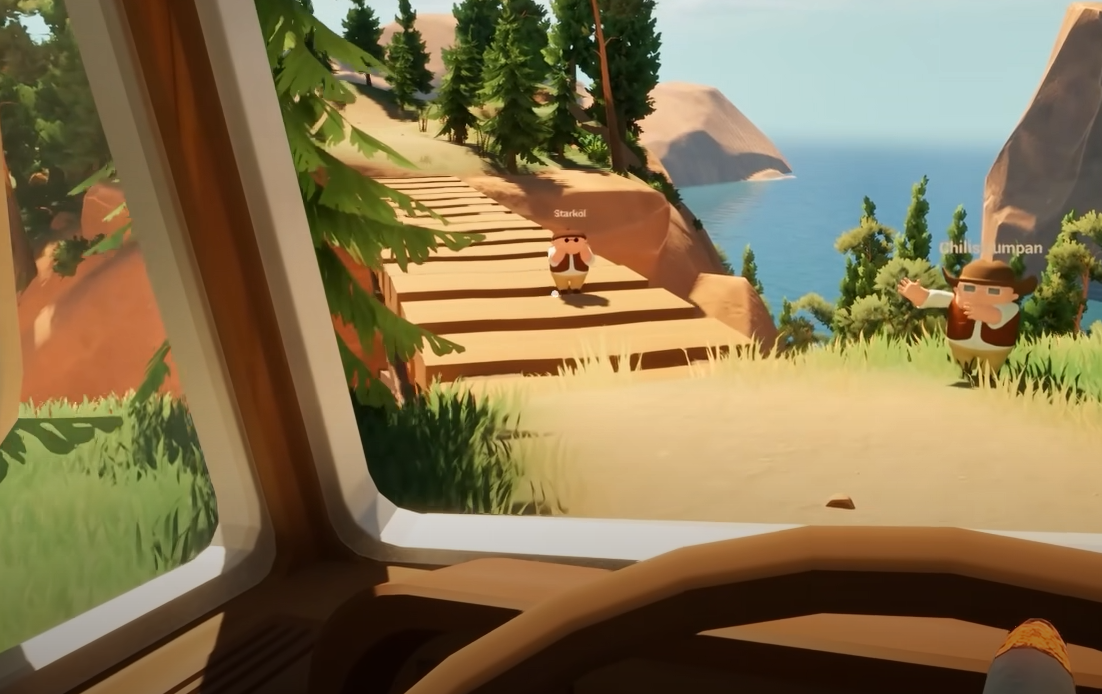
If RV There Yet keeps freezing, stuttering, or crashing mid-drive, you’re not the only one. The game’s physics and open areas can push your system hard, but most problems come from simple setup issues that are easy to fix.
Step 1 Check Drivers And Windows
Make sure your GPU drivers and Windows updates are current. Outdated software can cause sudden freezes or random crashes.
Use the latest NVIDIA, AMD, or Intel drivers from their official sites
Install all Windows updates under Settings
Restart your PC after each update
This ensures RV There Yet runs with the latest compatibility fixes.
Step 2 Verify Game Files
Broken files are a common cause of startup crashes.
Open Steam and right-click RV There Yet
Select Properties, then Installed Files
Click Verify Integrity of Game Files
Steam will replace any missing or damaged data automatically.
Step 3 Adjust Game Settings
If the game stutters or slows down when exploring, lower visual settings a bit.
Turn shadows and effects to Medium or Low
Set Anti-Aliasing to FXAA or Off
Disable V-Sync and cap the frame rate at 60
The game’s performance stabilizes once GPU strain drops.
Step 4 Turn Off Overlays
Steam, Discord, and NVIDIA overlays sometimes cause freezing during rendering.
Open Task Manager with Ctrl + Shift + Esc
Close any overlay or monitoring apps
Relaunch RV There Yet clean
This clears up memory usage and prevents input lag.
Step 5 Repair System Components
Missing or outdated DirectX and Visual C++ libraries can make the game hang or crash on load.
Install DirectX End-User Runtime from Microsoft
Reinstall Visual C++ Redistributables (2015–2022) for both x64 and x86
Restart once both installs are done.
Step 6 Check System Load
Keep your CPU and GPU under 80°C. Overheating leads to mid-game freezes. Clean your fans, avoid running downloads, and set your PC to High Performance mode under power settings.
Step 7 Reinstall If All Else Fails
If freezing continues after everything above, reinstall the game on an SSD. It eliminates corrupted install files and reduces load times.
Final Blurb
RV There Yet runs best when your system and drivers are up to date, overlays are disabled, and visuals are tuned to your rig. Verify your files, repair your runtimes, and clean up background tasks. Once it’s stable, the only thing freezing will be the mountains outside your RV.
FAQ
Why does the game freeze during driving
Usually from old GPU drivers or background apps eating memory.
Does verifying files help
Yes, it replaces any missing or corrupted files that cause crashes.
Should I reinstall
Only after verifying files and updating everything first.
Do high graphics settings cause freezing
Yes, especially shadows, reflections, and post effects.
How can I prevent future freezes
Keep your drivers current, monitor temps, and avoid overlays.
© 2025 GamerBlurb. Linking is welcome with credit to GamerBlurb.com. Copying or reproduction without permission is prohibited.
More RV There Yet


