Tales of the Shire: How to Access Storage
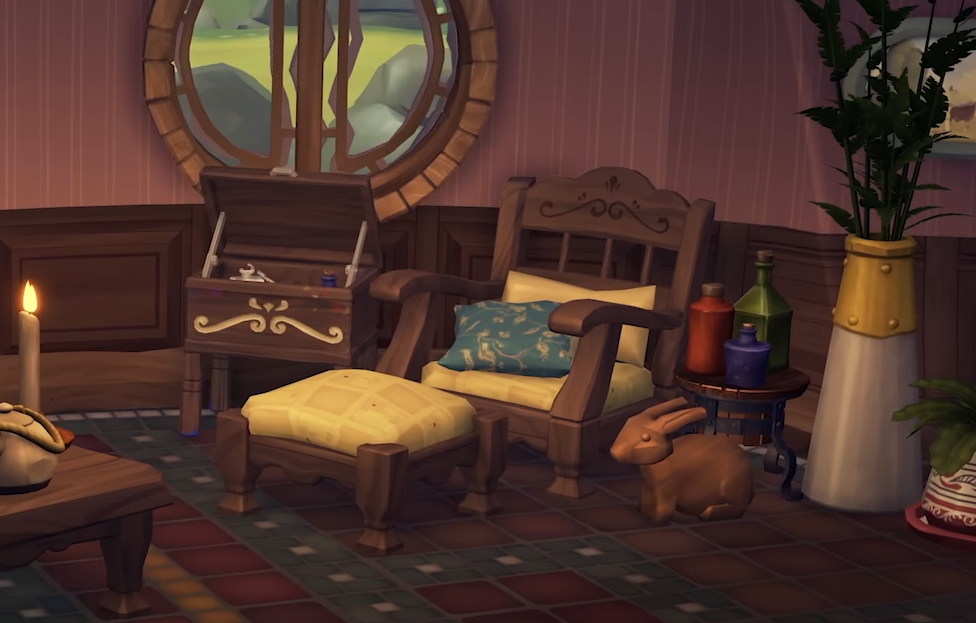
Your hobbit home in Tales of the Shire comes with a Home Decoration system that lets you store, place, and move furniture. This system is key for organizing your home, swapping out seasonal decorations, and keeping extra items safe.
How to Access Storage
To access storage, enter any room of your home and hold the Select button (the small button between the analog sticks on your controller). This opens Home Decoration mode, where you can edit your home layout.
Once in this mode, press Y (or △ on PlayStation) to open your Storage menu. Storage is divided into tabs: Furniture, Decorations, Meals, and Garden. Choose the tab you need and scroll through to see what items you have available.
Placing Items from Storage
After selecting an item, you will exit the Storage menu and can position the item anywhere in your home or garden. Use the camera to preview its placement and press A (or X on PlayStation) to confirm. Rotate items using RT/LT (R2/L2 on PlayStation) for better alignment. Note that rotation only works horizontally.
Storing Items
To store items back into Storage, stay in Home Decoration mode and highlight the item you want to put away until it glows blue. Press ↓ on the D-pad to automatically send it into Storage. You do not need to pick up or move the item first.
Storage Uses
Swap out furniture for seasonal looks.
Remove unused items to create space.
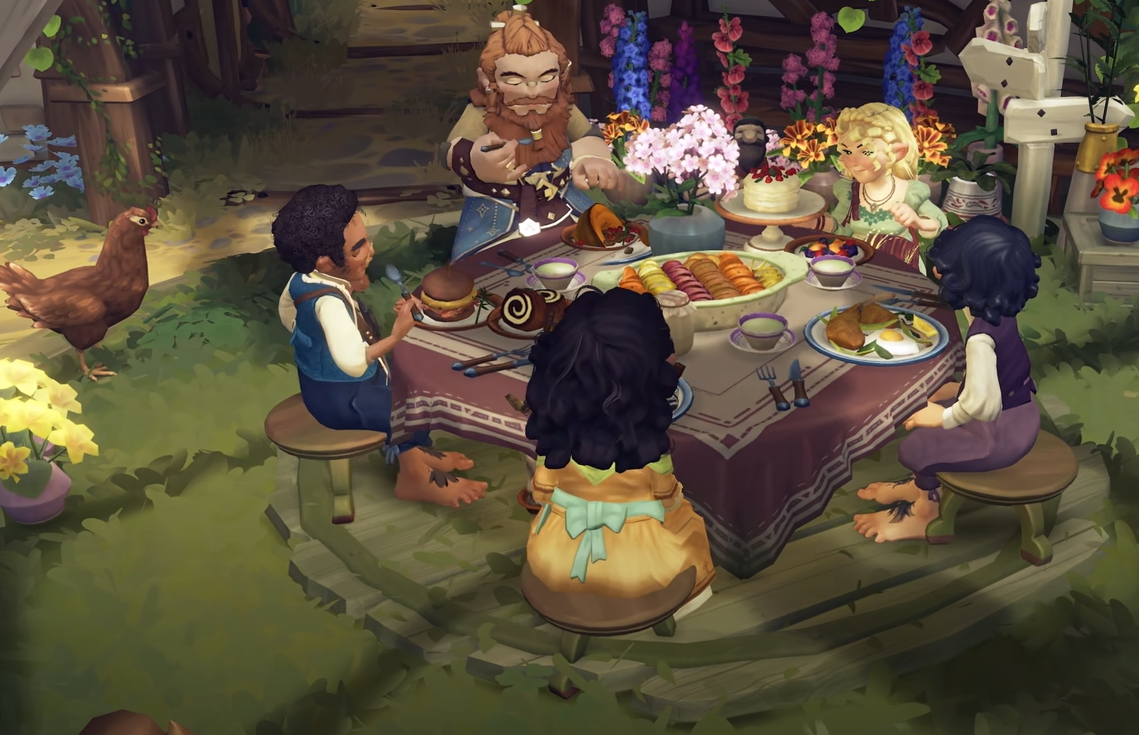
Keep extra decorations ready for shared meal events or themed rooms.
Final Blurb
Storage in Tales of the Shire is simple and flexible, letting you keep your home tidy while easily swapping furniture and decorations. Use Home Decoration mode to access and manage your items whenever you want.
FAQ
How do you open storage?
Hold the Select button to enter Home Decoration mode, then press Y or △ to open Storage.
Can you store any item?
Only furniture and decorations can be stored. Meals and garden items have separate placement limits.
Can you rotate furniture vertically?
No, furniture rotation is limited to horizontal movement only.
More Tales of the Shire