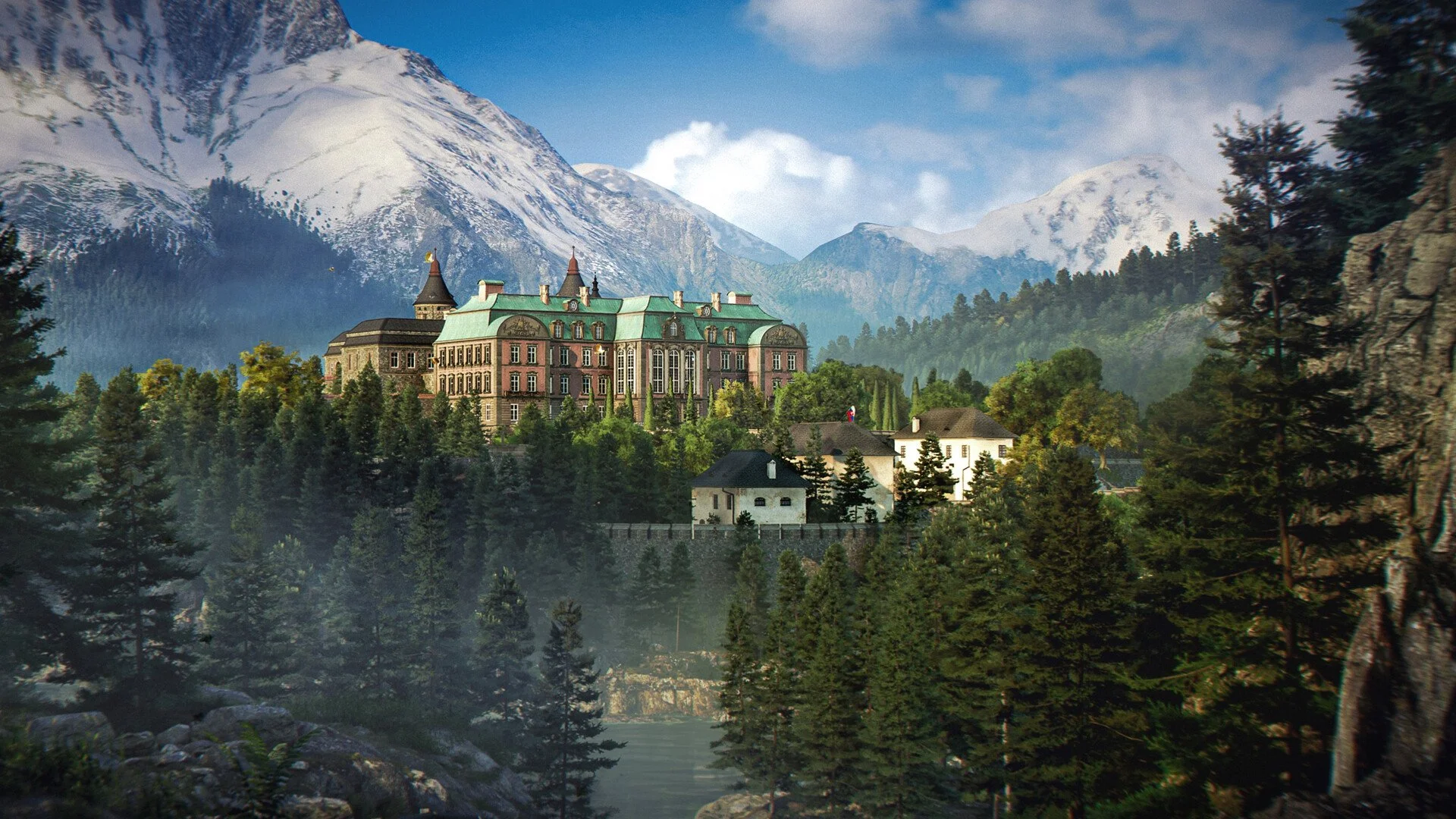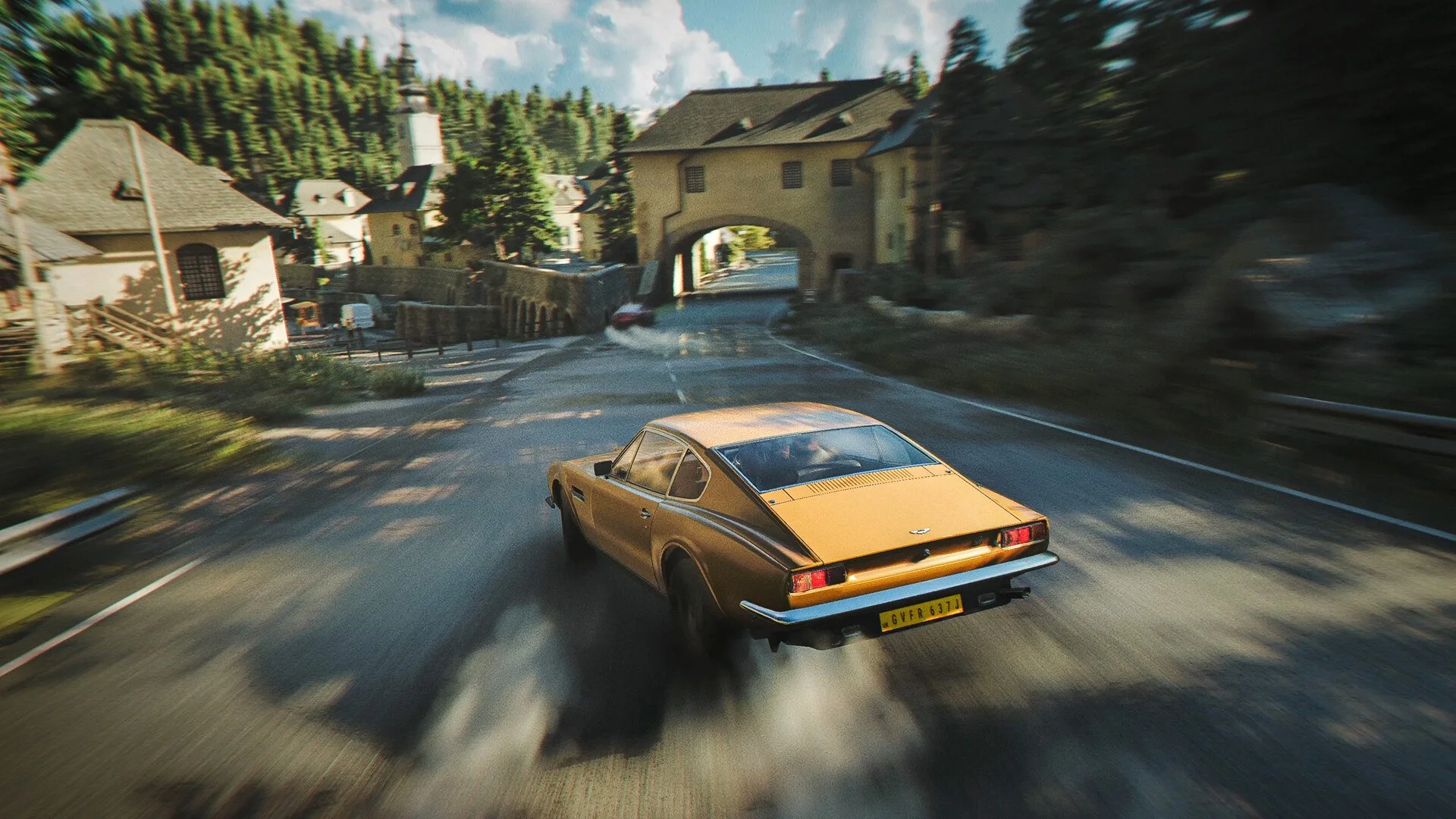
007 First Light HDR settings can make the game look sharp, bright, and cinematic, but the in game HDR Brightness slider is causing confusion because it can affect more than one part of the image. The best fix is to calibrate the console or PC HDR first, then tune the in game brightness with a scene that has both deep shadows and bright highlight detail on screen.
Jump To
Best 007 First Light HDR Settings
The best 007 First Light HDR setting is to calibrate HDR at the system level first, enable HGiG on supported TVs when possible, then lower or raise the in game HDR Brightness slider until bright areas keep detail without making the black levels look gray.
There is no single perfect HDR Brightness number for every screen because the slider appears to behave differently based on platform calibration, display peak brightness, and TV tone mapping. Some players are getting good results near the default 250 range, some LG C1 users prefer the 300 to 400 range with HGiG, and some brighter displays need a much higher value if the slider is reading the system level HDR peak brightness. That makes the right setting less about copying one number and more about stopping at the point where highlight detail no longer improves.
The safest way to set it is simple. Use an area with dark shadows and a bright object or window in the same frame. Raise HDR Brightness until the bright area stops gaining extra visible detail, then leave it there. If the whole image starts looking milky, gray, or flat, the value is too high for that setup.
007 First Light can look good in HDR, but the slider is rough. It does not behave like a clean, clearly labeled paper white setting in every setup. Treat it like a combined brightness and highlight control until the game gets clearer calibration options or a patch.
Why 007 First Light HDR Looks Washed Out
007 First Light HDR can look washed out when the in game HDR Brightness value, system HDR calibration, and TV tone mapping are fighting each other instead of working as one chain.
The common washed out look comes from raised black levels, overbright scenes, or highlight detail being pushed too far. In practice, the image may look like someone put a gray filter over the game. Dark areas lose depth, bright areas stop showing extra detail, and the whole picture feels less punchy than SDR. Great spy lighting, slightly less great calibration menu. Very on brand for modern HDR.
The confusing part is that the in game HDR Brightness setting may affect both the average image brightness and the peak brightness range. That is why one player can say 250 looks correct while another says the same number looks too dim or flat. The TV, console HDR setup, Windows HDR calibration, and tone mapping setting can all change the result.
If the game looks washed out, do not immediately crank the slider higher. Higher values can make the issue worse. First check the TV tone mapping mode, make sure the console or PC HDR calibration is clean, then adjust the in game slider in a real gameplay scene instead of using the menu alone.
How To Calibrate HDR In 007 First Light
The best calibration method for 007 First Light is to set the console or Windows HDR calibration first, then tune the in game HDR Brightness slider using highlight detail as the guide.
On PS5 or Xbox Series X|S, start with the system HDR calibration tool. Follow the console prompts and make sure the display is already in its game mode or low latency HDR mode before calibrating. On PC, use Windows HDR calibration if the display supports it and make sure HDR is enabled before launching the game.
After that, open 007 First Light and test HDR Brightness in gameplay. A scene with a bright window, strong sunlight, or reflective surface next to darker indoor detail works best. The goal is not to make the whole screen as bright as possible. The goal is to keep bright detail visible while keeping shadows from turning gray.
Use this basic calibration order:
- Enable HDR on the console or PC.
- Put the TV or monitor in Game Mode.
- Use HGiG if the TV supports it and the image is not too dark for the room.
- Run the console or Windows HDR calibration tool.
- Launch 007 First Light and open a scene with both bright and dark detail.
- Adjust HDR Brightness until highlights stop gaining detail.
- Lower the value if black levels look lifted or the picture looks gray.
I would not tune this game from the first dark mission alone. Dark opening areas can make HDR problems look worse, especially if the game is also using heavy post processing. A brighter indoor scene with visible windows gives a cleaner read because blown out highlight detail is easier to spot.
If visual clarity is the bigger issue, the 007 First Light best PC settings guide covers the broader graphics options that can make the image cleaner outside of HDR.
Best LG OLED HDR Settings For 007 First Light
For LG OLED TVs like the C1, C4, G5, and similar models, the best starting point is Game Optimizer mode, HGiG enabled, console HDR calibrated, then 007 First Light HDR Brightness adjusted from the 250 to 400 range before fine tuning by eye.
LG OLED owners are reporting different ideal values because setup matters a lot. A player using HGiG may prefer a lower value around 300 to 400 on an LG C1, while another using Dynamic Tone Mapping may need a different value because the TV is already lifting the image. A brighter LG G series panel can also behave differently than an older C series panel.
For most LG OLED setups, start here:
| Setting | Recommended Starting Point |
|---|---|
| Picture Mode | Game Optimizer |
| HDR Tone Mapping | HGiG if using console HDR calibration |
| Dynamic Tone Mapping | Off or HGiG first, then test DTM only if the image feels too dim |
| 007 First Light HDR Brightness | Start near 250, then test 300 to 400 on many LG OLED setups |
| Film Grain And Blur | Personal preference, but turning them down can make the image look cleaner |
HGiG usually gives a more controlled image because the console or PC handles the HDR range and the TV avoids adding extra tone mapping on top. Dynamic Tone Mapping can look brighter, but it can also lift blacks or flatten highlight detail. That is the tradeoff. Brighter is not always better if the image starts looking like Bond left his contrast in the hotel safe.
For an LG C1 specifically, 300 to 400 is a solid test range with HGiG. If the picture still looks too dim, raise the value slowly while watching the brightest part of the scene. If black levels start looking cloudy, back it down.
007 First Light HDR Settings On PC
On PC, 007 First Light HDR should be calibrated through Windows first, then adjusted in game because the HDR Brightness slider may read from the Windows HDR calibration range.
PC HDR is messy because Windows, the GPU driver, the display, and the game all have a say in the final image. Start by turning HDR on in Windows, run the Windows HDR Calibration app if available, and make sure the monitor is in its correct HDR mode. Then launch the game and set HDR Brightness inside 007 First Light after the display is already in HDR.
If the slider resets when the game launches, check it again after booting back in. Some players have reported needing to reapply the value, so it is worth checking before judging the image. If HDR looks washed out on PC even after calibration, test SDR as a temporary fallback and make sure the issue is not mixed with black screen, launch, or driver problems.
For technical issues beyond HDR, the 007 First Light won’t launch fix guide and 007 First Light black screen fix guide cover the more annoying PC problems that can get mistaken for display setup issues.
Should HDR Be On Or Off In 007 First Light?
HDR is worth using in 007 First Light if the display supports proper HDR and the image can be calibrated without raised blacks, but SDR is the better temporary choice if HDR still looks washed out after tuning.
HDR has the higher ceiling. When it is set correctly, bright lights, reflections, windows, and high contrast scenes can look better than SDR. The problem is that bad HDR looks worse than clean SDR. If the game looks gray, dim, or overbright no matter where the slider lands, turning HDR off is a practical fix until the setup or game calibration improves.
SDR is also useful as a comparison tool. Toggle HDR off, check the same scene in SDR, then turn HDR back on and compare. HDR should add range and highlight detail without destroying the black level. If SDR looks cleaner and HDR looks faded, the HDR chain needs work.
For a first playthrough, HDR is worth testing for a few minutes before committing. 007 First Light has enough cinematic lighting that good HDR can help the game’s presentation, but no setting is worth fighting for 45 minutes when SDR already looks clean.
After the image is set, mission flow matters more than slider drama. The 007 First Light full mission list is useful for tracking how far the campaign goes once the picture finally stops looking like a fog machine won.
007 First Light HDR Quick Fix Table
| Problem | Best Fix |
|---|---|
| HDR looks washed out | Lower HDR Brightness and test HGiG instead of Dynamic Tone Mapping. |
| Bright areas lose detail | Lower the in game HDR Brightness until highlight detail returns. |
| HDR looks too dim | Run system HDR calibration again, then raise the in game slider slowly. |
| Black levels look gray | Reduce HDR Brightness, turn off aggressive tone mapping, and check TV black level settings. |
| LG OLED image looks too flat | Use Game Optimizer, try HGiG, recalibrate the console, then test around 300 to 400. |
| PC HDR looks wrong | Use Windows HDR Calibration, relaunch the game, then adjust HDR Brightness again. |
| HDR still looks bad | Use SDR until the game or setup behaves better. |
The key mistake is chasing brightness instead of detail. HDR should make the bright parts of the image more detailed and impactful, not turn the whole screen into a flashlight. Once highlight detail stops improving, raising the slider higher usually hurts more than it helps.
For overall play comfort, HDR is only one part of the setup. Difficulty, visibility, and mission pacing can affect how the game feels too, especially during early stealth and action sections. The 007 First Light best difficulty guide helps set that side of the game before the campaign gets deeper.
Final Blurb
007 First Light HDR settings are best handled by calibration instead of copying one random number. Set the console or PC HDR first, use HGiG if the display supports it, then adjust the in game HDR Brightness slider in a scene with both bright detail and dark shadows.
The best value is the point where highlights keep their detail and black levels stay deep. If the picture gets brighter but flatter, the slider has gone too far. HDR can look good in 007 First Light, but the current settings are clunky enough that SDR is still a fair backup when the image refuses to behave. Very advanced spy tech, apparently calibrated by a guy holding the remote from across the room.