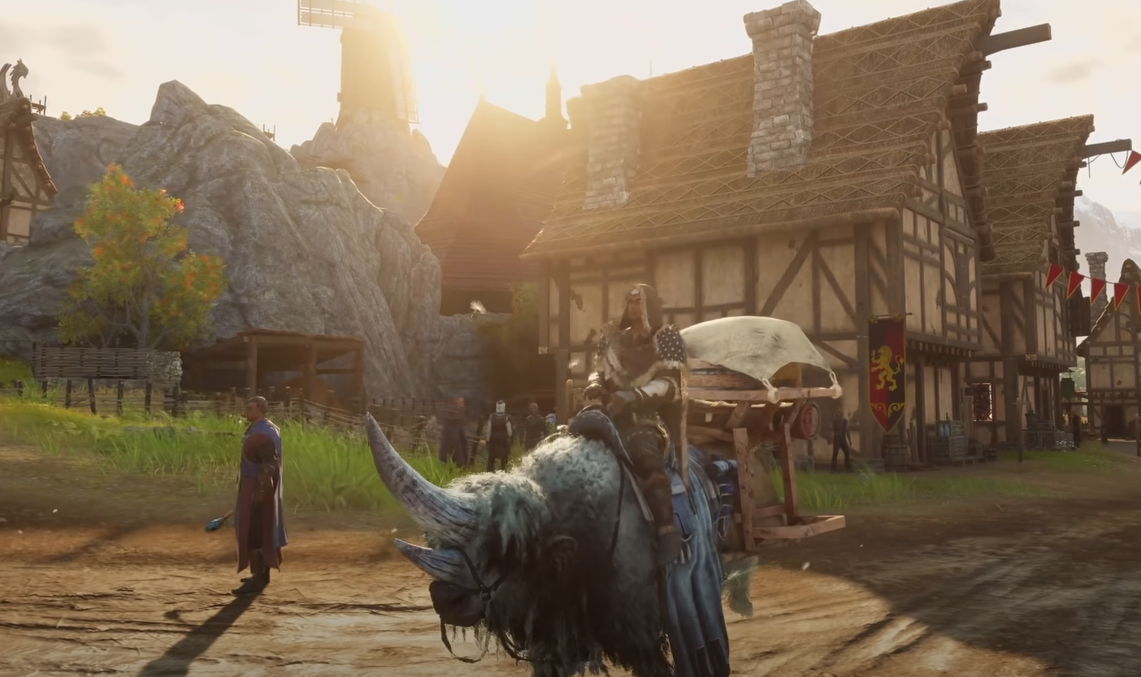
Ashes of Creation Blurry Graphics Fix Guide
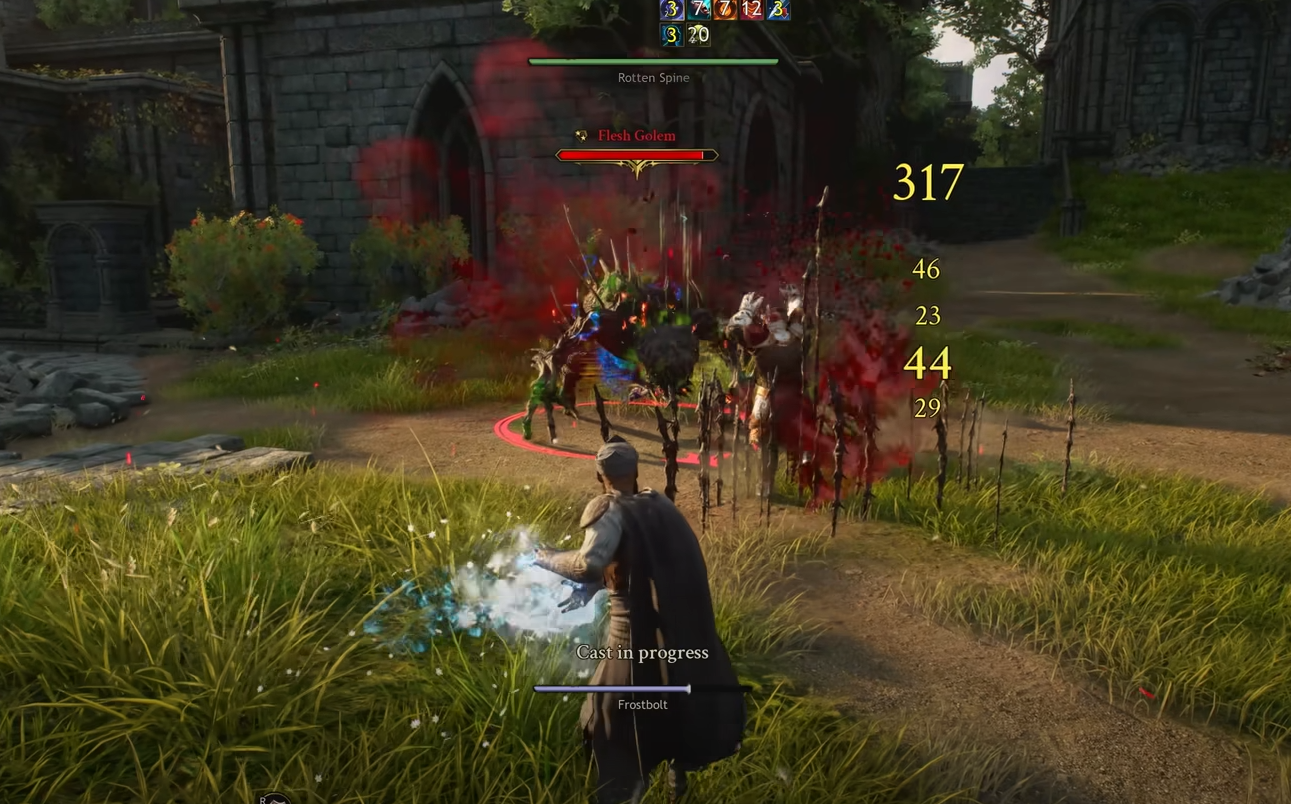
If your screen looks like someone smeared Vaseline on it, you’re not the only one. Ashes of Creation can look oddly blurry even on strong PCs, mostly due to post-processing and upscaling issues. Luckily, fixing it only takes a few quick setting changes.
How to Fix Blurry Graphics in Ashes of Creation
The blurriness usually comes from the game’s default upscaling or lighting setup. The fastest fix is lowering Global Illumination and adjusting your DLSS or FSR settings.
Step 1: Adjust Global Illumination
Go into your video settings and set Global Illumination to Medium or Low. Higher settings are currently bugged and cause major softness in textures and lighting. Medium looks cleaner and sharper while keeping the world bright enough.
Step 2: Fix Resolution and Upscaling
Make sure the game is running at your monitor’s native resolution. Then check which upscaler you’re using.
Set DLSS, FSR, or TSR to Quality mode if available
If the game still looks soft, turn off upscaling completely
Keep resolution scale above 60 percent to avoid low render quality
Step 3: Update DLSS and Add Sharpening
If you use DLSS, update it to version 3.10.4 with DLSS Swapper. This fixes several early issues with sharpness. You can also force some extra clarity through the NVIDIA app:
Open NVIDIA Control Panel or Inspector
Create a profile for Ashes of Creation
Set Image Sharpening to around 0.10
Optional, enable DLAA for cleaner edges if your GPU can handle it
Step 4: Turn Off Motion Blur
Motion Blur adds a soft haze when you move, which makes the game feel even blurrier. Turn it off under post-processing settings. You can leave Bloom and Ambient Occlusion on, but keep sharpening high enough to offset the effect.
Step 5: General Troubleshooting
If the blur sticks around, it could be from background rendering or display scaling. Try these quick checks:
Verify game files through Steam
Disable any forced resolution scaling in Windows display settings
Check that your GPU drivers are updated
Restart the game after any major setting change
If you’re using HDR, toggle it off and back on to reset color balance
Ray tracing and Lumen options were recently removed, so you won’t need to tweak those. If your monitor uses adaptive sync or variable refresh rate, make sure it’s enabled for smoother motion.
Final Blurb
Ashes of Creation can look stunning once it’s tuned right. The blur issue mostly comes from faulty lighting and aggressive upscaling, not your hardware. Lower the lighting, raise the render scale, and keep sharpening around 0.10. After that, Verra finally looks like the world it’s meant to be, not a painting behind fogged glass.
FAQ
Why does the game look blurry even on Ultra
Because high Global Illumination settings currently cause heavy post-processing blur.
Should I use DLSS or FSR
Yes, but only on Quality mode. Performance mode drops render scale too much.
Can I fix this without NVIDIA tools
Yes, just lower lighting, disable Motion Blur, and raise render resolution.
Is the problem worse on certain GPUs
It affects all setups, but mid-range cards running DLSS or FSR see it most.
Will Intrepid fix this in a patch
Most likely. The issue comes from rendering tweaks that are being tuned during early access.
More Ashes of Creation