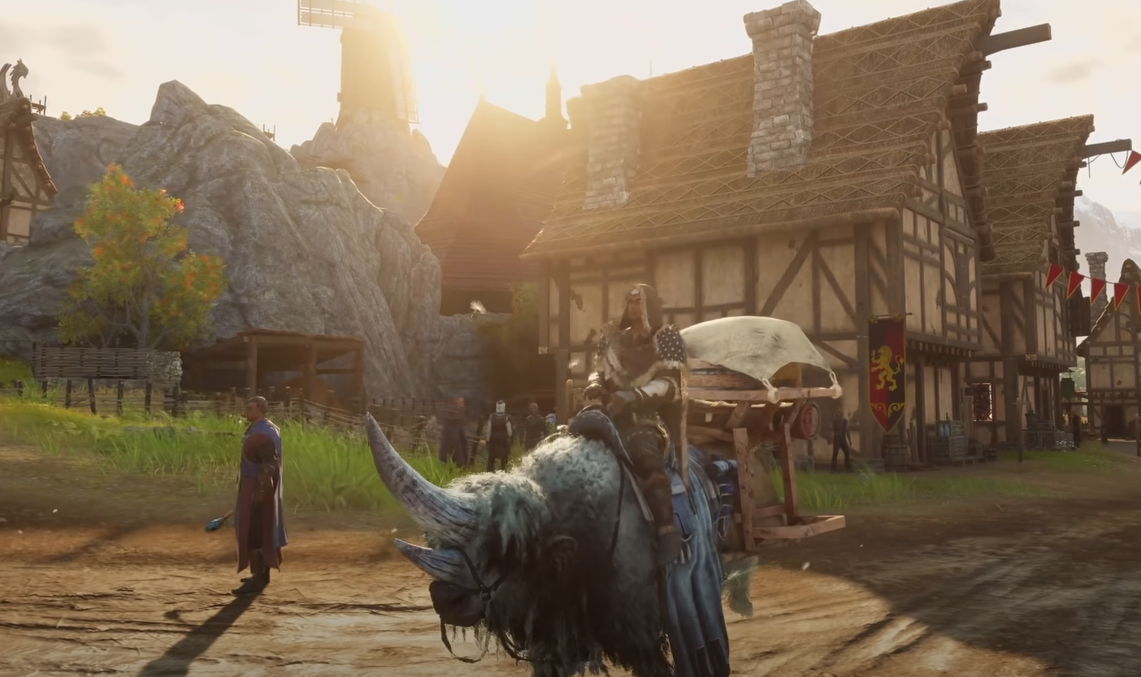
Ashes of Creation FPS Boost and Graphics Optimization Guide
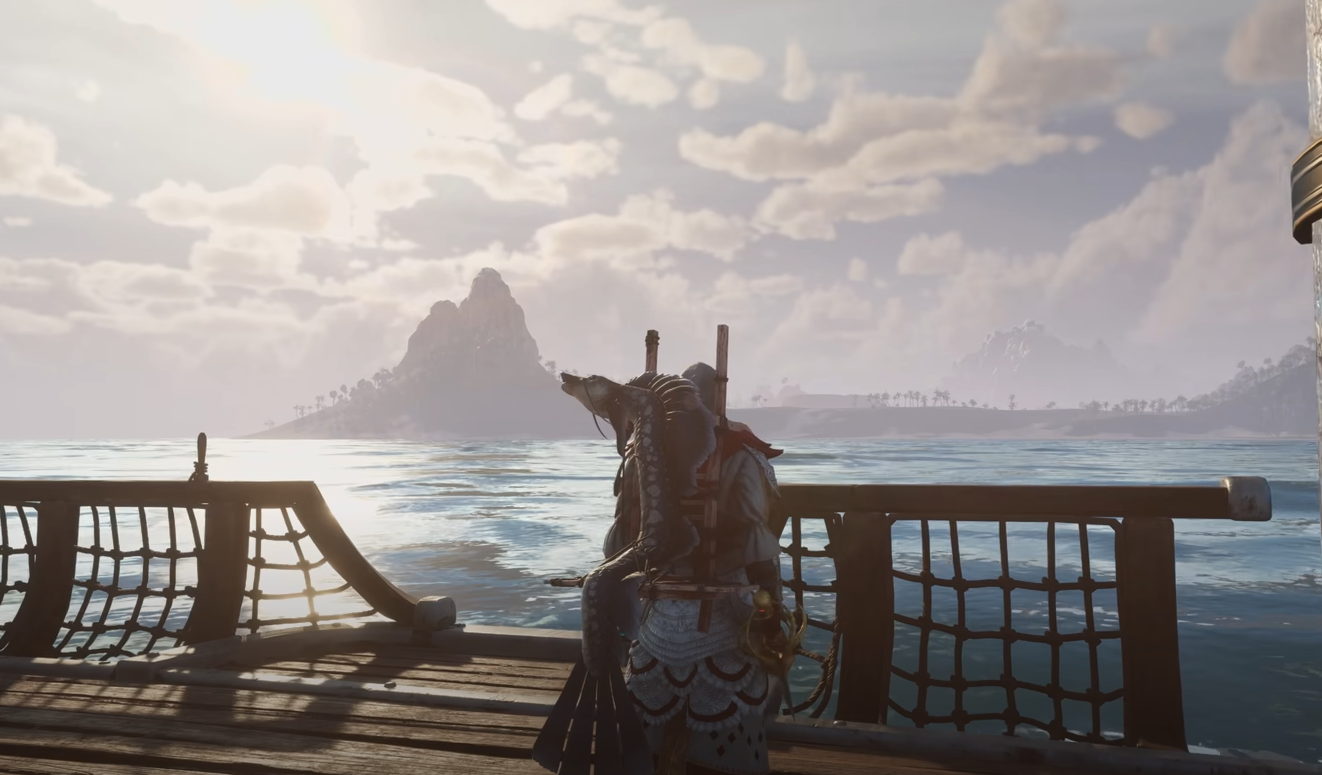
If your frame rate feels rough in Ashes of Creation, you’re not the only one. The game is still early access and heavy on CPU and GPU load, but there are simple ways to make it run smoother without breaking the visuals.
How to Boost FPS in Ashes of Creation
The fastest way to boost FPS is by lowering Global Illumination to Medium or Low. This single setting fixes most frame drops and removes the soft blur that drags performance down. You should also disable Motion Blur, Depth of Field, and Lens Flares. These effects eat resources without helping gameplay.
Turn off Ray Tracing if it’s available in your build. Then make sure DLSS, FSR, or TSR upscaling is set to Quality mode. Balanced or Performance modes improve speed but can make the image grainy or pixelated.
Key Settings to Change
Display Options
Resolution: Use your monitor’s native resolution
VSync: Off for faster input
Frame Cap: Unlimited or just above your refresh rate
Window Mode: Fullscreen for best stability
Graphics Options
Global Illumination: Medium or Low
Shadows: Medium
View Distance: Medium
Foliage Density: Medium
Anti-Aliasing: Quality
Motion Blur: Off
Depth of Field: Off
Ambient Occlusion: Medium
Lowering these keeps the world detailed but smooth enough for combat and large events.
Advanced Tweaks
If you’re on Nvidia, open the Control Panel and set Power Management Mode to “Prefer Maximum Performance.” For AMD, use the Adrenalin software to enable “Radeon Chill” and limit FPS in menus.
Update your drivers and verify that no background apps like Discord overlays or web browsers are eating GPU power. Using DLSS Swapper to upgrade your DLSS version can also improve clarity without performance loss.
Hardware Tips
Ashes of Creation is CPU-intensive, so higher core speed helps more than extra RAM. Close background programs before logging in. If you’re on a laptop, switch to your dedicated GPU through your system’s control panel and plug in power to avoid throttling.
Final Blurb
Ashes of Creation can push your PC hard, but tweaking Global Illumination, turning off blur effects, and setting DLSS or FSR to Quality mode usually gives the best FPS boost. The game is still being optimized, so expect future patches to make it run better over time.
For now, these settings strike the best balance between looks and smooth gameplay.
FAQ
What setting hurts FPS the most
Global Illumination. Set it to Medium or Low for the biggest performance jump.
Does DLSS help
Yes, set DLSS or FSR to Quality mode for higher FPS without major blur.
Should I turn off Ray Tracing
Yes, it’s not worth the performance loss in early access.
Why does the game stutter
Heavy CPU load from nodes and player counts can cause spikes. Restarting after long sessions can help.
Will performance improve later
Yes, optimization updates are planned during early access to improve FPS and memory use.
More Ashes of Creation