

Borderlands 4 How to Turn Off Vibration Controller Setting
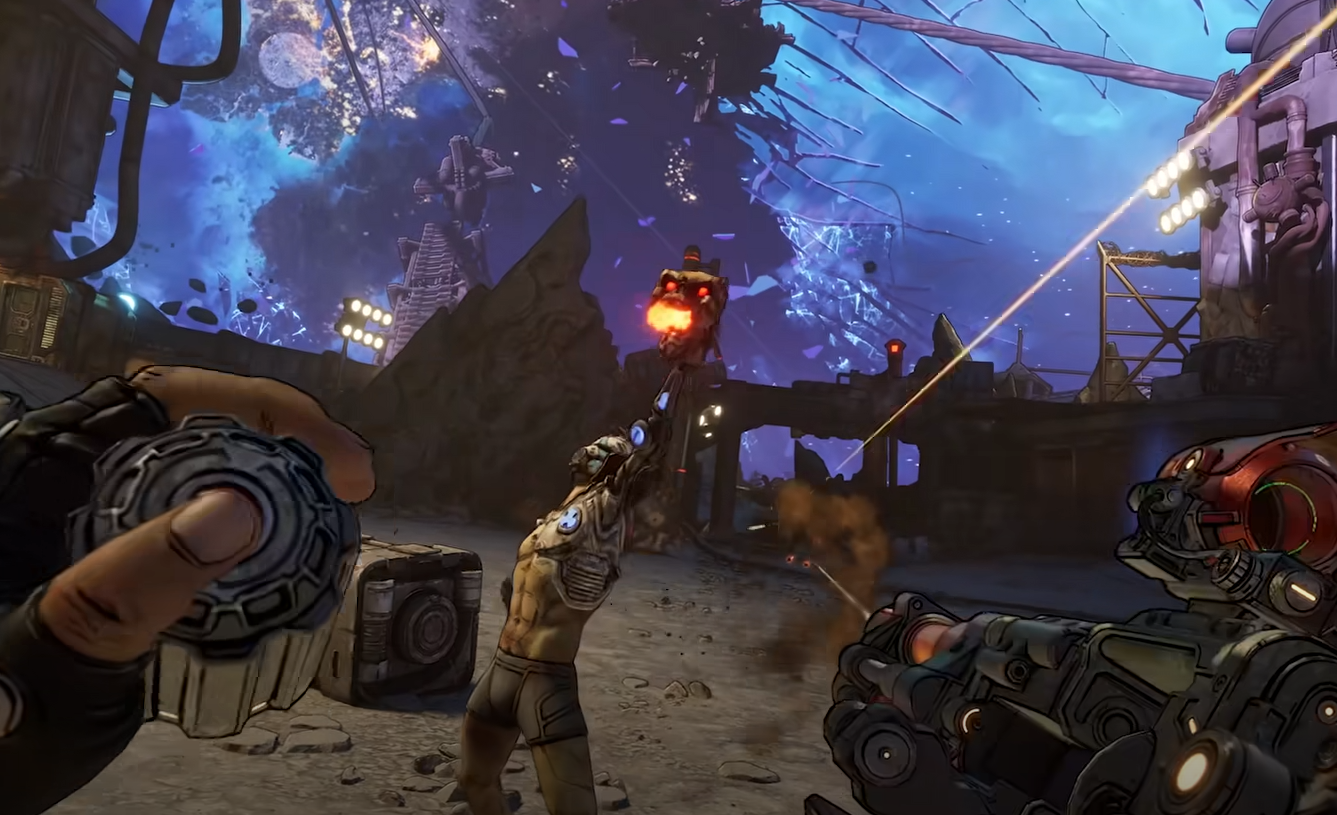
Controller vibration in Borderlands 4 can be toggled directly in the settings. The option is placed under accessibility rather than standard controls, so it can be easy to miss. Here is how to turn it off.
How to Disable Controller Vibration
Open the options menu (Escape on PC or the menu button on console).
Go to Accessibility.
Select Gameplay.
Scroll to the Vibration setting.
Switch it Off.
Once disabled, the controller will no longer rumble during combat, driving, or cutscenes.
Why Turn Off Vibration
Turning vibration off prevents controller rumble during long sessions. It reduces distractions, lowers hand fatigue, and keeps inputs steady. The setting can be switched back on anytime from the same menu.
Final Blurb
To turn off vibration in Borderlands 4, go to Options, then Accessibility, then Gameplay, and toggle vibration off. The change is instant and stays saved until you turn it back on.
FAQ
Where do you find the vibration option?
In Options under Accessibility, then Gameplay.
Can vibration be turned back on later?
Yes, the setting can be toggled on or off at any time.
Does this affect keyboard and mouse?
No, the option only affects controllers.
Will turning vibration off change gameplay?
No, it only removes rumble feedback.
More Borderlands 4


