Hytale: How to Install Mods Step by Step
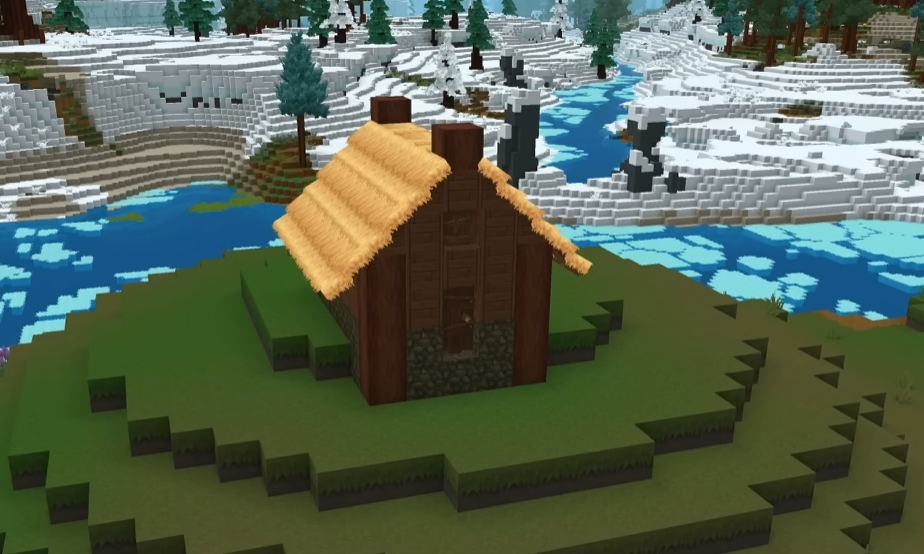
Installing mods in Hytale is done either through a mod manager or by placing files into the game folders, and mods are loaded on a server basis rather than per player. Once mods are installed and enabled on a world or server, everyone who joins automatically uses them without extra downloads.
This guide walks through the safest and most reliable way to install mods, explains how server based mods work, and helps you avoid the most common setup mistakes.
How Mods Work In Hytale
Hytale mods are server sided. This means mods belong to a world or server, not an individual player profile.
When someone joins your world, the game loads the required mods automatically. Players do not need to install anything themselves to join a modded world.
Mods can include blocks, props, mechanics, models, and custom experiences. Resource packs follow the same rules.
The Easiest Way To Install Mods
The simplest method uses a third party mod manager that handles folders for you. This avoids manual file placement and reduces errors.
Before installing mods, make sure the game is fully installed. If you are modding a multiplayer server, the server should be offline.
Installing Mods Using A Mod Manager
This method works best for most players.
Install Hytale
Install a supported mod manager
Open the mod manager and select Hytale as the game
Browse available mods
Install the mods you want
Launch Hytale through the mod manager
Installed mods are placed into the correct mod directory automatically.
Enabling Mods On A World Or Server
Installing a mod does not activate it by default.
Before starting a world or server, open its settings menu. Locate the mods section and enable the mods you want to use.
Only enabled mods load into that world. This allows you to keep mods installed but unused.
Launching A Modded World
Once mods are enabled, launch the world or server normally. The game loads all required files during startup.
If a friend joins, they automatically load the same mods. No extra setup is needed on their end.
Manual Mod Installation Basics
Some players prefer manual installs or use mods not supported by a manager.
This requires placing mod files directly into the Hytale mods folder. Files must not stay compressed. If a mod is zipped, it needs to be extracted.
If a mod does not appear in world settings, check that it is fully extracted and placed in the correct folder.
Common Mod Issues And Fixes
Most problems come from setup mistakes.
Mods not enabled in world settings
Mods still inside zip folders
Server running while mods were installed
Mod version not matching the game version
Fixing these usually resolves the issue immediately.
Final Blurb
Modding Hytale is flexible and beginner friendly once you understand that everything revolves around the server. Install mods once, enable them per world, and let the game handle the rest. Start small, test often, and your custom worlds will run smoothly.
FAQ
Do players need to install mods to join my world
No. Mods load automatically when players join a modded world or server.
Can I use mods in single player
Yes. Single player worlds work the same way as servers.
Can I remove mods later
Yes. Disable them in world settings or remove them from the mods folder.
Why does my mod not show up
It is likely not extracted or not enabled for that world.
Are mods safe to use
Mods are safe when downloaded from trusted sources and kept up to date.
More Hytale Guides