LEGO Batman Legacy Of The Dark Knight Best Settings
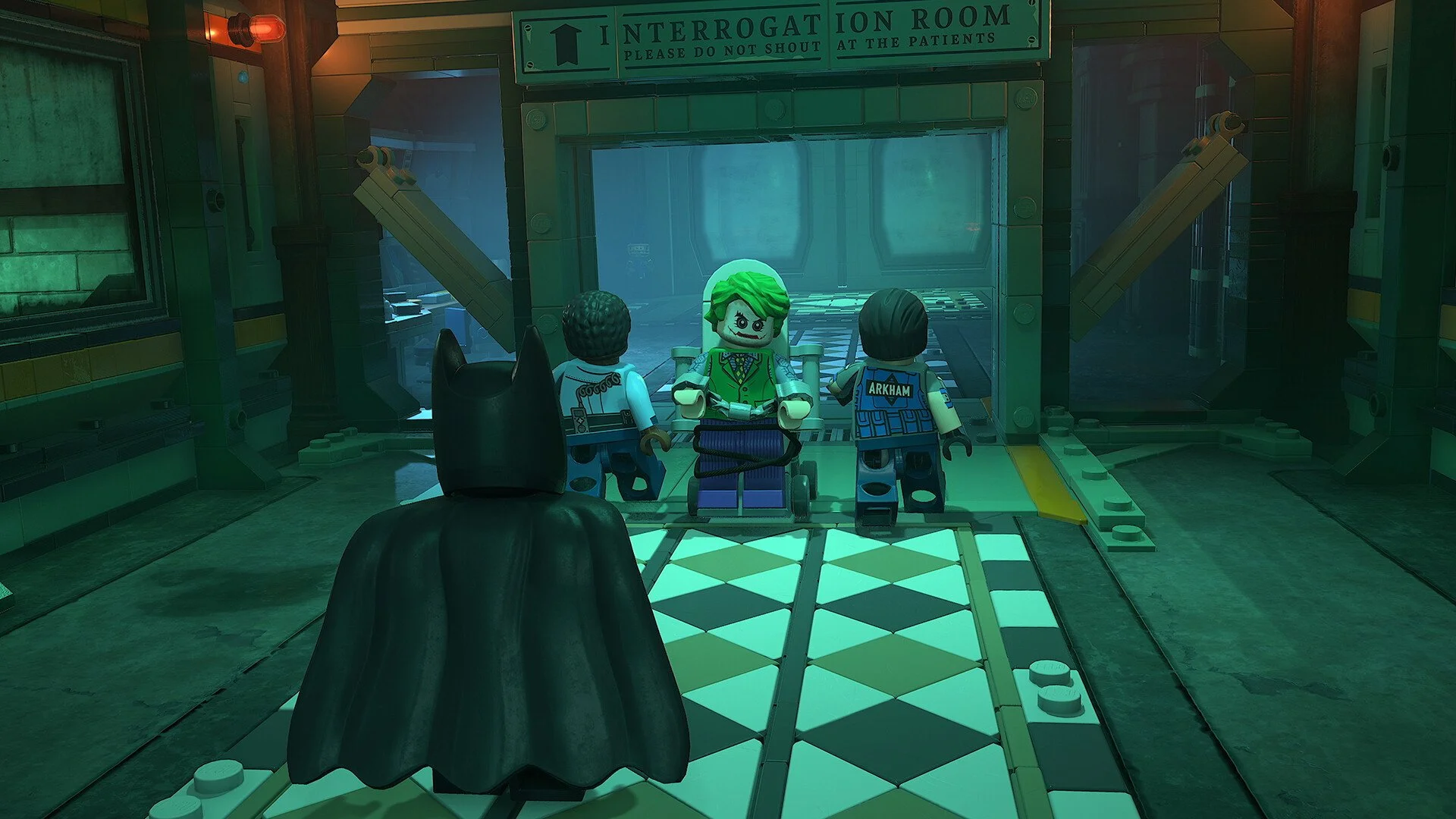
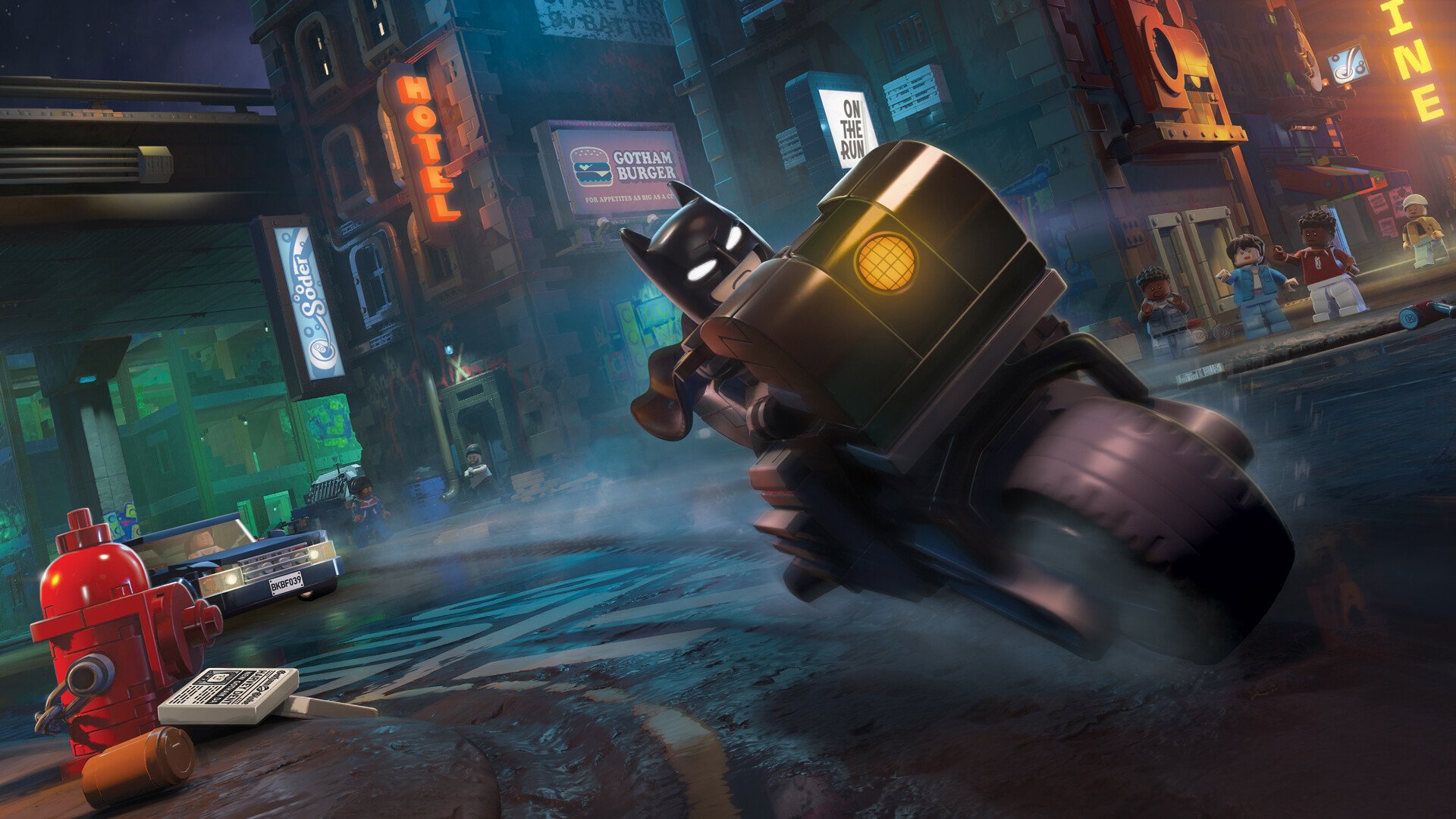
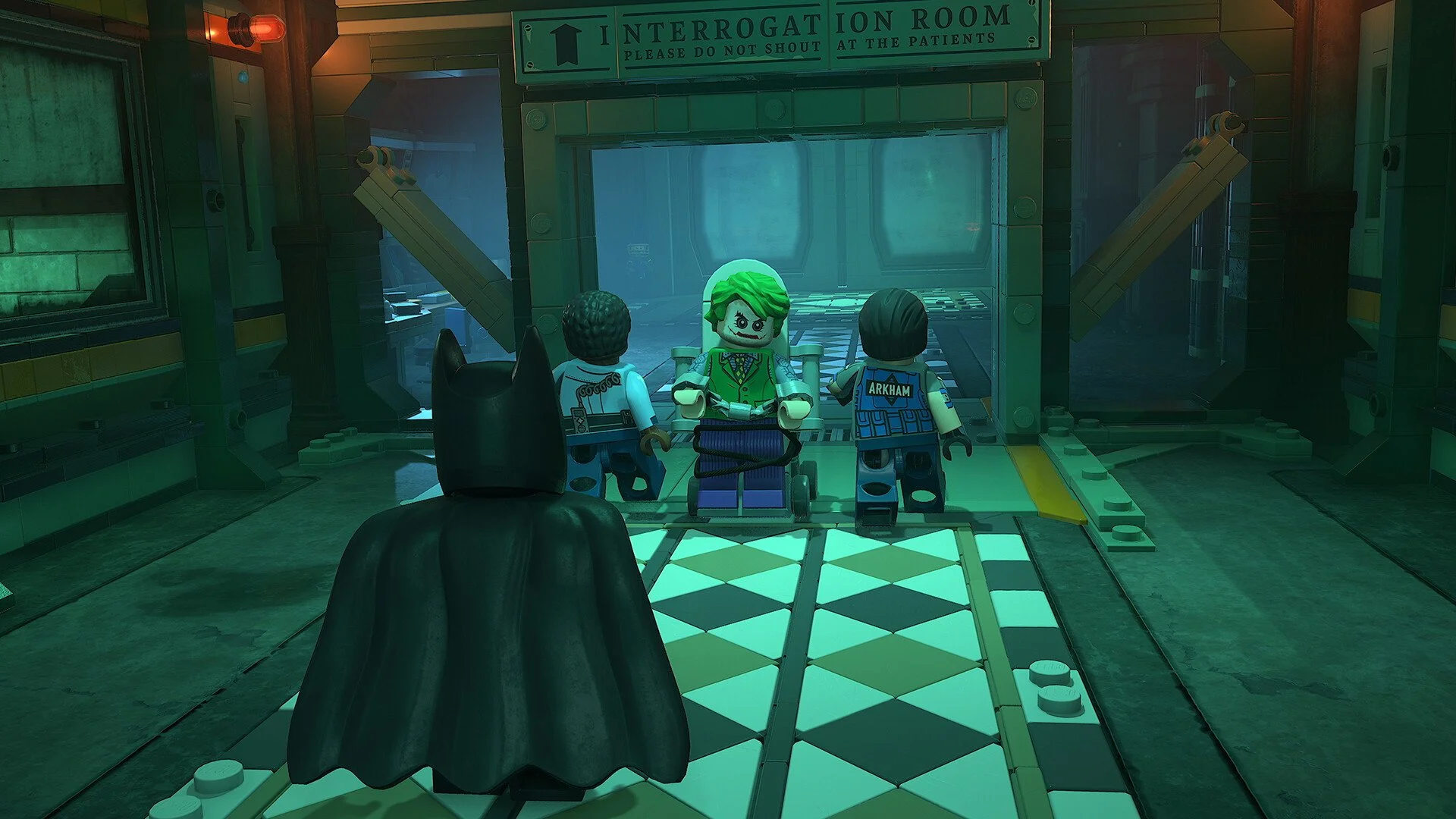
LEGO Batman: Legacy of the Dark Knight can run smoothly on PC with the right mix of display and graphics settings. The best setup focuses on stable FPS, clean frame pacing, and lower stutter during gliding, driving, combat, and open world movement through Gotham.
For more Gotham guides, suit unlocks, collectibles, mission help, and traversal tips, check the main LEGO Batman: Legacy of the Dark Knight guide hub.
Jump To
Best Settings For Performance In LEGO Batman Legacy Of The Dark Knight
The best settings for LEGO Batman: Legacy of the Dark Knight are Fullscreen, VSync Off, a 60 FPS cap, native resolution, Anti Aliasing Off, Upscaling Off unless needed, Medium Shadows, Medium Textures, Low Reflections, Medium Population Quality, and Distance Field Ambient Occlusion Off.
This setup gives the game a strong balance between clean visuals and steady performance. LEGO Batman does not need every setting pushed to High to look good, because the LEGO style already carries a lot of the visual identity. The real goal is keeping Gotham smooth while moving fast, fighting enemies, replaying missions, and clearing open world activities.
The 60 FPS cap is the best starting point because stable frame pacing feels better than a higher frame rate that keeps bouncing. Unlimited FPS can look good in a menu or quiet area, then start coughing when the city loads more buildings, traffic, effects, and shiny plastic nonsense at the same time.
I would set the game up for stability first, then raise individual settings after testing the open world. A mission hallway is not the real benchmark. Gotham traversal is. Gliding across rooftops and driving through the city will expose bad settings faster than standing still and admiring Batman’s very serious brick face.
| Setting | Recommended Option |
|---|---|
| Window Mode | Fullscreen |
| VSync | Off |
| Frame Rate Limit | 60 FPS |
| Resolution | Native monitor resolution |
| Anti Aliasing | Off |
| Upscaling | Off unless more FPS is needed |
| Frame Generation | Off unless it feels stable on the system |
| Quality Preset | Custom |
| Lighting Quality | High |
| Shadows | Medium |
| View Distance | Far |
| Streaming Distance | Medium or Far |
| Textures | Medium |
| Anisotropic Filtering | 8x |
| Material Quality | Medium |
| Distance Field Ambient Occlusion | Off |
| LEGO Mesh Quality | Medium |
| Effects | High |
| Reflections | Low |
| Post Processing | Medium |
| Population Quality | Medium |
Best Display Settings For Smooth FPS
Fullscreen is the best display mode for LEGO Batman: Legacy of the Dark Knight because it gives the game the cleanest performance focus and usually avoids extra desktop window handling.
VSync should stay Off unless screen tearing is distracting. Turning VSync On can help with tearing, but it can also make input delay or frame drops feel worse. The better first move is locking the frame rate and testing whether the game becomes smoother.
A 60 FPS cap is the safest recommendation for most systems. A higher cap can work on stronger PCs, but only if the game holds it consistently while moving through Gotham. A stable 60 is better than an unstable 90 that drops every time the city gets busy.
| Display Setting | Best Choice | Why It Helps |
|---|---|---|
| Window Mode | Fullscreen | Best for stable performance and cleaner focus. |
| VSync | Off | Reduces input delay and avoids extra frame pacing problems. |
| Frame Rate Limit | 60 FPS | Keeps performance steadier and reduces stutter swings. |
| Resolution | Native | Keeps the image sharp without scaling blur. |
If the game still feels uneven, do not drop resolution first. Lower reflections, shadows, population, and streaming distance before touching native resolution. Those settings usually do more damage to performance than the base image resolution does.
Best Graphics Settings For No Lag
The best graphics setup is Custom quality with expensive settings lowered and visually important settings kept high enough to preserve Gotham’s look.
Lighting Quality can stay on High because it helps the city look better and is not the first setting worth cutting. Shadows should go to Medium because shadows can hit performance hard without adding enough visual value to justify maxing them. Reflections should go to Low because shiny surfaces, vehicles, wet roads, water, and LEGO plastic can all make reflections more expensive than they are worth.
Textures and Material Quality are best at Medium for most PCs. The game still looks clean because the LEGO models and environments rely heavily on shape, color, and lighting. LEGO Mesh Quality also works well at Medium, which keeps brick detail without spending too much performance on every plastic edge in Gotham.
| Graphics Setting | Recommended Option | Performance Note |
|---|---|---|
| Lighting Quality | High | Keep high if FPS is stable because it helps Gotham look better. |
| Shadows | Medium | One of the best settings to lower for smoother FPS. |
| View Distance | Far | Useful for open world movement and rooftop traversal. |
| Streaming Distance | Medium or Far | Lower this if Gotham stutters while moving fast. |
| Textures | Medium | Good balance of clarity and VRAM use. |
| Anisotropic Filtering | 8x | Improves surface clarity with a small performance cost. |
| Material Quality | Medium | Keeps LEGO surfaces clean without wasting FPS. |
| Distance Field Ambient Occlusion | Off | Easy performance win with limited gameplay impact. |
| LEGO Mesh Quality | Medium | Good middle point for brick detail and performance. |
| Effects | High | Keep high unless combat effects cause dips. |
| Reflections | Low | Lower this early for better open world performance. |
| Post Processing | Medium | Cleaner balance for visuals and performance. |
| Population Quality | Medium | Lower this if busy city areas stutter. |
Settings To Lower First For More FPS
The first settings to lower for more FPS are Reflections, Shadows, Population Quality, Streaming Distance, Distance Field Ambient Occlusion, and Post Processing.
These settings are the best cuts because they affect busy Gotham areas, fast traversal, and scenes with a lot happening on screen. Dropping them usually gives better results than immediately lowering resolution or using upscaling.
Reflections are the easiest cut. They look nice, but they are not worth stutters during gliding, driving, or combat. Shadows are the next best target because Medium still looks fine and performs better than High. Population Quality and Streaming Distance are worth adjusting if the game dips while crossing the city.
| Lower First | Recommended Drop | Why |
|---|---|---|
| Reflections | Low | Big FPS saver in shiny city areas. |
| Shadows | Medium or Low | Heavy setting that does not need to be maxed. |
| Population Quality | Medium or Low | Helps in crowded open world areas. |
| Streaming Distance | Medium | Helps reduce traversal stutters. |
| Distance Field Ambient Occlusion | Off | Easy performance win. |
| Post Processing | Medium or Low | Useful cut if the game still feels heavy. |
Effects can stay on High unless combat starts causing dips. Lighting can also stay High on midrange and stronger PCs. If performance still feels rough after the main cuts, lower Textures, LEGO Mesh Quality, and View Distance next.
How To Fix Stuttering In LEGO Batman Legacy Of The Dark Knight
To fix stuttering in LEGO Batman: Legacy of the Dark Knight, cap the frame rate at 60 FPS, use Fullscreen, lower Reflections and Shadows, set Streaming Distance to Medium, lower Population Quality, and turn Distance Field Ambient Occlusion Off.
Stuttering usually shows up most during gliding, driving, and fast open world movement because the game has to stream more of Gotham at once. If the game feels smooth indoors but rough outside, the issue is probably connected to city traversal settings rather than simple combat performance.
That is also why gliding can feel worse when settings are too high. The LEGO Batman gliding guide covers the movement side, but settings still matter because fast rooftop travel can make streaming stutters more obvious.
| Fix Order | Change |
|---|---|
| 1 | Set Frame Rate Limit to 60 FPS. |
| 2 | Use Fullscreen instead of windowed or borderless modes. |
| 3 | Set Reflections to Low. |
| 4 | Set Shadows to Medium or Low. |
| 5 | Set Streaming Distance to Medium. |
| 6 | Set Population Quality to Medium or Low. |
| 7 | Turn on Upscaling only if FPS is still too low. |
Upscaling is the last step because it can soften the image. It is useful on weaker systems, but native resolution with smarter setting cuts usually looks better. Gotham already has enough visual clutter without adding blurry scaling to the crime scene.
Best Low End PC Settings
For a low end PC, use Fullscreen, a 60 FPS or 30 FPS cap, native resolution if possible, Upscaling On if needed, Low Shadows, Low Reflections, Medium or Low Textures, Low Population Quality, and Distance Field Ambient Occlusion Off.
This setup is about stable play over sharp visuals. The biggest mistake on a weaker PC is keeping city settings too high. Gotham is the pressure point, especially while moving fast, so lowering population, streaming distance, shadows, and reflections should come before worrying about smaller visual settings.
| Low End Setting | Recommended Option |
|---|---|
| Window Mode | Fullscreen |
| Frame Rate Limit | 60 FPS if stable, 30 FPS if needed |
| Upscaling | On if FPS is too low |
| Frame Generation | Off unless it feels stable on the system |
| Lighting Quality | Medium |
| Shadows | Low |
| Streaming Distance | Medium or Low |
| Textures | Medium or Low |
| Reflections | Low |
| Population Quality | Low |
| Distance Field Ambient Occlusion | Off |
A 30 FPS cap is not ideal, but it can feel better than an unstable 45 to 55 FPS range. Stable frame pacing is the whole point. The game is more playable when it is consistent, even if the number is lower.
Best High End PC Settings
For a high end PC, use Fullscreen, native resolution, a stable FPS cap, High Lighting, Far View Distance, Far Streaming Distance, High Effects, High or Medium Textures, and Medium or Low Reflections if stutter appears.
High end hardware can push more settings, but Unlimited FPS still is not the best default if the game has frame pacing issues. A 120 FPS cap or display refresh cap is better than letting the frame rate swing wildly. Smooth traversal matters more than chasing a number that only stays stable when Gotham is behaving itself for 12 seconds.
| High End Setting | Recommended Option |
|---|---|
| Window Mode | Fullscreen |
| Frame Rate Limit | 60 FPS, 120 FPS, or display refresh if stable |
| Lighting Quality | High |
| Shadows | Medium or High |
| View Distance | Far |
| Streaming Distance | Far |
| Textures | High or Medium |
| Material Quality | High or Medium |
| Effects | High |
| Reflections | Medium or Low |
| Population Quality | Medium or High |
Test the open world before assuming the settings are stable. A high end PC can make a mission room look perfect and still dip when driving or gliding across Gotham. Use city traversal as the real benchmark.
Common Settings Mistakes
The biggest settings mistake is using Unlimited FPS and then wondering why the game feels uneven. A frame cap can make LEGO Batman feel much smoother because it stops the game from constantly jumping between frame rates.
Another mistake is lowering resolution before lowering the real problem settings. Reflections, shadows, population, and streaming distance should be adjusted first. Native resolution keeps the image clear, and the LEGO art style holds up well when individual quality settings are reduced.
Players also keep Reflections too high because shiny LEGO surfaces look nice. They do, but Low Reflections are a smarter performance tradeoff for most PCs. Gotham has enough polish already. It does not need the frame rate sacrificing itself in a mirror.
| Mistake | Better Play |
|---|---|
| Using Unlimited FPS by default | Use a stable 60 FPS cap first. |
| Lowering resolution too early | Lower reflections, shadows, population, and streaming distance first. |
| Keeping Reflections too high | Set Reflections to Low for better city performance. |
| Testing only indoor areas | Test while gliding, driving, and moving through Gotham. |
| Blaming difficulty for rough combat | Fix stutters first, then decide if the difficulty setting needs changing. |
If combat feels rough because of performance, fix settings before changing the game mode. For difficulty choices themselves, the LEGO Batman best difficulty guide covers which mode to choose for story, challenge, co op, and cleanup.
Final Blurb
The best LEGO Batman: Legacy of the Dark Knight settings for performance are built around stable frame pacing first. Use Fullscreen, cap the frame rate at 60 FPS if stutters appear, keep native resolution, turn Distance Field Ambient Occlusion Off, and lower Reflections, Shadows, Population Quality, and Streaming Distance before using heavier visual cuts.
The game still looks good on Medium settings because the LEGO art style does a lot of the work. Smooth gliding, driving, and fighting through Gotham are worth more than maxed reflections that make Batman’s PC sound like it is trying to solve the Riddler’s final puzzle.