Little Witch in the Woods: How to Save
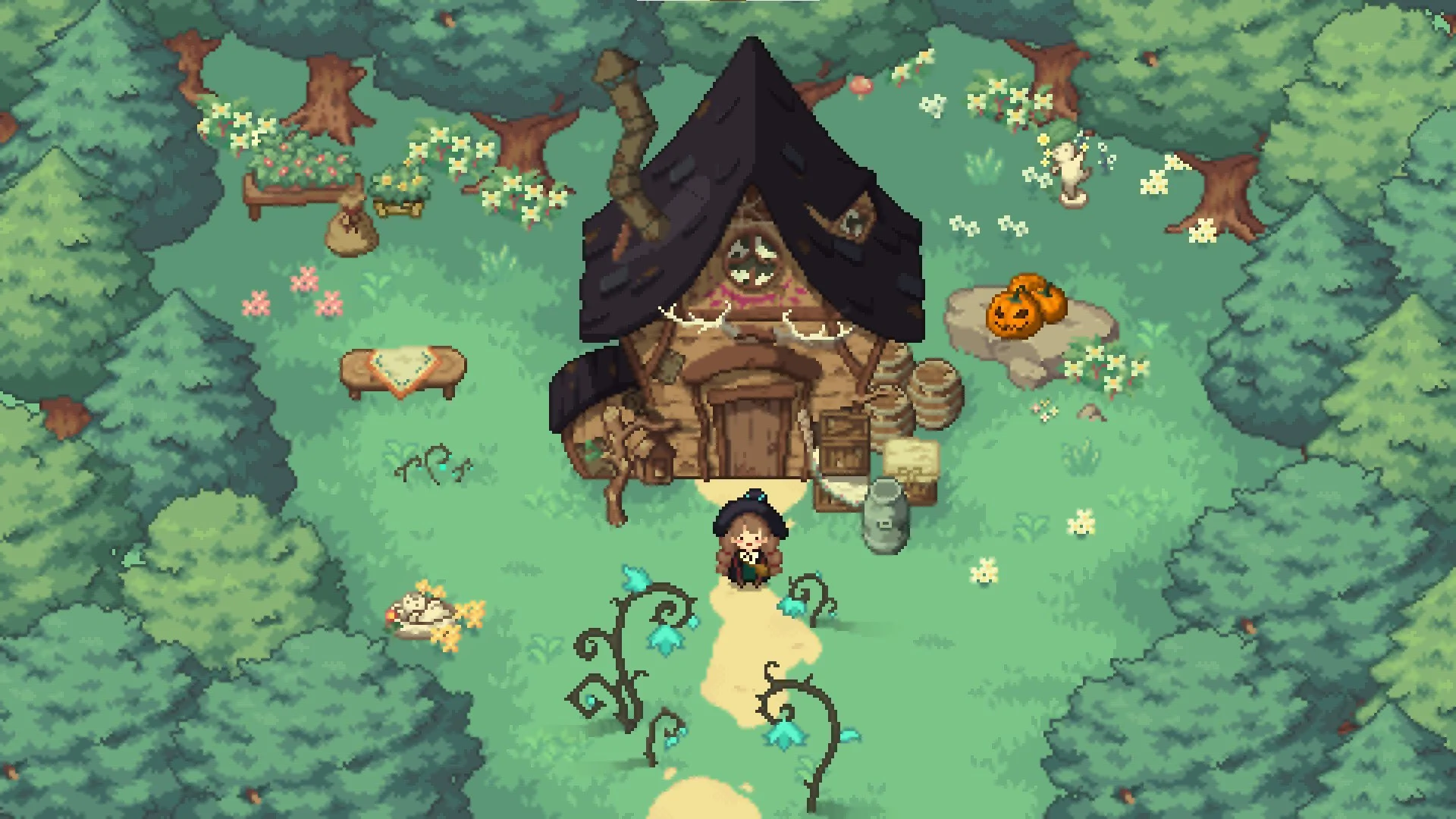
Saving in Little Witch in the Woods is simple but important. The game uses both automatic saves and manual saves, so you always have a way to protect your progress. Knowing how the system works and where files are stored can also help if you want to roll back to an earlier save.
How Saving Works
The game saves automatically in two main spots. The first is after the train to Highlion stops, when you pass between the two train cars before entering the forest. The second is every morning in the Witch’s House when you pass in front of the desk.
You can also save manually at the desk in the Witch’s House. Interact with the desk and select the save option. This lets you save at will without waiting for the automatic system.
Save File System
Each save creates a new file. The files are labeled with numbers such as SaveData_1.es3, SaveData_2.es3, and so on. The game always loads the save with the largest number in the folder.
Because every save is stored separately, older files are never erased. You can return to any previous point in the game if you manage the files yourself. Even starting a new game creates new files without removing your old world.
Finding Save Files on Windows
On Steam, the save folder is found inside AppData.
Press Windows + R to open the Run box.
Paste this path:
%UserProfile%\AppData\LocalLow\SunnySideUp\Little Witch In The Woods\SavesClick OK to open the folder.
Here you will see all your SaveData files.
How to Return to Older Saves
To go back to an earlier save, you have two choices. You can remove the newest files, or you can rename the older one so the game reads it as the newest.
For example, if you have SaveData_1.es3 through SaveData_8.es3 and you want to load SaveData_6.es3:
Option 1: Delete SaveData_7.es3 and SaveData_8.es3.
Option 2: Rename SaveData_6.es3 to SaveData_9.es3 (or any number higher than the rest).
The game will then load from that point.
Final Blurb
Saving in Little Witch in the Woods is built to be safe and flexible. You can rely on automatic saves, create your own manual saves at the desk, or even manage save files directly for more control. By knowing where the files are stored and how the numbering works, you can always roll back progress or replay favorite parts of the story.
FAQ
Does the game overwrite old saves
No, each save makes a new file. This allows you to return to older progress whenever you want.
Can I start a new game without losing old saves
Yes, starting a new game creates new save files. Your old world remains in the folder.
How do I save manually
Stand in front of the desk in the Witch’s House, interact with it, and choose the save option.
Can I transfer saves to another PC
Yes, you can copy the files from the Saves folder to another computer with the same install path.
More Little Witch in the Woods