Lucid Blocks Controller Support: Do Controllers Work

Lucid Blocks is built mainly around keyboard and mouse controls, but many players want to know if it can be played with a controller or on Steam Deck. The good news is that controller input does work, although it may require a small setup change depending on the device you are using.
This guide explains Lucid Blocks controller support, how it works on Steam Deck, and what settings players should use to get the game running properly.
Does Lucid Blocks Have Controller Support
Yes, Lucid Blocks has controller support, but keyboard and mouse is arguably the smoother way to play.
The game recognizes controller input and can be played with a controller. Menus and navigation are still easier with mouse and keyboard, which is why many players prefer that setup when playing on PC.
Controller support works well enough for gameplay, especially when exploring, fighting enemies, and moving around the world.
Lucid Blocks Controller Support On Steam Deck
Lucid Blocks can run on Steam Deck with controller input, but players usually need to adjust the Proton version first.
Some players report that the default Proton version causes issues when starting the game. Switching the compatibility layer to Proton 9.0 fixes these problems and allows the game to run normally.
Once Proton 9.0 is enabled, controller support works correctly and the game launches without the early setup problems some users experience.
How To Enable Proton 9.0 On Steam Deck
Players using Steam Deck can change the Proton version directly in the game settings.
Open the Steam library
Select Lucid Blocks
Open Properties
Go to Compatibility
Enable Force Compatibility Tool
Select Proton 9.0
After switching to Proton 9.0, restart the game and test the controls again.
Why Some Players Recommend Mouse And Keyboard
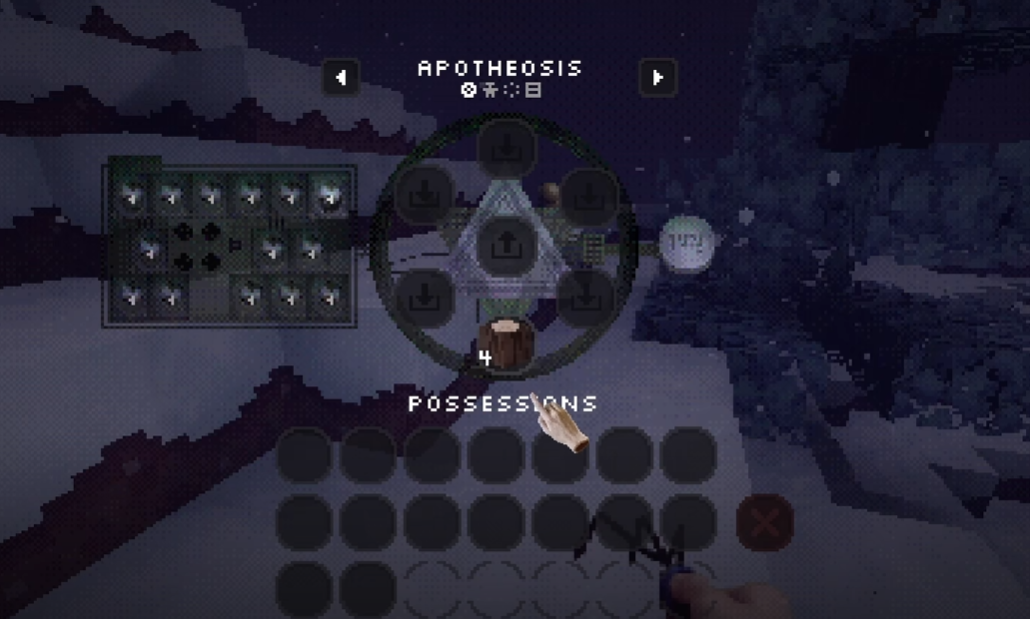
Controller support works, but some parts of the interface are easier to manage with mouse and keyboard. Inventory navigation and menu interaction are usually faster with a mouse.
Because of this, many players still prefer keyboard and mouse on PC even though controller input is available.
Common Steam Deck Issues
A few early issues have appeared when launching the game on Steam Deck.
The most common one happens when using the default Proton version, where certain buttons in the starting menu do not respond. Changing the compatibility layer to Proton 9.0 usually resolves this problem.
Another situation players mention is accidentally pressing the wrong menu option when starting the game, since some menu labels are unusual.
Final Blurb
Lucid Blocks does support controller input, and the game can also run on Steam Deck. Keyboard and mouse currently provide the smoothest experience for menus and inventory management, but controller gameplay still works well. Steam Deck players should switch to Proton 9.0 if the game has launch issues or menu buttons fail to respond.
FAQ
Does Lucid Blocks support controllers
Yes, Lucid Blocks supports controller input, although many players still prefer keyboard and mouse for smoother menu navigation.
Can Lucid Blocks run on Steam Deck
Yes, the game can run on Steam Deck, but some players need to switch the compatibility layer to Proton 9.0 for the best results.
Why is the confirm button not working on Steam Deck
This issue can happen when the default Proton version is used. Switching to Proton 9.0 usually fixes the problem.
Is Lucid Blocks better with controller or keyboard
Both work, but keyboard and mouse currently provide easier control for menus and inventory management.