Marathon Best Video Settings for FPS
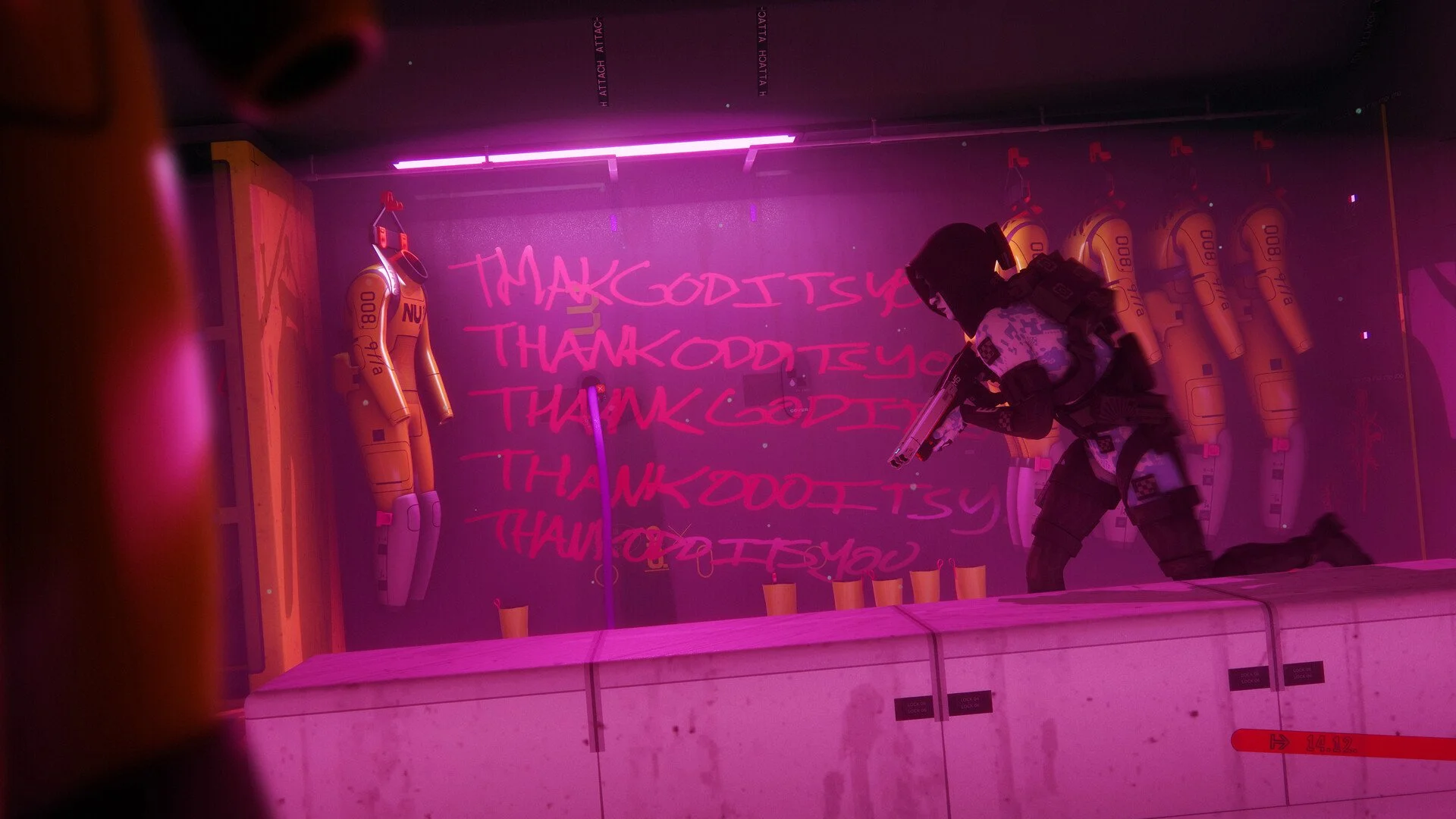
If you want higher FPS in Marathon, the best approach is lowering a few visual effects while keeping the settings that help with visibility. Marathon is fairly well optimized, but tweaking video settings can make a big difference during PvP fights and busy extraction runs. With the right setup, most mid range PCs can maintain smooth performance without sacrificing too much visual quality.
Below are the best video settings for FPS in Marathon and which options impact performance the most.
Best Marathon Video Settings For FPS
These settings focus on improving performance while keeping the game clear during fights.
Graphics Quality | Medium
DLSS or FSR | DLAA or FSR Native AA
Motion Blur | Off
Ambient Occlusion | Medium
Shadows | Low
Nvidia Reflex | On
This configuration keeps visuals sharp while reducing heavier effects that can lower frame rates.
Why These Settings Work
Some settings impact FPS much more than others.
Motion Blur is one of the easiest settings to disable. Turning it off improves visibility and prevents blur during fast movement. In an extraction shooter where reaction time matters, clarity is always better.
Ambient Occlusion adds subtle lighting around objects but can cost extra performance. Dropping it to Medium keeps the visual effect without heavy FPS loss.
Shadows are worth keeping on High because they can help reveal player movement and positioning during fights.
Nvidia Reflex reduces system latency, which helps inputs feel more responsive during gunfights.
Low Vs High Graphics Presets
Interestingly, switching between graphics presets does not drastically change performance in Marathon.
Higher presets mainly add environmental effects like fog, rain, and more detailed lighting. Lower presets remove some of these effects, which can actually make players easier to see.
If your goal is competitive play and maximum visibility, the Low preset may provide clearer sightlines.
DLSS And FSR Explained
DLSS and FSR are upscaling technologies that improve performance by rendering the game at a lower resolution and then scaling it back up.
DLAA and FSR Native AA focus more on image quality while still improving performance slightly. Balanced modes provide a bigger FPS boost if your system struggles to stay above 60 FPS.
If you want the best balance between visuals and performance, DLAA or FSR Native AA are solid choices.
Tips To Increase FPS Further
If your system still struggles with performance, a few extra adjustments can help.
Lower the graphics preset to Low
Use DLSS or FSR Balanced mode
Close background programs while playing
Install the game on an SSD if possible
These changes can noticeably improve frame consistency during busy moments.
Final Blurb
Marathon runs well on most modern gaming PCs, but adjusting a few video settings can significantly improve frame rates and overall responsiveness. Turning off motion blur, lowering heavy lighting effects, and enabling DLSS or FSR will help maintain smoother performance during intense firefights.
With the right settings, you can keep the game looking good while making sure your FPS stays high during extraction runs.
FAQ
What are the best Marathon settings for FPS
High graphics with motion blur off, ambient occlusion on medium, and DLSS or FSR enabled provides a good balance between performance and visuals.
Does lowering graphics improve FPS in Marathon
Yes. Lowering settings like ambient occlusion and certain lighting effects can improve frame rates, especially on mid range PCs.
Should you use DLSS or FSR in Marathon
Yes. DLSS and FSR can increase performance while keeping image quality relatively high.
Is Marathon hard to run on PC
No. Marathon is fairly well optimized and most modern gaming PCs can run it smoothly with proper graphics settings.