MegaBonk Best Graphics Settings Guide | FPS & Performance
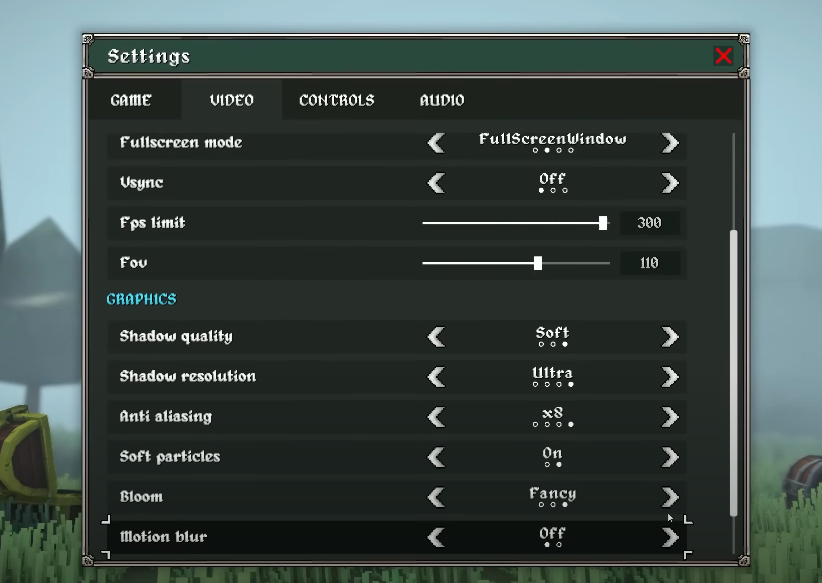
If you want smooth performance in MegaBonk without losing too much visual quality, tweaking the graphics settings is key. The game can get hectic with dozens of enemies and effects filling the screen, and poor optimization will drop your frames. Here’s the breakdown of the best settings to use for stable gameplay.
Best Video Settings for Performance
Fullscreen Mode
Use FullscreenWindow. It gives stability while still letting you tab out without issues.
Vsync
Keep Vsync Off unless you’re seeing screen tearing. Turning it on can cause input delay.
FPS Limit
Set FPS Limit to 300 or Unlimited. A high cap ensures you don’t choke performance during swarms.
FOV
FOV 110 is a safe spot. It lets you see more enemies and shrines without stretching visuals too much.
Best Graphics Settings
Shadow Quality
Set Shadow Quality to the lowest setting. Higher shadows cost frames without real gameplay benefit.
Shadow Resolution
Keep Shadow Resolution on Low or Medium. Ultra eats performance and doesn’t add much clarity.
Anti Aliasing
Set Anti Aliasing to x2 or x4. x8 smooths edges slightly more but is heavy in swarms.
Soft Particles
Turn Soft Particles Off. They look nice, but they clutter the screen and cost frames.
Bloom
Set Bloom to Low or Off. Fancy bloom makes the screen busier than it needs to be.
Motion Blur
Always Off. This just makes combat harder to follow and adds no real value.
Final Blurb
MegaBonk runs best when you keep shadows, particles, and bloom toned down. High FOV and FPS caps keep combat readable and smooth, while disabling motion blur avoids distractions.
Tweak as needed for your hardware, but these settings strike the balance between visuals and performance.
FAQ
What FOV is best in MegaBonk?
110 works best. It lets you see enemies sooner without stretching the view.
Should I use Vsync?
No, unless you have tearing. Vsync adds input delay.
Does Ultra Shadow Resolution matter?
Not really. Lower settings look nearly the same and save a lot of frames.
More MegaBonk