Ninja Gaiden 4 Best Settings
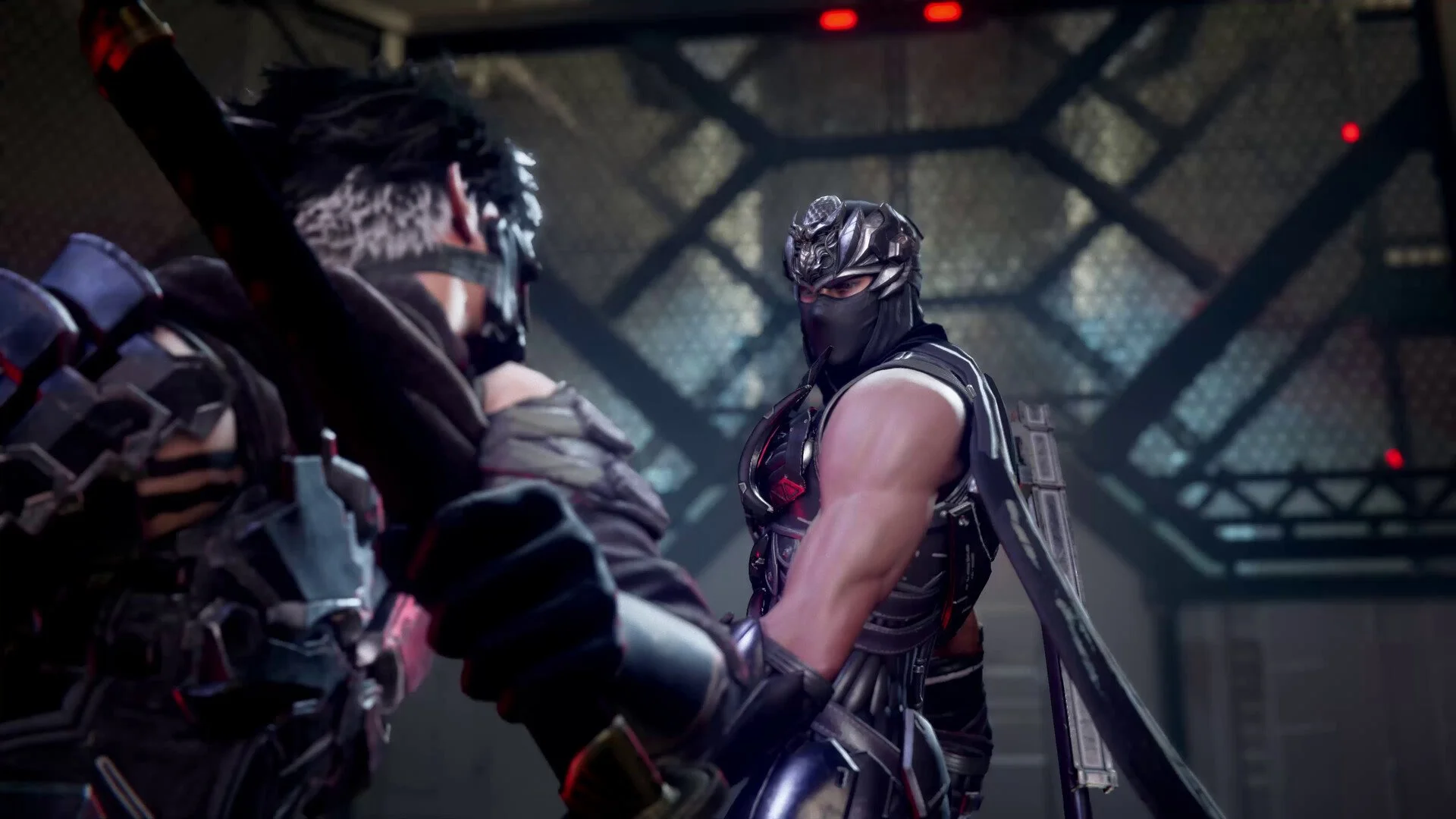
Ninja Gaiden 4 runs faster than any previous entry, and it gives players full control over how smooth or cinematic that experience feels. With three main performance modes and a ton of internal optimization, your setup matters more than ever if you want the cleanest, sharpest action.
Best Settings For Smooth Performance
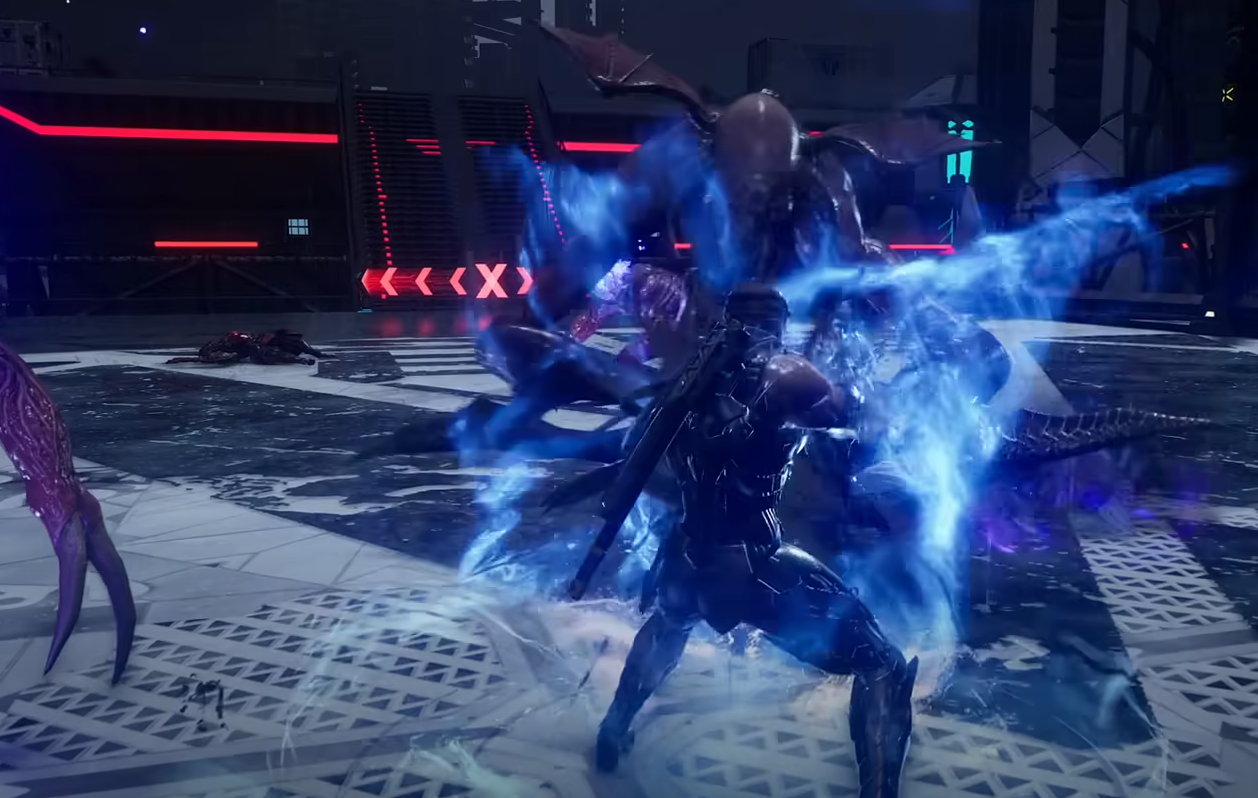
If your display supports high refresh rates, go straight for 120 FPS Mode. This option locks the game at its fastest possible frame pacing, aiming for 8 milliseconds per frame. It’s built for instant input response and smooth motion during rail sections, boss fights, and Bloodraven transformations. The tradeoff is slightly softer visuals, but you’ll barely notice once the speed hits.
If your display caps at 60Hz or you prefer higher detail, pick Frame Rate Priority Mode. It holds close to 60 FPS consistently and still looks sharp, keeping motion blur and particle detail at a good balance. For screenshot-level visuals or slow cinematic playthroughs, Graphics Priority Mode has higher resolution and lighting fidelity but drops frame pacing under pressure.
Recommended Console Setup
PlayStation 5 and Xbox Series X users should select 120 FPS Mode if connected to a 120Hz screen.
Xbox Series S performs best under Frame Rate Priority due to memory constraints.
If your display doesn’t support 120Hz, enabling Variable Refresh Rate (VRR) smooths out frame spikes across all modes.
Recommended PC Settings
PC players get the most flexibility. Use these guidelines for stable high-speed action:
Resolution: 1440p for balance, 1080p for max stability.
Frame Cap: 120 FPS if your monitor allows it.
Texture Quality: High, since the engine handles LOD scaling automatically.
Shadows: Medium for less load during boss fights.
V-Sync: Off if using G-Sync or FreeSync, On otherwise to prevent tearing.
Motion Blur: Optional, but turn it off if you prefer sharper visuals in fast movement.
Advanced Engine Optimization
Ninja Gaiden 4 uses PlatinumEngine’s built-in mesh tools to handle LOD, HLOD, and merged meshes automatically. The engine reduces polygon density with distance, merges object clusters, and balances GPU and CPU loads simultaneously. These processes keep performance high even during crowded encounters, so you don’t need to tweak anything manually.
Display And Input Tips
Use a low-latency gaming monitor or TV with Game Mode enabled.
Turn HDR on only if your screen handles it well, since some models introduce input delay.
Wired controllers or low-latency Bluetooth adapters make timing-based moves like parries feel cleaner.
Final Blurb
Ninja Gaiden 4 was built to move fast. Use 120 FPS Mode if you can, lower your resolution before your frame rate, and don’t chase ultra settings at the cost of input response. The smoother your performance, the sharper your reaction time, and that’s what turns a good player into a real ninja.
FAQ
What’s the best mode to play Ninja Gaiden 4 on
120 FPS Mode gives the smoothest combat and fastest input speed, making it ideal for most players.
Does Graphics Mode affect gameplay speed
No, but the lower frame rate can make timing harder for parries and dodges.
Should I enable VRR on console
Yes, it stabilizes frame pacing when performance dips and reduces stutter.
What specs do I need for 120 FPS on PC
A modern GPU like RTX 4070 or RX 7900 XT, with a 120Hz monitor and G-Sync or FreeSync support.
Does HDR or motion blur increase lag
Slightly, depending on your display. Turn them off if you prefer pure input speed.
© 2025 GamerBlurb. Linking is welcome with credit to GamerBlurb.com. Copying or reproduction without permission is prohibited.
More Ninja Gaiden 4