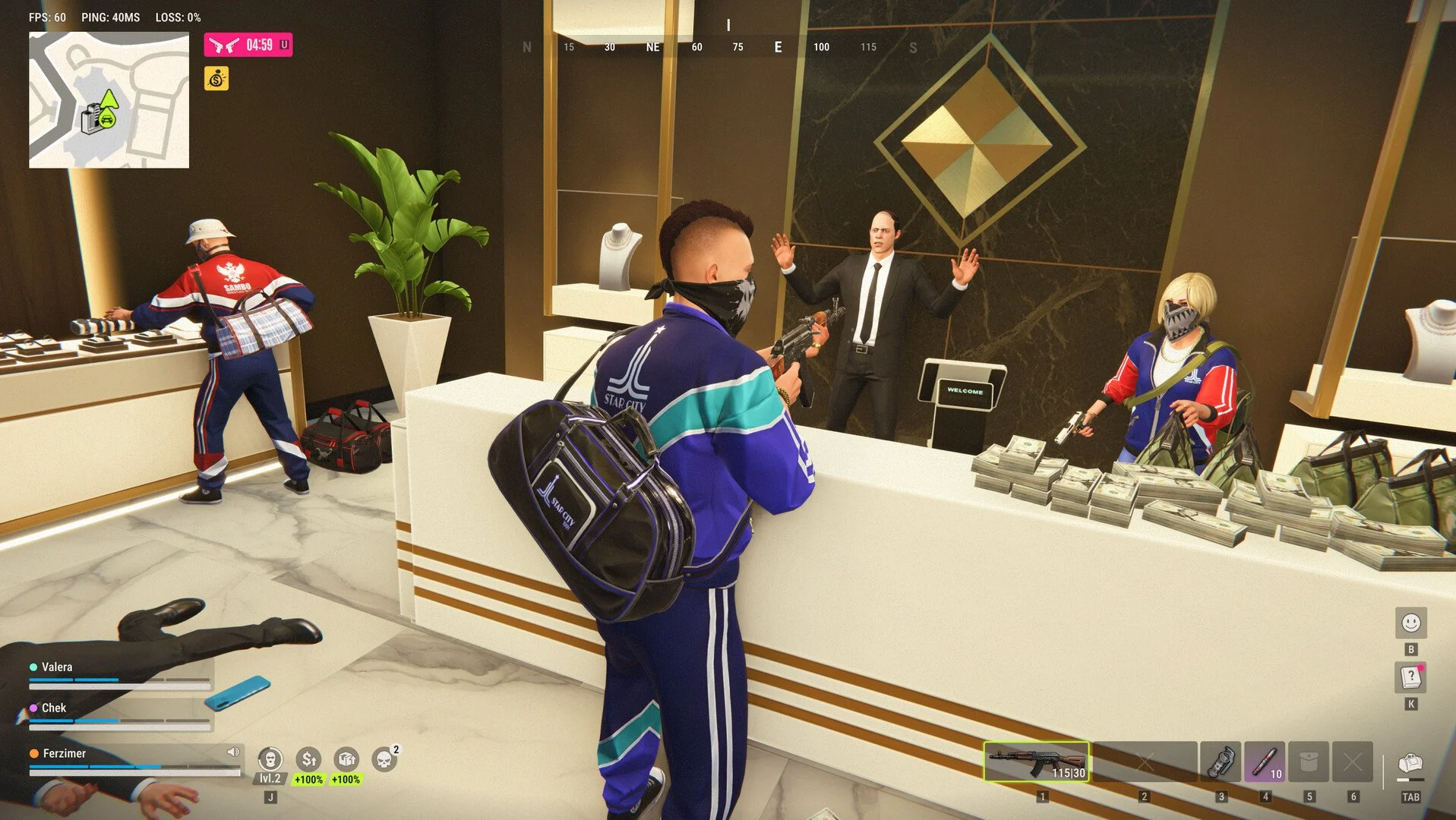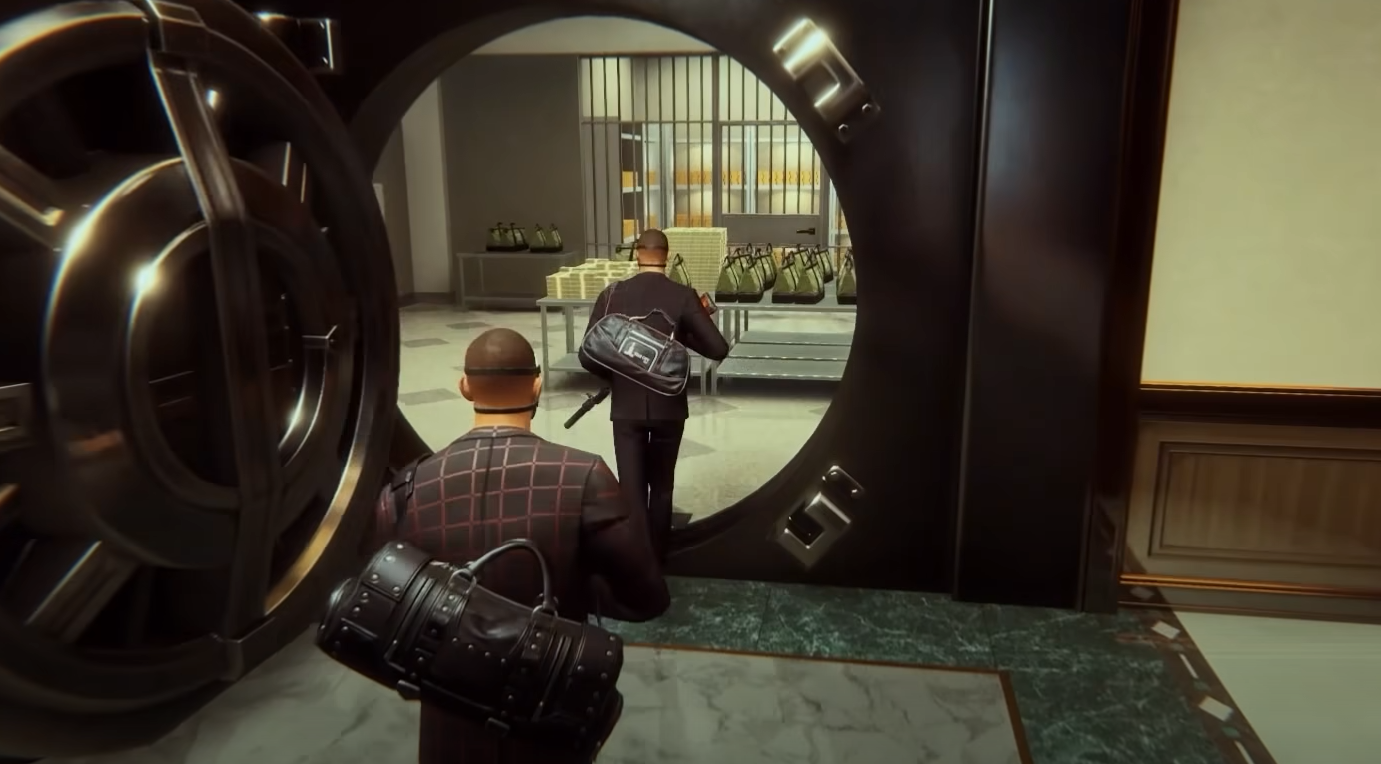
ROB RUN's busiest fights can be decided before anyone fires, especially when stuttering, cluttered visuals, or awkward controls slow you down. A strong setup should keep distant threats visible while making important sound cues and inventory actions easier to track.
Best ROB RUN Settings
Graphics and FPS Settings
Best Audio Settings
Controls and Looting Settings
Other Important Settings
How to Fix Low FPS and Stuttering
Best ROB RUN Settings for FPS and Visibility
For the best balance between performance and visibility in ROB RUN, use Fullscreen mode, reduce unnecessary graphics effects, and keep Object Visibility Distance relatively high. You should also enable the Sound Effect Visualizer, which provides on-screen indicators for important noises during gameplay.
The following configuration is a strong starting point for players who prioritize competitive visibility and smoother performance over maximum graphics quality.
| Setting | Recommended |
|---|---|
| Display Mode | Fullscreen |
| Resolution | Native Resolution |
| VSync | Off initially |
| Frame Rate Limit | Monitor Refresh Rate |
| Render Resolution | 1.0 / 0.8 for more FPS |
| Anti-Aliasing | Off / Low |
| Motion Blur | Off |
| Depth of Field | Off |
| Shadows | Off / Low |
| Texture Quality | Low on weaker PCs |
| Level of Detail | 0.8 starting point |
| LOD Crossfade | Off |
| Object Visibility Distance | High / Maximum |
| HBAO | Off for FPS |
| Additional Lights | Off |
| Water and Grass Quality | Low |
| Grass Draw Distance | Low |
| Interface Window Blur | Off |
| Sound Effect Visualizer | On |
| Vehicle Screen Marker | On |
These settings prioritize useful visual information while removing effects that may reduce performance or make the screen harder to read. They aren't guaranteed to deliver identical FPS improvements on every computer, so adjust them according to your hardware and preferred image quality.
Best Graphics Settings for Higher FPS in ROB RUN
The most important distinction when optimizing ROB RUN is that not every graphics setting has the same purpose. Some improve how attractive the environment looks, while others determine how much of the scene remains visible during gameplay. Lowering everything indiscriminately can improve performance at the expense of information you actually need.
Prioritize Level of Detail Before Sacrificing Visibility
Level of Detail, or LOD, determines how much detail is used when rendering objects at different distances. Reducing this setting can lighten the graphical workload, making it a useful option when trying to improve FPS.
A value around 0.8 is a reasonable starting point for performance-focused players. If your frame rate is already stable, you can experiment with higher values to preserve more detail.
LOD Crossfade is another option worth disabling when prioritizing performance. It smooths transitions between different object detail levels, but that visual improvement isn't necessarily worth the additional workload.
However, I wouldn't immediately lower Object Visibility Distance alongside LOD. Keeping visibility relatively high can help preserve useful scene information even while other graphics details are reduced.
Maximum visibility or Render All may be worthwhile if your PC handles it comfortably, although you should lower the setting if it causes noticeable performance problems.
Keep Render Resolution as High as Your PC Can Handle
Render Resolution affects the sharpness of the image. A value of 1.0 preserves the game's normal rendering resolution, while lowering it to 0.8 can help improve performance at the expense of some clarity.
For players with reasonably capable hardware, I'd start at 1.0 and only lower it if the frame rate is consistently disappointing. Sharper visuals make it easier to distinguish small objects and read distant details, which can be particularly helpful when navigating Looty Bay.
If you're struggling to maintain playable performance, 0.8 is worth trying before reducing your actual display resolution. Compare the results while moving through the same area rather than judging image quality from a stationary screen alone.
Remove Effects That Don't Improve Awareness
Motion Blur and Depth of Field are two settings I'd disable immediately for competitive gameplay. Both affect image presentation rather than providing information you need to identify other players or navigate an encounter.
Shadows, HBAO, environmental reflections, and additional lighting effects can also be reduced when chasing higher FPS. Turning these down simplifies the scene and can reduce graphical work, although the actual performance benefit depends on your hardware.
Water and grass quality are similarly reasonable places to save performance. Lowering them doesn't mean every piece of vegetation disappears, but it can reduce environmental detail that offers limited value during most encounters.
Finally, disable Interface Window Blur if you prefer keeping the background visible while using menus. It's a small change, but retaining a clearer view of your surroundings can be useful when interacting with the interface in an active multiplayer environment.
Best Audio Settings for ROB RUN
Audio is one of the most useful sources of information in ROB RUN. Gunshots, approaching vehicles, police sirens, and alarms can all warn you about activity that isn't immediately visible on your screen.
Enable the Sound Effect Visualizer
Sound Effect Visualizer is one of the most useful settings to enable in ROB RUN. Instead of relying entirely on hearing important sounds, the game can display visual indicators showing where certain noises are coming from.
These indicators can help identify activity such as gunfire, vehicles, sirens, and alarms. They're useful when you don't have a clear line of sight, when several sounds overlap, or when hearing the direction of an audio cue is difficult.
The visualizer is also an accessibility feature, making important sound information easier to recognize for players with hearing difficulties.
Rather than replacing audio completely, it works best as another layer of information. You can continue listening for threats while using the indicators to help determine where attention is needed.
Keep Sound Effects Clear and Reduce Distractions
Sound Effects Volume should be high enough that important gameplay audio remains easy to hear. Gunshots and alarms generally deserve more attention than background music, particularly when you're preparing a robbery or trying to escape police.
I'd keep music relatively low and adjust Master Volume to a comfortable listening level. Player Voices should remain audible if you regularly communicate with others, while Radio Volume is mostly a matter of preference.
You can also enable Play Audio When Not in Focus if you want to continue hearing the game while using another window. This may be useful for players who frequently switch between ROB RUN and other applications, although it isn't necessary for normal gameplay.
Best ROB RUN Control Settings for Combat and Looting
Good controls should make frequently used actions easy to perform without forcing you to interrupt movement or spend unnecessary time managing inventory. ROB RUN includes several useful shortcuts that are easy to overlook if you never review the Controls menu.
Make Shoulder Switching Easy to Reach
ROB RUN allows you to change which shoulder your camera uses, helping you adjust your view when approaching corners or moving around cover.
The default Change Shoulder key is X. While that works, players who use a gaming mouse may prefer assigning it to an accessible side button so they can change their viewpoint without moving their fingers away from movement controls.
This is particularly useful when watching doorways or approaching buildings where the default camera angle doesn't provide a comfortable view.
Holster Weapon is another binding worth remembering, with Z as the default. Keeping that action accessible makes it easier to manage your equipment without searching through menus.
Use Quick Looting Instead of Dragging Every Item
Inventory speed matters when you're collecting valuables during a robbery. Spending extra time dragging items between containers can leave you exposed while other players or police approach.
ROB RUN includes shortcuts for transferring items, including a configurable quick-transfer action and a Hold E to Take All function.
You can also configure a convenient transfer binding, such as G, to make moving items between inventories faster. The exact layout should match whichever keys feel comfortable alongside your movement and interaction controls.
The goal is to make routine looting actions quick and consistent. When you're under pressure, an easily accessible transfer key can be more useful than a complicated arrangement that requires several deliberate movements.
Be careful when customizing item deletion shortcuts, though. Keeping destructive actions separate from common transfer keys helps prevent accidental removal of valuable equipment.
Enable the Vehicle Center Screen Marker
Another setting worth enabling is Center of Screen Marker While Vehicle. This places a marker on your screen while you're inside a vehicle, providing a consistent point of reference when looking at other vehicles.
The marker can also change color when pointed toward vehicles associated with Criminal players, helping distinguish potentially hostile activity from ordinary civilian traffic.
It's an additional piece of information rather than a guarantee that an approaching driver is safe or dangerous. However, it can be useful when assessing your surroundings before stopping or approaching another vehicle.
Other ROB RUN Settings Worth Changing
Keep FPS, Ping, and Packet Loss Visible
ROB RUN includes performance statistics that can display FPS, latency, and packet loss on your screen. I recommend keeping these basic indicators enabled, especially while adjusting settings.
FPS helps you identify local performance drops, while ping and packet loss provide information about your connection. This distinction is particularly useful when the game feels unresponsive, since a connection issue can resemble poor performance even when your frame rate remains stable.
You can enable a more detailed custom statistics display, but the additional information may take up unnecessary screen space. For most players, the basic FPS, latency, and loss indicators are sufficient.
Only Enable Automatic Party Actions With Trusted Teammates
ROB RUN offers social settings that can automatically accept certain actions while you're in a party, including location entry and equipping masks.
These options can make coordinated gameplay smoother because you won't need to respond manually to every shared action. However, automatic mask equipping is particularly important to consider, since wearing a mask changes your status to Criminal.
If you regularly play with friends who communicate well, automatic party actions may be convenient. Otherwise, keeping manual control prevents another player's decision from changing your role before you're ready.
Use Streamer Mode When Sharing Your Gameplay
Streamer Mode can hide certain identifying information, including player IDs and server or settlement details, while also limiting portions of the world map display.
This is useful for players who stream ROB RUN or regularly share gameplay footage. However, it doesn't guarantee protection against stream sniping, since other players may still recognize locations or situations shown on screen.
For ordinary gameplay, you can leave it disabled unless you specifically want those privacy-related changes.
What to Do If ROB RUN Still Has Low FPS or Stuttering
If you've lowered graphics settings and ROB RUN still performs poorly, the problem may not be caused entirely by visual quality. Some performance issues require troubleshooting outside the game's graphics menu.
Check Mouse Polling Rate if Moving Your Mouse Causes Stutter
If your FPS drops sharply whenever you move your mouse but recovers when you stop, try reducing your mouse's polling rate through its configuration software.
Players using mice with very high polling rates can experience input-related stuttering in some games. Testing a lower rate, such as 1,000 Hz or 500 Hz, is a reasonable troubleshooting step if mouse movement specifically triggers the problem.
Keep your in-game graphics settings unchanged during this test so you can determine whether the polling-rate adjustment makes a difference. If it doesn't help, restore your preferred setting and investigate other possible causes.
Restart After Major Graphics Changes
Some ROB RUN graphics adjustments may not produce their expected results immediately. If you've changed several important options, restart the game before deciding whether the configuration has improved performance.
It's also worth testing with unnecessary overlays disabled and checking whether your graphics drivers are up to date. These changes won't automatically solve every performance problem, but they can help rule out interference unrelated to the graphics settings themselves.
If you're stuck on a loading screen rather than experiencing low FPS during gameplay, treat that as a separate issue. Server connectivity problems and shader compilation failures aren't necessarily resolved by lowering shadows or textures.
Ultimately, the best ROB RUN settings are those that maintain a stable frame rate without sacrificing the information you need during gameplay. Start with the recommended configuration, keep Object Visibility Distance and sound indicators useful, and make gradual changes until you find the right balance for your PC.