Slay The Spire 2 Best Performance Settings For PC
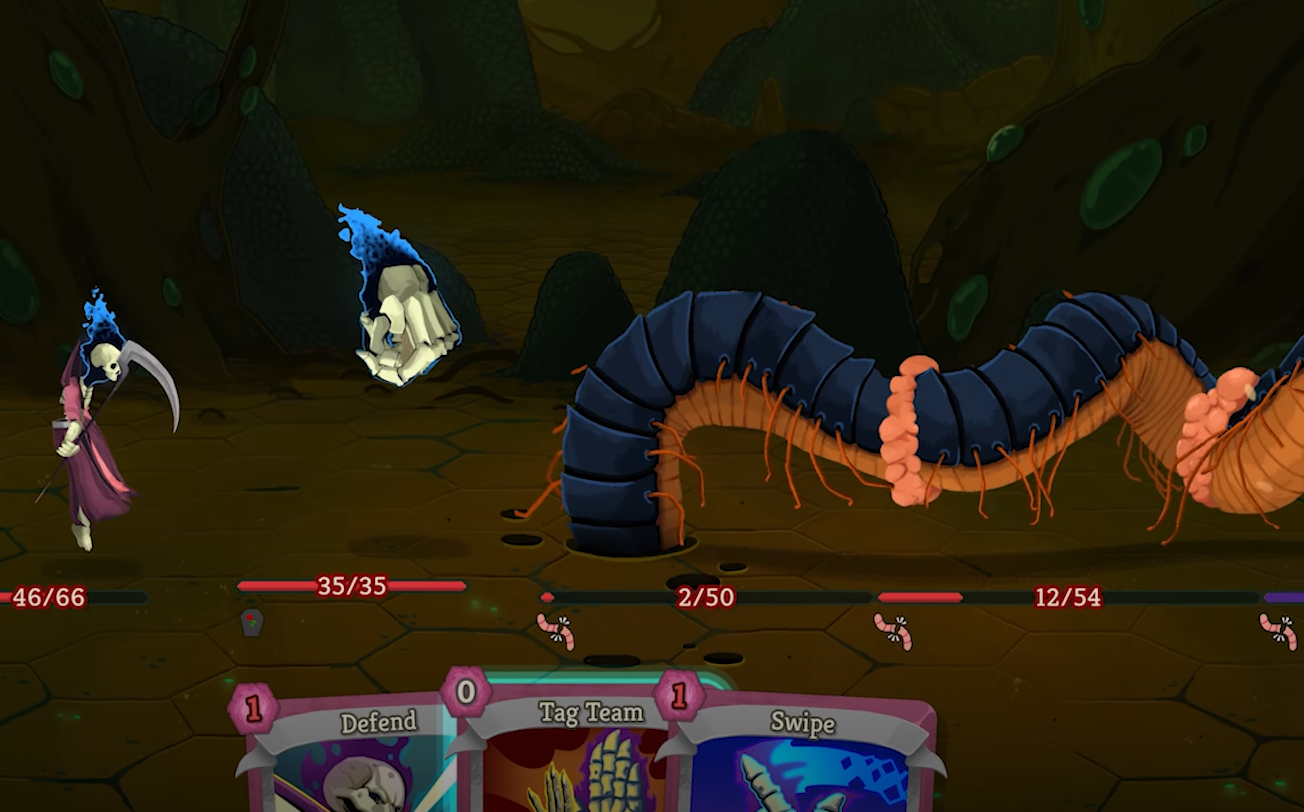
The best performance settings for Slay the Spire 2 are Exclusive Fullscreen, V Sync turned off, Fast Mode enabled, and a framerate cap that matches your monitor refresh rate. These settings give you smooth gameplay, low input delay, and stable frame pacing without pushing your GPU harder than necessary.
The game is not very demanding, so optimizing correctly is about consistency and responsiveness, not squeezing out extra frames.
Best Graphics Settings For Performance
Go into Settings and apply these:
Display Mode, Exclusive Fullscreen
Framerate Limit, match your monitor, 60, 144, or 240
V Sync, Off
Particle Effects, Low
Fast Mode, On
After changing Display Mode or V Sync, restart the game to ensure everything applies properly.
These settings keep frame pacing stable and reduce unnecessary GPU load.
Why Exclusive Fullscreen Is Better
Borderless Windowed can feel fine, but it allows Windows to interfere with frame timing. Exclusive Fullscreen gives the game direct control of rendering.
This usually results in smoother frame delivery and more consistent responsiveness during long runs.
If you care about performance, Fullscreen is the safer option.
Proper FPS Cap For Smooth Gameplay
Do not leave the framerate uncapped.
Slay the Spire 2 is lightweight, so uncapped FPS can push your GPU far beyond your monitor refresh rate. That creates extra heat and fan noise without improving visuals.
Set your FPS cap to match your monitor. If you use 144Hz, set 144. If you use 60Hz, set 60.
This keeps performance stable and clean.
Should You Use V Sync
For best responsiveness, turn V Sync off in game.
If you notice screen tearing, use NVIDIA Fast Sync or AMD Enhanced Sync in your driver settings instead. That keeps gameplay smooth without adding noticeable delay.
For most players, in game V Sync off feels better.
Fast Mode For Better Flow
Fast Mode is not a graphics setting, but it improves overall performance feel.
It speeds up animations and combat pacing. Even if your FPS is high, default animation speed can feel slow.
Turning Fast Mode on makes runs feel tighter and more responsive.
When To Lower Particle Effects
If you are on an older GPU and notice frame drops during heavy boss animations, lower Particle Effects to Low.
The visual difference is small, but it can improve consistency on weaker systems.
Most modern systems can leave this at Medium without issue.
Final Blurb
For the best performance in Slay the Spire 2, use Exclusive Fullscreen, turn off V Sync, enable Fast Mode, and cap your FPS to match your monitor. The game runs well on most systems, so stable frame pacing and clean settings matter more than extreme tweaks. Set it up once and your runs should stay smooth from Act 1 to the final boss.
FAQ
What are the best settings for Slay the Spire 2 performance
Exclusive Fullscreen, V Sync off, Fast Mode on, and an FPS cap matching your monitor provide the best balance of smoothness and stability.
Should I cap FPS in Slay the Spire 2
Yes. Capping FPS to your monitor refresh rate keeps temperatures lower and frame pacing more consistent.
Does Fast Mode improve performance
It does not increase raw FPS, but it improves animation speed and makes gameplay feel smoother.
Is Borderless or Fullscreen better
Exclusive Fullscreen generally provides more stable performance and better frame timing.