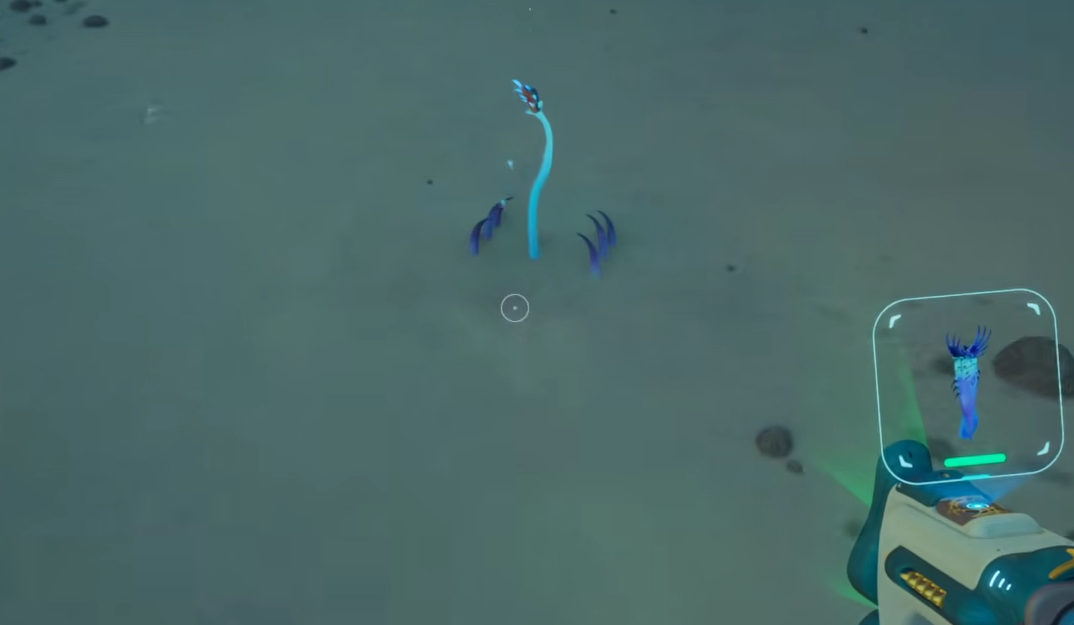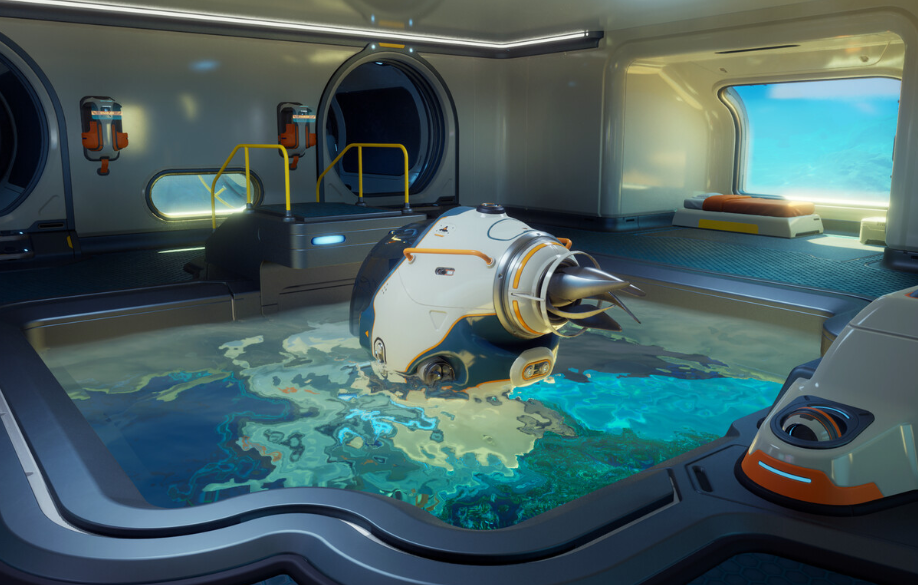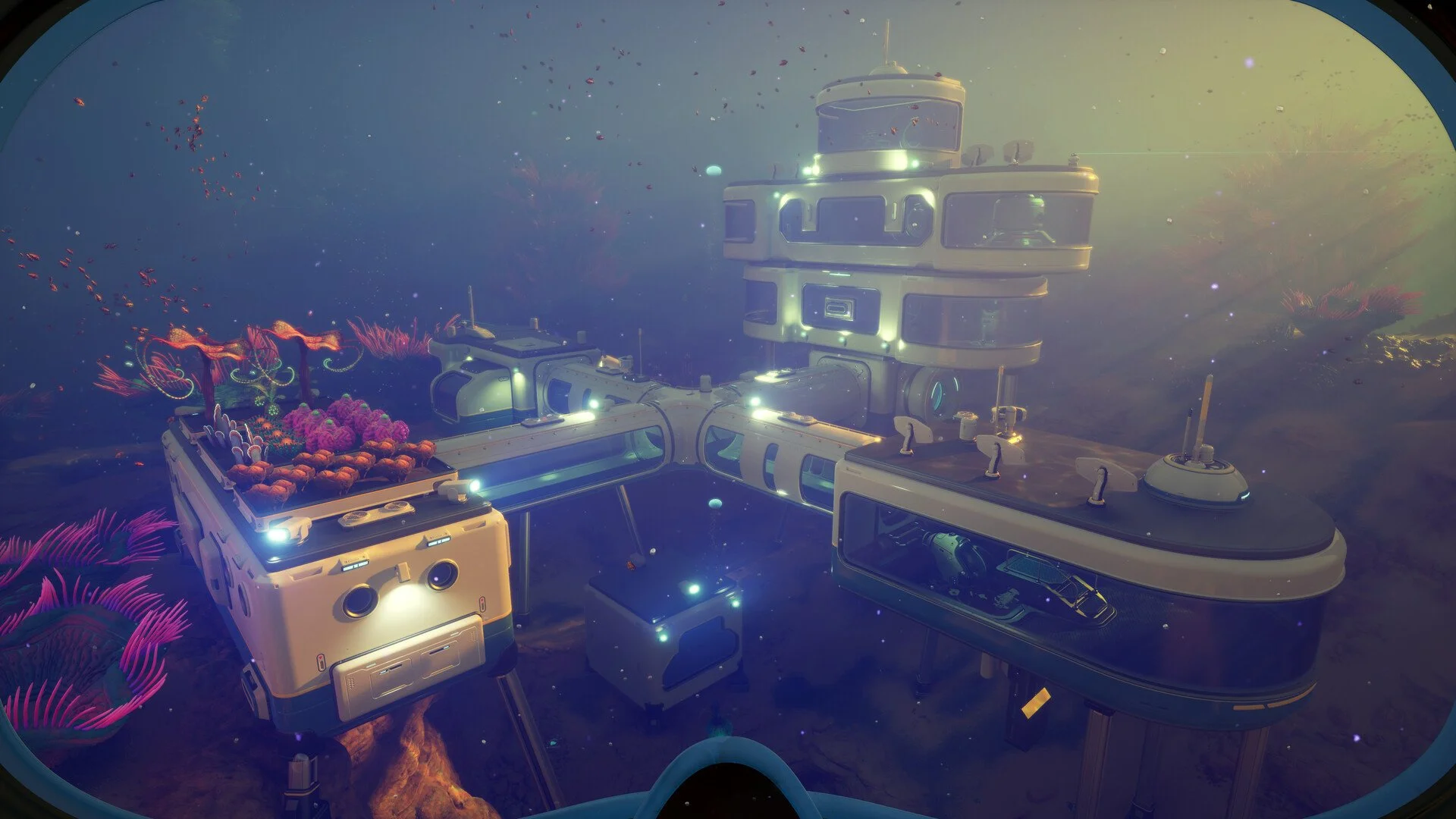
Subnautica 2 runs well on a wide range of PCs, but the Epic preset can cost a lot of frames for visual upgrades that are not always obvious while swimming through dark water, caves, and busy biomes. The best settings keep the game clean and sharp while lowering the heavy lighting, shadow, and effects options that hit performance hardest.
Jump To
Best Subnautica 2 Settings For FPS And Visuals
The best Subnautica 2 settings are Windowed Fullscreen, V Sync Off, Motion Blur Off, Underwater Blur based on preference, DLSS or TSR on Quality, Textures High, and Global Illumination, Shadows, View Distance, Shading, and Effects set to High or Medium for a strong FPS boost without making the game look rough.
The main trick is not lowering everything at once. Subnautica 2 has several expensive Unreal Engine 5 style visual settings that cost more performance than they return in normal gameplay. Global Illumination, Shadows, View Distance, Shading, and Effects are the first settings to adjust because they affect lighting, depth, scene complexity, and underwater visual load.
Textures are different. If the GPU has enough VRAM, keeping Textures at High usually helps the game stay sharp without the same kind of performance hit as lighting and shadow settings. Dropping Textures too early can make the game look worse while barely fixing the real problem.
For more Subnautica 2 guides, early survival help, and resource routes, the main Subnautica 2 hub keeps the related GamerBlurb guides in one place.
Best Balanced Subnautica 2 Settings
The best balanced settings target smooth 60 FPS while keeping the underwater world sharp, readable, and close to the intended look.
| Setting | Recommended Option |
|---|---|
| Window Mode | Windowed Fullscreen |
| Resolution | Native monitor resolution |
| Frame Rate Limit | 60 or monitor refresh rate if stable |
| V Sync | Off |
| Motion Blur | Off |
| Underwater Blur | Off for clarity, On for softer visuals |
| Upscaling Method | DLSS on Nvidia, TSR on AMD or Intel |
| Upscaling Quality | Quality |
| Global Illumination | High |
| Shadows | High |
| View Distance | High |
| Textures | High |
| Shading | High |
| Foliage | High or Medium |
| Effects | High |
| Reflections | High or Medium |
| Post Processing | High or Medium |
| Landscape | High |
| Clouds | Medium or High |
This is the best starting point for most decent gaming PCs. It avoids the full Epic preset tax while keeping Subnautica 2 looking good. The water, creatures, terrain, and base interiors still look clean, but the heavier lighting and scene settings stop dragging the frame rate down as hard.
Use this setup first before going lower. If performance is still unstable, lower Shadows, Effects, and Global Illumination to Medium before touching Textures.
If performance is rough because multiplayer sessions keep dropping or the game is behaving strangely online, the Subnautica 2 multiplayer not working fix guide covers the separate connection side of the problem.
Best Subnautica 2 Settings For Low End PCs
The best low end Subnautica 2 settings use 1080p, a 60 FPS cap, upscaling on Balanced or Performance, and Medium to Low settings for the biggest GPU heavy options.
| Setting | Low End Option |
|---|---|
| Window Mode | Windowed Fullscreen |
| Resolution | 1920 x 1080 |
| Frame Rate Limit | 60, or 30 if the PC cannot stay stable |
| V Sync | Off |
| Motion Blur | Off |
| Underwater Blur | Off |
| Upscaling Method | DLSS if available, TSR otherwise |
| Upscaling Quality | Balanced first, Performance if needed |
| Global Illumination | Medium or Low |
| Shadows | Low |
| View Distance | Medium |
| Textures | Medium, Low on 6 GB GPUs if needed |
| Shading | Medium or Low |
| Foliage | Medium or Low |
| Effects | Low |
| Reflections | Medium or Low |
| Post Processing | Medium or Low |
| Landscape | Medium |
| Clouds | Low |
Low end PCs should not chase Epic visuals in early access. The better goal is a stable frame rate, readable water, and fewer sharp drops when entering bigger areas. Subnautica 2 is an exploration game, and stutter during cave movement or creature encounters feels worse than a slightly lower shadow setting.
If the game still struggles, cap the frame rate to 30. It is not the prettiest answer, but a stable 30 FPS is better than a shaky 45 FPS that drops every time the ocean remembers it has geometry.
Best Subnautica 2 Settings For High End PCs
High end PCs can keep most settings on Epic, but Global Illumination, Shadows, View Distance, Shading, and Effects should still be tested at High before leaving everything maxed.
| Setting | High End Option |
|---|---|
| Window Mode | Windowed Fullscreen or Fullscreen |
| Resolution | Native resolution |
| Frame Rate Limit | Monitor refresh rate if stable |
| V Sync | Off, unless screen tearing is visible |
| Motion Blur | Off |
| Underwater Blur | Preference |
| Upscaling Method | DLSS on Nvidia, TSR otherwise |
| Upscaling Quality | Quality or Native if performance allows |
| Global Illumination | High |
| Shadows | High |
| View Distance | High |
| Textures | Epic |
| Shading | High |
| Foliage | Epic or High |
| Effects | High |
| Reflections | Epic or High |
| Post Processing | Epic or High |
| Landscape | Epic |
| Clouds | High |
The high end mistake is assuming Epic is always the best choice. Subnautica 2 can look almost the same in normal play with a few expensive settings dropped to High. The difference is usually most visible in bright shallow areas, heavy shadows, and direct screenshot comparisons.
During actual exploration, smooth frame pacing is more valuable than maxing every setting. A clean High and Epic mix keeps the game looking premium without making expensive hardware work harder for tiny visual gains.
High end systems also make deep exploration smoother, which helps when pushing into later material routes like Conduit Crystal locations or Troilite mining routes.
Subnautica 2 Settings To Lower First
The first settings to lower in Subnautica 2 are Global Illumination, Shadows, View Distance, Shading, and Effects.
These settings have the best balance of performance gain to visual loss. Dropping them from Epic to High is the cleanest first move because it usually keeps the game looking close to max while giving back a large chunk of performance.
| Setting | Why It Costs FPS | Best First Change |
|---|---|---|
| Global Illumination | Controls expensive lighting behavior and indirect light. | Epic to High, then Medium if needed. |
| Shadows | Heavy in caves, ruins, bases, and busy terrain. | Epic to High or Medium. |
| View Distance | Controls how much distant scene detail is drawn. | Epic to High, Medium on weaker GPUs. |
| Shading | Affects surface lighting and material depth. | Epic to High or Medium. |
| Effects | Can hit performance during particles, water effects, and busy scenes. | Epic to High, Low on weaker PCs. |
After those, lower Reflections, Foliage, Post Processing, and Clouds if more FPS is needed. Leave Textures alone until VRAM becomes the issue. Texture quality affects sharpness more directly than many of the heavier visual settings, so lowering it too soon can make the game look worse without solving the main frame rate problem.
Best Upscaling And Frame Generation Settings
DLSS is the best upscaling choice for Nvidia GPUs, while TSR is the main fallback for AMD and Intel GPUs in the current early access build.
For most PCs, Quality upscaling is the best starting point. It improves performance while keeping the image stable enough for underwater movement, resource spotting, and base work. Balanced is the next step if the frame rate still drops too often. Performance should be saved for weaker PCs, higher resolutions, or situations where stability matters more than image clarity.
| GPU Type | Best Upscaling Choice | Recommended Quality |
|---|---|---|
| Nvidia RTX | DLSS | Quality first, Balanced if needed. |
| AMD Radeon | TSR | Quality first, Balanced if needed. |
| Intel Arc | TSR | Quality first, Balanced if needed. |
| Older GPUs | TSR if available | Balanced or Performance. |
Frame Generation should only be used when the base frame rate already feels decent. It can make motion look smoother, but it does not fix every kind of stutter. If the game is already dropping hard or hitching during traversal, lower the expensive graphics settings first, then test Frame Generation after the base FPS is stable.
AMD and Intel users should also keep expectations realistic in early access. If a specific upscaling or frame generation option is missing, use TSR and tune the heavy graphics settings instead of hunting for a magic toggle that is not in the menu yet.
Best Subnautica 2 Settings To Fix Stutter
The best way to fix Subnautica 2 stutter is to cap the frame rate, lower the 5 heaviest visual settings, use Quality or Balanced upscaling, and avoid pushing Textures too high on lower VRAM GPUs.
Stutter is different from low average FPS. A PC can show a decent average and still feel bad if the lows are rough. That is why a frame cap can help. A stable 60 FPS cap often feels better than an uncapped frame rate bouncing around constantly.
- Set Frame Rate Limit to 60 if the game feels uneven.
- Turn V Sync Off first, then enable it only if screen tearing is distracting.
- Lower Global Illumination, Shadows, View Distance, Shading, and Effects before lowering everything else.
- Use DLSS or TSR on Quality, then Balanced if stutter continues.
- Lower Textures only if the GPU has limited VRAM or texture streaming feels rough.
- Restart the game after major settings changes if performance feels inconsistent.
Busy biomes and later areas can be harder to run than the opening zone. A preset that feels perfect near the Lifepod may need adjustment once the game starts showing larger spaces, denser terrain, and more visual clutter. Early access optimization will likely shift over time, so treat these settings as a strong baseline, not a permanent law carved into coral.
If stutter is happening while trying to gather key materials, use the Subnautica 2 Lithium location guide after tuning settings, since The Great Jaw route is much easier when movement and frame pacing feel stable.
Subnautica 2 PC Requirements And What They Mean
Subnautica 2 has reasonable minimum requirements, but the recommended specs show that higher settings and smoother performance need stronger hardware.
| Spec | Minimum | Recommended |
|---|---|---|
| OS | Windows 10 or 11 | Windows 11 |
| CPU | Intel Core i5 8400 or AMD Ryzen 5 2600 | Intel Core i7 13700 or AMD Ryzen 7 7700X |
| RAM | 12 GB | 16 GB |
| GPU | GeForce GTX 1660 6 GB or Radeon RX 5500 XT 6 GB | GeForce RTX 3070 8 GB or Radeon RX 6700 XT 8 GB |
| DirectX | Version 12 | Version 12 |
| Storage | 50 GB available space | 50 GB available space |
The minimum specs are enough to get into the game, but they should be paired with lower settings and upscaling. The recommended specs are a better fit for High settings, especially at 1080p or 1440p.
For 6 GB and 8 GB graphics cards, do not blindly max every setting. Keep the heavy lighting and effects settings under control, use upscaling, and watch for stutter in denser areas. Subnautica 2 can still look good without pushing every slider to Epic, which is nice because the fish do not care how expensive the shadows are.
Final Blurb
The best Subnautica 2 settings come from mixing High and Epic instead of using the full Epic preset. Keep the image sharp with good resolution, Quality upscaling, and strong Texture settings when VRAM allows, then lower Global Illumination, Shadows, View Distance, Shading, and Effects first for the biggest FPS gains.
Low end PCs should focus on stability with a 60 FPS cap, Balanced upscaling, and Medium to Low heavy settings. High end PCs can keep more visuals maxed, but even strong hardware benefits from dropping the most expensive settings to High. Smooth swimming beats perfect shadows, especially when something huge appears out of the dark and the frame rate chooses that exact moment to develop a personality.