Assassin’s Creed Black Flag Resynced: Best Controller Settings
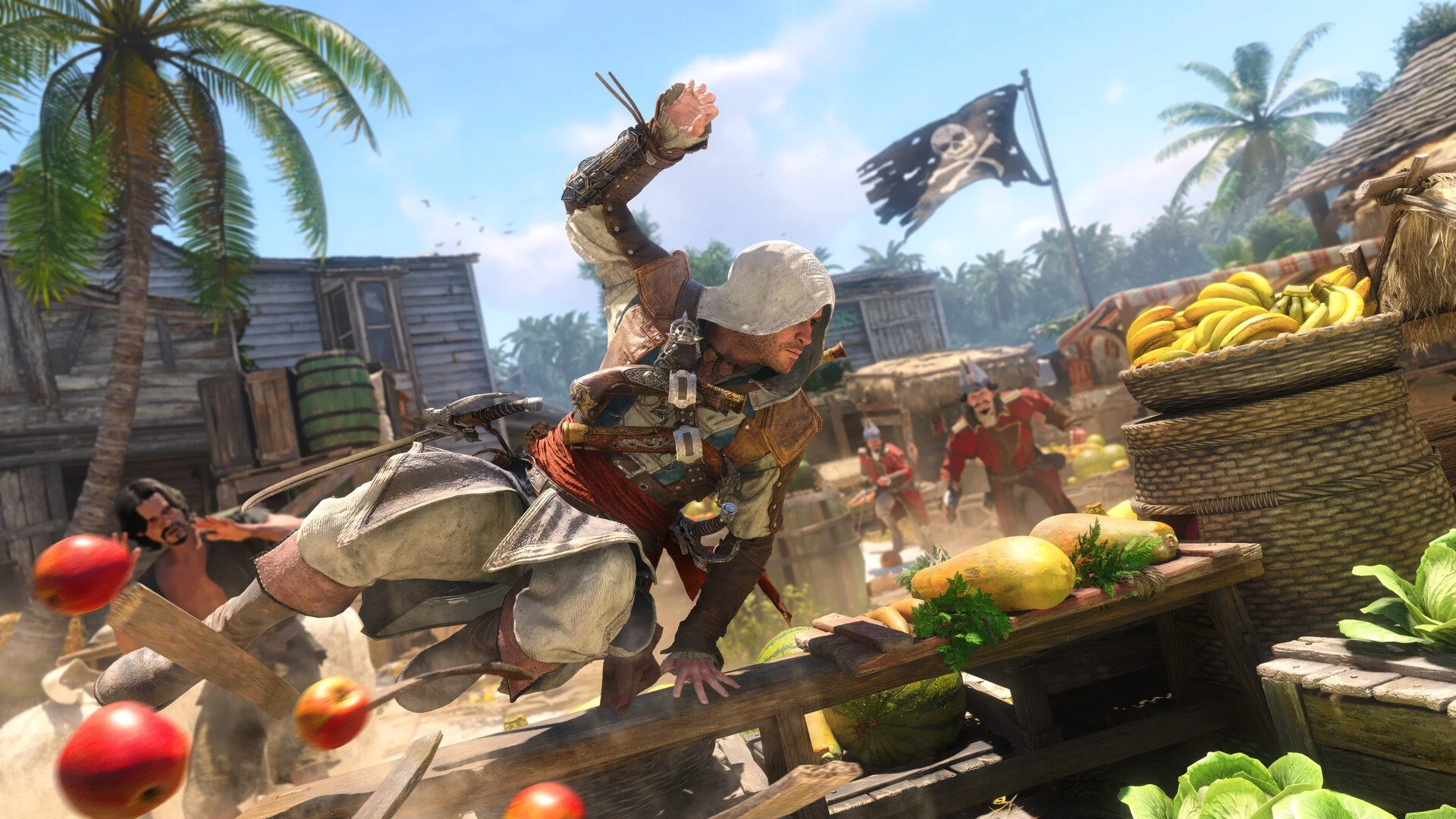
The best controller settings for Assassin’s Creed Black Flag Resynced are a slightly faster horizontal camera, tighter stick dead zones if your controller does not drift, auto-movement turned off, and standard non-inverted camera controls unless you already play inverted. I would use X-Axis Sensitivity at 6, Y-Axis Sensitivity at 5, stick dead zones around 8%, trigger dead zones around 12%, and leave the default control layout alone.
Black Flag Resynced is not the kind of game where you need to rebuild the controls from scratch. The goal is smaller and more practical: make Edward turn a little faster, keep the camera steady during parkour, avoid accidental trigger inputs, and make the Jackdaw feel responsive without turning naval combat into a drunk shopping cart simulator.
Jump To
Recommended Controller Settings
My preferred controller setup keeps the familiar default layout but makes the camera and input response feel a little sharper. That matters because Assassin’s Creed Black Flag Resynced constantly shifts between walking through towns, climbing buildings, fighting groups, aiming pistols, and steering the Jackdaw through naval combat.
| Setting | Recommended Value | Why I’d Use It |
|---|---|---|
| Customize Controls | Default | The default layout already fits the game’s mix of parkour, combat, and sailing |
| Left-Handed Layout | Off | Only change this if you specifically prefer left-handed control schemes |
| Auto-Movement | Off | Manual control is better for rooftops, stealth, docks, and tight ship positioning |
| Gameplay Vibration | Low or Default | Low keeps useful feedback without making every cannon hit feel like a hardware complaint |
| X-Axis Sensitivity | 6 | Improves horizontal camera movement during combat, sailing, and city exploration |
| Y-Axis Sensitivity | 5 | Keeps vertical camera movement stable while climbing and navigating rooftops |
| Left Stick Dead Zone | 8% | Feels more responsive than a heavier dead zone if your controller has no drift |
| Right Stick Dead Zone | 8% | Gives the camera a cleaner response without making drift too likely |
| Left Stick Threshold | 95% | Makes full movement slightly easier to hit without changing the feel too much |
| Right Stick Threshold | 100% | Keeps the camera range predictable |
| LT Dead Zone | 12% | Helps prevent accidental aim input |
| RT Dead Zone | 12% | Helps prevent accidental trigger input during combat and naval sections |
| LT Threshold | 100% | Keeps trigger behavior consistent |
| RT Threshold | 100% | Keeps trigger behavior consistent |
This setup is intentionally not extreme. The biggest change is horizontal sensitivity, because the default camera can feel a little too relaxed when you are turning around in a crowd, scanning a ship deck, or trying to line up movement while the game is throwing three different systems at you at once.
Best Camera Sensitivity
I would set X-Axis Sensitivity to 6 and keep Y-Axis Sensitivity at 5. That gives the camera a little more speed when turning left and right without making vertical adjustments feel twitchy during parkour.
| How You Want the Game to Feel | X-Axis | Y-Axis |
|---|---|---|
| Balanced and close to default | 5 | 5 |
| Recommended setup | 6 | 5 |
| Faster combat camera | 7 | 5 or 6 |
| Slower, steadier movement | 4 | 4 |
The reason I prefer raising horizontal sensitivity first is that most of the game’s camera pressure comes from turning. You rotate around enemies, swing the camera across rooftops, check your surroundings in towns, and track ships during naval combat. Vertical camera speed matters, but pushing it too high can make climbing and ledge movement feel messier than it needs to.
If the camera feels sluggish, raise X-Axis Sensitivity before touching dead zones. If the camera feels jumpy or hard to control, lower sensitivity before assuming the controller settings are broken. Sensitivity and dead zone changes solve different problems, and mixing them together too quickly is how you end up with a setup that feels haunted.
Dead Zones and Thresholds
For stick dead zones, I would start at 8% on both sticks if your controller is in good shape. That keeps movement and camera response a little tighter than a heavier default-style setup, which helps Black Flag Resynced feel less delayed without making the controls overly sensitive.
If your controller has any drift, raise the affected dead zone to 10%, then 12% or 15% if needed. Do not force an 8% dead zone on a controller that is already drifting. Edward has enough problems without slowly walking off a roof because your left stick wanted to contribute.
| Situation | Left Stick Dead Zone | Right Stick Dead Zone |
|---|---|---|
| New or healthy controller | 8% | 8% |
| Mild movement drift | 10% to 12% | 8% |
| Mild camera drift | 8% | 10% to 12% |
| Noticeable drift | 12% to 15% | 12% to 15% |
| Controls feel delayed | Lower by 1% to 2% | Lower by 1% to 2% |
Thresholds are different from dead zones. Dead zones control how much stick movement the game ignores at the start. Thresholds affect how easily the game reads the input as fully pressed. I would set Left Stick Threshold to 95% because it makes full movement a little easier to reach, while keeping Right Stick Threshold at 100% so the camera keeps its full predictable range.
For triggers, I like 12% dead zones with 100% thresholds. The slightly larger dead zone helps avoid accidental aiming or firing, while the full threshold keeps the trigger pull consistent when you actually mean to use it.
Ship and Aiming Controls
For aiming, camera, ship aiming, and ship camera inversion, I would leave everything off unless you already play inverted in most games. Black Flag Resynced asks you to move between on-foot and naval controls constantly, so the cleanest setup is the one that keeps both control styles predictable.
| Setting Type | Recommended Value | When to Change It |
|---|---|---|
| Aiming Inversion | Off | Only turn on if inverted aiming is your normal preference |
| Camera Inversion | Off | Only turn on if standard camera movement feels backward to you |
| Ship Aiming Inversion | Off | Change only if cannon aiming feels opposite to your muscle memory |
| Ship Camera Inversion | Off | Change only if ship camera movement feels unnatural after testing naval combat |
I would not judge ship controls after one short sailing section. The Jackdaw has its own weight and rhythm, and naval combat feels better once you get used to turning, lining up broadsides, slowing down, and reading enemy ship movement. If it still feels awkward after a few fights, adjust camera sensitivity before flipping every inversion setting.
A slightly faster X-Axis camera helps ship combat more than most people expect. You spend a lot of time looking left and right, checking angles, lining up targets, and keeping enemy ships in view. That is exactly why I prefer 6 over 5 for horizontal sensitivity.
Settings I Would Not Change
I would leave the core control layout on Default. Assassin’s Creed Black Flag Resynced has too many overlapping actions to casually remap everything: parkour, assassinations, melee combat, pistols, tools, ship steering, naval weapons, and camera control all need to coexist without getting in each other’s way.
Auto-Movement is the setting I would actively avoid. It might sound convenient in a large open-world game, but Black Flag Resynced often rewards careful movement more than constant forward motion. Rooftop routes, stealth approaches, docks, ship decks, and climbing lines all benefit from manual control.
Vibration is personal. I would use Low if the game allows it, or leave it at Default if you like stronger feedback. Turning vibration off is fine if you want a cleaner feel or better battery life, but I do think some feedback helps during naval combat and heavy impacts.
How to Tune Your Controller
The best way to tune controller settings is to test them across different parts of the game before deciding they are right. Run through a town, climb a few rooftops, fight a small group, aim a pistol, then spend a few minutes sailing. If a setting only feels good in one of those situations, it probably is not the setting you want for the whole game.
| Problem | Change This First |
|---|---|
| Camera feels too slow in fights | Raise X-Axis Sensitivity to 6 or 7 |
| Camera feels too twitchy | Lower X-Axis and Y-Axis Sensitivity by 1 |
| Edward moves without input | Raise Left Stick Dead Zone |
| Camera moves on its own | Raise Right Stick Dead Zone |
| Movement feels delayed | Lower Left Stick Dead Zone slightly |
| Accidental aiming or firing happens often | Raise LT or RT Dead Zone slightly |
| Ship combat feels hard to track | Raise X-Axis Sensitivity before changing inversion |
Change one setting at a time, then play for a few minutes. If you adjust sensitivity, dead zones, thresholds, and inversion all at once, the game may feel different, but you will not know which change actually helped. That is not tuning; that is throwing darts at a settings menu.
If you are also adjusting visuals on console, our Assassin’s Creed Black Flag Resynced best PS5 settings guide covers the best graphics mode for different PS5 setups. If you are trying to understand the 40 FPS option, our Assassin’s Creed Black Flag Resynced Balanced Mode guide explains when that mode is worth using.
The setup I would use is Default controls, Auto-Movement Off, X-Axis Sensitivity 6, Y-Axis Sensitivity 5, 8% stick dead zones, 12% trigger dead zones, 95% Left Stick Threshold, and 100% thresholds everywhere else. It keeps the game close to its intended feel while making the camera and movement a little cleaner for combat, parkour, and sailing.