Dying Light The Beast FOV Guide How to Change Field of View
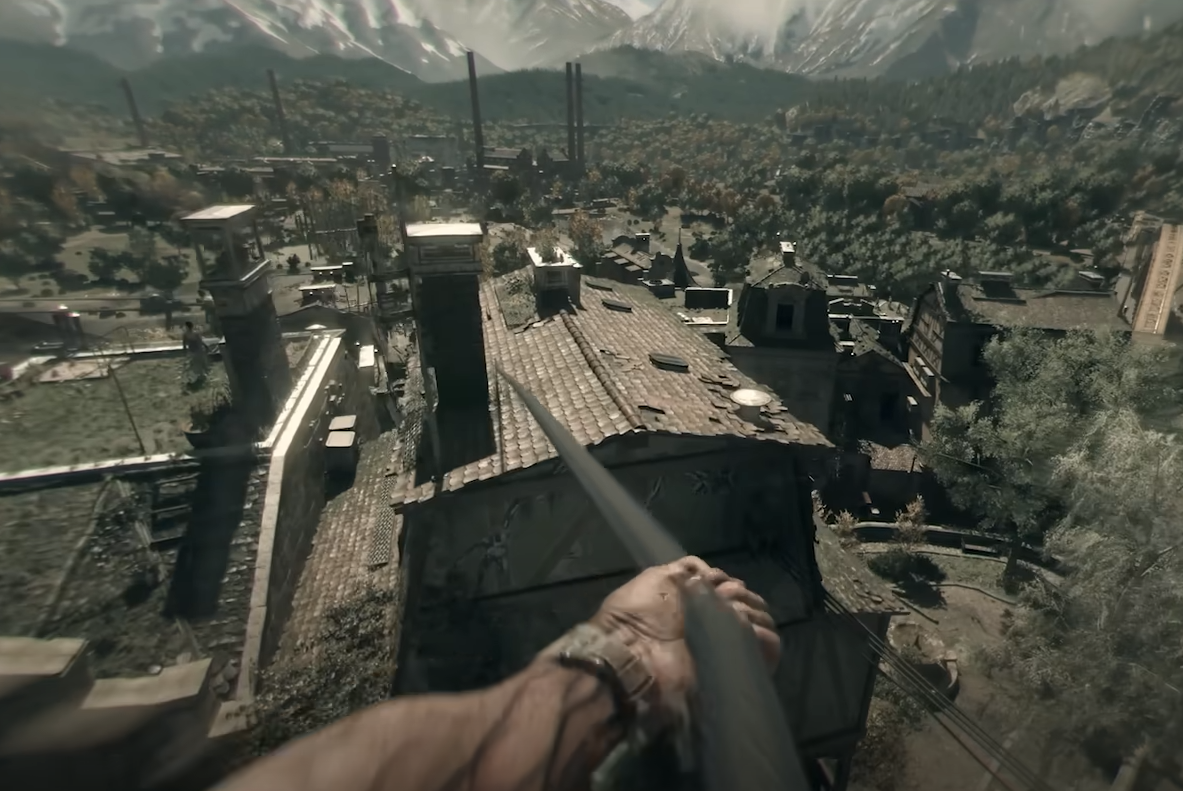
Field of view is one of the most important settings in any first person game, and many players are already asking how to adjust it in Dying Light The Beast. The default is low, which makes the world feel cramped and can add motion sickness. Thankfully, there are ways to change the FOV, even if the in-game slider is limited.
How to Change FOV in Dying Light The Beast
On PC, you can adjust FOV two different ways. The first is through the advanced video settings menu, where you can move the slider and disable filters like motion blur, film grain, and chromatic aberration for a clearer view. If the slider is greyed out, this is usually because “reduced motion sickness” is enabled in the accessibility settings.
The second method (untested by us) is by editing the configuration file. Open the game’s documents folder, find the video settings file, and add this line to the bottom:
ExtraGameFov(40)
Saving the file with this value raises your FOV from the default 57 to around 97. Mark the file as read-only afterward so the game does not overwrite your change. You can experiment with different numbers if you prefer higher or lower FOV.
Extra Tips for Better Visuals
Turn motion blur intensity to zero. This helps reduce smearing and makes combat easier to follow.
Disable film grain and chromatic aberration. These are visual effects that make the screen look grittier but reduce clarity.
Adjust depth of field. Turning this off removes the blur when aiming or looking at objects, which can help in fast fights.
Check controller settings. If you use a DualSense, disable Steam Input to make sure the game recognizes the correct icons.
Why FOV is Important in Dying Light The Beast
Parkour and close combat are at the center of the game. A wider field of view lets you track enemies while climbing or dodging and gives you more awareness at night when Volatiles hunt you. It also reduces the “tunnel vision” effect that can cause eye strain.
Final Blurb
Dying Light The Beast runs well, but its default FOV is too narrow for many players. By changing the setting in the menu or editing the config file, you can push the view out and make the game smoother, clearer, and easier on your eyes.
Combined with disabling extra filters, you get a sharper image that helps in both survival and exploration.
FAQ
What is the default FOV in Dying Light The Beast?
The default FOV is 57, which feels tight for most players in first person.
How high can I raise the FOV?
By using the config file edit, players have pushed it to around 97 with the value ExtraGameFov(40).
Why is the motion blur slider locked for me?
If motion blur intensity is greyed out, check accessibility settings. The “reduced motion sickness” option blocks the slider.
Will changing the FOV affect performance?
Raising FOV can lower frame rate slightly since more of the world is rendered, but the drop is minimal on most systems.
More Dying Light: The Beast