To scan QR codes in GTA 6, use the WAiNK app on your character's phone or the camera on your real smartphone. The correct method depends on the QR code. Some activate in-game discoveries and hidden missions, while others open Rockstar websites. Here's how to tell the difference and scan them successfully.
How to Scan QR Codes in GTA 6
For interactive QR codes and other scannable locations, hold Up on the D-pad to open WAiNK, aim your phone at the target, and use the WAiNK IT prompt to scan it.
The controls are the same basic process on PS5 and Xbox Series X|S:
WAiNK is also used for scanning vehicles, landmarks, curiosities, and other points of interest. That means the camera is not exclusively a QR-code reader.
If you receive a notification that a WAiNK scan is nearby, remember that the notification can appear before you're actually within scanning distance. Move closer to the object before attempting the interaction.
Should You Use WAiNK or Your Real Phone?
Not every QR code in GTA 6 is designed to activate something inside the game. Some printed codes work as actual QR links, meaning you'll need to scan your television or monitor using a real smartphone.
The difference is what the code is intended to do:
| What You're Scanning | Method |
|---|---|
| Interactive QR code or mission target | Use WAiNK and the WAiNK IT prompt. |
| QR code linking to a Rockstar website | Use your real smartphone's camera. |
| Landmark or other WAiNK collectible | Use WAiNK even if the target isn't a printed QR code. |
Scanning QR Codes With a Real Smartphone
When a QR code is an external website link, keep it visible on your gaming screen and point your real phone's camera at it.
If your phone recognizes the code, a link should appear. Tap it to open the destination in your browser.
Some QR codes in GTA 6 lead to a Rockstar-hosted webpage displaying a fictional Federal Investigation Bureau website-seizure notice. This is an intentional Easter egg, not a real warning from law enforcement.
Opening one of these pages doesn't mean you've completed an in-game WAiNK scan or activated a mission.
The No Flushers QR Code
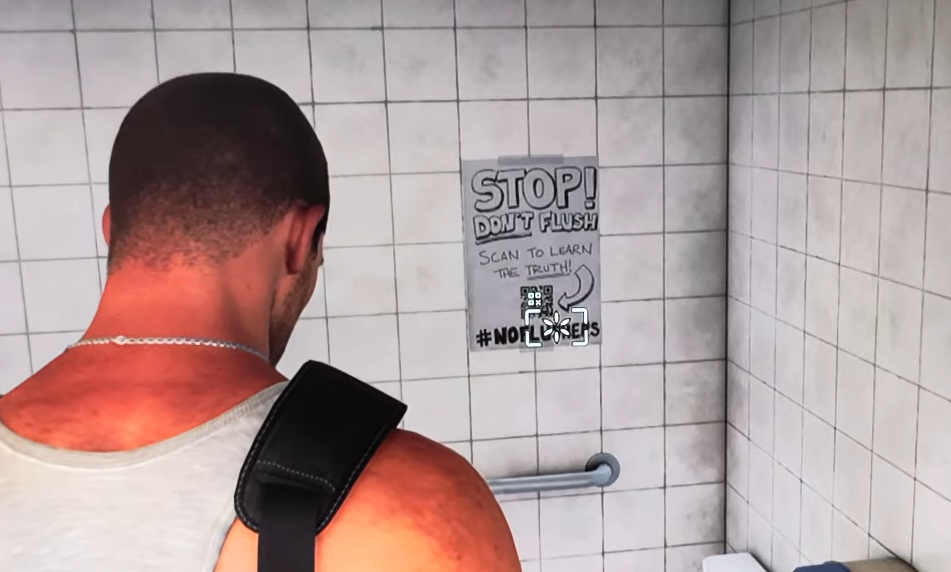
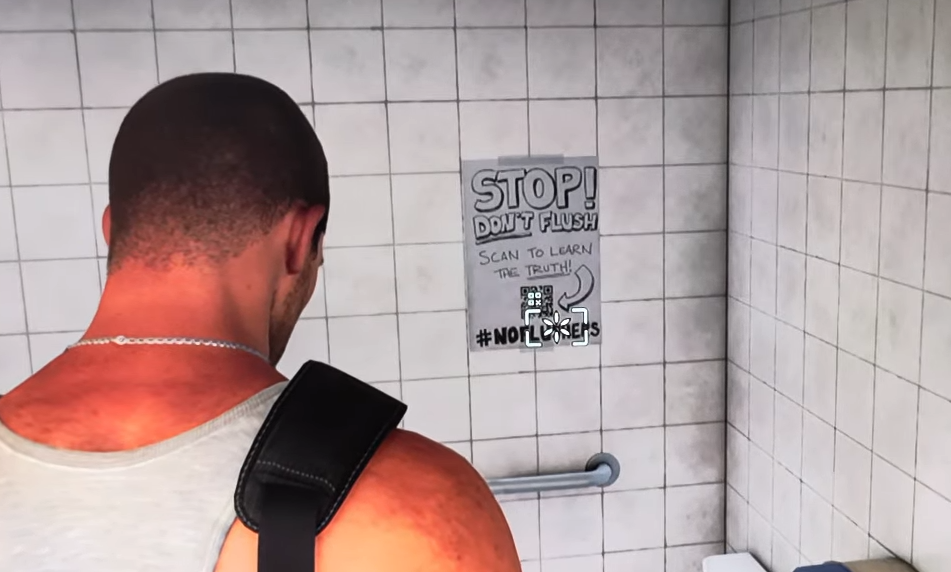
One confirmed in-game QR-code activity involves the Stop! Don't Flush posters found in public restrooms around Leonida.
You can find one in the public restroom on Corsair Key, northeast of Key Lento. The poster is connected to the secret No Flushers storyline.
Use WAiNK to interact with the supported mission poster. After the interaction, an automated contact sends you a message. Replying TRUTH continues the storyline that eventually unlocks The Final Flush, a mission with a permanent maximum Stamina reward.
However, reports also document bathroom QR codes that open external Rockstar webpages when scanned with a real smartphone. Don't assume every similarly themed poster supports both interactions.
For the general question of how to scan QR codes, the important point is that the in-game WAiNK interaction and an external website link are not interchangeable.
Why Can't You Scan a QR Code in GTA 6?
If a QR code isn't responding, first check whether the game is actually offering a WAiNK interaction.
Use these checks to narrow down the problem:
- If you open the regular phone screen, hold Up on the D-pad instead of tapping it to activate the WAiNK camera directly.
- If the game says a scan is nearby but you cannot interact, move closer. The nearby notification does not necessarily mean you're already in range.
- If there's no WAiNK IT prompt when aiming at a printed code, it may be an external QR link. Try scanning the screen with your real smartphone instead.
- If your smartphone doesn't recognize a QR code, make sure the entire printed code is visible and large enough for your camera to read.
- If you've scanned a No Flushers mission poster, check your in-game messages for the follow-up rather than expecting the mission to begin immediately.
The most useful distinction is whether the game recognizes the object as a WAiNK target. A visible QR code alone doesn't guarantee that WAiNK can interact with it.
For tracked WAiNK discoveries, you can also check your scan progress through the pause menu under Progress, Collections, and WAiNK Locations. This provides a separate way to review your location-scanning progress.
In short, use WAiNK for supported in-game interactions and your real phone for QR codes that lead to external websites. If one method doesn't respond, determine which type of code you're looking at before assuming the game is broken.
GTA 6 QR Code Video