How to Fix Blurry Graphics in Expedition 33 on PC
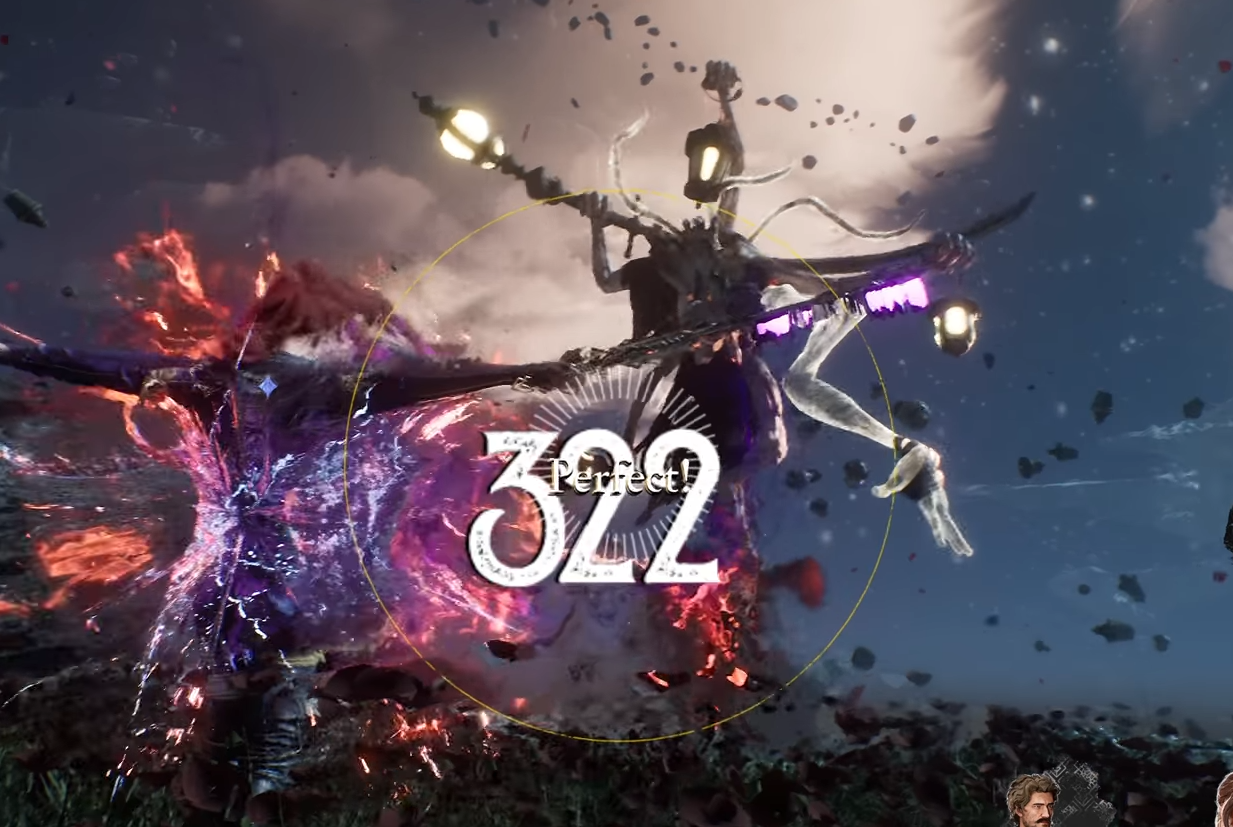
Image Credits: Sandfall Interactive
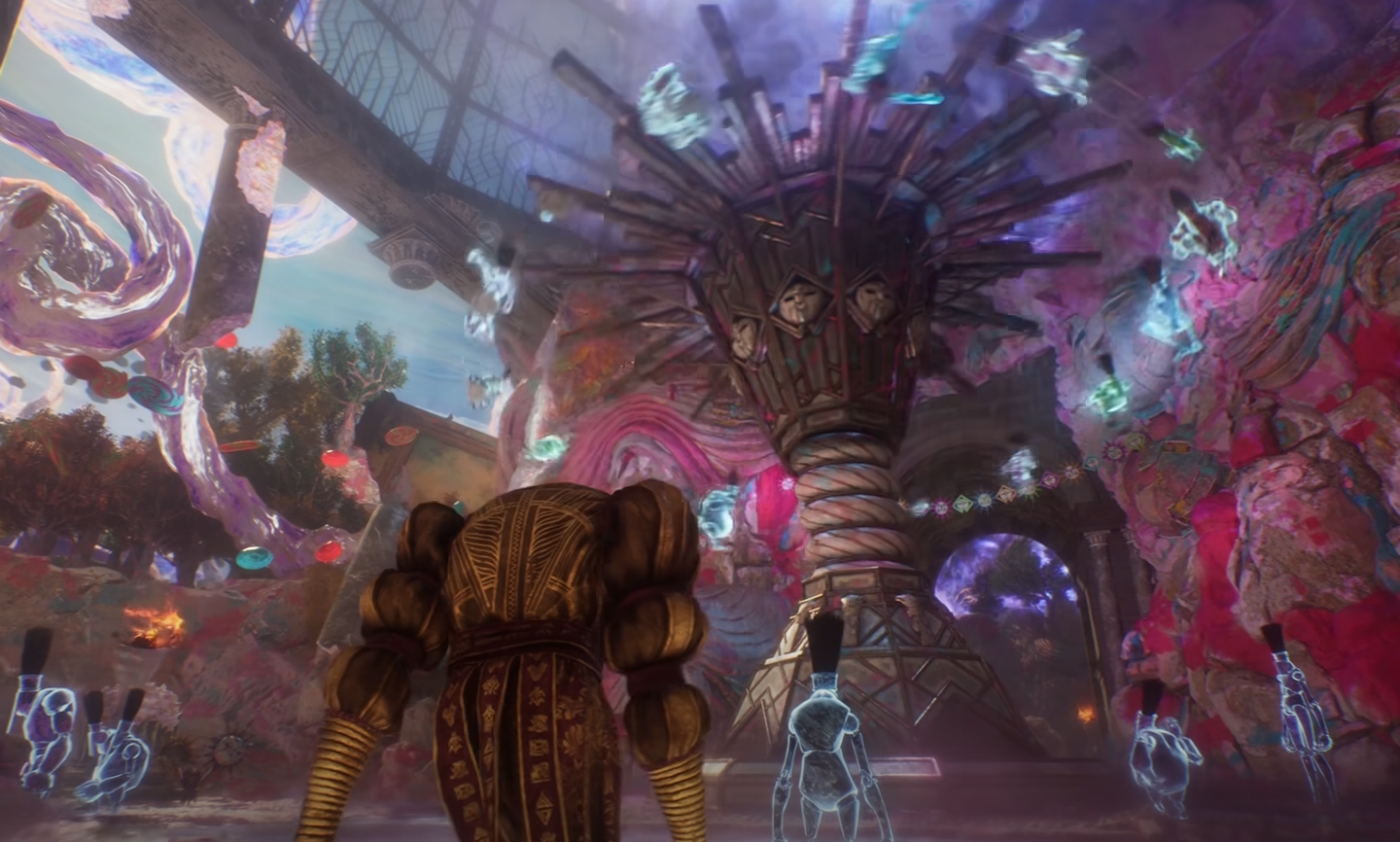
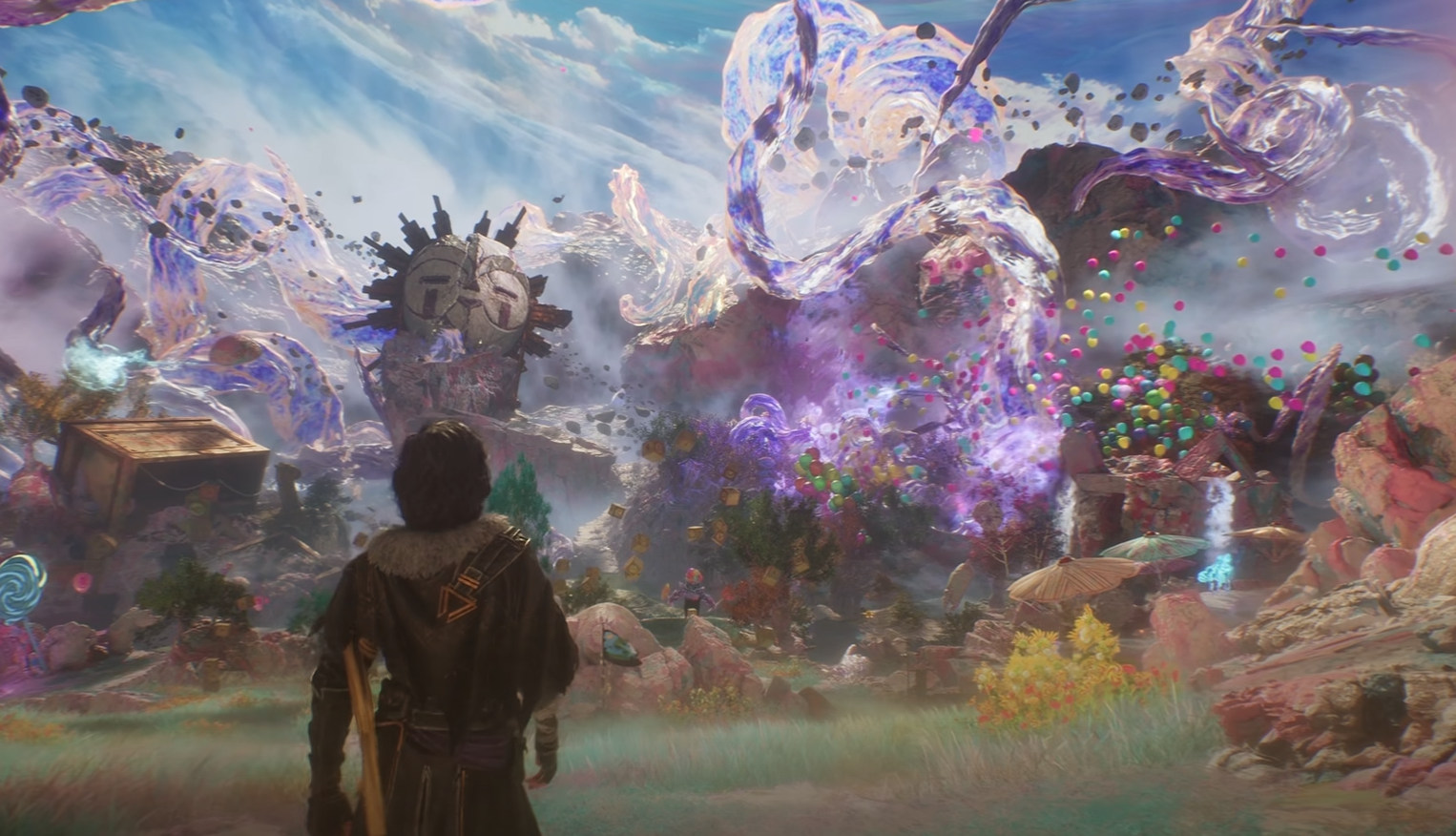
If Expedition 33 looks like you're playing through a foggy window—even at 4K—you’re not imagining things. Many players are running into blurry, low-res visuals despite cranking every setting to Epic. The good news? There are a few tweaks that can sharpen things up while we all wait for a proper patch.
Here’s how to clean up that image and actually see The Continent in its full glory.
1. Drop Post-Processing Settings
It sounds backwards, but setting Post Process to Low or Medium can actually make the game look clearer. Higher settings tend to pile on unnecessary filters that blur the image.
What to do:
Set Post Processing to Low or Medium.
Disable Motion Blur, Film Grain, Chromatic Aberration, and Vignette for a cleaner image.
2. Avoid DLAA for Now
Players have noticed that DLAA at 4K isn’t behaving properly—it often locks the render resolution way below native 4K (like 3041x1711). Until this gets patched, it’s better to switch to DLSS Quality or even disable DLSS entirely if your rig can handle it.
What to do:
Use DLSS Quality instead of DLAA.
If possible, disable DLSS/TSR/XeSS altogether for true native resolution.
3. Use Nvidia DSR (Dynamic Super Resolution)
If you're on an Nvidia GPU, you can force higher resolutions using DSR in the control panel. This trick renders the game above 4K and downscales it for a sharper image.
How to set it up:
Open Nvidia Control Panel > Manage 3D Settings > Enable DSR Factors (try 1.78x for 5120x2880).
Launch the game in Borderless Windowed mode.
Set resolution to the new DSR value.
Use DLSS Quality for better clarity.
4. Check Full Screen vs Borderless
Some players report better resolution handling when switching between Fullscreen and Borderless Windowed. Test both to see which one properly respects your monitor's resolution (though generally full screen is the way to go).
5. Advanced Tweaks (For The Brave)
Use tools like Nvidia Profile Inspector or DLSS Swapper to adjust DLSS presets (try forcing Preset K).
Be cautious—this is more of a temporary hack than a fix, but some players claim noticeable improvements.
Final Blurb
Until Expedition 33 gets a proper hotfix, getting rid of that blurry, washed-out look is all about dialing back certain "fancy" settings and avoiding broken features like DLAA. A few quick tweaks, and you’ll actually get to see the beautiful mess you’re fighting through—without feeling like you're squinting the whole time.
If none of this works... well, let’s just say the Paintress isn’t the only thing in need of correction.

Reommended | View all Clair Obscur: Expedition 33