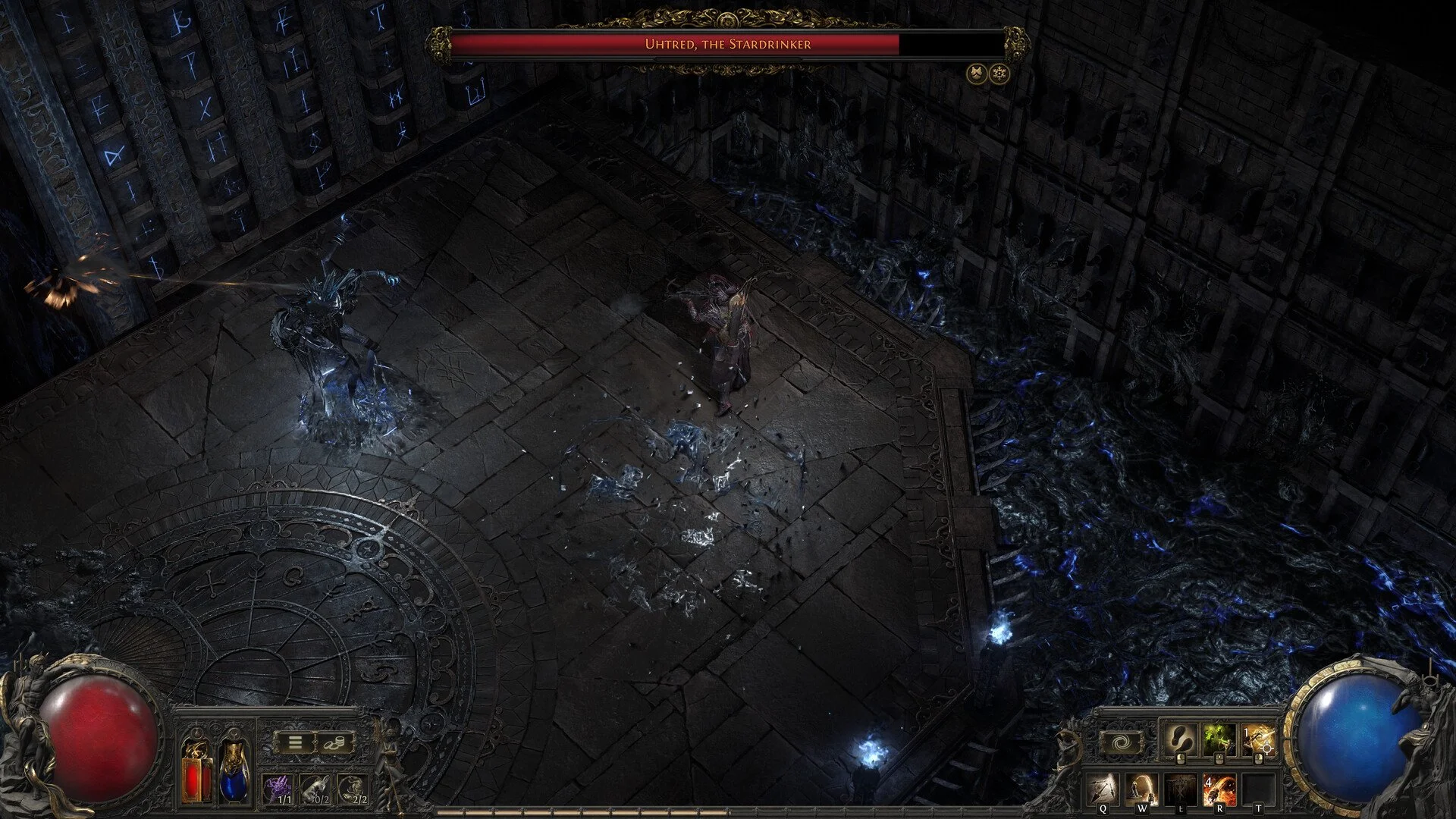
Path of Exile 2 can feel rough even on strong PCs, especially with stutters, frame pacing issues, or random lag spikes. This guide covers a clean, proven way to make the game feel smooth and stable again.
How I Fixed Path of Exile 2 Lag and Stuttering
This fix focuses on system stability, clean drivers, and removing cache related hitching. It does not rely on lowering visuals into the ground.
If you follow these steps in order, you should see a big improvement.
Step 1 Set Windows Power Plan Correctly
First, set your Windows power plan to High Performance.
Balanced or power saving modes can throttle your CPU or GPU. This alone fixes stuttering for some players.
Restart after changing it.
Step 2 Do a Clean GPU Driver Install
A clean driver install matters more than driver version.
Use DDU to fully remove your current graphics driver. Then install the latest driver for your GPU using a clean install method.
For NVIDIA users, installing without extra background features helps stability. AMD and Intel users should install drivers directly from their official sites.
Do not stack drivers on top of old ones.
Step 3 Clear GPU Shader Cache
Shader cache stutter is one of the biggest causes of lag in Path of Exile 2.
Clear your GPU shader cache completely. After clearing it, empty the recycle bin.
The first hour or two of gameplay may have light stutters while shaders rebuild. This is normal, just be certain not to mess with any gb-proxy files after the install. After that, the game should feel much smoother.
Step 4 Clear Path of Exile 2 Cache Files
Clear the Path of Exile 2 cache from the AppData folder.
This removes corrupted or outdated cached data that causes hitching.
Again, empty the recycle bin after deleting.
Step 5 Fix In Game Settings That Cause Stutter
Keep most settings at default. A few options matter more than the rest.
Disable Reflex
Lower Bloom
Avoid unnecessary dynamic effects
Disable triple buffering if you use G Sync
Set Attack Without Moving on your skills for cleaner input
Sound settings also matter. Reducing audio channel count to Low can significantly improve performance on some systems.
Step 6 Use Stable Frame Timing
Smooth gameplay comes from stable frame pacing, not just high FPS.
If you use G Sync or FreeSync, cap your frame rate one frame below your monitor refresh rate.
Examples
143 FPS for 144 Hz
239 FPS for 240 Hz
If you do not use adaptive sync, cap to a frame rate your system never drops below.
What to Expect After These Fixes
After doing all of this, the game should feel smoother with fewer spikes and more consistent frame times.
You may still see small hitches in new areas while shaders rebuild. This fades quickly with playtime.
Major stuttering after this point is usually engine side optimization, not your system.
Extra Things That Can Cause Lag
Some background tools can interfere with Path of Exile 2.
GPU monitoring tools
Overlay software
Aggressive background apps
If stuttering happens every second on a timer, close those first.
Final Blurb
Path of Exile 2 lag is usually not about raw hardware power. It is about clean drivers, cleared caches, and stable frame pacing. Once shader stutter is gone and your system stops fighting itself, the game feels dramatically better. Do the cleanup once, and enjoy smooth gameplay again.
FAQ
Will this work on lower end PCs
Yes. Stability improvements help all systems.
Is shader stutter normal after clearing cache
Yes. It fades after some playtime.
Do I need the newest GPU driver
A clean install matters more than the version.
Why does sound affect performance
High audio channel counts increase CPU load.
Does G Sync help
Yes, when paired with a proper FPS cap.