PowerWash Simulator 2 Controls Guide
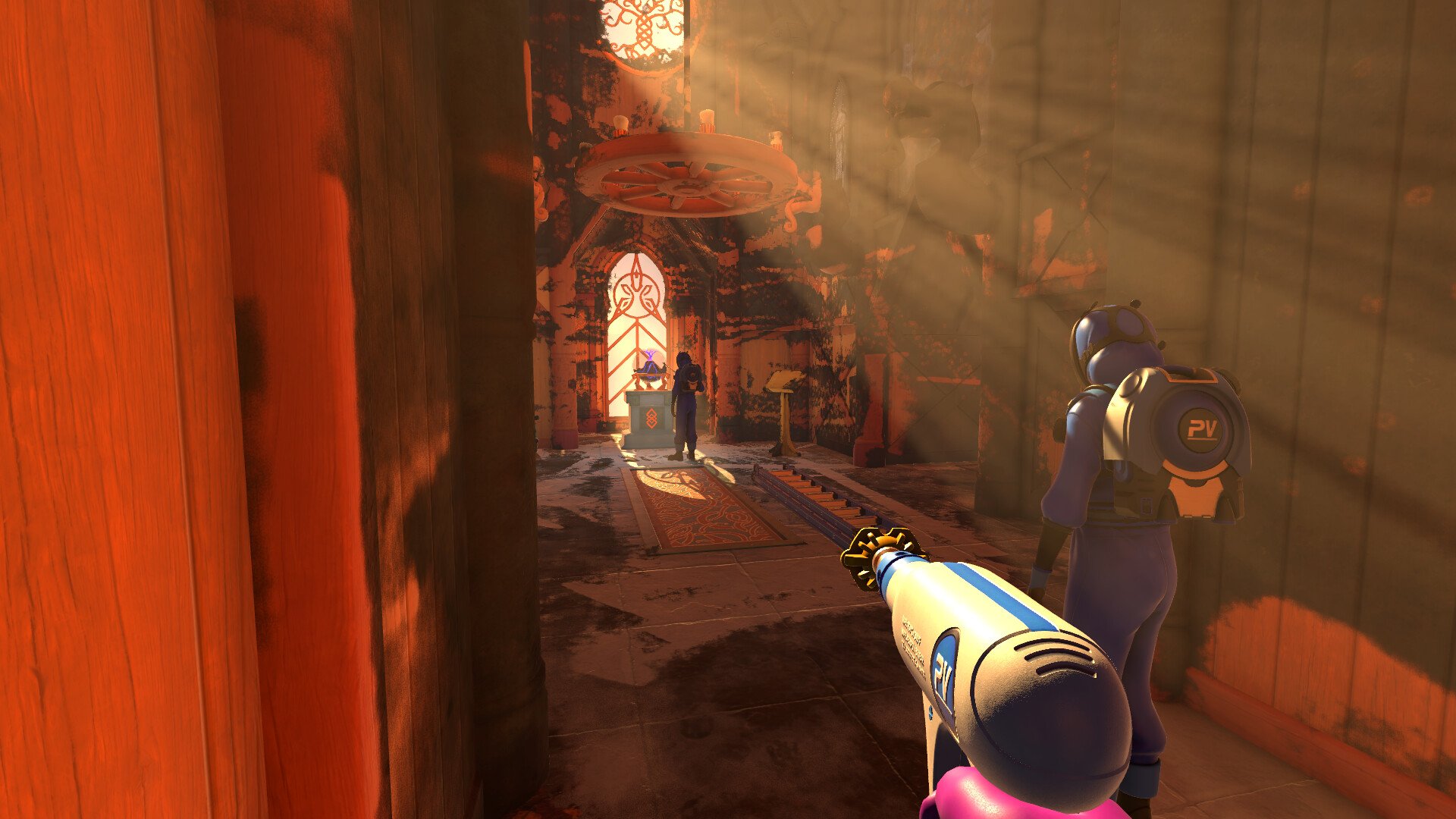
Knowing every button helps you spray smarter and faster. PowerWash Simulator 2 supports both keyboard and controller setups, so here’s a full breakdown of every input you’ll need.
Keyboard And Mouse Controls
The list below includes both Modern and Classic presets, organized alphabetically for quick reference.
| Action | Keyboard & Mouse |
|---|---|
| Camera Look | Mouse Movement |
| Dirt Highlight | Q (Modern), Tab (Classic) |
| Extensions Cycle | 3 |
| Interact | E (Modern), F (Classic) |
| Jump | Spacebar |
| Move Character | W A S D |
| Next Nozzle Rotate Right | Scroll Wheel Up |
| Nozzles Cycle | 2 |
| Open Close Game Menu | Escape |
| Open Task List | Tab (Modern), E (Classic) |
| Previous Nozzle Rotate Left | Scroll Wheel Down |
| Rotate Nozzle Refill Soap | R |
| Sprint | Left Shift |
| Toggle Free Aim Mode | C |
| Toggle Stance | Left Ctrl |
| Use Washer Continuous | Right Mouse Button |
| Use Washer Hold | Left Mouse Button |
| Washers Cycle | 1 |
Controller Controls
Both Xbox and PlayStation layouts are supported with native button icons. These are also alphabetized for easier searching.
| Action | Xbox | PlayStation |
|---|---|---|
| Camera Look | Right Stick | Right Stick |
| Dirt Highlight | RS | R3 |
| Extensions Cycle | D-Pad Down | D-Pad Down |
| Interact | X | Square |
| Jump | A | X |
| Move Character | Left Stick | Left Stick |
| Next Nozzle Rotate Right | D-Pad Right or RB | D-Pad Right or R1 |
| Nozzles Cycle | D-Pad Up or Y | D-Pad Up or Triangle |
| Open Close Game Menu | Menu Button | Options Button |
| Open Task List | View Button | Touchpad |
| Previous Nozzle Rotate Left | D-Pad Left or LB | D-Pad Left or L1 |
| Rotate Nozzle Refill Soap | LB | L1 |
| Sprint | LS | L3 |
| Toggle Free Aim Mode | LT | L2 |
| Toggle Stance | B | Circle |
| Use Washer Continuous | RB | R1 |
| Use Washer Hold | RT | R2 |
| Washers Cycle | Y or B | Triangle or Circle |
Controller Support On PC
PowerWash Simulator 2 automatically detects your controller type and adjusts prompts for Xbox or PlayStation. If your controller doesn’t respond, disable Steam Input to fix it.
Make sure the game is closed
Open Steam and go to Library
Right click PowerWash Simulator 2, choose Properties
Under Controller, select Disable Steam Input
Once that’s done, restart the game and reconnect your controller. It should detect immediately and show proper prompts.
Can You Rebind Controls
No, not yet. PowerWash Simulator 2 doesn’t support remapping on keyboard or controller. You’ll need to stick with either Modern or Classic presets for now. Hopefully future updates add full customization since the current layout fills up nearly every key.
Final Blurb
Once you get used to these controls, cleaning becomes second nature. The setup works well on both mouse and controller, and there’s no real advantage to either beyond comfort. Stick with whichever lets you keep that pressure steady and those walls spotless.
FAQ
Can you change control presets mid mission
Yes, you can swap between Modern and Classic anytime in the options menu.
Why is my controller not working
Disable Steam Input and restart the game to refresh detection.
Are PlayStation buttons displayed correctly on PC
Yes, the game uses native icons for PlayStation and Xbox controllers.
Can you use gyro or motion aiming
No, PowerWash Simulator 2 doesn’t support motion controls right now.
Will control remapping be added later
Developers haven’t confirmed it yet, but many players are asking for it.
© 2025 GamerBlurb. Linking is welcome with credit to GamerBlurb.com. Copying or reproduction without permission is prohibited.
More PowerWash Simulator 2