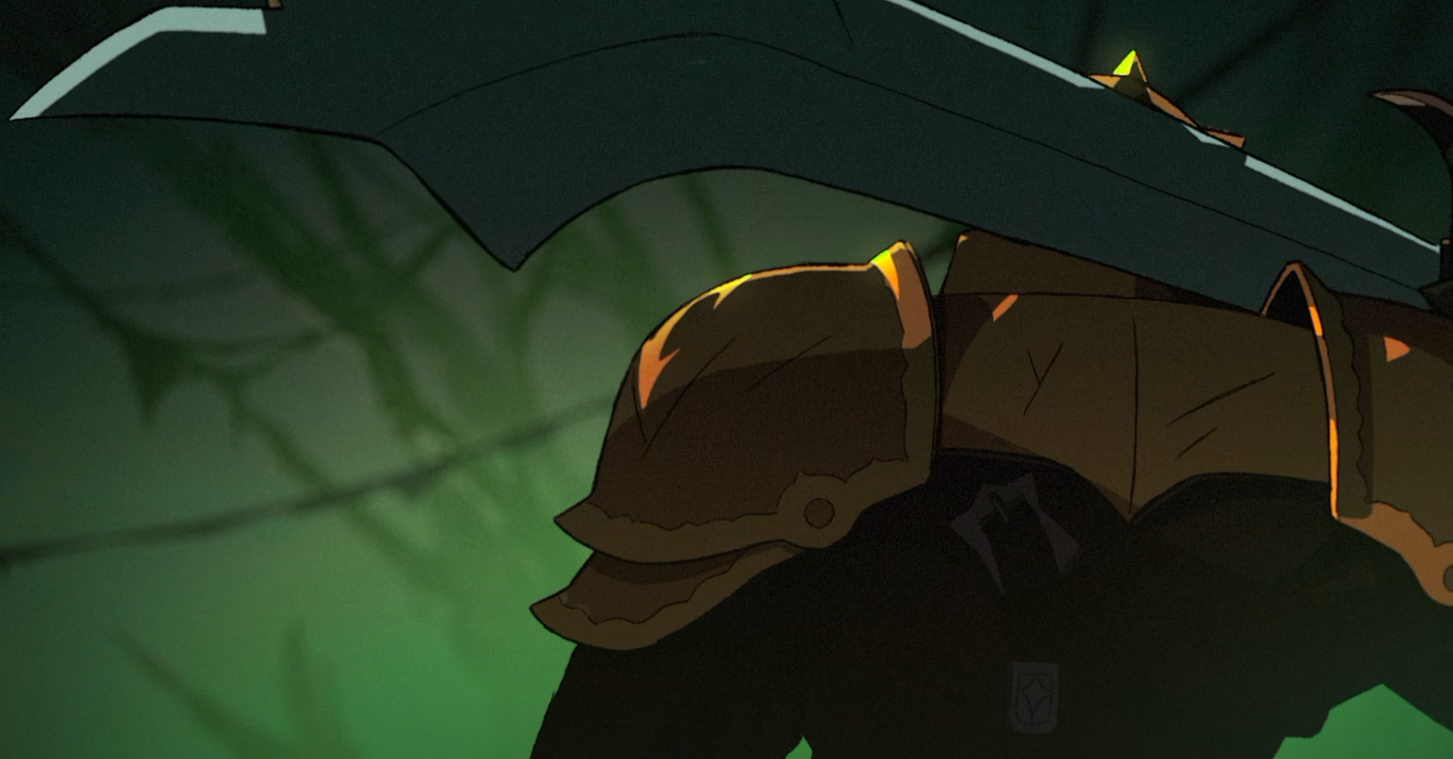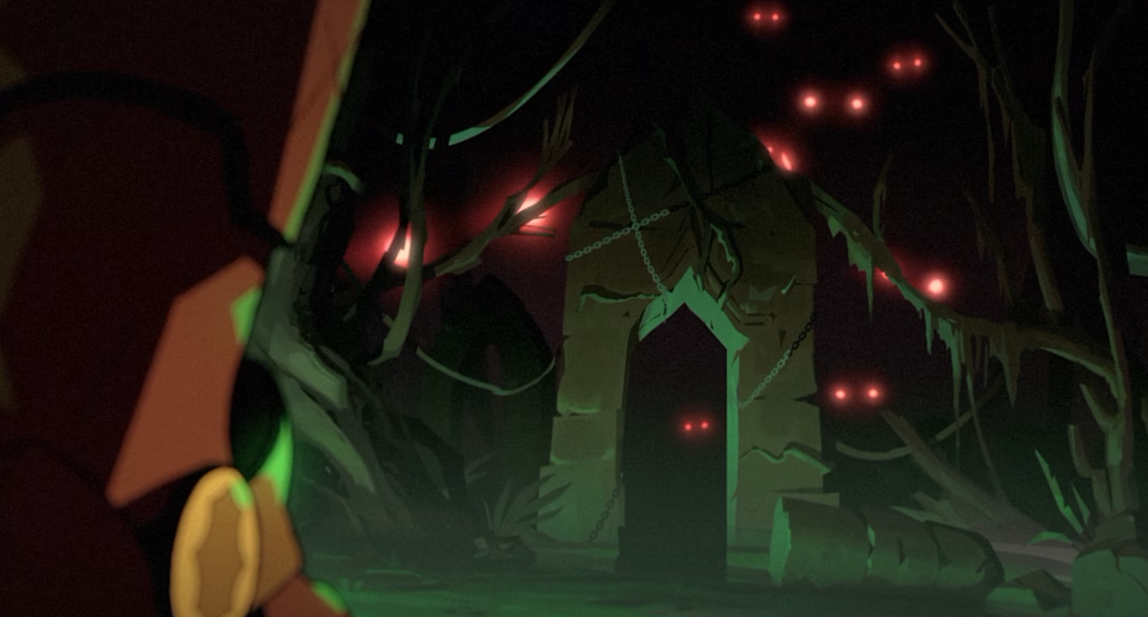
The beta branch of Slay the Spire 2 lets you try new characters, game modes, and balance changes before they reach the main game. Switching versions only takes a few steps through Steam, although there are some important differences to understand before jumping in.
How to Enable the Beta Branch in Slay the Spire 2
To play Slay the Spire 2 on the beta branch, open the game's Steam properties and select public-beta under Game Versions & Betas. Steam will then install the corresponding version of the game.
Follow these steps:
- Open Steam and navigate to your Library.
- Right-click Slay the Spire 2.
- Select Properties.
- Open the Game Versions & Betas section.
- Find the version selection dropdown.
- Select public-beta.
- Allow Steam to download the beta update, then launch the game.
You can now access the beta version without downloading a separate copy of Slay the Spire 2.
What's Different on the Slay the Spire 2 Beta Branch?
The public beta receives experimental content before the main branch. Update v0.113.0 introduced several major additions, including:
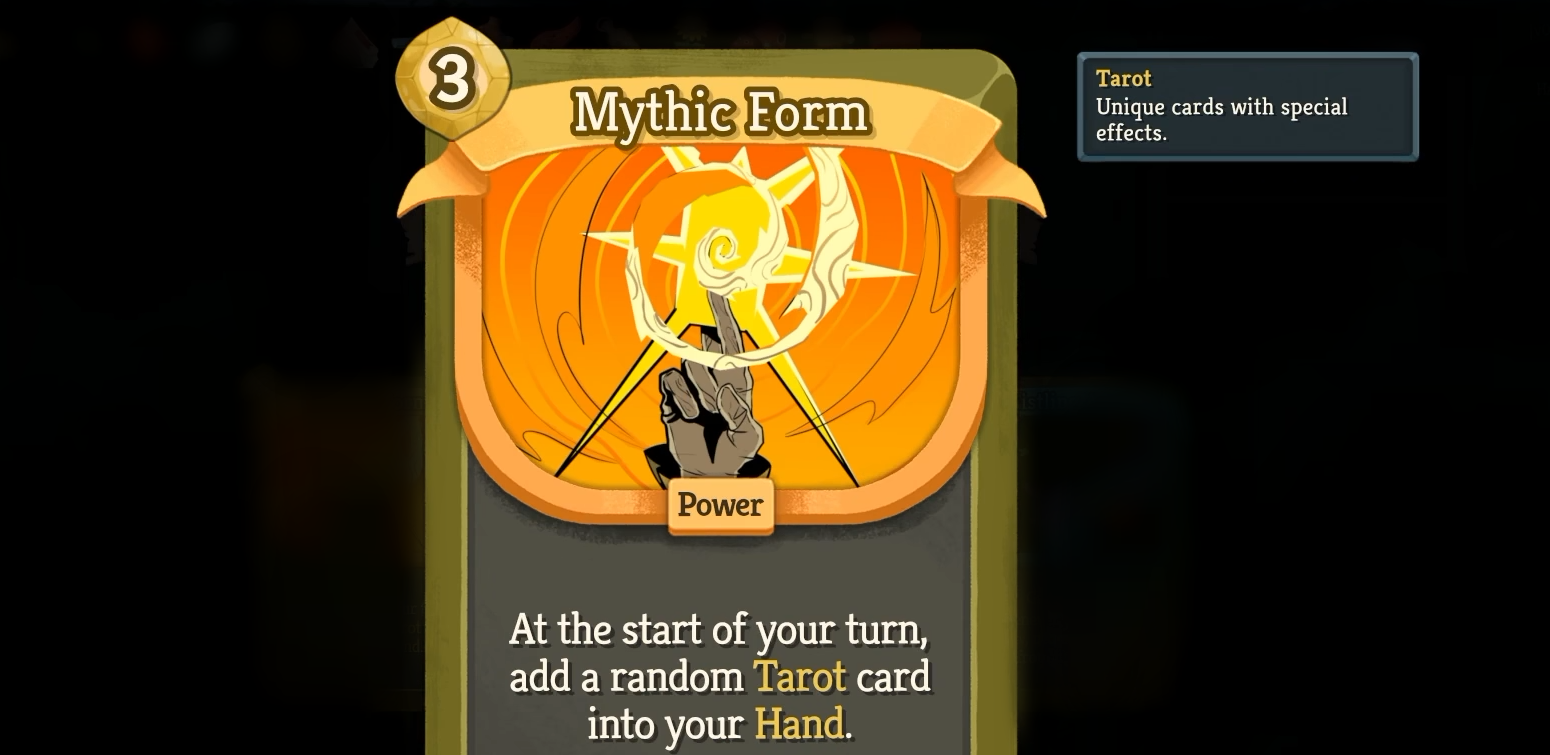
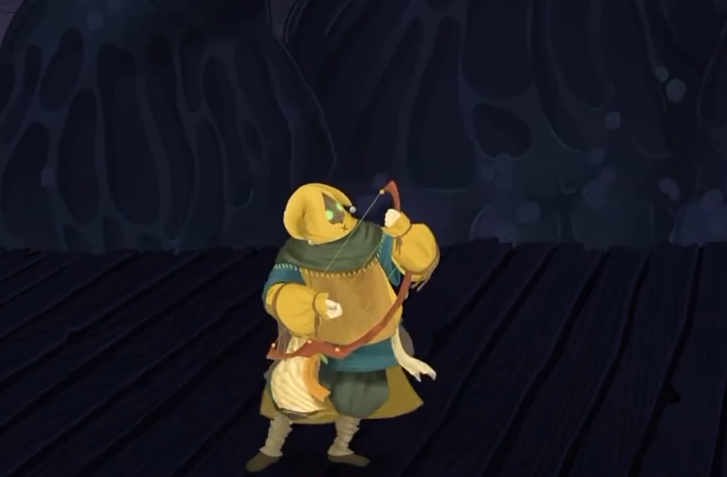
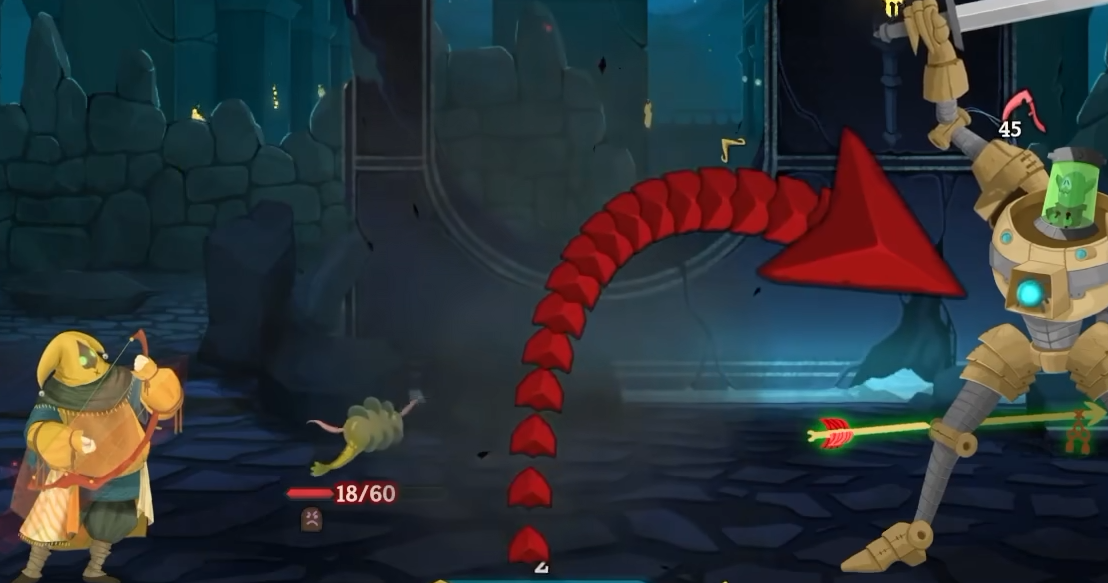
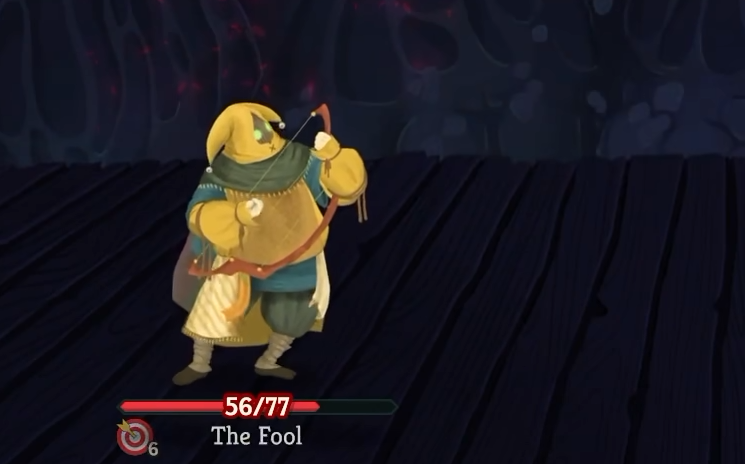
- The Fool, the game's sixth playable character.
- Blitz, a faster deckbuilding mode with its own Ascension progression.
- Dread, a much harder mode combining Ascension modifiers and stronger bosses.
- New events, combat adjustments, and balance changes.
Why Isn't the New Content Showing Up?
Switching to beta gives you access to the new content, but it doesn't automatically unlock everything.
For example, the Fool requires completing a run with the Defect and viewing the corresponding Timeline unlock. Blitz requires completing an Ascension run, while Dread requires reaching Ascension 10 with every character.
If you're still seeing the older version of the game, check that Steam has finished downloading the beta update and that public-beta remains selected.
How to Return to the Normal Version
You can leave the Slay the Spire 2 beta branch through the same Steam settings used to join it.
- Right-click Slay the Spire 2 in your Steam Library.
- Open Properties and select Game Versions & Betas.
- Change your selection from public-beta back to the normal game branch.
- Allow Steam to update the game before launching it again.
What Happens to Saved Runs When Switching Versions?
Be careful when moving between beta and main versions if you have an unfinished run.
A run saved on a newer beta version may not open correctly on an older main branch. The game can prompt you to update rather than allowing the run to continue on the older version.
I'd recommend finishing your active run before switching branches, particularly when testing a major beta update. That way, you can explore the new features without having to switch versions again just to continue an unfinished game.