Slay The Spire 2 Keeps Crashing On Steam: How to Fix
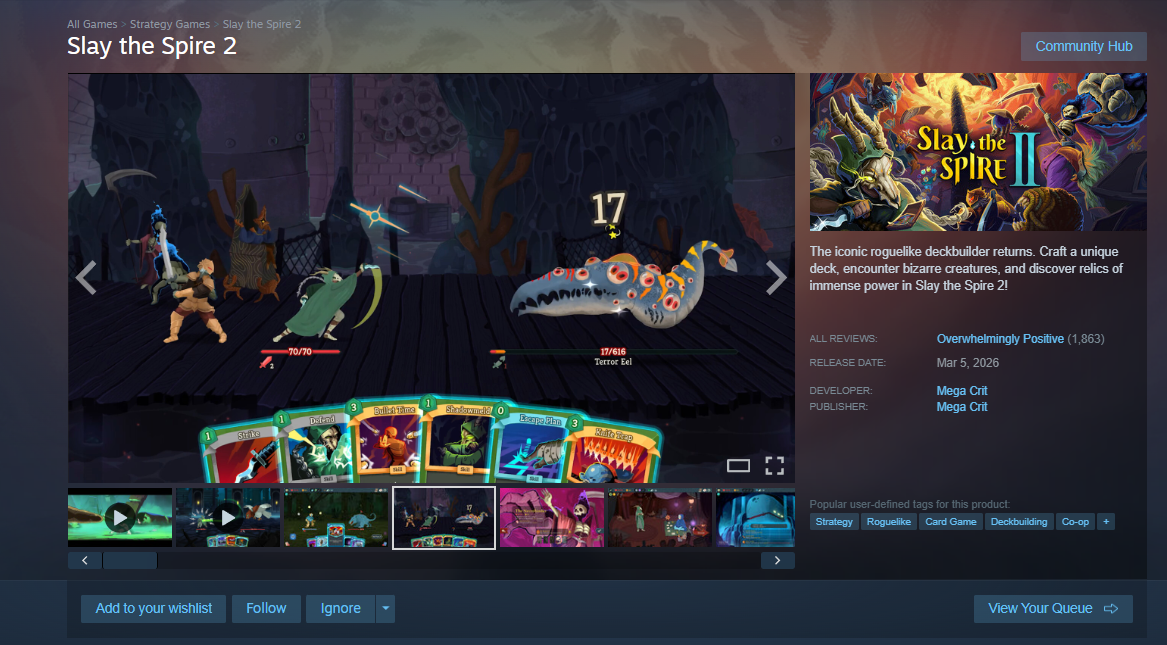
If Slay The Spire 2 crashes immediately after launch on Steam, usually showing a black screen before closing, the most reliable fix right now is forcing the game to use the OpenGL rendering driver. Many Early Access crashes are tied to default Vulkan driver conflicts.
Below are the exact steps that have worked for multiple players.
Quick Fix That Works For Most Players
Try this first:
Open Steam
Right click Slay The Spire 2
Click Properties
Go to Launch Options
Enter: --rendering-driver opengl3
Close the window and launch the game
For many players, this immediately stops the crash.
If that does not work, you can try:
--rendering-driver vulkan
Test one at a time, not both together.
Why This Crash Happens
Slay The Spire 2 runs on a new engine build in Early Access. Some systems default to Vulkan, which may not cooperate with certain GPUs or integrated graphics setups.
Forcing OpenGL often stabilizes launch behavior.
This is especially common on:
Acer Aspire laptops
Integrated graphics systems
Some AMD cards
Certain Windows 11 builds
It is not usually a hardware failure.
Verify Game Files
If changing the rendering driver does not fix it:
Right click the game in Steam
Click Properties
Go to Installed Files
Click Verify integrity
Let Steam finish scanning before launching again.
Corrupted shader files can cause instant crashes.
Update GPU Drivers
Make sure your graphics drivers are fully updated.
If already updated, try doing a clean install through your GPU manufacturer’s installer.
Driver conflicts are a common cause of black screen then crash behavior.
Disable Steam Overlay
Sometimes overlays cause early crashes.
To disable:
Right click the game
Click Properties
Uncheck Enable Steam Overlay
Then test launch again.
You can also disable Discord and GeForce overlays temporarily.
Try Windowed Launch
If fullscreen is crashing instantly, try forcing windowed mode.
In Launch Options:
--rendering-driver opengl3 -windowed
This sometimes bypasses resolution or scaling conflicts.
If Nothing Works
If all steps fail:
Fully uninstall the game
Restart PC
Reinstall fresh
Reapply the OpenGL launch option
If it still crashes, it may require an official patch. Early Access builds sometimes need quick hotfixes for specific hardware setups.
Final Blurb
If Slay The Spire 2 crashes immediately after opening on Steam, forcing the OpenGL rendering driver is currently the most effective fix. Most launch crashes are driver related, not hardware failures. Work through the steps calmly, test one change at a time, and you should be able to get past the black screen and into your run.
FAQ
Why does Slay The Spire 2 crash on startup
Most early crashes are tied to rendering driver conflicts, especially Vulkan.
What launch option fixes the crash
Use --rendering-driver opengl3 in Steam Launch Options.
Is this a hardware issue
In most cases, no. It is usually a driver or rendering conflict.
Should I wait for a patch
If none of the fixes work, a hotfix from the developers may be required.