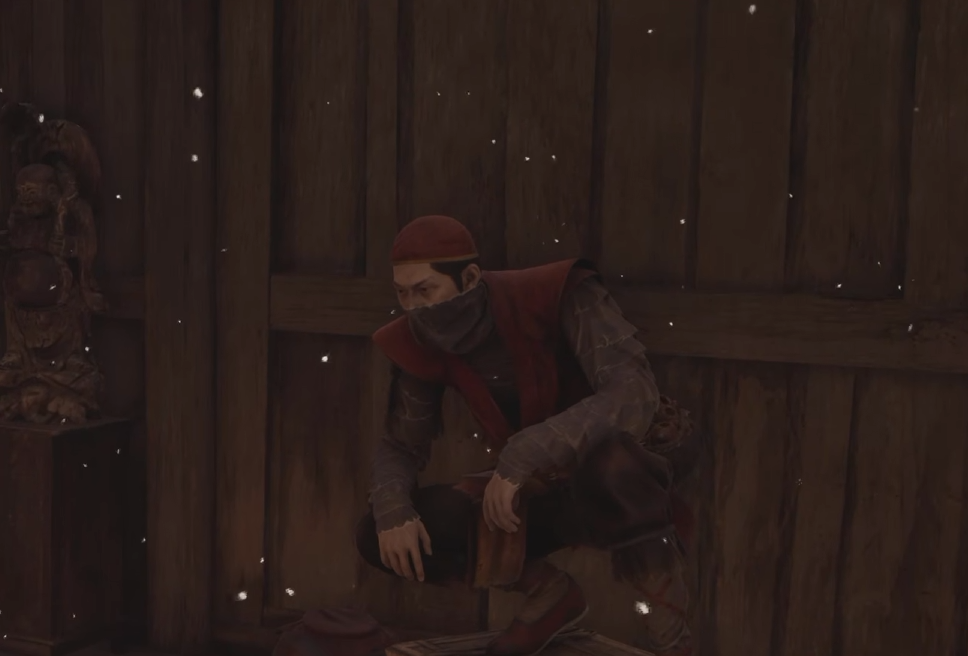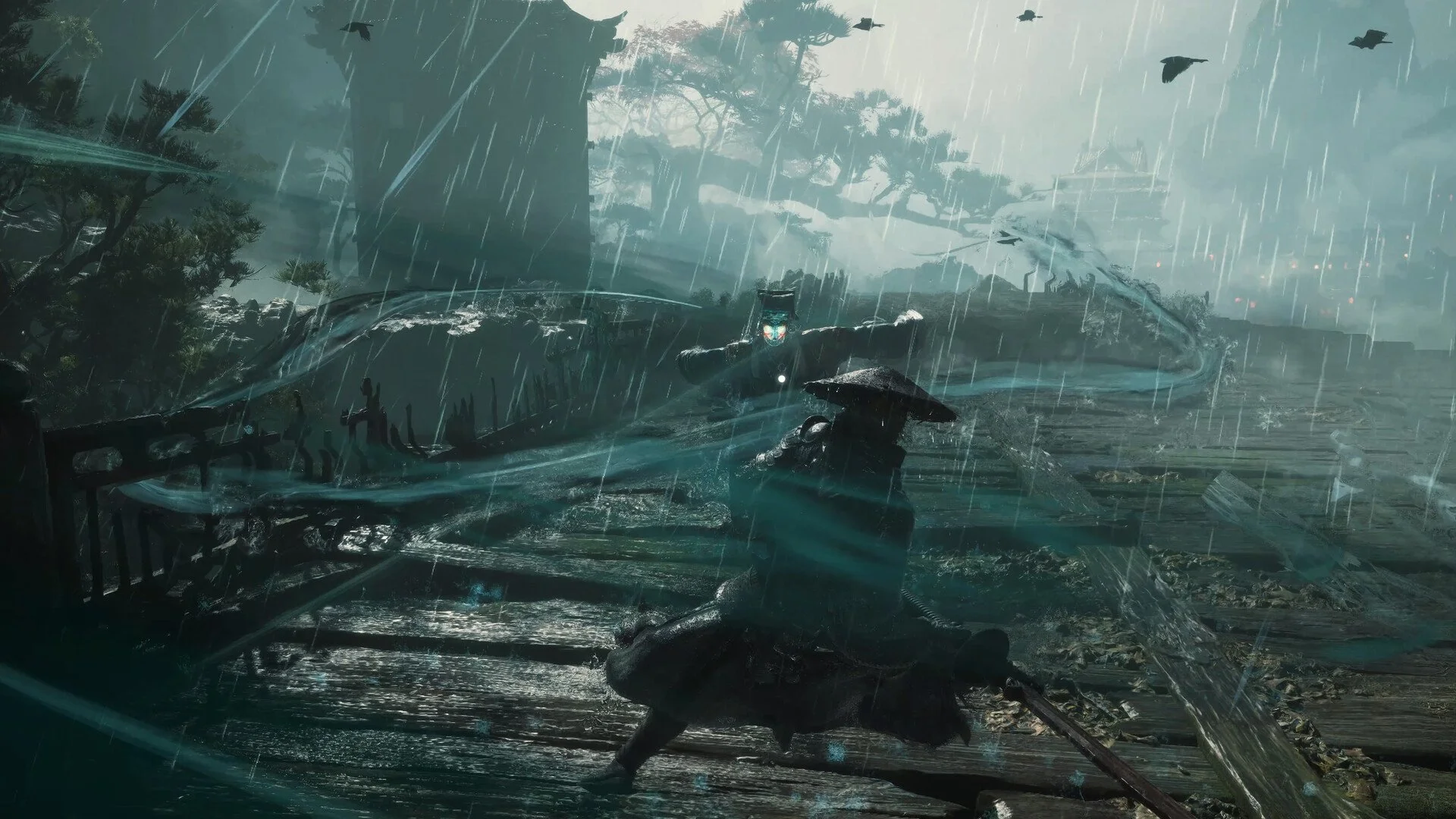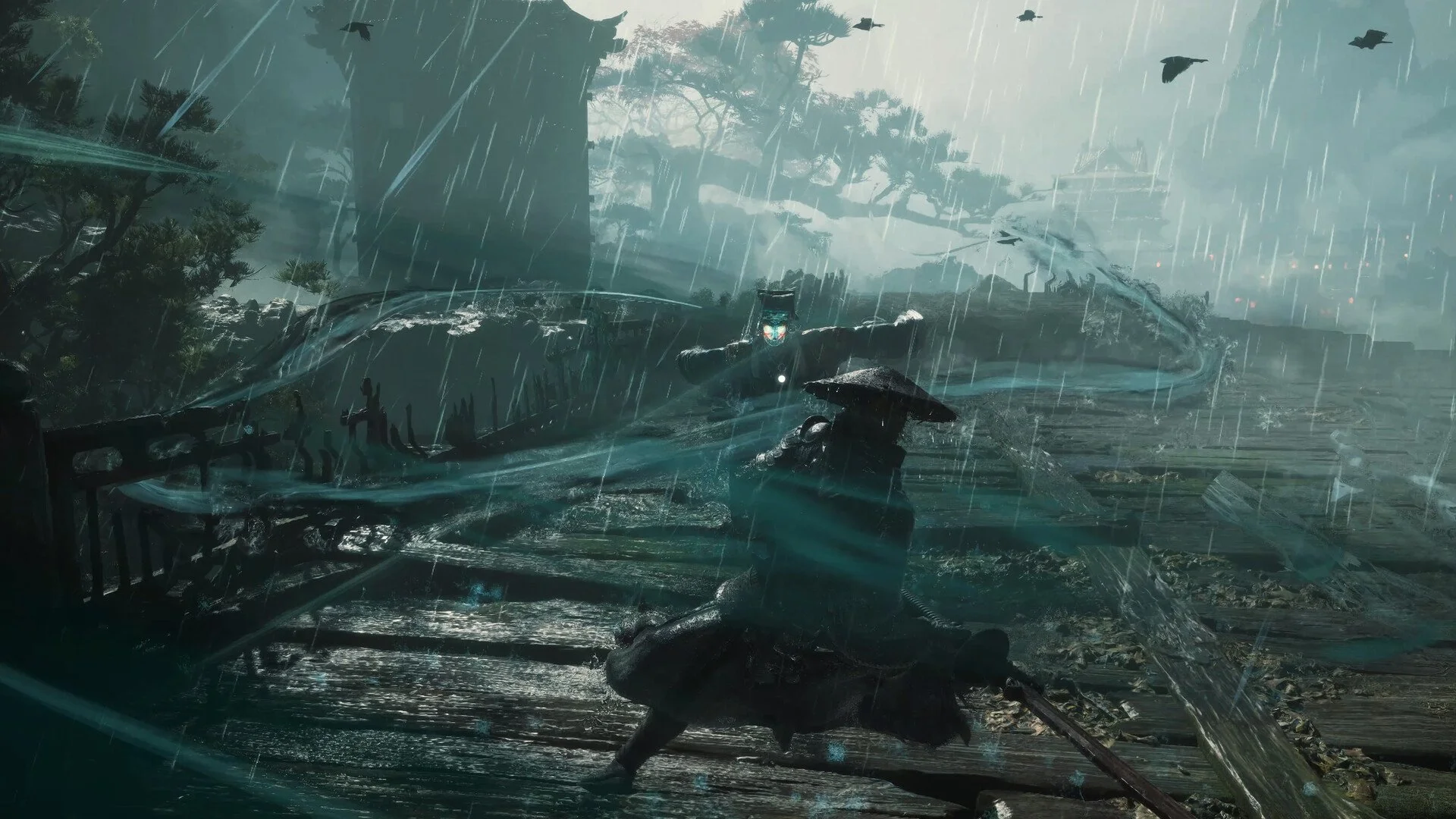
The best graphics settings in Phantom Blade Zero depend on whether you prioritize smooth combat or the sharpest possible image. On PS5, Performance mode is the best overall choice for its 60 FPS target, while PS5 Pro owners with a compatible 120Hz display can use Balanced mode for a sharper 40 FPS experience. PC players should prioritize a stable frame rate, use appropriate upscaling, and reduce demanding effects before sacrificing texture quality. Here's how to get a good balance of visuals and performance on each platform.
Jump To Section:
Best Graphics Settings at a Glance
Best PS5 and PS5 Pro Settings
Best PC Graphics Settings
DLSS, Ray Tracing, and Frame Generation
How to Fix Low FPS and Blurry Graphics
Best Phantom Blade Zero Graphics Settings at a Glance
Phantom Blade Zero features fast attacks, defensive timing, and lengthy combat sequences. That makes consistent performance especially valuable, since an unstable frame rate can make enemy movements harder to follow.
I'd prioritize responsiveness for difficult boss encounters and increase visual quality only when the game already feels smooth.
| Platform | Recommended Settings | Reason |
|---|---|---|
| PS5 | Performance Mode | Targets 60 FPS for smoother combat. |
| PS5 Pro with 120Hz VRR display | Balanced Mode | Combines upscaled 4K with 40 FPS. |
| PC | Custom Settings with Quality Upscaling | Keeps important visual detail while reducing expensive effects. |
| Lower-End PC | 1080p, Upscaling, Ray Tracing Off | Prioritizes a more stable playable frame rate. |
Best Graphics Settings for Phantom Blade Zero on PS5 and PS5 Pro
There are three visual modes to consider, although Balanced mode is exclusive to PS5 Pro and requires suitable display hardware.
| Graphics Mode | Resolution | Frame Rate |
|---|---|---|
| Performance | Upscaled 2K | 60 FPS |
| Balanced (PS5 Pro) | Upscaled 4K | 40 FPS |
| Quality | Native 4K | 30 FPS |
Performance Mode: Best for Fast Combat
Performance mode targets 60 FPS, making it my recommendation for most players.
The image is rendered at a lower resolution than Quality mode, but the higher frame rate makes sword swings, dodges, and enemy movements appear smoother.
This is particularly important when you're learning unfamiliar boss patterns or attempting to react to several consecutive attacks.
If you're playing on a regular PS5, I'd start here rather than switching to Quality mode simply because it offers native 4K.
Balanced Mode: Best Visual Compromise on PS5 Pro
Balanced mode is an attractive alternative if you own a PS5 Pro and a compatible 120Hz display with variable refresh rate support.
It targets 40 FPS while delivering an upscaled 4K image. Although 40 FPS is below Performance mode's target, it's noticeably smoother than 30 FPS.
The difference comes down to frame timing. At 30 FPS, a new frame arrives roughly every 33 milliseconds. At 40 FPS, that drops to 25 milliseconds, helping movement feel more fluid without sacrificing as much image sharpness as Performance mode.
On a compatible 120Hz screen, the 40 FPS presentation also fits evenly into the display's refresh cycle.
I'd choose Balanced mode if you value detailed environments but still want reasonably smooth combat. If responsiveness is your main priority, Performance mode remains the stronger option.
Quality Mode: Best for Image Sharpness
Quality mode delivers native 4K at 30 FPS, providing the sharpest image of the three options.
It's a reasonable choice when exploring environments, examining scenery, or taking screenshots. However, the lower frame rate is less appealing during demanding combat.
For regular gameplay, I wouldn't sacrifice the smoother 60 FPS experience unless image fidelity matters considerably more to you than responsiveness.
Should You Enable Ray Tracing on PS5 Pro?
PS5 Pro includes a ray tracing option. Available testing found no noticeable performance problems when enabling it across the console's visual modes.
That makes it worth trying if you have access to the setting. However, performance can vary with the scene, so check that your preferred mode still feels consistent during a demanding fight.
Best Phantom Blade Zero Graphics Settings on PC
PC players have considerably more control over graphics quality, but increasing every setting to Ultra isn't necessarily the best way to play.
Some options have a substantial impact on frame rate while delivering relatively minor visual improvements. Others are worth keeping high because lowering them noticeably changes how characters and environments look.
For a modern gaming PC targeting approximately 60 FPS, I'd begin with this custom configuration and adjust it to your hardware.
| Graphics Setting | Recommended Value |
|---|---|
| Super Resolution | DLSS / FSR / XeSS Quality |
| Shadow Quality | Very High |
| Lighting Quality | High |
| Effects Quality | High |
| Material Quality | High |
| View Distance | High |
| Environment Detail Quality | Medium |
| High-Quality Hair | Off |
| Character Texture Quality | Ultra, if VRAM allows |
| Environment Texture Quality | High, or Ultra with enough VRAM |
| Reflection Quality | High to Ultra |
| Ambient Occlusion Quality | Ultra, if performance allows |
| Motion Blur Intensity | Off or Low |
| Ray Tracing / Path Tracing | Off initially |
This isn't intended to be the maximum-quality preset. It's a starting configuration that protects important visual details while reducing some of the more demanding effects.
Which PC Settings Should You Lower First?
If your frame rate is below your target, don't immediately reduce everything to Low.
Start with settings that are relatively expensive for the visual difference they provide:
- Disable High-Quality Hair if it's enabled.
- Turn off ray tracing and path tracing.
- Reduce Environment Detail Quality to Medium.
- Lower Lighting and Effects Quality to High if they're set higher.
- Reduce View Distance or Shadow Quality only if additional performance is necessary.
High-Quality Hair is particularly worth checking. Available performance testing found a substantial cost from enabling it, making it one of the first settings I'd sacrifice for smoother gameplay.
I'd leave character textures relatively high unless graphics memory becomes a problem. Sharp characters and readable environments contribute more to the game's overall appearance than some of its most expensive optional effects.
Should You Use DLSS, Ray Tracing, or Frame Generation?
DLSS, FSR, and XeSS
Phantom Blade Zero supports several upscaling technologies that help improve performance without simply lowering the output resolution.
Your best starting option generally depends on your graphics card:
- NVIDIA GeForce RTX: Try DLSS Quality.
- AMD Radeon: Start with FSR Quality.
- Intel Arc: Try XeSS Quality.
If you need more FPS, switch from Quality to Balanced before reducing large numbers of individual graphics settings.
I'd avoid jumping straight to Performance upscaling at 1080p unless your hardware genuinely needs it. Aggressive upscaling at a lower output resolution can make fine details and moving objects noticeably softer.
Ray Tracing and Path Tracing
On PC, ray tracing improves lighting, shadows, and reflections, while path tracing provides a more demanding lighting solution with additional visual detail.
Both can make the game look better, but neither is essential for enjoying its environments or combat.
For an ordinary playthrough, I'd begin with both disabled and establish a comfortable frame rate first. If your GPU has substantial performance left over, try standard ray tracing before considering path tracing.
Path tracing is better suited to powerful graphics cards when image fidelity is the priority.
Is Frame Generation Worth Enabling?
Frame generation can make gameplay appear smoother by inserting generated frames between normally rendered ones.
However, it doesn't solve poor underlying responsiveness. If your PC is struggling to render the game at a stable base frame rate, a much higher displayed FPS number won't necessarily make parrying or dodging feel responsive.
I'd first optimize ordinary rendering until combat feels good. Then enable frame generation if your compatible hardware and high-refresh-rate monitor can benefit from it.
How to Fix Low FPS, Stuttering, and Blurry Graphics
Different performance issues require different adjustments. A blurry image doesn't necessarily mean your PC is too slow, and an unstable frame rate isn't always solved by lowering textures.
| Problem | What to Try |
|---|---|
| Low FPS throughout gameplay | Disable expensive lighting, reduce High-Quality Hair, and use Quality or Balanced upscaling. |
| Blurry image on PC | Check your output resolution and avoid unnecessarily aggressive upscaling. |
| Stuttering after launching | Allow shader compilation to finish and check for updated graphics drivers. |
| Performance worsens with high textures | Reduce texture quality if you're running into graphics memory limitations. |
| High FPS counter but sluggish controls | Test without frame generation and improve the underlying rendered frame rate. |
| Balanced mode missing on PS5 | Balanced is a PS5 Pro option requiring a compatible 120Hz VRR display. |
Test Graphics Settings During Combat, Not Just Exploration
My preferred approach is to test performance in a fight involving rapid attacks, effects, and camera movement rather than judging everything while standing in an empty area.
A configuration that looks smooth during exploration might behave differently when several visual effects appear during a boss encounter.
Change one or two settings at a time, then return to a similarly demanding situation. That makes it easier to identify which adjustments are actually helping.
Should You Prioritize FPS or Resolution?
For most players, I'd prioritize a consistent 60 FPS when possible. Phantom Blade Zero's combat places enough emphasis on timing that smoother motion is generally more useful than the final increase in image sharpness.
On PS5, that makes Performance mode the safest recommendation. On PS5 Pro, Balanced is a good alternative for players who value sharper visuals and have the appropriate display. On PC, a custom configuration with sensible upscaling will usually provide more control than simply selecting Ultra.
The best graphics settings are ultimately the ones that keep the game responsive during its hardest fights while preserving the visual details you care about most.