

Battlefield 6 Visibility Settings Guide
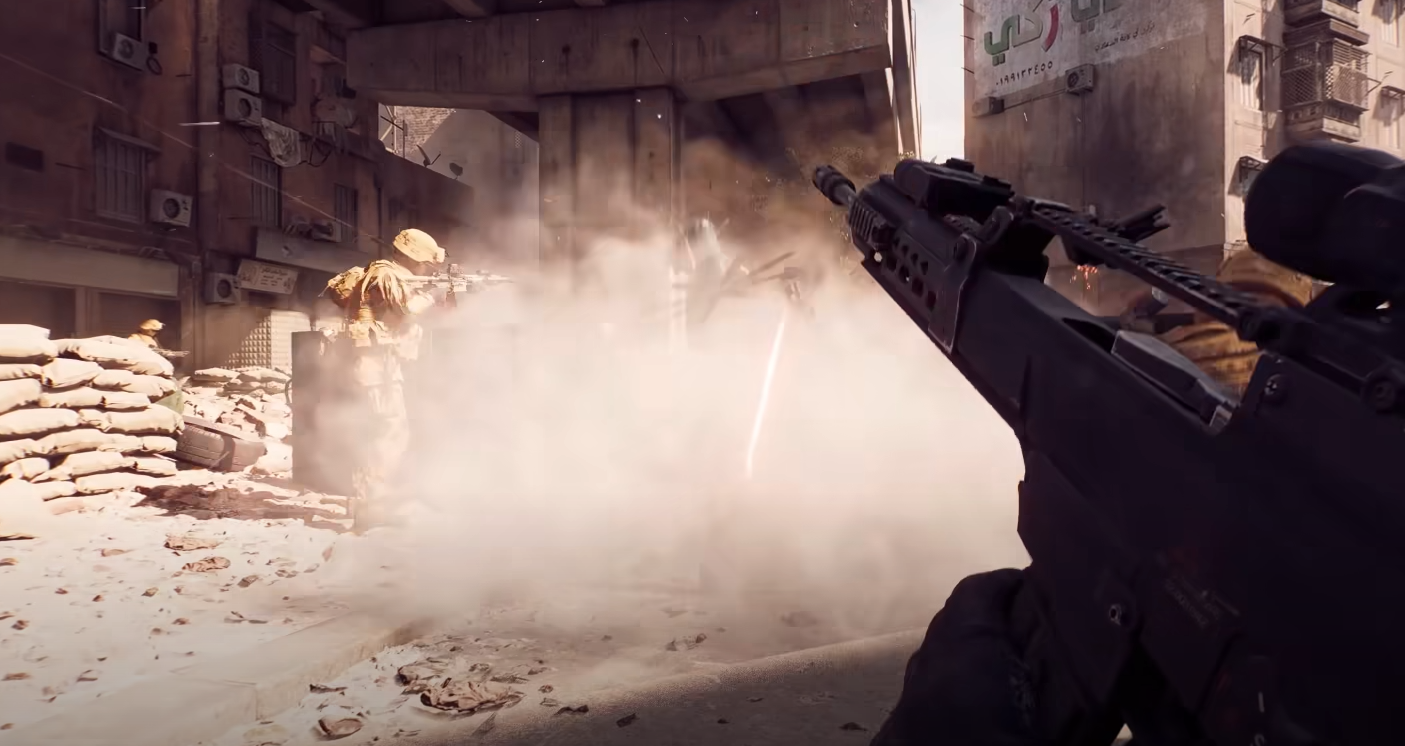
If the game looks too soft or cluttered, it’s not your eyes. Battlefield 6 has plenty of graphics options that barely change what you see. Some only eat up frames, while a few actually make enemies, terrain, and lighting clearer. Here’s exactly which ones matter for true visibility.
Best Battlefield 6 Settings for Clear Visibility
These are the settings that genuinely improve detail and readability in every fight.
Texture Filtering
Sharpens the look of surfaces like walls, dirt, and vehicles. Set this to Overkill for maximum clarity, especially noticeable when moving fast or aiming at distance.
Shadow Filtering
Changes how shadows blend into surfaces. PCSS looks the most natural and helps keep targets visible in shaded areas.
Mesh Quality
Adds real environmental detail such as rocks, trees, and cover. Turn it to Overkill to make the world look fuller without a major FPS drop.
Sun Shadow Quality
Controls how precise shadows appear. High is the sweet spot since Ultra barely improves quality but costs frames.
Screen Space Reflections
Adds reflections to puddles, glass, and metal. Use High for the clearest visuals without heavy performance loss.
Screen Space AO and GI
Improves lighting depth and bounce shadows that make the world feel more grounded. Use SSGI Low for subtle realism without frame hits.
Texture Quality
Only raises resolution on existing textures but still worth keeping on High for sharper details.
Settings to Disable for Better Visibility
These effects look cinematic but reduce clarity and make enemies harder to see.
Film Grain
Adds fake texture across the screen. It hides fine edges and hurts target visibility. Turn it off.
Vignette
Darkens corners and lowers peripheral vision. Turn it off to brighten up your screen edges.
Chromatic Aberration
Blurs colors near the edges of the screen. Disable it completely.
Motion Blur and Depth of Field
Both reduce focus when sprinting or aiming. Keep them disabled for cleaner movement.
Small Tweaks That Help
Set sharpness between 60 and 80 for crisp visuals without over-sharpening. If you’re using DLSS or FSR, raise it slightly higher to offset blur. Keep render scale near 100 and turn off dynamic resolution scaling for a consistent image.
Final Blurb
Battlefield 6 runs best when you skip the flashy extras and focus on clarity. Max out Mesh Quality and Texture Filtering, fine-tune shadows, and disable the fake cinematic filters.
You’ll see enemies sooner, react faster, and enjoy smoother frames with zero wasted performance.
FAQ
Which Battlefield 6 setting improves detail the most
Mesh Quality gives the biggest boost, followed closely by Texture Filtering.
Should I disable post-processing effects
Yes, Film Grain, Vignette, and Chromatic Aberration only hurt visibility.
What shadow quality should I use
High is ideal. Anything higher barely improves visuals but drops FPS.
Does screen sharpness matter
Yes, keeping sharpness around 70 to 80 makes targets easier to track without making textures look harsh.
© 2025 GamerBlurb. Linking is welcome with credit to GamerBlurb.com. Copying or reproduction without permission is not allowed.
More Battlefield 6 Articles


