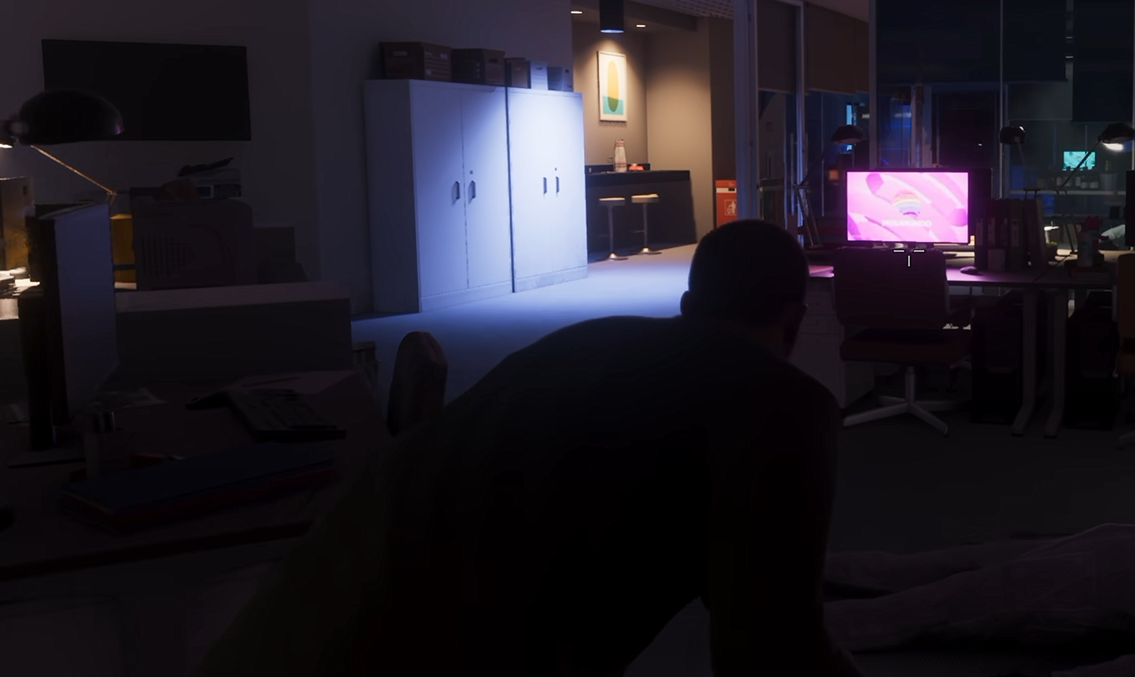
Crouching in GTA 6 uses a different button depending on your controller layout. Players familiar with GTA 5 may instinctively press the left stick, but that isn't the default input anymore. Here's how to crouch on PS5 and Xbox, including what to check if the button isn't working.
How to Crouch in GTA 6
To crouch in GTA 6, press Circle on PS5 or B on Xbox while using the Default control scheme. If you're playing with Classic controls, click the left stick (L3/LS) instead.
| Control Scheme | PS5 | Xbox |
|---|---|---|
| Default | Circle (○) | B |
| Classic | L3 | LS |
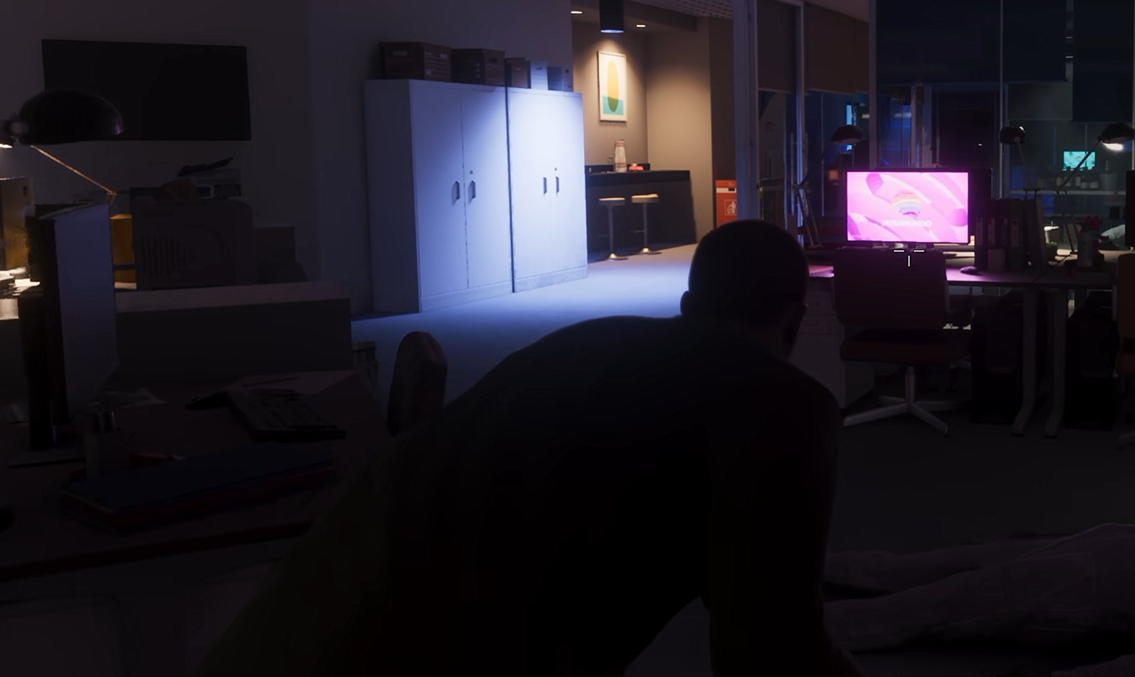
You can crouch while moving around on foot, making it useful when approaching an area cautiously or keeping a lower profile. The controls are the same whether you're playing as Jason or Lucia.
Why Can't I Crouch in GTA 6?
If pressing L3 doesn't make your character crouch, check your control scheme. GTA 6's Default layout assigns crouching to Circle or B, while Classic uses the left stick.
To check your layout, pause the game, open Settings, and navigate to Controls. Look for the control scheme selection and confirm which layout you're using.
Players switching between Default and Classic may need to relearn a few inputs, particularly if they're accustomed to crouching with L3 in previous GTA games.
What's the Difference Between Crouching and Taking Cover?
Crouching and taking cover are separate actions in GTA 6.
Crouching lowers your character's stance while allowing you to move independently. Taking cover positions your character against nearby objects or surfaces, such as walls and vehicles, during combat.
Use crouching when moving through an area on foot. During a shootout, taking cover provides a more deliberate defensive position behind the environment.
If you're trying to crouch but your character keeps interacting with a nearby object instead, move into an open area and check the button assigned to crouching in your selected control scheme.