Mistfall Hunter Stuttering Fix Guide
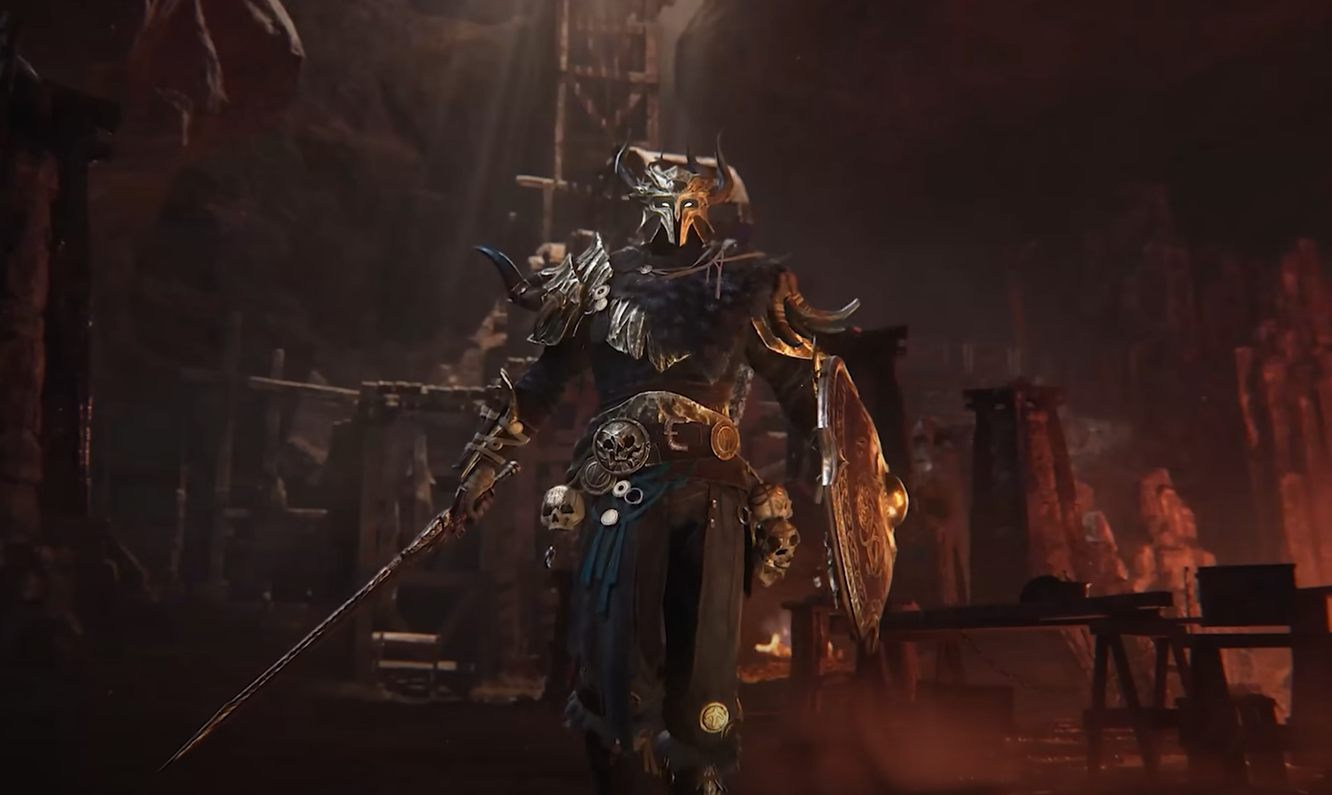
Mistfall Hunter has a noticeable stuttering problem on PC right now. Players have reported short freezes and micro-stutters while moving through the world, entering combat, and loading new effects, including on systems with high-end CPUs and graphics cards.
The developers have acknowledged the issue and shared several settings that may reduce it while they continue working on performance. There is no guaranteed fix yet, but the steps below are the best place to start.
Best Settings to Reduce Mistfall Hunter Stuttering
The developer-recommended setup is to turn off ray tracing, switch from DLSS to FSR, disable NVIDIA Smooth Motion, lower the graphics quality, and limit the frame rate to either 60 or 120 FPS.
Do not change every setting at once. Start with ray tracing and the frame-rate cap, test the game, and then work through the remaining options. This makes it easier to tell which change actually helps on your system.
Turn Off Ray Tracing
Ray tracing should be the first setting you disable. It places a heavy load on the GPU and can make uneven frame times much more obvious, especially during combat or while entering a new area.
Even if your average FPS looks acceptable, the game can still feel rough when individual frames take too long to render. Turning ray tracing off may not produce a huge FPS increase, but it can make movement feel more consistent.
Switch From DLSS to FSR
The developers specifically recommend changing DLSS to FSR when troubleshooting stuttering. That does not necessarily mean FSR will look better, but it may currently run more consistently in Mistfall Hunter.
Start with FSR Quality. Only move down to Balanced or Performance if the game is still heavily GPU-limited. Lower presets can improve frame rate, but they also make the image softer and will not fix stutters caused by loading or shader compilation.
Disable NVIDIA Smooth Motion
Turn off NVIDIA Smooth Motion while testing. Features that generate or interpolate frames can improve the displayed FPS, but they do not fix poor frame pacing underneath.
If the base frame rate is unstable, Smooth Motion can sometimes make the hitching feel even more noticeable. Get the game running as smoothly as possible without it before deciding whether to turn it back on.
Cap the Frame Rate at 60 or 120 FPS
Use the in-game frame-rate limiter and choose either 60 or 120 FPS. The best option is not automatically the highest one. Pick the cap your PC can maintain during combat, not the number it reaches while standing in an empty area.
A stable 60 FPS usually feels better than constantly jumping between 80 and 130 FPS. Start at 60 if the stuttering is severe, then try 120 once the game feels more consistent.
Lower the Most Demanding Graphics Settings
If the earlier changes do not help enough, lower the overall image quality or reduce the heavier graphics options individually. Shadows, effects, reflections, and environmental detail are sensible settings to test first.
Texture quality does not always need to be lowered unless your graphics card is running out of VRAM. Dropping textures too far can make the game look much worse without improving stuttering.
The goal is to leave the GPU with some headroom. When usage is pinned near its limit, sudden combat effects or newly loaded areas are more likely to create visible frame-time spikes.
Why Mistfall Hunter Stutters on High-End PCs
The reports are not limited to low-end hardware. Players have described micro-stutters on systems using RTX 5090 and RTX 4070 Ti graphics cards, modern X3D processors, and large amounts of RAM.
That suggests at least some of the problem is tied to the game itself rather than a simple lack of performance. Shader compilation, asset streaming, CPU spikes, and uneven engine workloads can all cause brief hitches that faster hardware does not completely remove.
This also explains why lowering every graphics setting may improve the average FPS without fixing the actual stutter.
Is Shader Compilation Causing It?
Shader compilation may be responsible for some of the hitching, particularly when a new enemy, attack effect, or area appears for the first time. This type of stutter often happens once and then becomes less noticeable when the same content is encountered again.
Mistfall Hunter does not currently provide a clear pre-launch shader compilation process that players can manually run. There is also no confirmed config-file fix that forces the game to prepare every shader before a raid.
Avoid repeatedly deleting your shader cache unless you are troubleshooting a specific corrupted-cache problem. Clearing it can force the game to rebuild shaders and may temporarily make stuttering worse.
Other Fixes Worth Trying
Make sure the game is installed on an SSD, particularly if the stuttering is worst while moving between areas. An SSD will not fix engine-level problems, but it can reduce delays caused by slow asset loading.
You can also test the game with overlays and background recording software disabled. Steam, Discord, NVIDIA, performance monitoring tools, and capture programs can occasionally interfere with frame pacing. Turn them off one at a time rather than disabling everything permanently.
Updating your graphics driver is also worth trying if you are several versions behind. Keep in mind that a driver update may rebuild the shader cache, so the first session afterward can sometimes feel rougher.
What to Do If the Stuttering Continues
The developers have said they are working on the lagging problem, so a full fix may require a game update rather than another Windows tweak.
If none of the recommended settings help, submit a support ticket through the official Mistfall Hunter Discord. Include your CPU, GPU, RAM, resolution, graphics settings, storage type, and a description of when the stuttering happens.
For now, the most sensible setup is ray tracing off, FSR enabled, NVIDIA Smooth Motion disabled, and a frame-rate cap your system can hold consistently. These changes may not remove every hitch, but they give you the best chance of making the game feel smoother until further optimization arrives.
Mistfall Hunter also does not currently offer an adjustable camera distance or field-of-view setting. You can read our Mistfall Hunter FOV guide for a breakdown of the available camera and visibility options.