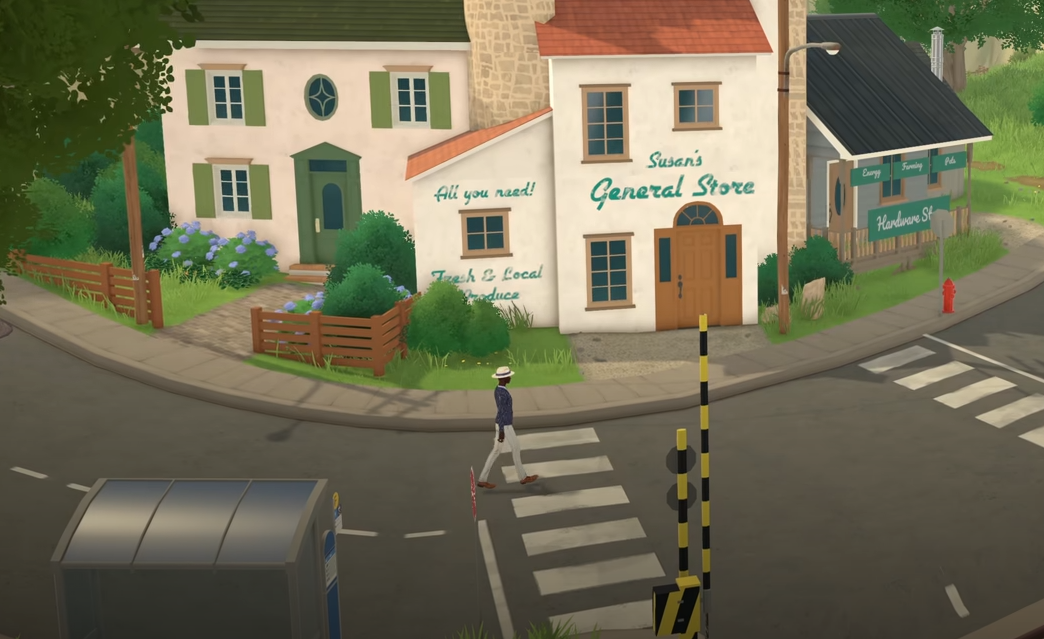
Paralives runs well enough to play on many PCs, but Early Access performance can be uneven depending on the lot, camera distance, object count, and loading state. The best settings are not just about getting the highest FPS. The smarter setup is to stop stutter first, reduce crashes, keep the UI readable, and avoid making the game work harder than it needs to.
For more Paralives guides, check the main Paralives hub.
Jump To
Best Paralives Settings For Stable FPS
The best Paralives settings are Medium Environment Texture Quality, a 60 FPS cap on most PCs, Fullscreen On, native resolution or 1080p if performance is rough, Medium Object Rendering Distance, and Low or Medium Grass Rendering Distance.
Paralives is not the kind of game where uncapped FPS changes the experience much. Stable camera movement and fewer hitching moments are more important than a higher frame counter. A life sim feels better when menus respond cleanly, lots load without drama, and the camera does not stutter every time it pans across a yard full of grass that nobody asked to be this expensive.
Medium is the safest starting point for Environment Texture Quality because it keeps the game looking decent without pushing memory and loading harder than necessary. Object Rendering Distance can stay Medium for most players, then move up only if the game is already smooth. Grass Rendering Distance is the easiest setting to lower because it gives performance back without hurting how the game actually plays.
I would not start by maxing everything and then slowly walking it back. Start with a stable setup, play for 15 to 20 minutes, move the camera around town, enter a home, open Paramaker or Build Mode, then raise settings only if the game behaves. Paralives is still Early Access, so stability wins over pretending a higher preset is a personality trait.
What To Change First When Paralives Runs Badly
When Paralives runs badly, lower Grass Rendering Distance first, then Object Rendering Distance, then Environment Texture Quality, then resolution if the frame rate is still poor.
The biggest mistake is changing every setting at once. That makes it harder to know what actually helped. Paralives can stutter for different reasons depending on the scene. Outdoor areas can react to grass distance. Busy homes can react to object distance. Loading and hitching can react to texture quality. Overall weak FPS usually reacts most to resolution.
| Problem | Change First | Why |
|---|---|---|
| Outdoor stutter | Grass Rendering Distance | Grass adds visual load without adding much gameplay value. |
| Stutter inside homes | Object Rendering Distance | Lots with more furniture and objects can hit performance harder. |
| Hitching while loading new areas | Environment Texture Quality | Lower textures can reduce loading and memory pressure. |
| Low FPS everywhere | Resolution | Lower resolution gives the biggest overall performance gain. |
| Uneven frame pacing | Frame Rate Cap | A fixed cap can feel smoother than jumping between higher and lower FPS. |
That order gives the best chance of fixing the problem without making the game look worse than it needs to. Lowering resolution should be the bigger move after the smaller settings fail. Dropping from 1440p to 1080p can help a lot, but it also changes image clarity more than lowering grass.
Best Settings To Fix Stutter In Paralives
To fix stutter in Paralives, cap the frame rate at 60 FPS, lower Grass Rendering Distance, keep Object Rendering Distance at Medium, and avoid high Environment Texture Quality until the game is more optimized.
Stutter is usually more annoying than a slightly lower frame rate. A steady 45 or 60 FPS can feel better than a game bouncing between higher numbers and sudden dips. Paralives has camera panning, object menus, and lot loading, so uneven frame pacing stands out more than it should.
For most PCs, a 60 FPS cap is the best target. It is smooth enough for a life sim and keeps the game from pushing extra frames that do not improve much. If the PC is older, a laptop is getting hot, or the game is still unstable, use a 30 FPS cap instead. That sounds low, but stable 30 in a life sim is very playable.
Lowering Grass Rendering Distance is the first real stutter fix I would try. It can help outdoors and usually does not make the game feel worse. Object Rendering Distance affects how much the game draws around lots, so Medium is a good default. High can look better, but it is not worth it if every camera move feels like the game is thinking about its taxes.
Best Settings To Reduce Crashes In Paralives
To reduce crashes in Paralives, use a frame rate cap, avoid max texture settings, keep rendering distances moderate, turn on autosave, and avoid clicking repeatedly during long loading screens.
Crashes are not always caused by settings. Paralives is in Early Access, so some crashes are just current build issues. Still, graphics settings can make the game less stable by increasing memory use, loading strain, and overall hardware pressure.
The safest crash reduction setup is simple. Cap FPS at 60 on a normal PC or 30 on weaker systems. Keep Environment Texture Quality at Medium or Low. Keep Object and Grass Rendering Distance at Medium or Low. Do not run high resolution just because the monitor supports it if the game is already struggling.
Autosave is worth turning on immediately. It will not stop a crash, but it can stop the crash from wasting a full session. Manual saves are still smart before moving houses, entering Build Mode for a long session, or making major household changes. Early Access is fun until the game eats 40 minutes and calls it community testing.
- Use a 60 FPS cap on most PCs.
- Use a 30 FPS cap on low end PCs, laptops, or Steam Deck.
- Keep Environment Texture Quality at Medium or Low.
- Lower Object and Grass Rendering Distance if crashes happen during gameplay.
- Wait on loading screens instead of clicking repeatedly.
- Turn on autosave, then still manual save before big changes.
- Restart the game after changing several video settings.
Best Paralives Settings By PC Type
The best Paralives settings depend more on stability than raw hardware strength, because even strong PCs can still hit Early Access stutter.
A strong PC can usually handle 1440p and higher rendering distances, but it still does not need uncapped FPS. A mid range PC should aim for 1080p or 1440p with Medium settings. A low end PC or older laptop should target 30 FPS, lower texture quality, and lower rendering distances.
| Setup | Resolution | FPS Cap | Texture Quality | Rendering Distance |
|---|---|---|---|---|
| Strong PC | 1440p or native | 60 FPS | Medium first, High only if stable | High or Medium |
| Mid Range PC | 1080p or 1440p | 60 FPS | Medium | Medium |
| Low End PC | 900p or 1080p | 30 FPS | Low | Low or Medium |
| Laptop | Native or 1080p | 30 or 60 FPS | Low or Medium | Low or Medium |
For laptops, heat matters as much as FPS. A laptop might run the game well for 10 minutes, then start stuttering after it gets hot. If that happens, cap the FPS lower and reduce rendering distances. A cooler laptop with stable FPS is better than a hotter laptop pretending it can hold settings it clearly resents.
Best Paralives Settings For Steam Deck
The best Steam Deck settings for Paralives are 1280x800 resolution, Low or Medium Environment Texture Quality, 30 FPS cap, Low Grass Rendering Distance, and Low or Medium Object Rendering Distance.
Steam Deck can run Paralives, but it should be treated like a handheld life sim setup, not a desktop PC. The target should be playable, stable, and readable. A 30 FPS cap is the right call because it reduces strain and keeps the game more consistent during live mode, Paramaker, and lot movement.
| Steam Deck Setting | Recommended Value |
|---|---|
| Resolution | 1280x800 |
| FPS Cap | 30 FPS |
| Environment Texture Quality | Low or Medium |
| Object Rendering Distance | Low or Medium |
| Grass Rendering Distance | Low |
| Fullscreen | On |
For docked Steam Deck play, avoid 4K. Use 720p, 800p, or 1080p instead. The Deck can output to a bigger screen, but that does not mean Paralives should be pushed at a resolution the hardware has no reason to chase.
Controls are also part of the Steam Deck setup. Use a keyboard and mouse style Steam Input layout, map camera and speed controls somewhere easy, and use the trackpad as the mouse. For the full handheld breakdown, the Paralives Steam Deck guide covers performance, Proton, controls, keyboard shortcuts, and docked play.
Paralives Settings Not Worth Maxing Yet
The settings least worth maxing in Paralives right now are Grass Rendering Distance, Environment Texture Quality, and frame rate cap.
Grass Rendering Distance is the easiest cut because it does not change the core experience. It can make outdoor areas look nicer, but it does not help the household function, make menus easier, or improve building. If the game stutters outdoors, grass should be the first thing sacrificed. It had a good run.
Environment Texture Quality is worth keeping at Medium until the game has more optimization patches. High can look better, but the current tradeoff is not always worth it. If textures are connected to hitching or longer loading on a system, Medium is the better setting.
Uncapped frame rate is also not worth it for most players. Paralives does not need to run at 144 FPS to feel good. The game benefits from a clean, stable cap more than a high ceiling with dips. In a life sim, consistency beats flexing.
| Setting | Why Not Max It | Better Choice |
|---|---|---|
| Grass Rendering Distance | Can hurt outdoor performance without much gameplay benefit. | Low or Medium |
| Environment Texture Quality | Can add loading and memory pressure. | Medium |
| Frame Rate Cap | Higher caps can cause uneven pacing and extra hardware load. | 60 FPS or 30 FPS |
Gameplay Settings Worth Changing
The best gameplay settings to change in Paralives are autosave, camera controls, cursor edge scrolling, and any key bindings that make navigation or Build Mode uncomfortable.
Performance is not only graphics. A game can run fine and still feel bad if the camera controls are awkward. Paralives supports camera movement with WASD or arrow keys, camera rotation with right mouse movement, and alternate rotation keys like Q and E. Cursor edge scrolling can also be turned on in settings for players who prefer the classic life sim camera feel.
Autosave should be enabled during Early Access. It is one of the best settings in the entire game because it protects progress while the game is still getting patched. Autosave does not replace manual saving, but it does help reduce the damage from a crash.
Key bindings are worth changing early. If rotating the camera feels bad, fix it before spending hours in Build Mode. If live mode movement feels clunky, adjust it before blaming the game’s pacing. Small control fixes can make Paralives feel much cleaner.
Build Mode can be one of the first places where camera comfort and performance both matter. The Paralives Build Mode guide covers lot planning, walls, roofs, terrain, and the best order for building cleaner houses.
| Setting | Recommended Change | Why It Helps |
|---|---|---|
| Autosave | Turn it on | Protects progress during crashes or bugs. |
| Cursor Edge Scrolling | Use if preferred | Makes camera movement feel closer to older life sims. |
| Camera Rotation | Use right mouse, Q, or E | Makes home navigation and building easier. |
| Key Bindings | Adjust uncomfortable defaults | Improves daily play more than a minor graphics change. |
Paralives Best Settings Quick Table
The best quick setup is Medium textures, a 60 FPS cap, Fullscreen On, Medium Object Rendering Distance, and Low or Medium Grass Rendering Distance.
| Goal | Best Settings |
|---|---|
| Best overall setup | Medium textures, 60 FPS cap, Medium object distance, Medium grass distance. |
| Best FPS | 1080p or lower, Low textures, 30 or 60 FPS cap, Low rendering distances. |
| Fewer crashes | Medium or Low textures, capped FPS, moderate rendering distances, autosave on. |
| Better laptop performance | 30 FPS cap, 1080p or native, Low grass, Medium or Low objects. |
| Best Steam Deck setup | 1280x800, 30 FPS, Low or Medium textures, Low grass, Medium or Low objects. |
If Paralives is already smooth, there is no need to overthink the settings. If it stutters, lower grass first. If lots feel heavy, lower object distance. If loading or crashes are the issue, lower texture quality and use a frame cap. If everything feels rough, lower resolution.
That order gives the cleanest troubleshooting path without turning the game into blurry soup immediately.
Final Blurb
The best Paralives settings are built around stability. Start with Medium Environment Texture Quality, a 60 FPS cap, Fullscreen On, Medium Object Rendering Distance, and Low or Medium Grass Rendering Distance. Low end PCs, laptops, and Steam Deck should aim lower, with a 30 FPS cap and reduced rendering distances.
Paralives is still in Early Access, so the best setup may change as patches improve performance. For now, stop stutter first, protect the save with autosave, and avoid maxing settings that do not improve the actual play experience. A stable home full of functioning Parafolks beats a gorgeous slideshow with premium grass. Every time.