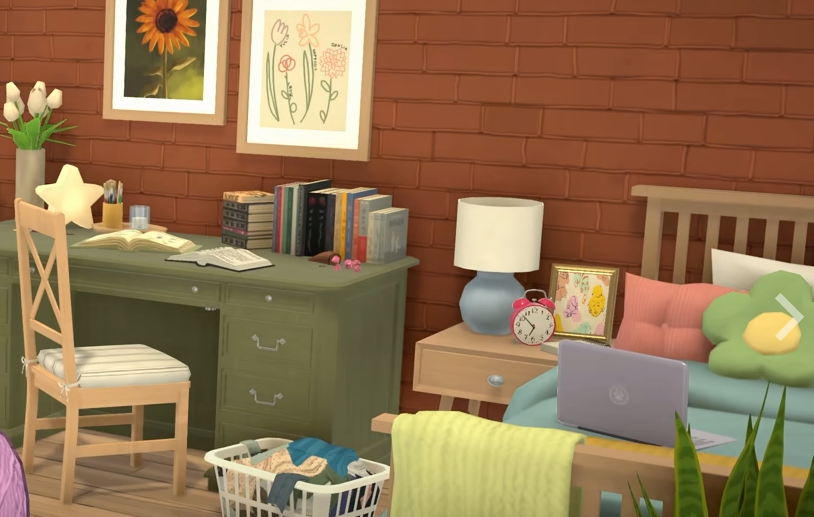
Paralives can run on Steam Deck, but it currently plays best with Steam Input tweaks, lower settings, and some patience with Early Access performance. The main issue is not getting the game to launch for most players, it is making the controls feel good enough for Paramaker, live mode, and building.
For more Paralives guides, check the main Paralives hub.
Jump To
Can You Play Paralives On Steam Deck?
Yes, Paralives is playable on Steam Deck, but it is better described as playable with tweaks instead of fully smooth handheld support.
The game runs for many Steam Deck players through Proton, including default Proton or Proton Experimental in several player reports, but it does not feel like a finished Deck first experience yet. The biggest friction point is control setup. Paralives is built around mouse and keyboard style life sim controls, so the Steam Deck works by using trackpads, touchscreen input, keyboard and mouse layouts, or custom Steam Input bindings.
That makes it playable, especially for a slower life sim, but not effortless. Paramaker works well enough once the controls are understood. Live mode is playable with some camera awkwardness. Build Mode can work, but it benefits a lot from a better controller layout, a trackpad setup, or a docked mouse and keyboard.
The simple answer is that Paralives works on Steam Deck, but it is not a perfect couch game yet. It needs setup, and some players will want to wait for better community layouts or future optimization updates before using the Deck as their main way to play.
Paralives Steam Deck Performance
Paralives generally runs around 20 to 40 FPS on Steam Deck depending on the area, zoom level, settings, and whether the game is docked or handheld.
Player reports are fairly consistent. The game can run fine in handheld mode, but it has stutters, longer loading, and frame drops in heavier scenes. Town view can perform better when less detail is on screen, while zooming far out or loading into new areas can drop performance. Some players report mid 20s FPS in homes or on the train, with town areas closer to 30 to 40 FPS when the camera is not showing too much detail.
This is easier to accept in Paralives than it would be in an action game because the camera is slower and the gameplay is not based on reaction speed. A life sim can survive 30 FPS much better than a racing game or shooter. Still, the stutter is real, and the game is in Early Access, so performance can change as patches arrive.
I would treat 30 FPS as the realistic target on Steam Deck right now. Trying to force higher frame rates mostly makes the Deck work harder without making the game feel dramatically better. It is a life sim, not a competitive aim trainer. The furniture will not dodge.
Best Steam Deck Settings For Paralives
The best Steam Deck settings for Paralives are 1280x800 resolution, low to medium visual settings, medium object and grass rendering distance, V Sync off if needed, and a 30 FPS cap for steadier handheld play.
Several players are getting playable results without heavy tweaking, but the Deck benefits from a practical setup. Keep the game at the Deck’s native 1280x800 resolution in handheld mode. Lower settings help reduce stutter, especially when loading lots or zooming out. Medium settings can work, but low settings are safer if the Deck gets loud, hot, or inconsistent.
| Setting | Recommended Steam Deck Choice | Why It Helps |
|---|---|---|
| Resolution | 1280x800 handheld | Matches the Steam Deck screen and avoids wasted performance. |
| Frame Rate Cap | 30 FPS | Keeps performance steadier and reduces unnecessary strain. |
| Environment Texture Quality | Low or Medium | Medium can work, but low is safer for smoother play. |
| Object Rendering Distance | Medium | Balances visibility and performance. |
| Grass Rendering Distance | Medium or Low | Lowering it can help reduce outdoor load. |
| V Sync | Off if performance feels uneven | Can help reduce extra latency or uneven feel. |
FSR is not a magic fix here. The quality hit can be more noticeable than the performance gain, especially in a game with lots of UI, text, and small objects. Paralives is better with readable menus and stable enough FPS than a blurrier image chasing numbers the Deck may not hold anyway.
If the Deck feels hot or loud, cap the frame rate at 30 and lower the settings before changing Proton versions. Performance issues are not always Proton problems. Some stutter and bugs are part of the current Early Access build across different hardware.
For a fuller PC settings breakdown, the Paralives best settings guide covers FPS, stutter, lag, crashes, and which settings to lower first.
Best Control Setup For Paralives On Steam Deck
The best control setup is a keyboard and mouse Steam Input layout with the right trackpad as mouse, triggers or bumpers assigned to key camera controls, and back buttons used for speed controls or common shortcuts.
Paralives does not currently feel like it has full native gamepad support on Steam Deck, so Steam Input is doing the heavy lifting. The default simulated mouse and keyboard setup can work, but it feels much better after remapping common actions. Trackpad mouse control is the most important piece because menus, object placement, and interaction cards rely heavily on cursor movement.
A good starting layout is:
- Use the right trackpad as the mouse.
- Use R2 or right trigger for left mouse click.
- Use L2 or left trigger for right mouse click or camera related input.
- Use the left stick or WASD style movement for camera panning if needed.
- Map speed controls to face buttons or back buttons.
- Use the left trackpad as a radial menu for build mode shortcuts.
- Turn on hold to repeat for zoom buttons if L1 and R1 are used for zoom.
Speed controls are a strong early remap. One useful setup is pause on A, speed 1 on X, speed 2 on Y, and speed 3 on B. Another option is putting play and fast forward on the back buttons so the face buttons stay free for other controls. Either setup works as long as speed control is easy to reach during live mode.
Community layouts will probably become the better answer as more players upload tested Steam Input templates. Until then, keyboard and mouse emulation is the safest baseline.
How To Open The Keyboard On Steam Deck
To open the on screen keyboard for Paralives on Steam Deck, hold the Steam button and press X.
This is important in Paramaker because naming a Para requires text input. Without a physical keyboard, the Steam Deck on screen keyboard is the easiest fix. The shortcut is Steam plus X, and it works from inside the game when text fields need typing.
One small annoyance is that the keyboard can sometimes add an extra random letter when it opens or closes. Check the name field after typing and backspace if needed. It is not a major issue, but it is exactly the kind of tiny Deck problem that can make character creation feel more confusing than it should.
If the keyboard does not appear correctly, tap the text box first, then use Steam plus X again. Docked players can skip this by using a physical keyboard, which is still the cleanest option for long Paramaker sessions.
Paramaker Controls On Steam Deck
Paramaker works on Steam Deck, but rotating the Para, typing names, and using small UI options are easier with trackpad mouse controls or a docked keyboard and mouse.
Character creation is one of the first places Steam Deck players feel the control friction. The menus are usable, but they are built for cursor precision. Trackpad control helps a lot, and the touchscreen can also handle some menu selection. For rotating the Para, player reports mention using L2 with another input such as B or the right joystick, depending on the current layout.
The main tip is to avoid judging the whole game from the first 5 minutes of Paramaker controls. Once a better Steam Input layout is set, live mode can feel more comfortable. Paramaker is more menu heavy, so it exposes the Deck control problem right away.
If building a custom layout, put the most common Paramaker and live mode tools somewhere easy to reach. Speed controls, camera rotation, zoom, left click, right click, and the keyboard shortcut are the big ones. Build Mode can use even more shortcuts, which makes the left trackpad radial menu a strong option later.
Playing Paralives Docked On Steam Deck
Paralives is easiest to control on Steam Deck when docked with a mouse and keyboard, but high external monitor resolutions can hurt performance badly.
Docked mode solves the biggest Steam Deck problem: controls. A mouse and keyboard make Paramaker, live mode, Build Mode, and object placement much easier. Several players report that docked play works well when using external input, especially for anyone who already likes life sims on PC controls.
The performance trap is resolution. If the Deck is connected to a 4K TV or external monitor and the game tries to run at a much higher resolution, stuttering can get much worse. The Steam Deck screen is 800p, so pushing the game far above that makes the hardware work much harder.
For docked play, use 720p, 800p, or 1080p instead of 4K. If the image looks blurry, check the game’s resolution settings and make sure the maximum resolution is set correctly. Native external resolution can look sharper, but it is not always worth the performance hit.
| Docked Setup | Recommended Choice |
|---|---|
| Best controls | Mouse and keyboard |
| Best performance | 720p, 800p, or 1080p |
| Avoid | 4K resolution on Deck hardware |
| Best use case | Building, decorating, Paramaker, and longer play sessions |
If most of the Steam Deck time is going into building and decorating, the Paralives Build Mode guide explains the best build order, lot planning, walls, roofs, terrain, and beginner mistakes.
Common Paralives Steam Deck Issues And Fixes
The most common Paralives Steam Deck issues are awkward controls, stutter, slow loading, black screen or loading crashes, keyboard problems, and poor docked performance at high resolution.
Most of these problems have simple first checks. Controls should be changed through Steam Input, not only the in game menu. The on screen keyboard opens with Steam plus X. Performance should be capped around 30 FPS if the Deck is struggling. Docked players should avoid high external resolutions. If the game hangs or crashes at launch, Proton Experimental or Proton Hotfix may be worth testing.
| Issue | Likely Cause | Fix |
|---|---|---|
| Controls only feel like touchscreen input | Steam Input layout is not set well. | Use a keyboard and mouse layout or community layout. |
| Can’t type a Para name | On screen keyboard is not open. | Hold Steam and press X. |
| Stutter during play | Early Access optimization and higher settings. | Use low to medium settings and cap at 30 FPS. |
| Bad performance while docked | External resolution is too high. | Use 720p, 800p, or 1080p instead of 4K. |
| Black screen or crash while loading | Proton or current build issue. | Try Proton Experimental or Proton Hotfix. |
| Zoom needs repeated button presses | Bumper input is not set to repeat. | Turn on hold to repeat for L1 and R1 in Steam Input. |
If the game crashes in Paramaker or during loading, it is not automatically a Steam Deck only problem. Early Access bugs are showing up on different setups, including Windows PCs. That does not make the Deck blameless, but it does mean every weird issue should not be blamed on Linux or Proton right away.
Is Paralives Worth Playing On Steam Deck?
Paralives is worth playing on Steam Deck if handheld play is the priority and some control tweaking is acceptable, but mouse and keyboard is still the better way to play right now.
For casual live mode, relationship building, household management, and slower play, the Deck works well enough. The game’s pace helps cover the uneven frame rate because there are not many moments where 20 to 30 FPS ruins the experience. The real test is patience with controls.
For building, decorating, and heavy Paramaker use, docked mouse and keyboard is much better. The game is too cursor heavy for the default Deck setup to feel perfect. Custom layouts can close the gap, but they do not fully replace the ease of a normal mouse.
The best recommendation is simple. Buy it for Steam Deck if playable is good enough and tweaking controls sounds fine. Wait if smooth controller support is a dealbreaker. Paralives runs on Deck, but it is still early enough that the experience feels handmade in places. Fitting, honestly. The whole game is about building things yourself.
Final Blurb
Paralives can be played on Steam Deck, and early player reports are mostly positive, but it needs the right expectations. The game runs through Proton for many players, performs best around 30 FPS, and benefits from low to medium settings, 1280x800 resolution, and a custom Steam Input layout.
The biggest issue is control comfort. Steam plus X opens the keyboard, trackpad mouse control helps with menus, and community layouts should make the game easier as more players test it. Docked mouse and keyboard is the cleanest setup right now, especially for building and Paramaker. Handheld play works, but it takes a little setup. Not terrible. Not perfect. Very Early Access, very life sim, very “give me 12 minutes to fix my buttons before I can decorate this kitchen.”