Pragmata: Best Settings for Optimized PC Performance
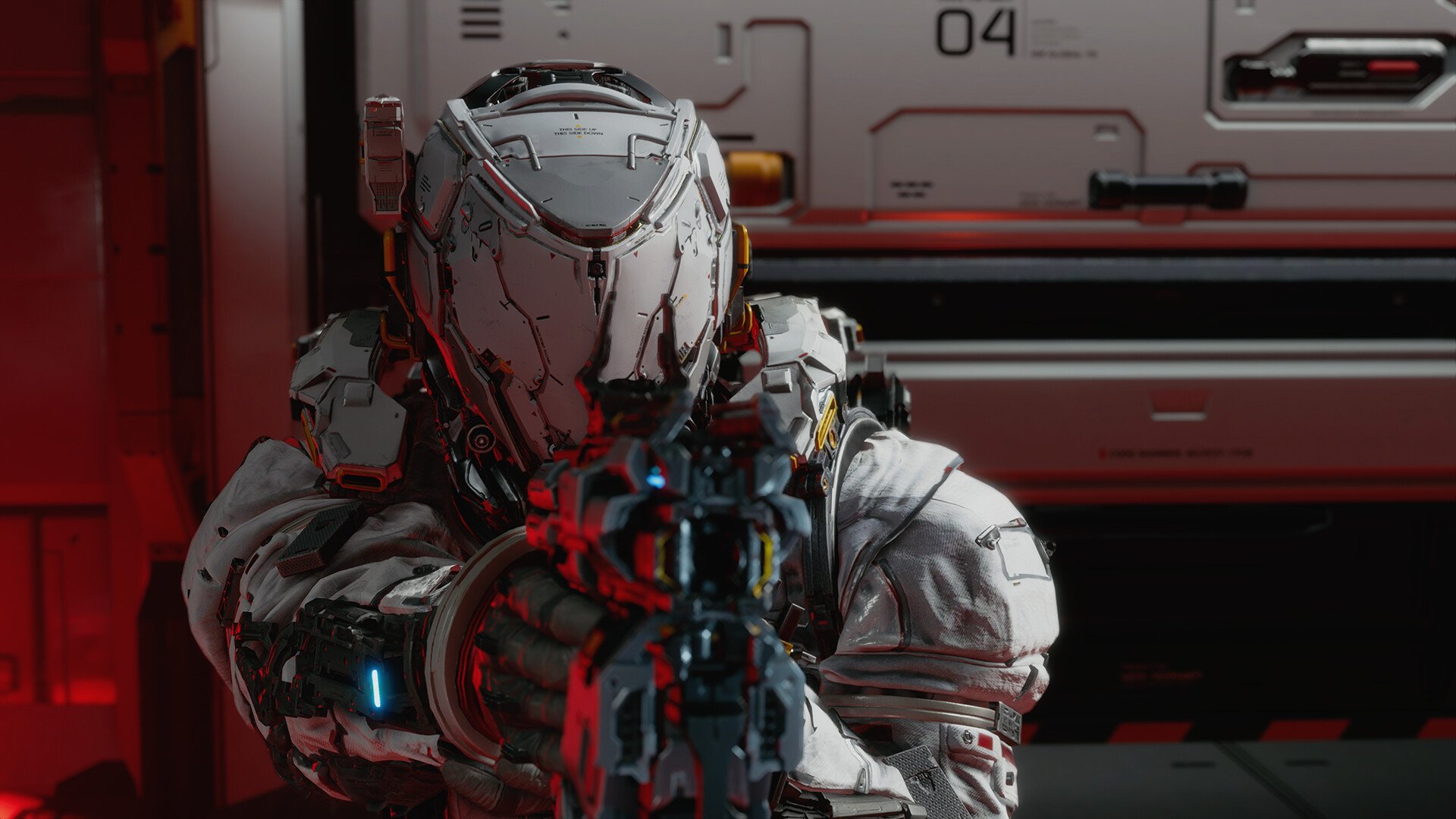
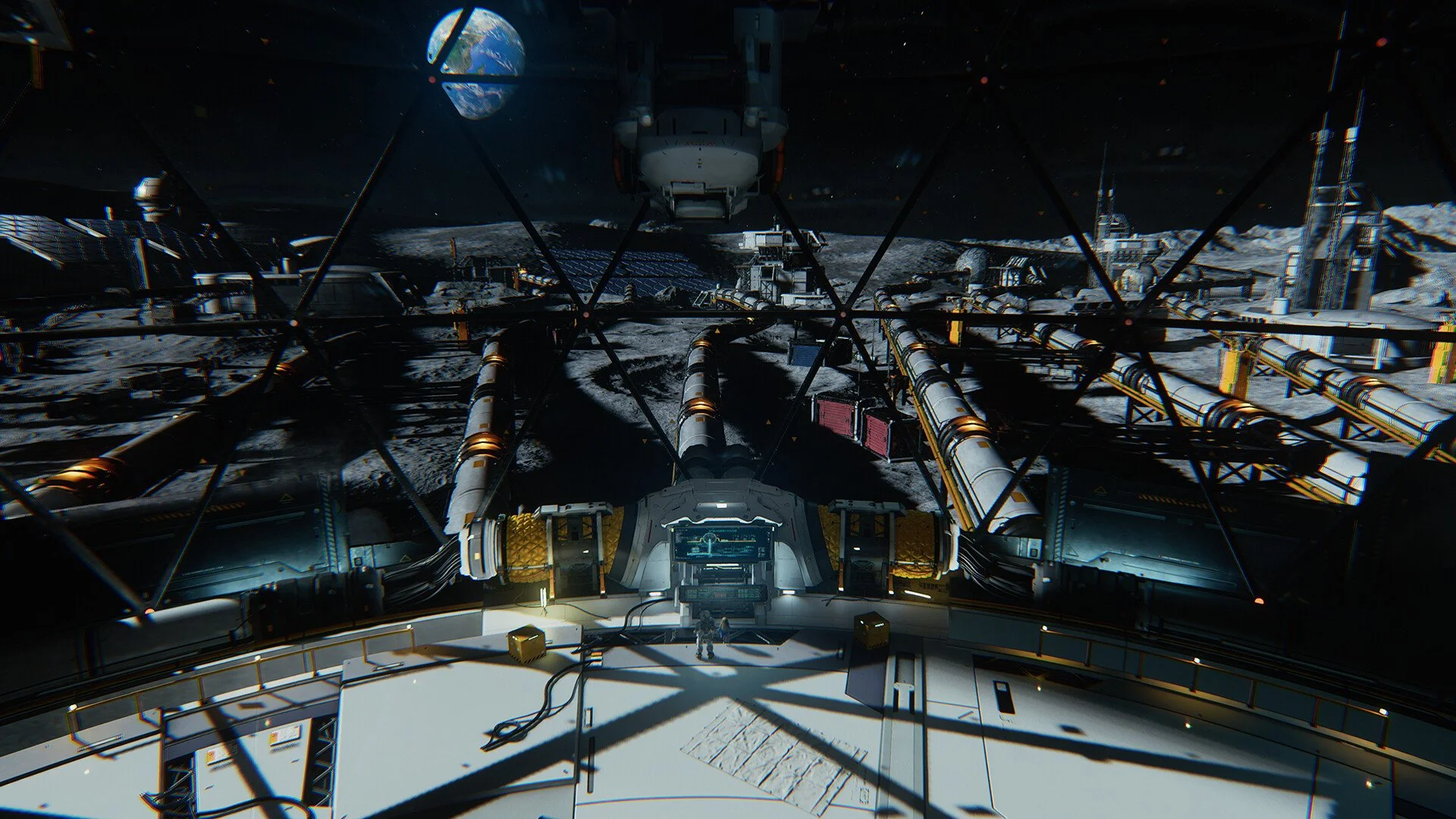
Pragmata runs well on most PCs, but the default presets do not give the best balance between performance and visuals. After hours of playing, I have found that a few targeted changes gives you significantly smoother combat with a solid FPS boost while keeping the game looking clean where it actually counts.
Best Settings for Pragmata Performance and Graphics Quality
The best Pragmata settings are to start on the Balanced preset, disable ray tracing, keep textures high if VRAM allows, and prioritize effects and shadows while lowering global illumination. This setup keeps combat smooth while avoiding the heavy settings that quietly tank performance without adding much during gameplay.
I tested this approach by starting on Balanced and tweaking only what actually showed up during fights, not just standing still looking at lighting. I’ve also broken down further by my recommended settings, and then done a deeper dive based on your hardware.
Recommended Pragmata Settings Breakdown
Start with Balanced, then adjust like this:
Global Illumination: Medium
Shadows: Low
Effects: Medium
Textures: High
Mesh Quality: High
Screen Space Reflections: On
Ambient Occlusion: On
Hair Quality: Medium
Anti-Aliasing: FXAA plus TAA
Shadow Cache: On
Subsurface Scattering: Off
Motion Blur: Off
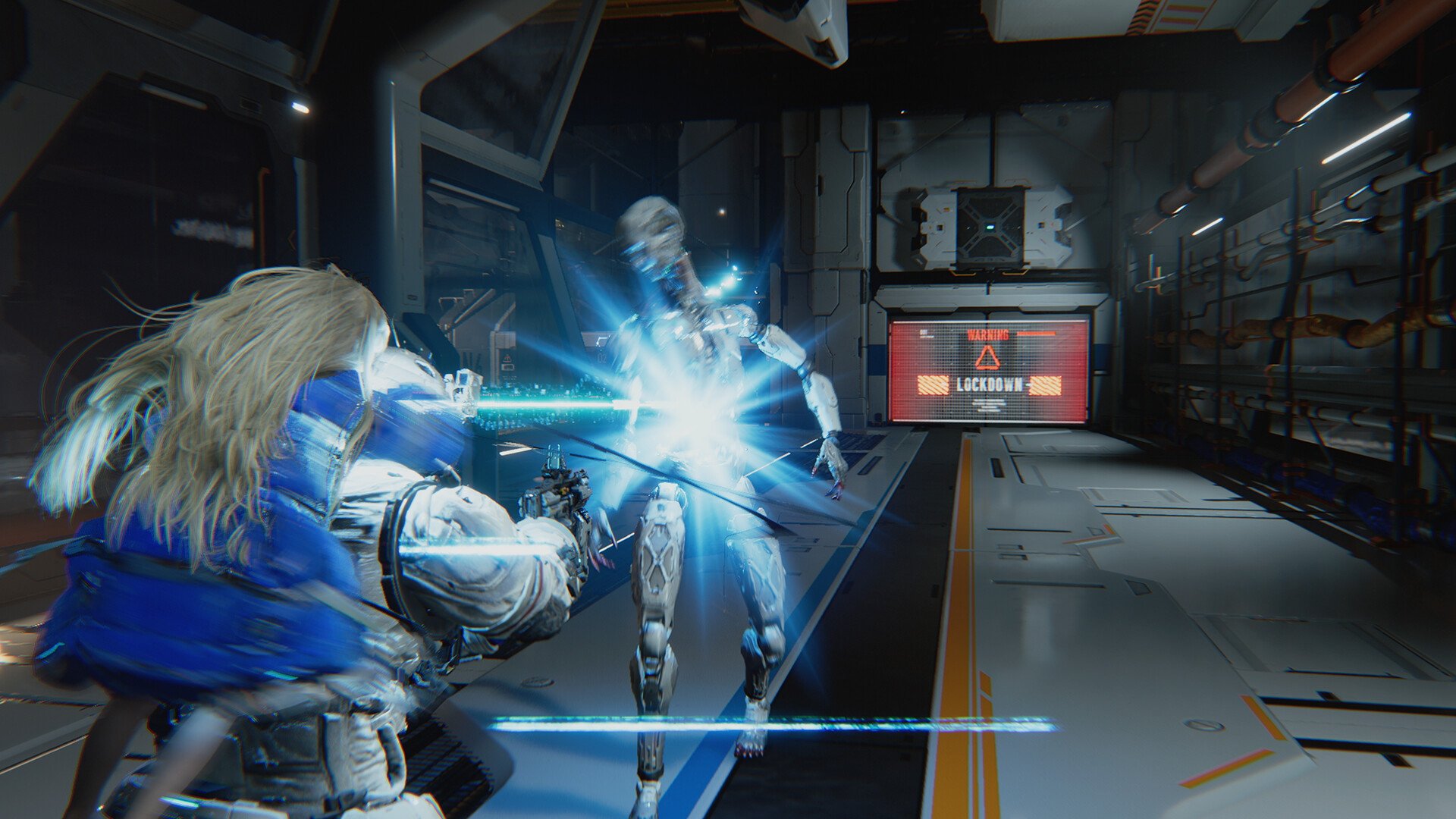
This keeps the game stable while still making explosions, enemies, and abilities look sharp during actual gameplay.
Best Settings by Hardware Level
Not everyone is running the same setup, so this helps a lot.
Low-end PC
use Balanced preset
turn Global Illumination to Low
turn off Screen Space Reflections
keep textures Medium
Mid-range PC
use Balanced preset
Global Illumination Medium
Shadows High
Effects High
Textures High
High-end PC
start with Quality preset
turn off standard ray tracing if unstable
test path tracing with upscaling
keep everything else High or Max
Why These Settings Work Better Than Presets
The presets look fine at first, but they are not optimized for real gameplay and you can tweak ‘em a bit without issue.
Global Illumination is one of the biggest performance drains, and lowering it barely affects what you actually notice in combat. On the other hand, effects quality directly impacts how readable fights feel, especially when enemies explode or attacks go off.
I kept effects high for that reason. It makes a bigger difference than lighting once things get chaotic.
Shadows are also worth pushing to High. They add clarity to environments and enemy positioning without costing much performance compared to other settings.
Should You Use Ray Tracing in Pragmata
Ray tracing sounds like an easy upgrade, but it is not worth it for most setups.
In some areas it looks great, especially with reflective surfaces, but in others it introduces noise and unstable reflections. I ended up turning it off entirely because the visual gain was inconsistent and the performance cost was not.
If you are on high-end hardware, path tracing can look impressive, but it comes with a heavy frame drop. For normal play, it is better to keep it off and focus on stable performance.
Texture and VRAM Settings Explained
Textures and mesh quality depend entirely on your VRAM.
If you have enough VRAM available, max them out. They do not impact performance much unless you hit your limit. If you start seeing stuttering, that is your signal to lower textures first.
This is one of the few settings where higher is almost always better until it causes problems.
Quick Setup for Best Performance
start with Balanced preset
turn off ray tracing
lower global illumination to Medium
raise shadows to High
keep effects High or Max
max textures if VRAM allows
turn off motion blur
This gives you a smooth and clean experience without wasting performance.
When to Adjust Settings Further
If your frame rate drops during fights, the first thing to lower is global illumination or screen space reflections.
If the game stutters instead, that is usually VRAM related, so lower textures before touching anything else.
You do not need to touch every setting. A few targeted changes fix most performance issues.
Best Settings for Combat Visibility
Not all settings affect gameplay equally. During fights, clarity matters more than lighting detail.
higher Effects makes explosions and enemy reactions clearer
higher Shadows helps with positioning and depth
lower Global Illumination reduces visual noise
disabling Motion Blur keeps targets easier to track
This is why the recommended setup focuses on readability during combat instead of maxing visuals across the board.
Final Blurb
Pragmata does not need heavy tweaking to run well, but the default presets leave performance on the table. Focusing on effects, shadows, and stable frame rate while cutting back on lighting gives you the best experience during actual gameplay, not just when standing still looking at reflections.