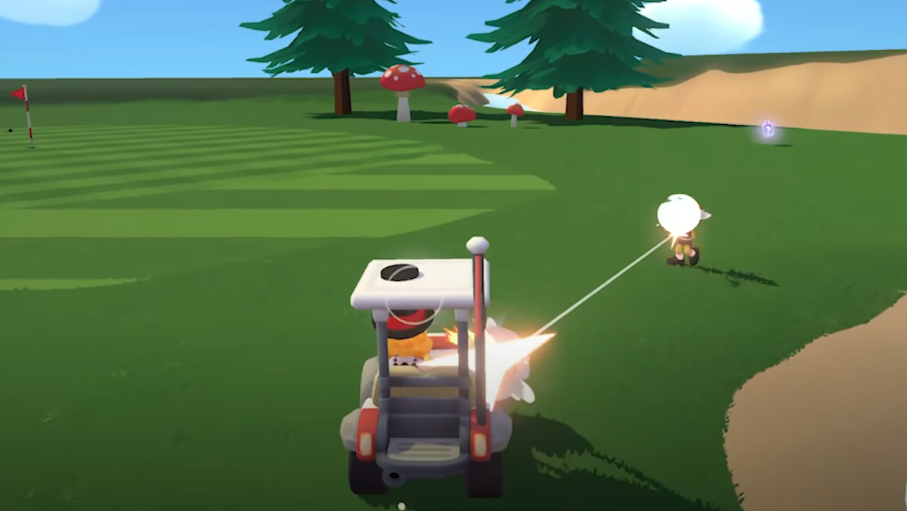
Super Battle Golf Connection Failed: Fix Multiplayer Issues
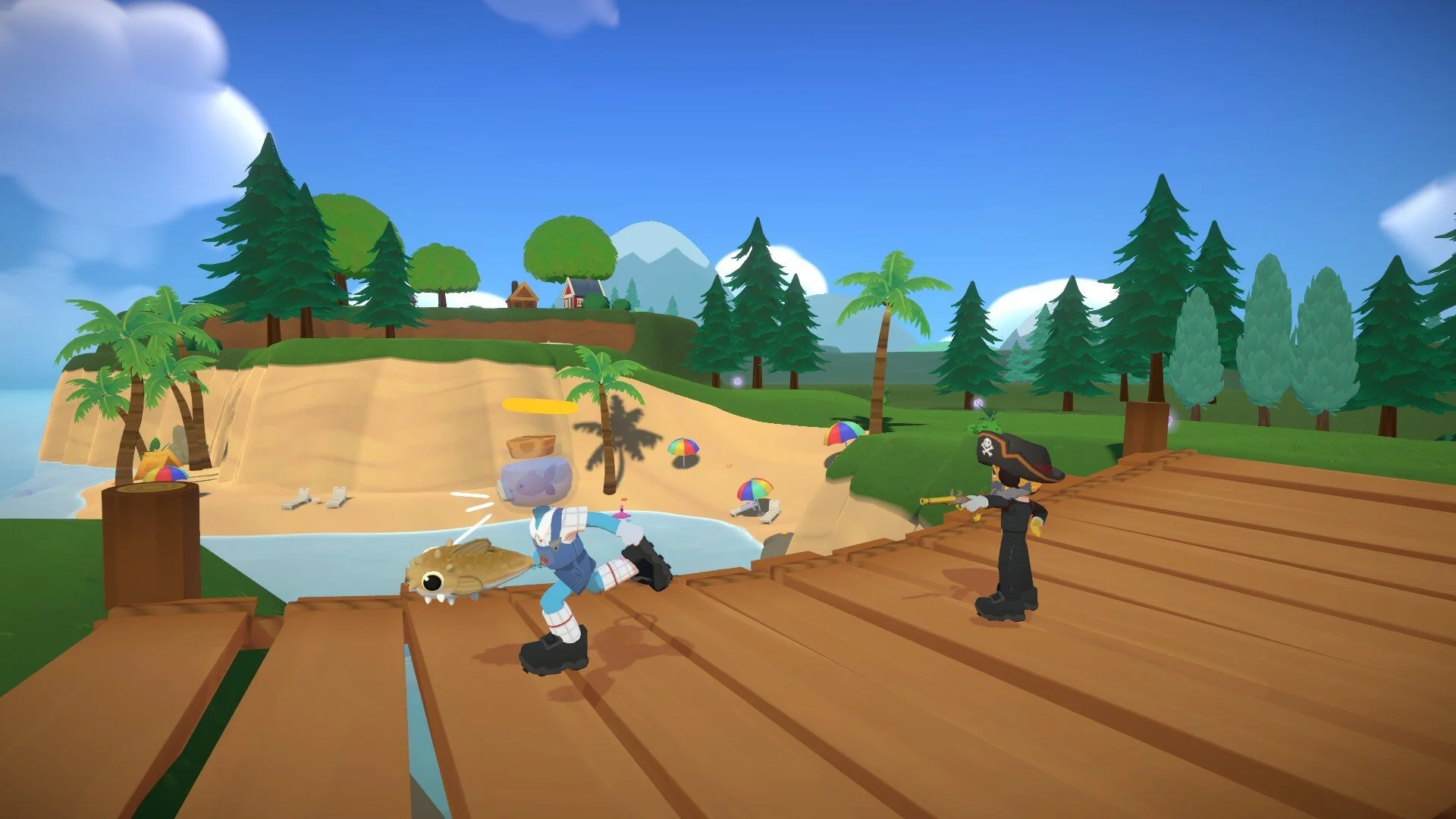
Some Super Battle Golf players run into a problem where multiplayer does not work at all. The game may show Connection Failed, or the lobby browser may load forever without showing any matches.
This issue usually appears when trying to join a friend’s lobby or when searching for public servers.
In most cases, the problem is caused by missing system files or a network configuration issue.
Below are the most common fixes that have helped players connect successfully.
Install The Latest Visual C++ Redistributable
One of the most common fixes is installing the newest Microsoft Visual C++ Redistributable package. Some players have reported that multiplayer fails entirely without it.
To fix this:
Download the latest Visual C++ Redistributable from Microsoft
Install both the x64 and x86 versions
Restart your computer
Launch Super Battle Golf again
After installing the redistributable, many players are able to see lobbies and join matches normally.
Verify Your Game Files On Steam
If the game cannot connect to multiplayer servers, corrupted files may be the cause.
To verify the game files:
Open your Steam Library
Right click Super Battle Golf
Select Properties
Open the Installed Files tab
Click Verify Integrity Of Game Files
Steam will scan the installation and replace any missing or damaged files.
Restart Steam And Your Router
Sometimes multiplayer errors happen because the connection to Steam services gets stuck.
Try these steps:
Close Super Battle Golf
Restart Steam completely
Restart your router or modem
Launch the game again
This can refresh the connection and allow the lobby browser to load correctly.
Try Joining Through Steam Invites
If the lobby browser does not show any matches, you may still be able to connect through a direct invite.
To try this:
Add your friend on Steam
Have them create a lobby
Accept the Steam invite from the overlay
Joining through Steam invites can sometimes bypass lobby discovery issues.
Check Your Firewall Or Antivirus
In some cases, your firewall or antivirus software may block the game’s network connection.
Make sure:
Super Battle Golf is allowed through your Windows Firewall
your antivirus is not blocking the game
Steam has network access
After updating these settings, restart the game and test multiplayer again.
Send Your Player Log To The Developers
If none of the fixes work, the developers may ask for your player log to diagnose the issue.
You can find the log by pressing Win + R and entering:
%userprofile%/AppData/LocalLow/Brimstone
Send the log file to the developer support email so they can investigate the connection problem.
Final Note
Connection Failed errors in Super Battle Golf are usually caused by missing system components or network configuration issues. Installing the Visual C++ Redistributable, verifying game files, and restarting Steam solves the problem for most players.
FAQ
Why does Super Battle Golf say connection failed
This usually happens due to missing system files, network issues, or problems connecting to the game’s lobby servers.
Why are no lobbies showing in Super Battle Golf
The lobby browser may fail to load if your connection to the servers is blocked or if required system components are missing.
Does installing Visual C++ fix Super Battle Golf connection errors
Yes. Several players have reported that installing the latest Visual C++ Redistributable fixes the issue.
Where are Super Battle Golf player logs located
Player logs can be found at:
%userprofile%/AppData/LocalLow/Brimstone
These logs can be sent to the developers for troubleshooting.