Getting a group into The Mound: Omen of Cthulhu depends on whether everyone is playing on the same platform. Regular platform invitations work for many Steam, Xbox, and PlayStation groups, but cross-platform parties currently have to rely on the public server browser. The game supports the expedition once everyone connects; finding the correct lobby is the part most likely to test the group’s sanity first.
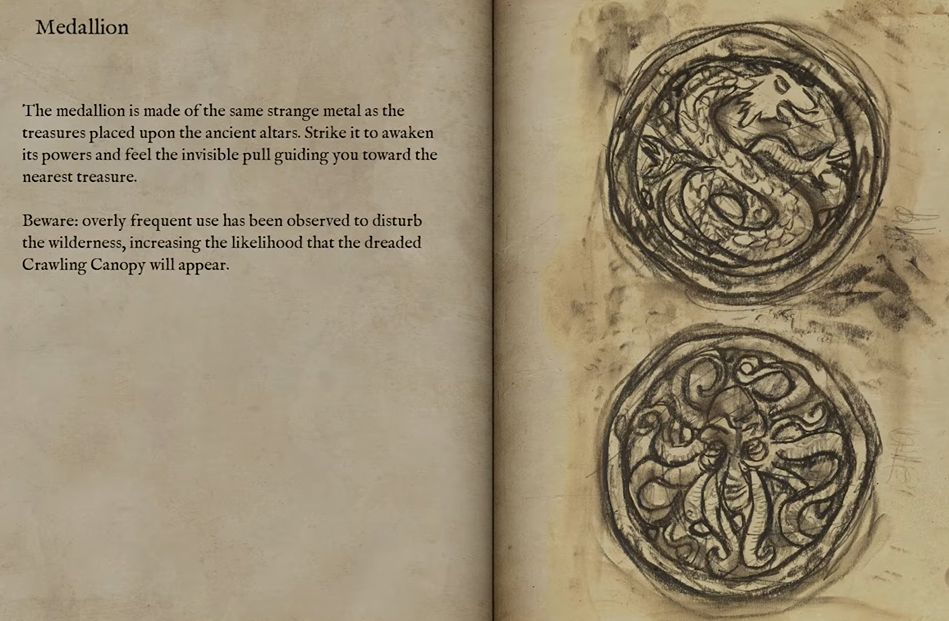
If your group is struggling to find enough valuables before extraction, our guide to using the Medallion in The Mound: Omen of Cthulhu explains how its particle trail leads you toward nearby loot.
Jump To
How to Join Friends in The Mound: Omen of Cthulhu
To join someone playing on the same platform, have the host create a multiplayer lobby and send an invitation through the game’s lobby menu or the platform’s normal friends system. Accepting that invitation should take the joining player into the host’s staging area before the expedition begins.
On Steam, the host can open the Steam overlay with Shift and Tab, find the appropriate friend, and select the available invitation option. The joining player can accept the notification directly or reopen the overlay and use the invitation saved in the Steam chat window.
A Steam player may also be able to right-click a friend who is already hosting and select Join Game. This is useful when the original invitation notification disappears before it can be accepted.
| Situation | Best Joining Method |
|---|---|
| Steam player joining a Steam friend | Steam invitation, overlay, or Join Game option |
| Xbox player joining an Xbox friend | Xbox friends or invitation system |
| PS5 player joining a PlayStation friend | PlayStation friends or invitation system |
| Players using different platforms | Public server browser |
Have every player connect while the group is still in the pre-expedition lobby. Trying to assemble the party before departure is more reliable than expecting someone to join after the host has already entered the jungle.
How to Invite Friends to Your Lobby
From the main menu, enter the multiplayer section and create a new lobby. Choose the appropriate privacy option based on who needs to join.
Friends Only is suitable when everyone is using the same platform and appears in the host’s normal friends list. Public is the safer option when anyone is joining from another platform because cross-platform players may not appear inside the invitation menu.
After creating the lobby, open the Invite Friends option and select the players shown in the platform-specific list. On Steam, the host can alternatively send invitations through the overlay.
The recommended setup process is:
| Step | Action |
|---|---|
| 1 | Open Multiplayer from the main menu |
| 2 | Create and host a new lobby |
| 3 | Select Friends Only for same-platform groups or Public for crossplay |
| 4 | Send invitations to friends on the host’s platform |
| 5 | Have cross-platform friends locate the lobby through the server browser |
| 6 | Wait for the full group before beginning the expedition |
The invitation menu may only display friends attached to the host’s current platform. A PS5 player seeing only PlayStation friends, for example, does not mean the Xbox and PC versions cannot join the same session.
How to Crossplay in The Mound: Omen of Cthulhu
To use crossplay, the host must create a public lobby. Players on the other platforms then open the public server browser and refresh the available sessions until the host’s lobby appears.
There is currently no dependable universal friend code or direct cross-platform invitation system. Steam friends appear through Steam, PlayStation friends appear through PlayStation, and Xbox friends appear through Xbox, leaving the public lobby list as the connection point between those networks.
Use the following crossplay process:
| Step | Crossplay Instructions |
|---|---|
| 1 | Choose one player to host the session |
| 2 | Create the lobby with its privacy set to Public |
| 3 | Tell the other players when the lobby is active |
| 4 | Open the public server browser on each joining platform |
| 5 | Refresh until the host’s session appears |
| 6 | Compare the visible lobby information and join the correct session |
| 7 | Confirm that the entire group is connected before starting |
The browser may not show the correct lobby immediately. Some players have found the session after a few refreshes, while others have spent considerably longer waiting for the list to generate the right result.
Coordinate outside the game while searching. Knowing when the host creates the lobby, how many players are already inside, and any identifying session details makes it easier to distinguish the correct result from unrelated public games.
Which Platforms Support Crossplay?
The Mound: Omen of Cthulhu supports cross-platform multiplayer between Steam, Xbox Series X|S, and PlayStation 5. Players from those platforms can enter the same online co-op lobby when the session appears through the public browser.
| Platform Combination | Joining Method |
|---|---|
| Steam and Xbox Series X|S | Public server browser |
| Steam and PlayStation 5 | Public server browser |
| Xbox Series X|S and PlayStation 5 | Public server browser |
| Players on the same platform | Platform invitation or public browser |
Crossplay support does not mean the platform friends lists are combined. Players can share the same expedition without appearing inside one unified social menu.
What to Do When Your Friend’s Lobby Is Not Showing
A missing lobby is currently the most common obstacle for cross-platform groups. The server browser can produce an incomplete list, meaning a valid public session may not appear during the first search.
Begin by confirming that the host selected Public rather than Friends Only. A Friends Only lobby may be visible only to players recognized by the host’s platform network.
Next, refresh the server browser several times. Close and reopen the multiplayer browser if repeated refreshes continue showing the same sessions.
| Fix | What It Addresses |
|---|---|
| Set the lobby to Public | Allows players outside the host’s platform friends list to discover it |
| Refresh the server browser | Requests a different or updated session list |
| Reopen the multiplayer menu | Reloads the browser when its results appear stuck |
| Recreate the host lobby | Registers a new public session when the first one remains hidden |
| Restart the game | Clears a temporary matchmaking or connection problem |
| Install every available update | Prevents players on incompatible versions from joining |
| Check the current player count | Confirms the lobby has not already reached four players |
If the lobby still does not appear, switch hosts. A new session created by someone on another platform may show up more consistently for the rest of the group.
There is no lobby-name search or cross-platform player-name search to guarantee the correct result at launch. Finding the session may remain partly dependent on refreshing until the server browser decides to cooperate.
How to Fix The Mound Invite Not Working
Same-platform invitations can fail when the platform overlay is disabled, one player has not installed the latest update, the lobby is full, or the session privacy does not allow the joining player to enter.
On Steam, confirm that the overlay is enabled by opening Steam Settings, selecting In Game, and checking the Steam Overlay option. Restart Steam and the game after changing the setting.
Both players should also verify that The Mound is fully updated. A version mismatch after a hotfix can prevent one client from joining another even when the invitation itself appears normally.
Before attempting more involved network changes, check the basic conditions:
| Check | Required Result |
|---|---|
| Game version | All players have installed the same current update |
| Lobby capacity | Fewer than four total players are connected |
| Lobby privacy | The joining player is permitted to discover the session |
| Host status | The host is still inside an active multiplayer lobby |
| Platform status | Steam, Xbox, or PlayStation online services are connected |
| Cross-network permissions | Console settings permit communication and play outside the platform network |
PC players can also verify the game files through Steam. Right-click The Mound in the Library, open Properties, select Installed Files, and use Verify integrity of game files.
Allowing the game through Windows Firewall may help when a PC is blocking multiplayer traffic. Use the Windows option to allow an app through the firewall and confirm that The Mound is permitted on the appropriate network types.
Avoid treating third-party network boosters as a required fix. The basic lobby, version, platform-permission, and restart checks should come first because many reported problems originate in the game’s current social interface rather than the player’s connection speed.
Can You Create a Private Crossplay Lobby?
The launch version does not provide a reliable cross-platform friend code, direct account invitation, or password-protected lobby workflow. That makes a completely private crossplay setup difficult.
For a group using different platforms, create a public lobby and have everyone search at the same time. The host should wait in the staging area until the intended players connect.
Friends Only is more practical for groups staying within Steam, Xbox, or PlayStation because the host can use that platform’s established friends list. It may prevent cross-platform players from finding the session, even when they know it exists.
Until a unified social system or lobby code is added, public discovery remains the most dependable crossplay method. The downside is that an unrelated player may enter an open slot before the intended friend finds the session.
Why Crossplay Voice Chat May Not Work
Players have reported joining cross-platform lobbies successfully while being unable to communicate through the game’s spatial voice chat. This can happen even when the microphone and output devices appear correctly inside the settings menu.
Check the input and output device on every system, confirm that voice volume is enabled, and make sure the game has permission to use the microphone. Console players should also review privacy settings related to cross-network communication.
If the group can join but still cannot hear one another, use Discord, an Xbox party, PlayStation voice chat, or another external service as a temporary workaround.
External chat keeps the group coordinated, but it removes part of the intended experience. The game’s spatial system connects voices to player positions, which means separating inside the jungle should also affect how clearly the group can communicate.
The voice problem is separate from crossplay matchmaking. A silent voice channel does not necessarily mean the players joined an incompatible lobby.
How Public Matchmaking Works
Players without a pre-arranged group can use the public server browser to join an open lobby. Select a session with an available slot and connect before the host begins the expedition.
The browser does not currently offer the depth of filters expected from a mature matchmaking system. Platform, lobby-name, player-name, and region search options may be absent or limited, making it harder to locate one specific group.
When joining random players, check the visible lobby population and wait for the host to finish assembling the party. Leaving immediately because the group is not full can prevent the session from ever reaching the four-player maximum.
Public matchmaking and friend joining use the same basic browser, but the objectives are different. Matchmaking only needs to find any available game; crossplay requires the browser to surface one exact lobby.
How Many Friends Can Play Together?
The Mound: Omen of Cthulhu supports up to four total players in online co-op. The host occupies one of those slots, leaving room for three additional friends.
| Party | Supported? |
|---|---|
| One host and one friend | Yes |
| One host and two friends | Yes |
| One host and three friends | Yes, this is the maximum |
| One host and four friends | No |
Crossplay does not alter the limit. A four-player party can contain any supported combination of Steam, Xbox Series X|S, and PlayStation 5 players.
The Best Way to Join Friends and Use Crossplay
Use the normal invitation system when everyone is playing on the same platform. Steam groups can send or accept invitations through the overlay, while Xbox and PlayStation players can use their respective platform friends systems.
For crossplay, create a public lobby and have the other players search through the server browser. Refresh repeatedly when the lobby is missing, confirm that everyone is running the same version, and recreate the session or change hosts when the list refuses to display it.
Cross-platform co-op is available, but the game currently lacks the friend codes, unified account list, direct invitations, and lobby search tools that would make it straightforward. Once everyone finally appears in the staging area, wait for the complete party before beginning. The expedition is supposed to contain the reality-warping horror; the lobby does not need to compete.