Halloween The Game How to Emote

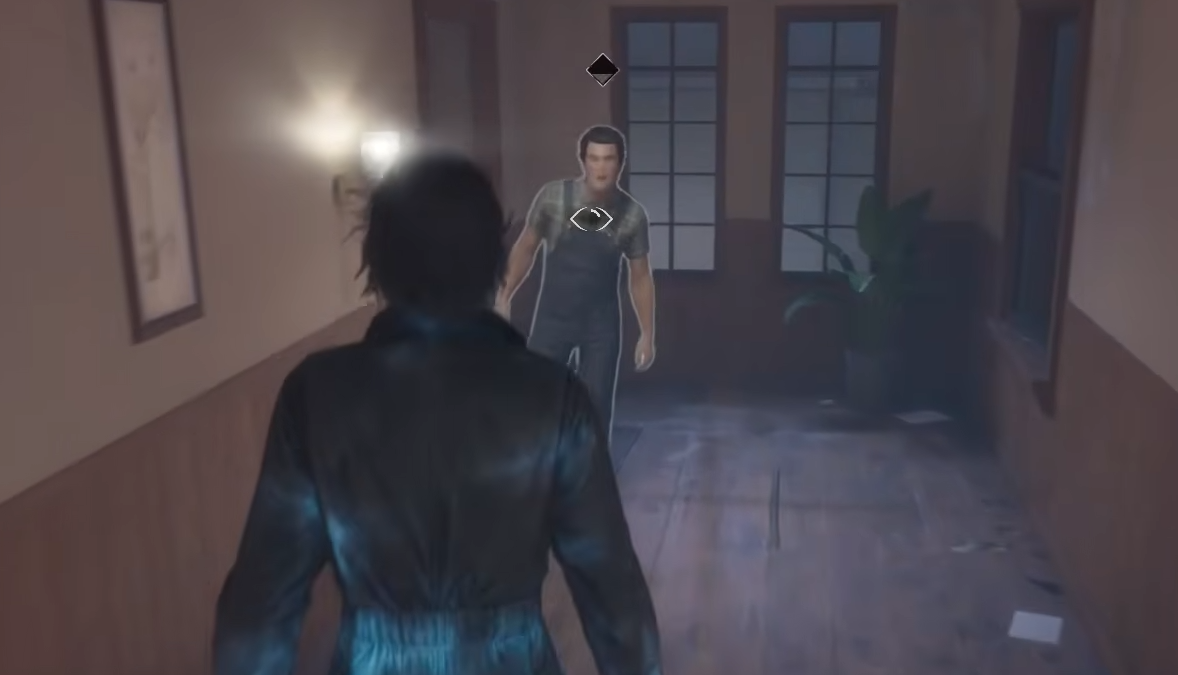
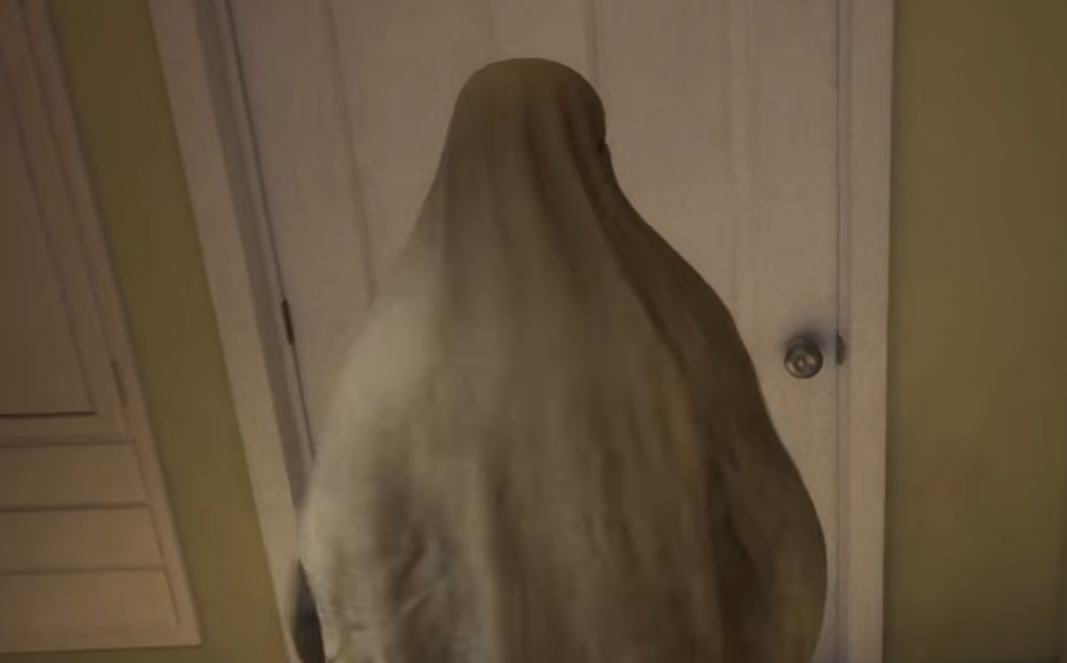
Emoting in Halloween The Game is a little less obvious than it should be because there is not a simple dedicated emote button shown during normal gameplay. Instead, the emote menu is tied to an existing control, and the exact input changes depending on whether you are using keyboard and mouse or a controller.
Jump To Section:
How to Emote
PC Emote Controls
Controller Emote Controls
Why Emotes May Not Be Working
How Do You Emote in Halloween The Game?
On PC, hold Z, keep Z held, left-click, and aim toward the emote you want to use. On controller, hold the button assigned to Mark Item to bring up the emote options, then select the emote you want.
The key detail is that you need to hold the input rather than quickly tap it. The game uses that held button to open the emote selection, so releasing it too early can make it seem like nothing is happening.
PC Emote Controls
With keyboard and mouse, use this sequence:
Hold Z
Keep holding Z
Left-click
Aim toward the emote you want
Once the selection appears, keep Z held while you move toward the emote and confirm it with the mouse.
I would think of this more like using a radial menu than pressing a normal ability key. Z opens and maintains the selection, while your mouse handles the actual choice.
Controller Emote Controls
On controller, hold the Mark Item button to access the emote selection.
The specific physical button can vary depending on platform or any custom bindings you have set, so check which button is currently assigned to Mark Item rather than looking for a separate Emote binding.
Hold the Mark Item input instead of tapping it, then choose the emote you want from the menu that appears.
Why You May Not Be Able to Emote
If the emote menu is not appearing, the most likely issue is that you are tapping the control instead of holding it.
On PC, hold Z throughout the selection and left-click while aiming toward your chosen emote.
On controller, hold your Mark Item button. If that does not seem to work, check your current control bindings in case Mark Item has been moved to another button.
There is no need to look for a completely separate emote key. The emote system shares an existing control, which is what makes it easy to miss the first time you try to use it.