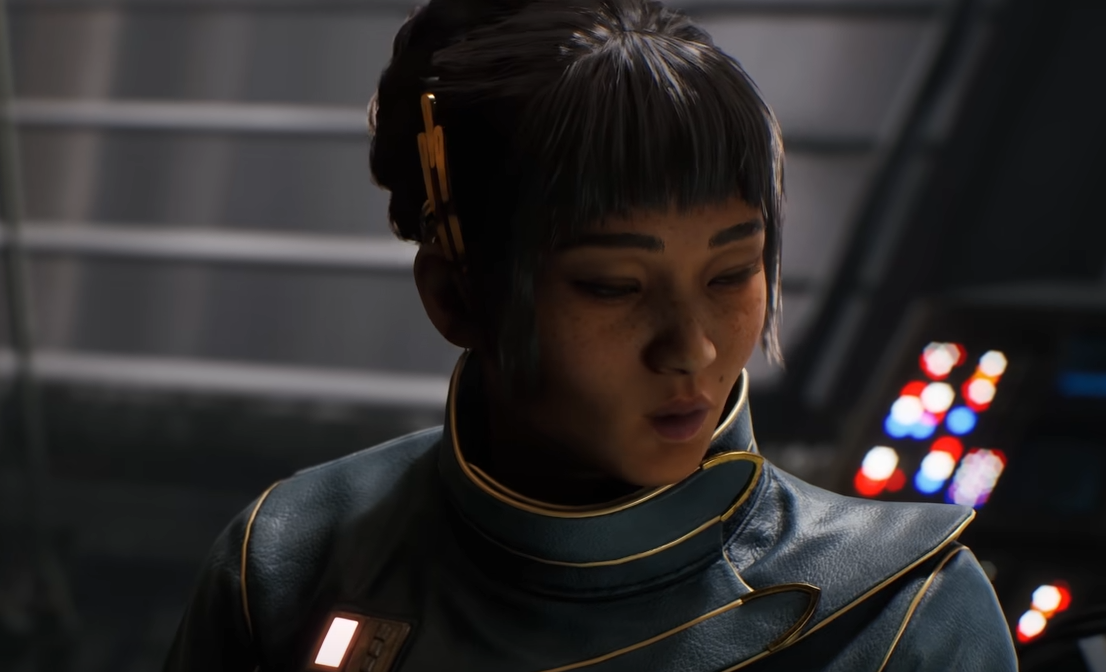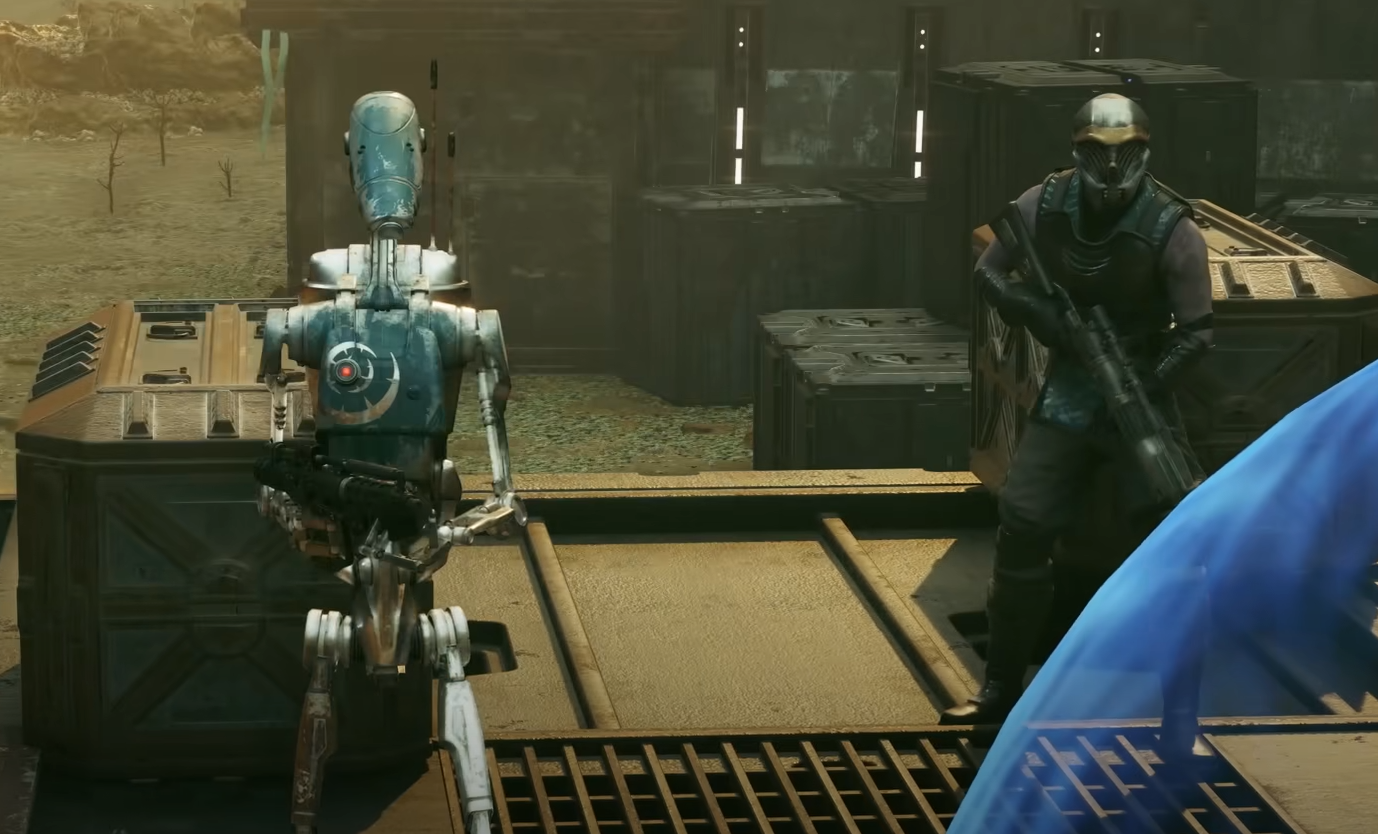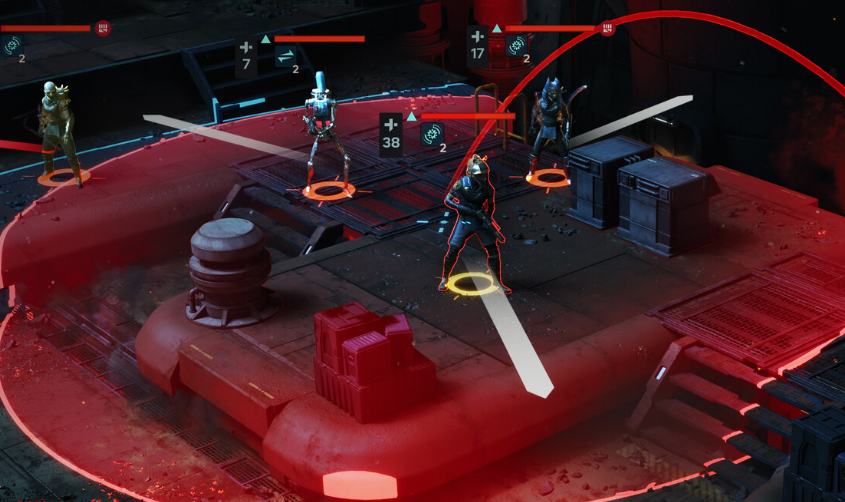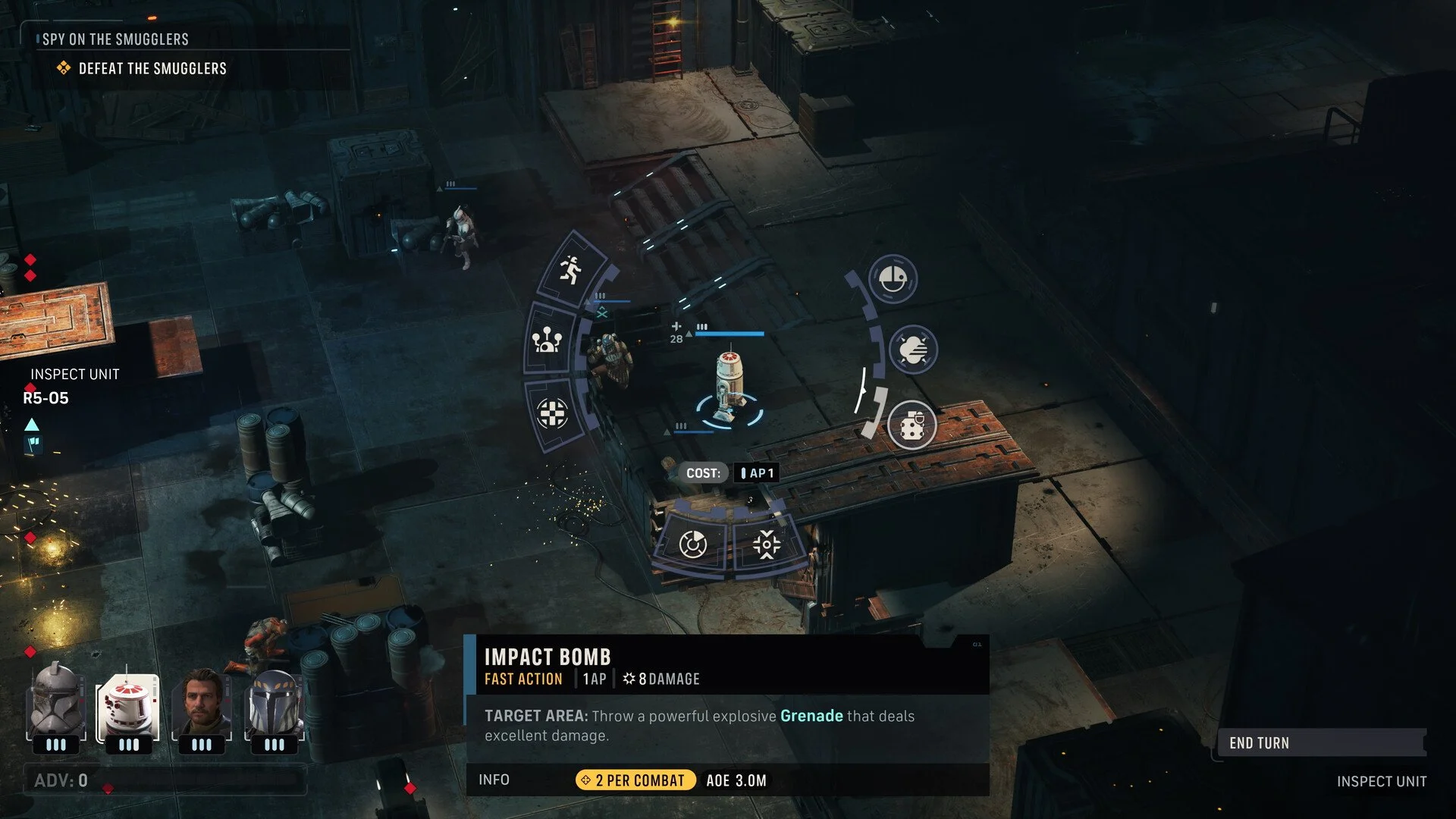
The best PC settings for Star Wars Zero Company aren't simply everything on Low. The game can be heavily CPU-limited, while some settings barely affect performance and others can absolutely destroy your frame rate. My optimized setup keeps the settings that still look good without costing much, cuts the expensive ray-traced options, and targets the CPU-heavy settings that can cause stuttering even when your GPU isn't fully utilized.
Jump To Section:
Best Optimized PC Settings
Best DLSS, FSR & XeSS Settings
Best Settings for CPU Bottlenecks
Best Settings for GPU Bottlenecks
Texture & VRAM Settings
Environment Geometry Detail
Should You Use Frame Generation?
Best Optimized Star Wars Zero Company PC Settings
For most mid-range gaming PCs, these are the settings I'd start with:
Windowing Mode: Fullscreen
Resolution: Native monitor resolution
Frame Rate Limit: 60 FPS
V-Sync: Off
Anti-Aliasing and Upscaling: DLSS for Nvidia, FSR for AMD, XeSS for Intel
Upscaling Quality: Quality at 1080p, Balanced at 1440p, Performance at 4K
Frame Generation: Off initially
Nvidia Reflex / AMD Anti-Lag / XeSS Low Latency: On
Shadow Quality: Medium
Global Illumination: Medium
Reflections: Medium
Post Processing: Medium
Textures: High with sufficient VRAM, Medium otherwise
Effect Quality: Medium
Shading Quality: Medium
View Distance: Medium
Hidden Objects Detail: Simplified
Environment Geometry Detail: On if performance is stable, Off if you're struggling
I prefer this over a blanket Low preset because several Zero Company settings aren't worth sacrificing visually unless they're actually contributing to your bottleneck. Textures are the clearest example: dropping them to Low isn't going to fix a CPU limitation, so there's little reason to make the game look significantly worse if you still have available VRAM.
The 60 FPS cap is also intentional. Zero Company isn't a twitch shooter, and the launch version can have inconsistent frame times when running uncapped. I'd rather hold a smooth 60 FPS than have the counter bouncing between much higher numbers while camera movement and cutscenes continue to hitch.
Best DLSS, FSR and XeSS Settings
I recommend using upscaling in Star Wars Zero Company, particularly at 1440p and 4K.
Nvidia users should use DLSS, AMD users should use FSR, and Intel users should use XeSS. There's little reason to force a different vendor's solution when the option designed for your GPU is available.
The quality mode should depend mostly on resolution rather than blindly selecting Performance everywhere.
At 1080p, start with Quality. You're already rendering relatively few pixels, so dropping internal resolution too aggressively can hurt image quality more than it's worth.
At 1440p, Balanced is my preferred starting point. It provides a more meaningful performance reduction while maintaining a decent image.
At 4K, Performance becomes much easier to justify because the higher output resolution gives the upscaler considerably more room to work with.
If your GPU utilization isn't particularly high, however, moving from Quality to Performance may accomplish less than you expect. That's a clue that the game may be limited elsewhere.
Best Settings If Star Wars Zero Company Is CPU Limited
This is the section I'd pay the most attention to if lowering your resolution doesn't significantly improve FPS.
Zero Company can become surprisingly CPU-heavy. There are systems where the GPU sits well below full utilization while the processor becomes the limiting factor, particularly around mission starts, cutscenes, the Den, and more complicated scenes.
Hidden Objects Detail is one of the first settings I'd reduce. Set it to Simplified. Unlike a traditional graphics option that primarily asks your GPU to draw prettier pixels, this affects the complexity associated with objects that aren't currently visible and can add CPU-side work.
Effect Quality is the other major CPU setting. It controls things like explosions, debris, blaster effects, and other visual activity. Medium is my default, but I'd drop this to Low if you're getting heavy stuttering during fights despite having GPU headroom.
Environment Geometry Detail is also worth testing, although its behavior is unusual enough that I cover it separately below.
The important thing is not to keep lowering resolution if it isn't doing anything. If 1440p Medium gives you 45 FPS and 1080p Low still gives you roughly 45 FPS, your graphics card probably isn't the reason you're stuck at 45.
Best Settings If Your GPU Is at 100% Usage
If your graphics card is consistently sitting around 95 to 100% utilization and lowering resolution clearly increases FPS, then you can treat Zero Company much more like a conventional GPU-limited game.
Global Illumination and Reflections are the first two expensive visual settings I'd target.
High and Ultra Global Illumination use significantly more expensive lighting features, including ray-traced effects, so Medium is the sweet spot for most systems. Reflections have a similar problem, and Star Wars naturally has plenty of metallic floors, walls, ships, armor, and other reflective surfaces for the game to render.
I would keep Reflections at Medium unless you have plenty of GPU headroom.
Shadow Quality can then come down to Medium or Low. Shadows still look acceptable at reduced settings, and they're a much more reasonable place to reclaim GPU performance than immediately destroying texture resolution.
Finally, reduce View Distance. Zero Company isn't a massive open-world game where you need highly detailed terrain several kilometers away. Tactical battlefields are relatively compact, making maximum View Distance a luxury rather than something that materially helps you play.
Don't Automatically Put Textures on Low
Texture Quality is one setting where I disagree with the idea of simply choosing Low for maximum FPS.
Textures mostly pressure VRAM. If you aren't running out of VRAM, lowering them often provides much less performance improvement than lowering lighting, reflections, or resolution.
If your graphics card has around 10GB or more of VRAM, I'd start at High and consider Ultra if monitoring shows plenty of capacity remaining.
If you have less than 8GB, Medium is safer, particularly at higher resolutions.
If you're hitting your VRAM ceiling and getting hitching, texture pop-in, or sudden performance degradation, then lowering Textures and Shading Quality becomes much more relevant.
The broader rule is simple: don't sacrifice something unless it targets the resource you're actually running out of.
Should You Turn Off Environment Geometry Detail?
Environment Geometry Detail may currently be the strangest graphics setting in Zero Company.
The normal recommendation would be to leave it enabled on reasonably modern hardware. The game itself suggests newer GPUs may see relatively little benefit from turning it off.
Actual launch-day player reports tell a more complicated story.
Some players are seeing enormous FPS improvements after disabling Environment Geometry Detail, including gains much larger than you'd normally expect from a single geometry toggle. There have been reports of 20 to 30 additional FPS and even cases where struggling systems effectively doubled their frame rate.
Because of that, I'd absolutely test it if your performance is poor regardless of how new your GPU is.
I wouldn't automatically leave it disabled, though. Turning it off reduces model complexity, and the visual difference can be obvious. Rounded buildings, machinery, planets, and other objects can become noticeably more angular and simplified.
My rule is therefore different from simply setting it Off in an optimized preset: turn it Off, test the exact same area, and compare the improvement. If you gain 20 or 30 FPS, the tradeoff is easy to consider. If you gain almost nothing, switch it back On and keep the better geometry.
If you're seeing severe stuttering, crashes, or abnormally low FPS beyond what graphics settings can explain, my Star Wars Zero Company performance issues and crashing fix guide covers the more aggressive troubleshooting options separately.
Should You Enable Frame Generation?
I would leave Frame Generation off while you're initially optimizing the game.
That's not because Frame Generation is bad. Zero Company is actually a good candidate for it because the slight latency increase is much less important in a turn-based tactics game than it would be in something competitive.
The problem is that generated frames can disguise the performance problem you're trying to diagnose.
If the game is rendering an inconsistent 35 to 50 real frames per second and constantly hitching because of a CPU bottleneck, Frame Generation can make the displayed FPS number look dramatically better without removing the underlying frame-time spikes.
Get the base game running as consistently as possible first.
Once you're satisfied with the native frame pacing, turn Frame Generation on if you want smoother camera movement or higher perceived FPS. That's where I think it makes the most sense.
Turn Nvidia Reflex or AMD Anti-Lag On
Nvidia Reflex, AMD Anti-Lag, and the equivalent Intel low-latency option should generally be enabled.
These technologies reduce the amount of work sitting in the rendering queue, helping the CPU and GPU stay more closely synchronized. The performance penalty is negligible enough that I don't see much reason to disable them.
This becomes especially useful if you're also experimenting with Frame Generation, where keeping actual input and rendering latency under control becomes more important.
Fullscreen or Borderless?
I prefer Fullscreen while troubleshooting Zero Company.
Borderless is undeniably more convenient if you frequently alt-tab or use multiple monitors, but Fullscreen removes another variable when you're trying to stabilize performance or deal with screen tearing.
There have also been player reports of V-Sync and tearing behaving differently between Fullscreen and Borderless.
If everything works correctly in Borderless, there's no compelling reason you can't use it. For the initial optimized setup, though, I'd start with Fullscreen and only move back to Borderless once you know the game is running properly.
Post Processing Doesn't Need to Be Low
Post Processing is another setting I'd avoid automatically dropping to Low.
It controls several effects such as bloom and motion-processing effects, but the performance difference isn't especially large compared with the settings above.
Medium is a good default.
If you dislike the way the effects look, lower it for visual preference rather than expecting it to suddenly produce another 20 FPS.
Which Settings Should You Lower First?
If you want more performance without making Zero Company unnecessarily ugly, I'd lower settings in a specific order rather than moving the whole preset downward.
If you're GPU limited, start with Global Illumination and Reflections, followed by Shadows and View Distance. Then increase the aggressiveness of DLSS, FSR, or XeSS if you still need more FPS.
If you're CPU limited, change Hidden Objects Detail to Simplified and lower Effect Quality first. Then test Environment Geometry Detail and see whether your particular system gets one of the unusually large performance gains players have been reporting.
If you're VRAM limited, lower Textures and Shading Quality.
That's a much better approach than putting everything on Low because it preserves the settings your PC can handle while reducing the ones actually responsible for the bottleneck.
Best Overall Settings for Smooth Performance
For most PCs, my target would be native resolution with vendor-specific upscaling, a 60 FPS cap, Medium Global Illumination and Reflections, Medium Shadows, Simplified Hidden Objects, Medium Effect Quality, and as much Texture Quality as your available VRAM comfortably supports.
Environment Geometry Detail is the wildcard. Keep it On if you're already running well, but absolutely test Off if you're struggling because the launch version can produce unexpectedly large performance gains from that one setting.
I would also optimize the game with Frame Generation disabled first, then enable it afterward if you want smoother output. That gives you a much clearer idea of whether you've actually fixed the underlying performance problem instead of simply inflating the displayed frame rate.
Most importantly, don't judge your setup purely by average FPS. Zero Company's biggest PC weakness right now is often consistency rather than the maximum number on the counter. A stable 60 FPS with clean frame pacing is a much better optimized result than 120 FPS that constantly collapses into visible stutters every time you move the camera or enter a cutscene.