

Battlefield 6 - Best Graphics Settings for Performance
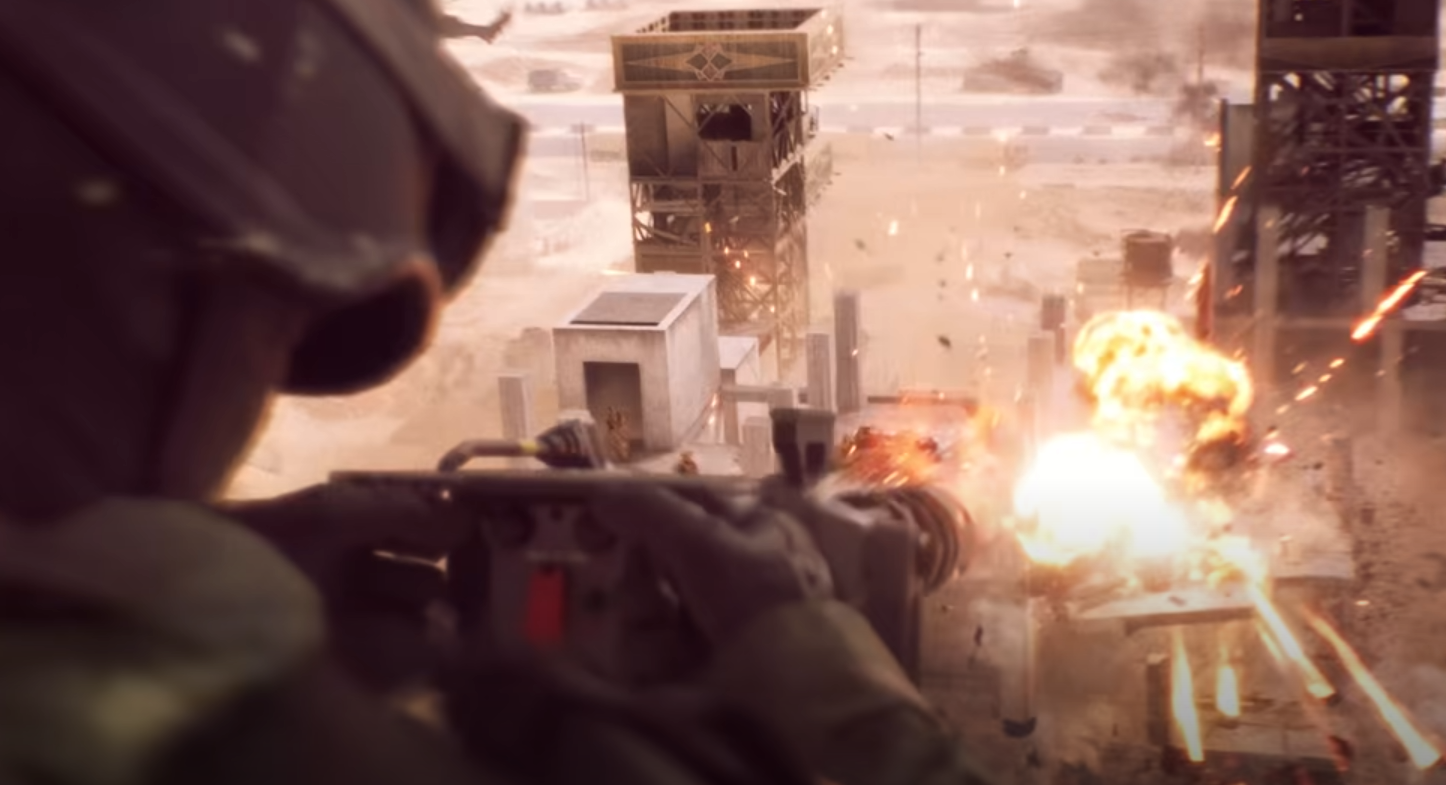
These are the best Battlefield 6 graphics settings to improve performance, reduce visual clutter, and keep targets visible in any environment. This setup is based on closed beta testing, current build performance, and real in-match results.
Regardless of whether you're on high-end or mid-range hardware, these settings will give you smooth frames and clear sightlines without sacrificing critical detail.
Best Graphics Settings for Performance and Visibility
Go to Settings > Graphics and use these options:
Display Settings
Display Mode: Fullscreen
Resolution: Native (match your monitor)
Resolution Scale: 100
V-Sync: Off
Frame Rate Limit: Set to 144 (do NOT leave unlimited)
HDR: Off (unless your monitor supports it well)
Brightness: 50 (but you can adjust to preference)
Field of View: 105
Vehicle FOV: Max
Weapon FOV: Wide
Wide FOV makes enemies and weapon sway easier to track. Keep Weapon FOV at Wide to minimize visual clutter around your crosshair.
Motion and Effect Cleanup
World Motion Blur: Off
Weapon Motion Blur: Off
Camera Shake: 0%
Chromatic Aberration: Off
Lens Distortion: Off
Film Grain: Off
Infantry Crosshair Projection: Off
These effects don’t help visibility and can distort your aim or clutter the screen. Turning them off gives a cleaner, distraction-free image.
Texture and Effects Settings
Texture Quality: Medium
Texture Filtering: High
Lighting Quality: Low
Effects Quality: Low
Post Process Quality: Low
Mesh Quality: Medium
Terrain Quality: Low
Undergrowth Quality: Low
Anti-Aliasing: TAA
DLSS / FSR: On (set to Balanced or Performance based on GPU)
Use DLSS or FSR if supported. They help stabilize FPS with minimal image loss. Avoid Ultra settings unless you're on a 4080+ level GPU and don’t mind dips in intense fights.
Advanced Tweaks
Ambient Occlusion: Off
Ray Tracing: Off
NVIDIA Reflex: Enabled (Low Latency Mode)
Future Frame Rendering: On
Depth of Field: Off
ADS DoF: Off
Disabling depth effects keeps your vision sharp while aiming. Reflex reduces input delay, which is key for fast aiming.
HUD and Color Visibility Settings
Go to Settings > Accessibility > Color Presets, then set to Custom.
Enemy Color: Hot pink or bright red
Friendly Color: Light blue or cyan
Squad Color: Yellow or teal
Now go to Settings > HUD > Advanced HUD Settings:
Enemy Icon Size: 100%
Friendly Icon Size: 80%
Objective Icon Size: 75%
Opacity: 85–100% depending on priority
Maximizing enemy contrast while reducing HUD clutter makes it easier to stay focused in chaotic firefights.
Final Blurb
These Battlefield 6 graphics settings remove unnecessary effects, raise visibility, and keep your FPS stable. Whether you’re sniping across large maps or holding tight corners, this setup gives you the visual edge without taxing your hardware. Adjust FOV and DLSS settings based on your personal rig and monitor.
FAQ
What’s the best FOV for Battlefield 6?
110 gives maximum visibility without distorting your aim. You can lower it to 90–100 if it feels too stretched.
Should I use DLSS or FSR?
Yes. Set DLSS or FSR to Balanced or Performance to improve frame rate, especially on mid-tier cards.
Why disable motion blur and camera shake?
They add visual noise and make it harder to track targets. Turning them off makes movement cleaner and aiming easier.
Do these settings work for both campaign and multiplayer?
Yes. They improve visibility and performance in all modes.
Should I use HDR?
Only if your display handles it well. Otherwise, it can cause brightness and contrast issues.
More Battlefield 6 Articles


