

Battlefield 6 Controller Settings Guide
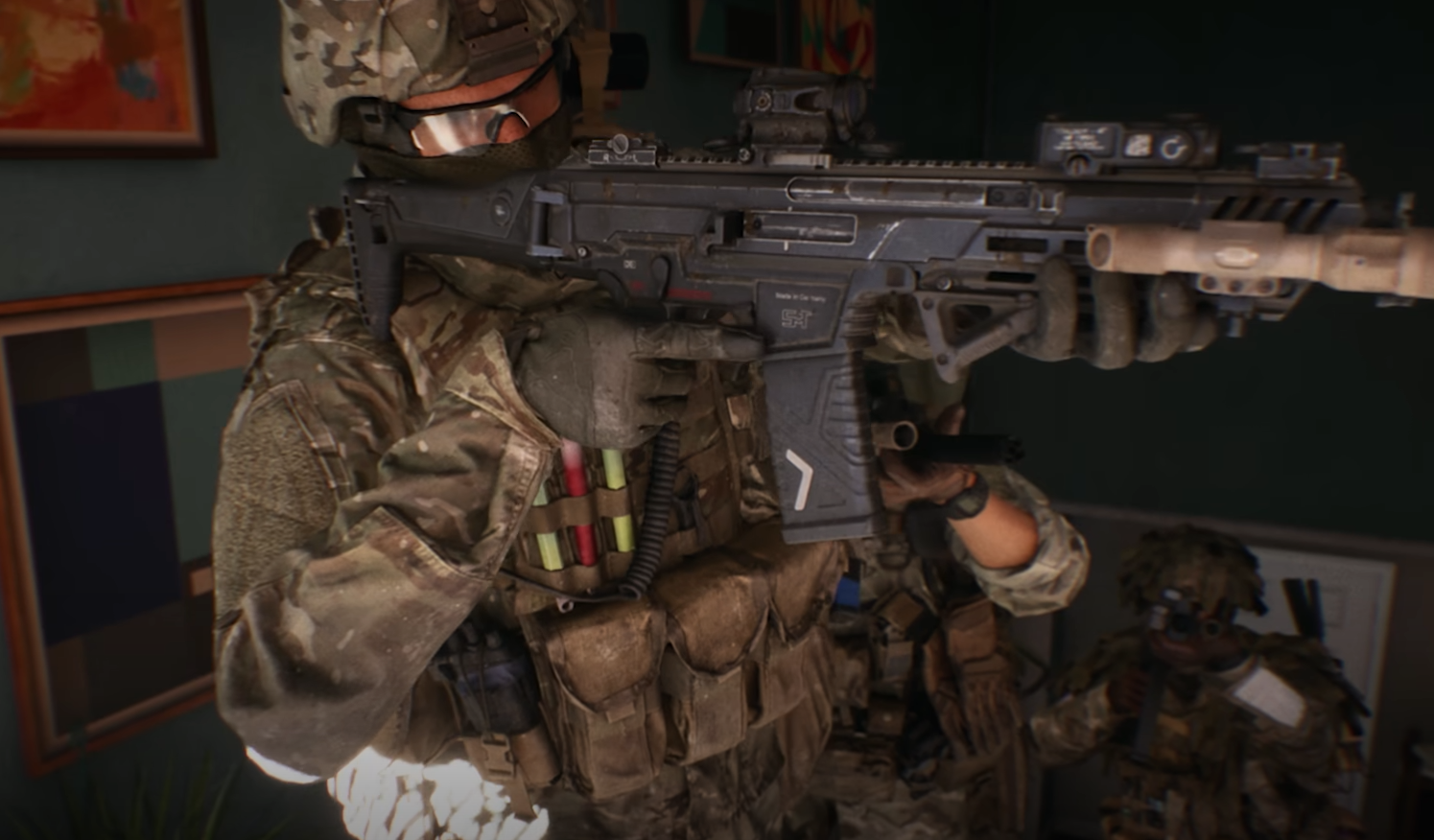
If aiming feels sluggish or twitchy on your controller in Battlefield 6, you are not alone. The game gives tons of control options, but finding the right balance takes some tuning. This guide breaks down the best Battlefield 6 controller settings for smoother aim, tighter control, and faster reaction time on both console and PC.
Best Controller Settings in Battlefield 6
These are the most balanced settings for overall comfort and accuracy.
Horizontal Sensitivity: 40
Vertical Sensitivity: 35
Uniform Infantry Aiming: On
Zoom Sensitivity Coefficient: 180
Aim Acceleration: Off
Deadzone Left Stick: 5%
Deadzone Right Stick: 5%
Controller Vibration: Off
Invert Vertical Look: Off
Field of View: 90
Camera Shake: 0%
Headbob: Minimum
These settings make aiming steady and consistent across weapons while keeping recoil and movement under control.
Aim and Sensitivity Settings
Horizontal and Vertical Sensitivity
Start with 40 for horizontal and 35 for vertical. This range allows fast movement without losing accuracy. If your aim feels too twitchy, lower them slightly until aiming feels smooth. Try small changes until tracking enemies feels natural.
Uniform Infantry Aiming
Turn Uniform Infantry Aiming to On. It keeps your aim movement consistent at all zoom levels, which builds muscle memory faster. You can find it under Controller, Edit Settings, Infantry, Control Settings.
Zoom Sensitivity Coefficient
Set this to 180. It ensures that aiming down sights matches your hip-fire aim speed when using a controller. This helps keep your aim consistent whether you use a red dot or a 6x scope.
Aim Acceleration
Disable Aim Acceleration for better control. Keeping it Off makes your aim input linear, which means your reticle moves exactly as much as you move the stick. This improves tracking accuracy, especially for fine adjustments.
Deadzone and Input Response
Stick Deadzones
Set both left and right stick deadzones to around 5%. If you see any drift, raise it to 6 or 7%. Lower deadzones give faster response to small stick movements, which helps during close fights.
Trigger Sensitivity
Some controllers allow adjusting trigger range. If yours does, shorten the trigger travel to reduce the delay between aiming and firing. This makes sniping and reaction shots much faster.
Controller Layout and Remapping
Battlefield 6 lets you remap every button. Experiment with different layouts to find one that suits your playstyle. Here are a few good options.
Put Crouch or Slide on a bumper for faster cover movement.
Map Ping to the D-pad or an easily reachable button.
Move Melee to a less-used button to avoid accidental presses during fights.
Keep Reload and Interact separate to avoid interruptions when trying to pick up gear.
If you use a custom controller, try assigning Jump or Sprint to paddles for better mobility control.
Aim Assist and Targeting
Aim Assist helps controller players stay competitive against mouse and keyboard users. Leave it On for both Slowdown and Snap. This adds subtle aim friction that helps track enemies but still feels natural. Turn it Off only if you prefer pure manual control.
Visual and Comfort Tweaks
Field of View
Set FOV between 85 and 95, although we generally prefer 90. This widens your view without shrinking targets too much. A higher FOV improves awareness in close combat while keeping aim stable on larger maps.
Camera Shake and Headbob
Lower both to minimum. These effects look cinematic but can throw off your crosshair during explosions or sprinting. Reducing them improves aim stability.
Controller Vibration
Turn vibration Off. It can interfere with aim during intense fights. Removing it keeps your aim steady when shooting automatic weapons.
Vehicle and Aircraft Controls
Battlefield 6 uses separate settings for vehicles. Reduce Vehicle Sensitivity slightly below infantry levels for smoother control. Around 25 to 30 feels comfortable for ground vehicles and 35 to 40 works well for aircraft. Leave Uniform Vehicle Aiming Off for a more natural steering response.
Final Blurb
Battlefield 6’s controller options let you fine-tune every detail, and getting them right changes how the game feels. A few quick adjustments can turn clunky aim into pinpoint control. Once you dial in these settings, you will notice cleaner tracking, smoother turns, and faster target snaps in every fight.
FAQ
What is the best Zoom Sensitivity Coefficient for controller players
Set it to 178. It keeps your aim speed consistent between hip-fire and zoomed aiming.
Should Aim Acceleration be on or off
Keep it Off. Turning it off removes inconsistent aim movement and makes aiming predictable.
Why turn vibration off
Vibration can shake your aim during firefights. Disabling it gives steadier aim control.
Should Uniform Vehicle Aiming be used
Leave it Off. It changes how vehicle movement feels and makes steering less natural.
© 2025 GamerBlurb. Linking is welcome with credit to GamerBlurb.com. Copying or reproduction without permission is not allowed.
More Battlefield 6 Articles


