

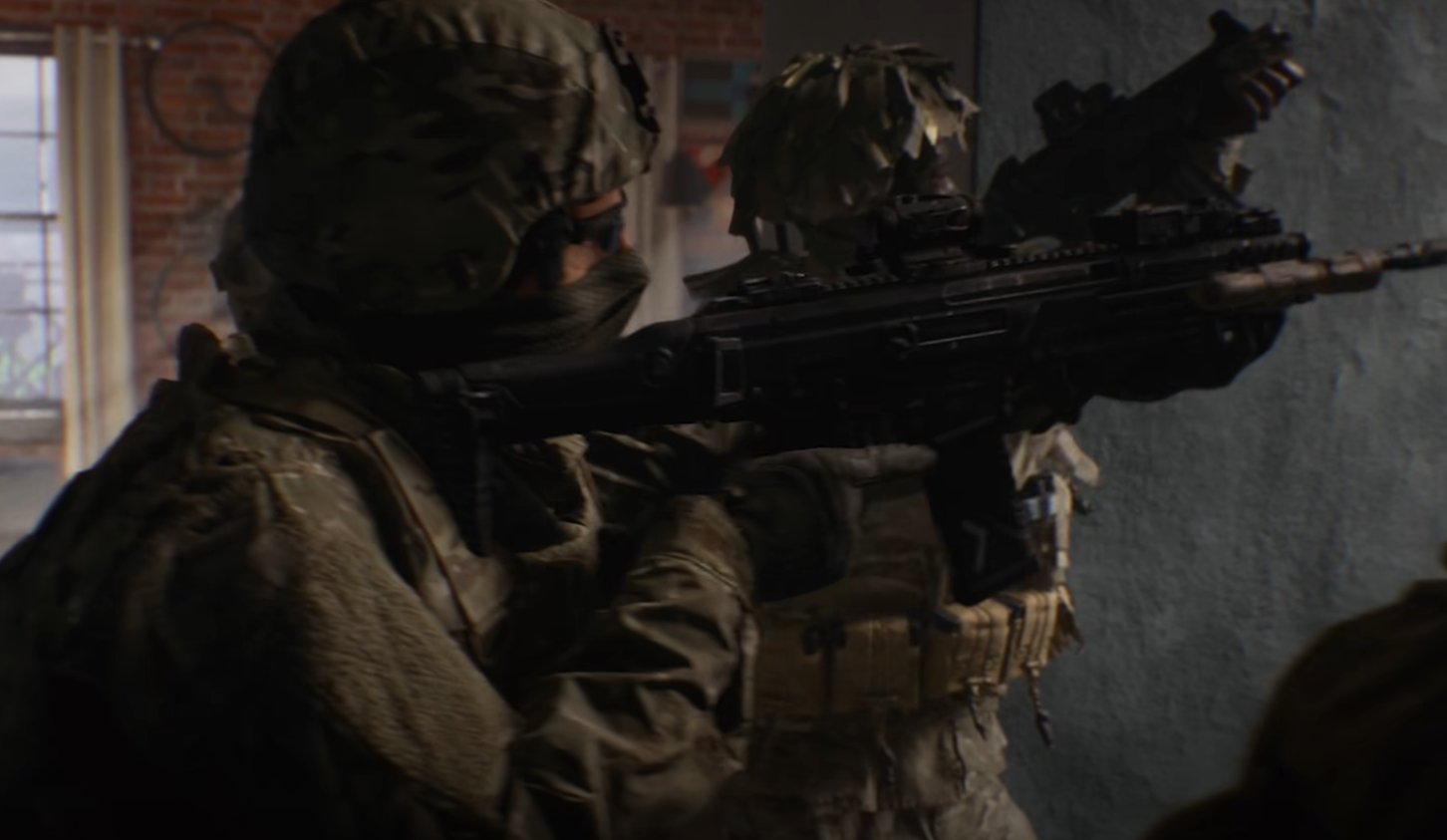
Battlefield 6 looks incredible, but getting it to run smoothly takes more than just raw power. With hundreds of hidden options spread across the menus, knowing what to tweak can completely change how the game feels. This guide covers the best Battlefield 6 PC settings to boost performance, improve clarity, and keep everything running steady in every match.
Best Overall PC Settings in Battlefield 6
These settings balance visual quality and performance on most modern gaming PCs.
Display Mode: Fullscreen
Resolution Scale: 100%
VSync: Off
Frame Rate Limit: Unlimited or match your monitor refresh rate
DirectX Version: DX12, or DX11 if you experience instability
Motion Blur: Off
Film Grain: Off
Chromatic Aberration: Off
Depth of Field: Off
Camera Shake: 0%
Field of View: 85 to 100
Texture Quality: High
Effects Quality: Medium
Lighting Quality: Medium
Terrain Quality: High
Ambient Occlusion: Off
Ray Tracing: Off unless your GPU can easily handle it
DLSS or FSR: Balanced or Performance mode
These options deliver clean visuals, low input delay, and smoother aiming without making the game look washed out.
Graphics and Performance Settings
Resolution and Display Mode
Always play in Fullscreen. This gives the lowest input lag and most consistent frame pacing. Borderless or Windowed modes can create micro stutters and inconsistent frame times, especially on high refresh monitors.
Frame Rate and VSync
Turn off VSync to remove input delay. Set the frame rate limit to match your monitor refresh rate if you experience tearing. Keeping the frame rate uncapped works best for 144 Hz or higher displays, but avoid going far above your monitor refresh as it only adds heat without improving feel.
Texture and Effects Quality
Keep Textures on High for sharper weapons, outfits, and environment detail. Effects and Lighting can stay on Medium to save frames without losing clarity. Ambient Occlusion adds extra shadows but lowers performance, so leave it off. Ray Tracing should stay disabled unless you have a top-tier GPU.
Field of View
A wider Field of View between 85 and 100 helps you see more of the battlefield. It slightly increases recoil perception, but the improved awareness easily outweighs it.
Interface and Visibility
Crosshair and HUD Settings
Open Graphics, then Icons and Indicators. Set Crosshair Opacity to 100 and choose Thick for visibility in all lighting conditions. Lower opacity for squad and objective icons to reduce clutter during heavy fights.
Color Profiles
Battlefield 6’s color presets are useful even for players without colorblindness. Tritanopia or Deuteranopia modes boost contrast and make enemies stand out. For HDR displays, use the Custom option and adjust colors until enemies pop clearly against the background.
Camera Movement and Headbob
Set Camera Shake to 0 and Headbob to minimum. This keeps your aim steady when explosions hit or vehicles pass close by. It might look less cinematic but your accuracy improves dramatically.
Input and Aim Responsiveness
Mouse Settings
Use a base sensitivity that feels natural, then fine tune until you can track targets comfortably. Enable Uniform Infantry Aiming and set Zoom Sensitivity Coefficient to 0. This keeps aim speed consistent across scopes and zoom levels, which is vital for muscle memory.
Controller Settings
If you use a controller on PC, lower the left and right stick deadzones slightly to improve response. Keep aim acceleration low or off so aim tracking feels more predictable.
Advanced Performance Tweaks
DLSS and FSR
Enable DLSS for NVIDIA GPUs or FSR for AMD cards. Balanced mode is best for maintaining visual clarity while boosting frames. Performance mode works well on lower-end setups, but it can make long-range targets look softer.
CPU Load Reduction
If you see your CPU maxing out, drop Mesh and Terrain Quality to Medium. This lowers physics and object complexity while keeping the game sharp.
Input Lag Reduction
Enable NVIDIA Reflex or AMD Anti-Lag if supported. These features tighten the connection between your mouse or controller and what happens on screen, making aim feel quicker and more accurate.
Final Blurb
Battlefield 6 shines when your PC settings are tuned just right. The right tweaks turn stuttery chaos into a smooth, responsive experience that feels great to play. Once you lock in these changes, every firefight feels cleaner, and every shot hits more naturally.
FAQ
What is the best FOV for Battlefield 6 on PC
A value between 85 and 100 is ideal. It improves awareness without making enemies too small to track.
Should I turn on DLSS or FSR
Yes. Both are worth using to increase frame rate while keeping visuals sharp. Balanced mode offers the best results overall.
Why should Motion Blur and Film Grain be turned off
They make the game look more cinematic but reduce visibility. Turning them off gives a clearer image and improves reaction speed.
Does Battlefield 6 run better on DX12 or DX11
DX12 performs better for most players, but if you notice instability or crashes, DX11 can give smoother performance.
© 2025 GamerBlurb. Linking is welcome with credit to GamerBlurb.com. Copying or reproduction without permission is not allowed.
More Battlefield 6 Articles


