Fatekeeper does not have full native controller support yet, but it can still be played with a controller through Steam Input. The current workaround is to enable Steam Input, pick a community controller layout, and adjust the controls until movement, camera, combat, and menus feel usable.
Jump To
Does Fatekeeper Have Controller Support?
How To Play With A Controller
Best Steam Input Setup
Community Controller Layouts
Official Controller Support
Controller Not Working Fixes
Should Controller Players Buy It?
Does Fatekeeper Have Controller Support?
Fatekeeper does not currently have proper native controller support, but controller play works through Steam Input and community made layouts.
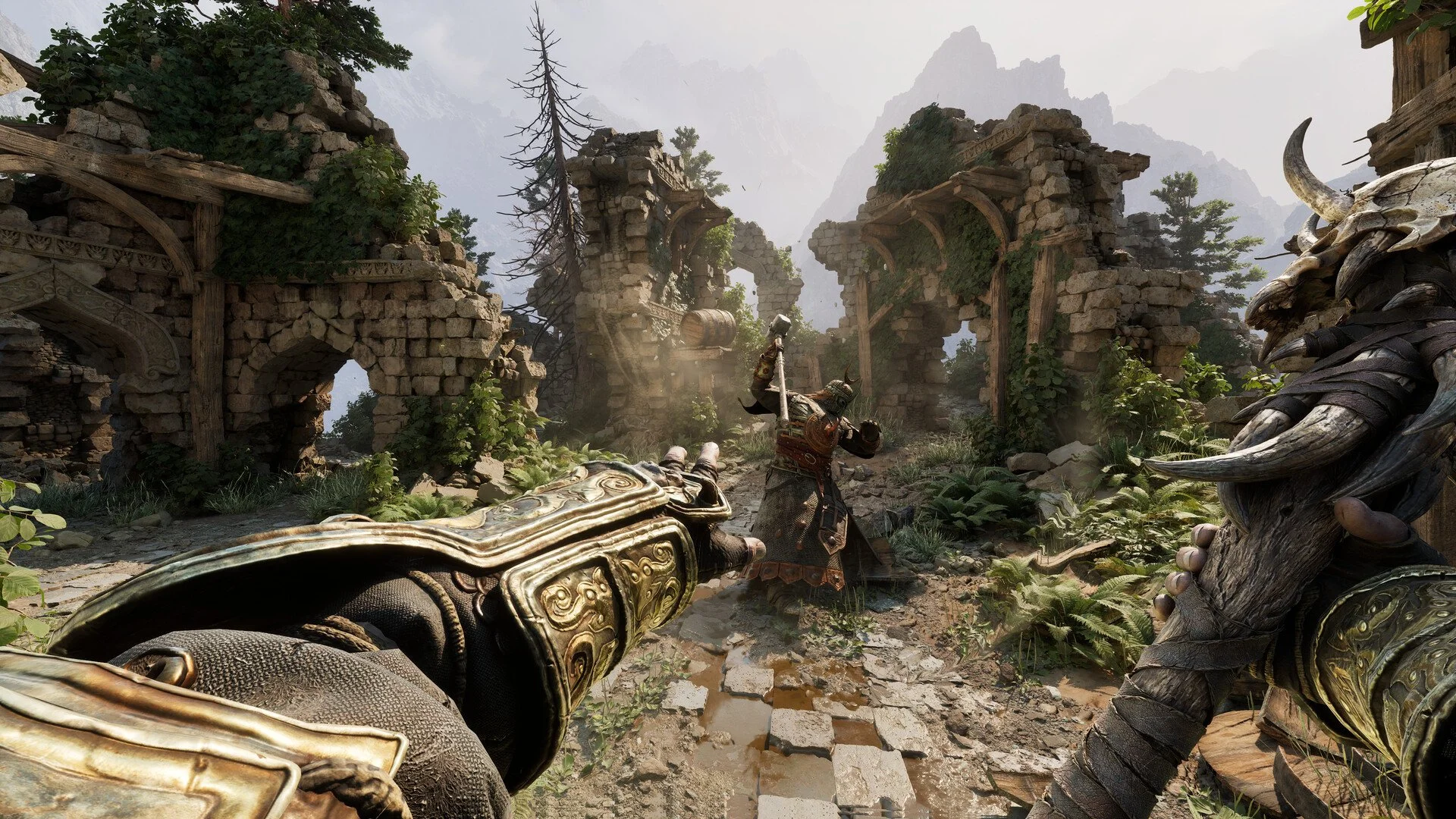
That is the clean answer right now. Fatekeeper is a first person RPG with melee combat, exploration, and spell use, so it naturally looks like a game many players would want to play on a controller. The problem is that the Early Access version does not have full official gamepad support ready yet.
Steam Input is the workaround. It maps the game’s keyboard and mouse controls onto a controller, which means the game can be played from the couch or on a gamepad setup even without native support. It is not as smooth as proper controller support because menus and button prompts may still feel like keyboard and mouse controls wearing a controller costume. Still, it is playable if the layout is good.
How To Play Fatekeeper With A Controller
To play Fatekeeper with a controller, enable Steam Input for the game, open the controller layout menu, and apply a Fatekeeper community layout from Steam.
The setup is handled through Steam, not through a normal in game controller menu. That is the part that trips people up. Launching the game and expecting the controller to work normally may do nothing, because the game is not treating the controller as a fully supported input device yet.
- Open Steam.
- Go to Fatekeeper in the Library.
- Open the controller settings for the game.
- Enable Steam Input.
- Select the current controller layout.
- Open Templates or Community Layouts.
- Choose a Fatekeeper layout and apply it.
- Start the game and test movement, camera, attack, block, interact, jump, dodge, and menus.
If the first layout feels bad, do not judge controller play from that alone. Steam Input layouts are player made, so one preset can feel solid while another feels like somebody mapped combat during a power outage.
Best Steam Input Setup For Fatekeeper
The best Steam Input setup for Fatekeeper is one that keeps camera control, movement, attacking, blocking, dodging, and interaction easy to reach without making menus miserable.
For a first person combat game, the right stick needs to feel clean. If camera movement is too slow, too fast, or too floaty, the whole game feels worse. The left stick should handle movement normally, while attacks and combat actions should sit on triggers or shoulder buttons so the thumbs can stay on movement and camera as much as possible.
A good layout should usually follow this kind of logic:
| Action | Good Controller Placement | Why It Helps |
|---|---|---|
| Movement | Left Stick | Keeps movement natural for exploration and combat. |
| Camera | Right Stick | Makes first person aiming and looking around feel normal. |
| Primary Attack | Right Trigger | Fits melee combat and keeps attacking easy to press. |
| Block Or Secondary Action | Left Trigger | Works well for defensive or alternate combat inputs. |
| Dodge Or Jump | Face Button Or Shoulder Button | Needs to be easy to reach during fights. |
| Interact | Face Button | Used often during exploration. |
| Inventory And Menus | Start, Select, Or D Pad | Keeps menus usable without wasting combat buttons. |
The main thing I would tune first is camera sensitivity. A controller layout can survive a weird menu button. It cannot survive a right stick that makes every fight feel like steering a shopping cart with one bad wheel.
Best Community Controller Layouts To Try
The best Fatekeeper controller layout right now is likely one of the Steam community layouts made specifically for the game, with players already pointing to uploaded presets as the easiest fix.
Community layouts are useful because someone else already did the annoying part. Instead of manually mapping every keyboard and mouse input, a preset can give a working baseline in a few clicks. One player mentioned a layout by Greeb as working well, so that is worth checking first if it appears in the community layout list.
If that layout is not visible, look for layouts with recent updates or names that clearly mention Fatekeeper. A generic first person template can work, but a game specific layout is usually better because it should already account for common actions like attack, interact, inventory, dodge, and spell use.
After applying a community layout, spend a few minutes testing it before committing. Walk around, fight something easy, open menus, interact with objects, and check if any key action feels buried. If one action feels awful, edit the layout instead of forcing it. Steam Input lets the player fix small issues, which is helpful because community layouts are not sacred texts. Some are good. Some are crimes with button labels.
Is Official Controller Support Coming To Fatekeeper?
Official controller support is planned for Fatekeeper, but there is no confirmed ETA yet.
That means Steam Input is only a temporary answer. It gets the game working with a controller, but it does not replace native support. Native controller support should feel better once it arrives because the game can properly handle button prompts, menus, sensitivity, camera behavior, and combat inputs without needing Steam to translate everything.
The lack of controller support is easier to understand because Fatekeeper is in Early Access, but it is still a fair deal breaker for some players. A first person combat and exploration game feels much more natural with full controller options for people who do not like keyboard and mouse. Waiting for the official update is reasonable if controller feel is the deciding factor.
Fatekeeper Controller Not Working Fixes
If a controller is not working in Fatekeeper, the first fix is to enable Steam Input and make sure a controller layout is actually applied to the game.
Most controller problems come from Steam not applying the layout, the controller not being recognized, or the wrong preset being active. Close the game before changing layouts, apply the setup in Steam, then relaunch Fatekeeper after the controller is already connected.
| Problem | Fix |
|---|---|
| Controller does nothing | Enable Steam Input for Fatekeeper in Steam. |
| Buttons do the wrong actions | Switch to a Fatekeeper community layout. |
| Camera feels too slow or too fast | Adjust right stick sensitivity in Steam Input. |
| Menus feel bad | Try a different layout or keep mouse nearby for menu cleanup. |
| Layout does not apply | Restart Steam, reconnect the controller, apply the layout again, then relaunch the game. |
| Game shows keyboard prompts | That can happen with Steam Input because the game is still reading mapped keyboard controls. |
If the game still refuses to read the controller after Steam Input is enabled, test the controller in another Steam game first. If it works there, the issue is probably the Fatekeeper layout. If it does not work there either, Steam is not recognizing the controller correctly.
Should Controller Players Buy Fatekeeper Right Now?
Controller first players should wait for official support if they need a polished gamepad experience, but players who are comfortable with Steam Input can play Fatekeeper with a controller right now.
This comes down to tolerance. Steam Input is enough for players who are fine tweaking controls and dealing with the occasional awkward menu. It is not enough for players who want clean button prompts, official controller menus, and a setup that works instantly from launch.
Mouse and keyboard players are in the safest spot right now. Controller players who are interested in Fatekeeper but do not want to fight the setup should wishlist it and wait for the native controller update. Buying now only makes sense if the Steam Input workaround sounds acceptable.
Fatekeeper already has a controller path, but it is the workaround path. That is better than nothing, but it is still not the same as real support. Steam Input can hold the door open for now. Native controller support is what will make the door less annoying to walk through.
If the controls feel fine but the upgrade system is the confusing part, the Fatekeeper skill tree guide explains how branching works, why other paths look locked, and when the ring nodes open new routes.
Final Blurb
Fatekeeper does not have full native controller support yet, but it can be played with a controller by using Steam Input and a community layout. The setup is not perfect, but it is the best current workaround until official controller support is added.
For now, the smart move is simple. Use Steam Input if controller play is only a preference. Wait for native support if controller play is a deal breaker. Fatekeeper is still in Early Access, so the missing support is not shocking, but for a first person combat game, it is definitely something players are going to notice fast. Keyboard and mouse works now. Controller works with extra steps. The extra steps are, unfortunately, the most Early Access thing possible.