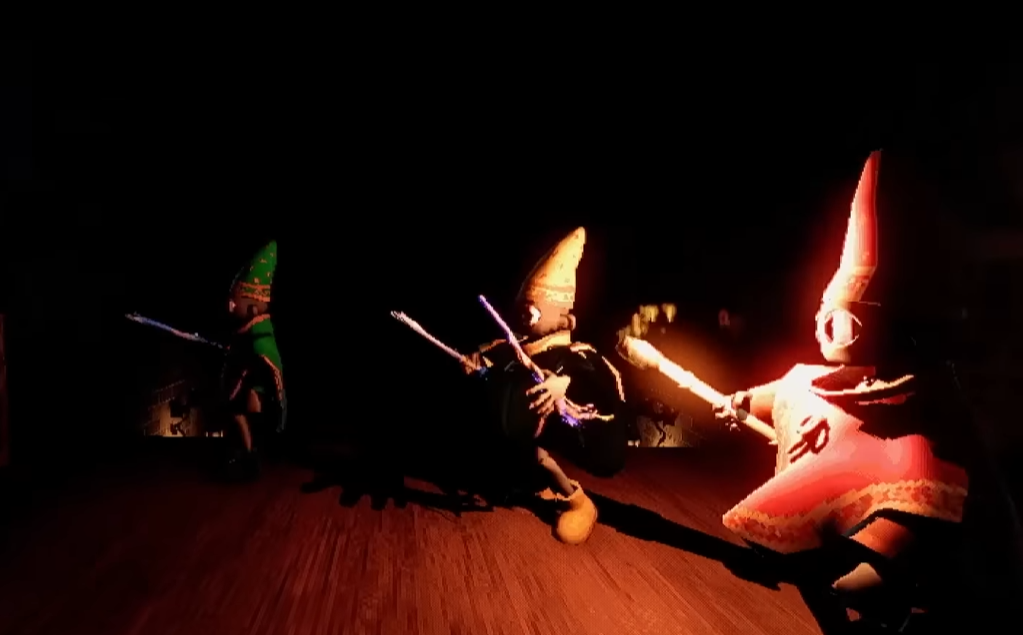
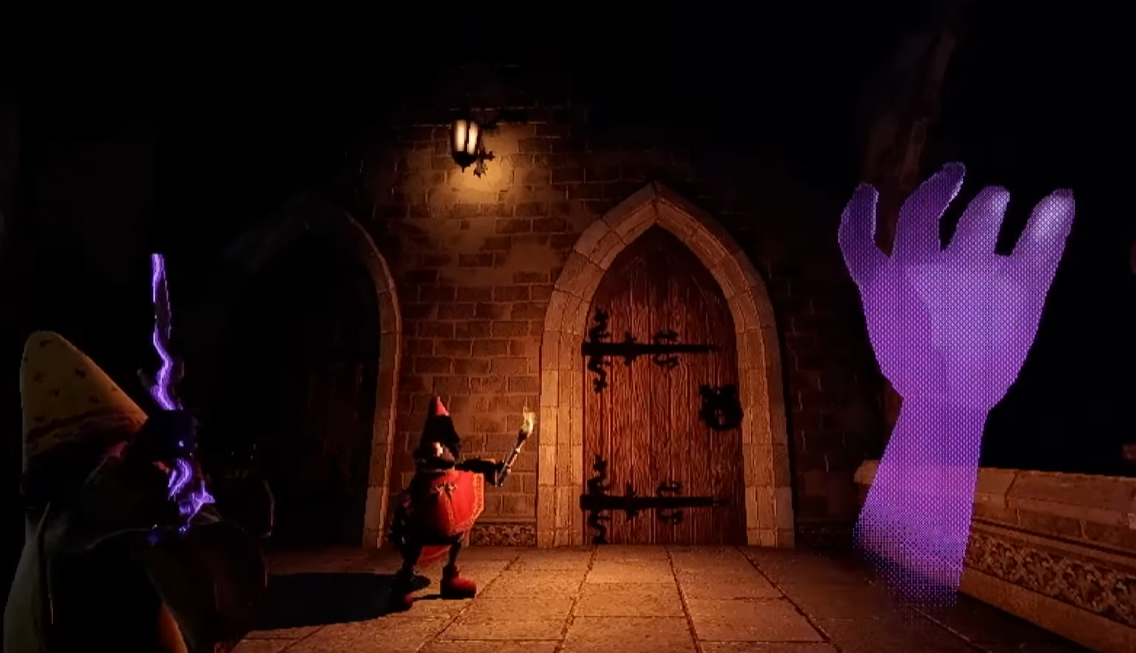
YAPYAP Mic Not Working Guide: How To Fix Mic Issues And Voice Recognition
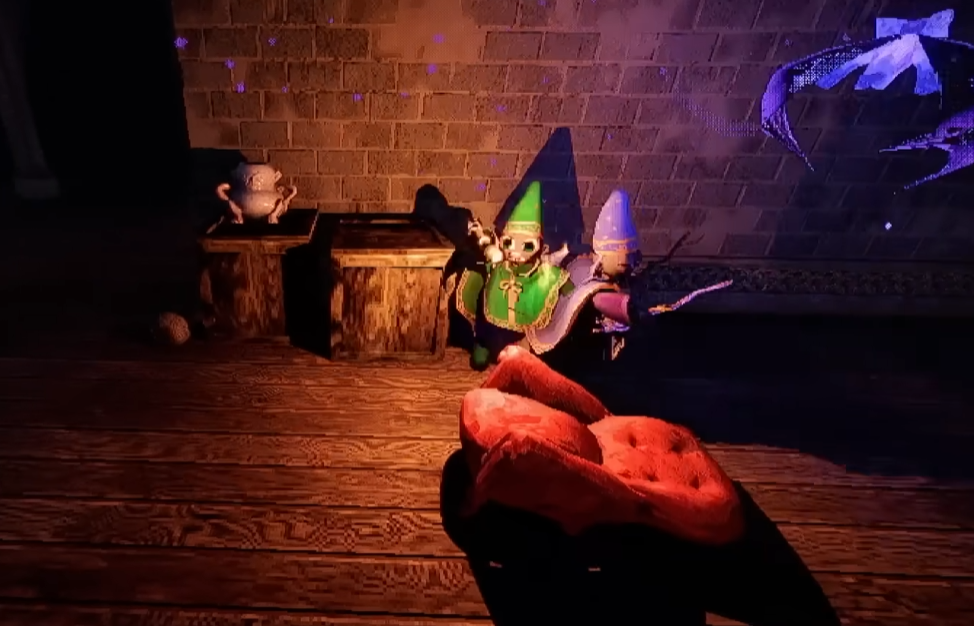
If your mic is not working in YAPYAP, the issue is almost always setup related, not a bug. Most YAPYAP mic issues come from Windows blocking microphone access, the wrong input device being selected in game, or voice recognition sensitivity being set incorrectly. Once those are fixed, spell casting becomes consistent.
This guide focuses only on real, proven fixes. Nothing experimental, nothing made up.
Why Mic Issues Happen In YAPYAP
YAPYAP does not use normal voice chat logic. The game constantly listens for spell words, which means your mic setup has to be clean and intentional.
Mic problems usually happen because:
Windows is blocking the mic
The wrong input device is selected
Mic volume is too low
Background noise filtering is too aggressive
Spell pronunciation is unclear
Step 1: Fix Windows Microphone Permissions
Open Windows Settings, then go to Privacy and Security, then Microphone.
Make sure Allow apps to access your microphone is turned on. Scroll down and confirm Steam is allowed. Games launched through Steam inherit these permissions.
Next, go to Sound settings and select your microphone under Input. Speak normally and watch the input bar. It should move clearly when you talk. If it barely moves, raise the input volume.
If Windows cannot hear you properly, YAPYAP will not either.
Step 2: Select The Correct Mic In YAPYAP
Launch YAPYAP and open Settings. Go to the Audio or Voice section.
YAPYAP does not always auto select the correct mic. You must manually choose the exact input device you want to use.
Once selected, enable any option that shows voice input or mic feedback on the HUD. This visual indicator is critical for troubleshooting.
If the indicator never reacts, the game is not receiving audio.
Step 3: Adjust Voice Recognition Sensitivity
Voice recognition sensitivity controls how loud and clear your voice must be.
For quiet rooms, start around 60 percent. For noisy rooms or open mics, try closer to 75 percent.
Test by saying real spell names, not random words. Say Lumos or Nox clearly and watch the mic indicator. Adjust slowly until it reacts consistently without triggering from background noise.
Do not shout. Shouting often makes recognition worse.
Step 4: Say Spells Clearly, Not Dramatically
YAPYAP listens for phonetic patterns, not theatrical delivery.
Speak spells at normal volume, clearly, and evenly. Emphasize clarity over flair.
Stand or sit at a consistent distance from your mic. Headsets should sit slightly off to the side of your mouth, not directly in front where breath noise interferes.
If a spell fails, pause briefly and say it again. Rapid shouting causes missed inputs.
Step 5: Reduce Audio Interference
Background audio can block recognition.
Lower or mute:
Discord voice chat
Music
YouTube or streams
Open mic noise from teammates
If possible, use push to talk in other apps so YAPYAP gets clean input.
Advanced Mic Fixes If Nothing Works
If spells still fail after setup, try these proven fixes.
Restart Windows Audio Service
Update your microphone driver in Device Manager
Disable exclusive control on your mic in Windows sound properties
Verify game files through Steam
Try a different microphone to rule out hardware failure
Avoid third party voice tools or overlays while troubleshooting.
How To Test Before A Real Run
Always test your mic in the lobby or a safe area.
Say each spell slowly three times. Watch for consistent visual and audio feedback. If it works there, it will work in a run.
Do not wait until chaos starts to debug your mic.
Final Blurb
Mic issues in YAPYAP are frustrating, but they are fixable. Set your Windows permissions, choose the correct input device, tune sensitivity, and speak clearly. Once voice recognition clicks, spell casting feels natural and reliable. The game is not broken, it just expects a clean setup.
FAQ
Why is my mic working in Discord but not YAPYAP
Because YAPYAP uses voice recognition, not voice chat. It requires different sensitivity and permissions.
Do I need a special mic
No. Any working mic can function if configured correctly.
Does yelling help spells cast
No. Clear, steady speech works better than shouting.
Can background noise break voice recognition
Yes. Loud audio or open mics can prevent spells from registering.