Ace Combat 8 can be surprisingly demanding on PC, but lowering every graphics option is not the best way to optimize it. Some settings barely change performance, while a few specific options can make a much larger difference depending on your resolution and even which camera view you use.
Jump To Section:
Best Optimized Settings
Cloud Quality
Reflection Quality
Textures and Models
DLSS, FSR, and TSR
1080p, 1440p, and 4K Settings
How to Test Your Settings
Best Ace Combat 8 Optimized Settings
For the best balance of image quality and performance in Ace Combat 8, I would start with High textures and models, Medium Cloud Quality, Low or Medium Reflections, and Quality upscaling. Leave the less expensive settings higher until you know you actually need more FPS.
Optimized PC Settings
Resolution → Native monitor resolution
Upscaling → Quality
Model Quality → High
Texture Quality → High if VRAM allows
Shadow Quality → Medium
Effects Quality → High
Cloud Quality → Medium
Post-Processing → High
Reflection Quality → Low or Medium
Global Illumination → High
Motion Blur → Off
V-Sync → Off with VRR, otherwise use as needed
Frame Rate → Cap to a stable target instead of chasing the highest possible number
This is intentionally not a lowest-settings preset. Ace Combat 8 does not reward dropping every option equally, so the better approach is preserving the settings that improve clarity while cutting the few that actually consume meaningful GPU headroom.
Cloud Quality Is the First Setting I Would Lower
If you only change one setting, start with Cloud Quality.
Current controlled community testing shows Cloud Quality standing well above the other normal graphics options as a performance lever. Lowering models, effects, post-processing, global illumination, and several other settings individually produced relatively small changes, while reducing clouds created a much larger improvement.
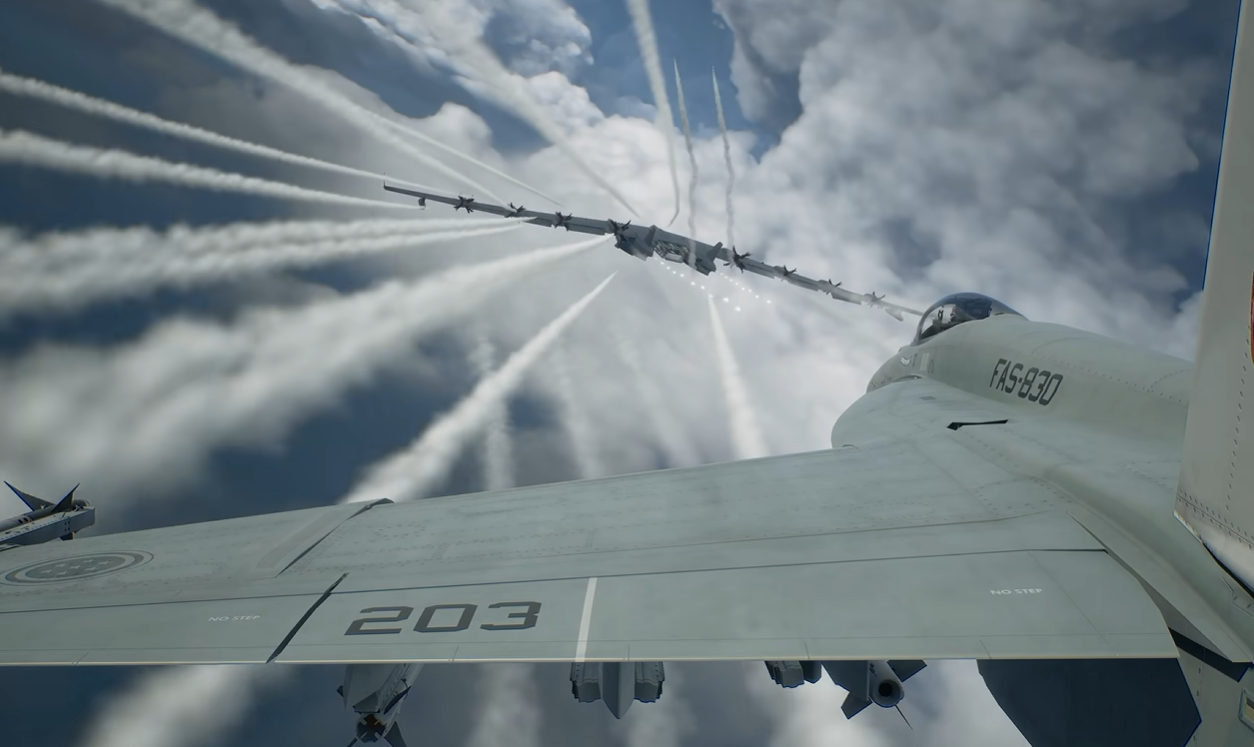
That also makes sense for Ace Combat 8 specifically. Clouds aren't background decoration in this game. Entire missions can surround the aircraft with dense volumetric weather, so the amount of cloud rendering on-screen changes constantly as you fly.
I would start at Medium rather than Low.
Medium keeps the sky looking substantially better while giving you much more breathing room than Ultra. High is also worth trying if your GPU has enough headroom, since the visual difference from Ultra can be relatively small while still gaining performance.
Cloud Quality Priority
Need significantly more FPS → Medium
Already near your target → High
Plenty of GPU headroom → Ultra
Still below target on Medium → Try Low before destroying every other setting
This is why I would not blindly use an all-Low preset. You can often reclaim a large chunk of performance from clouds while keeping the rest of the game looking considerably better.
Reflection Quality Depends on Your Camera View
Reflection Quality is the most interesting Ace Combat 8 setting because its performance impact can change dramatically depending on how you actually play.
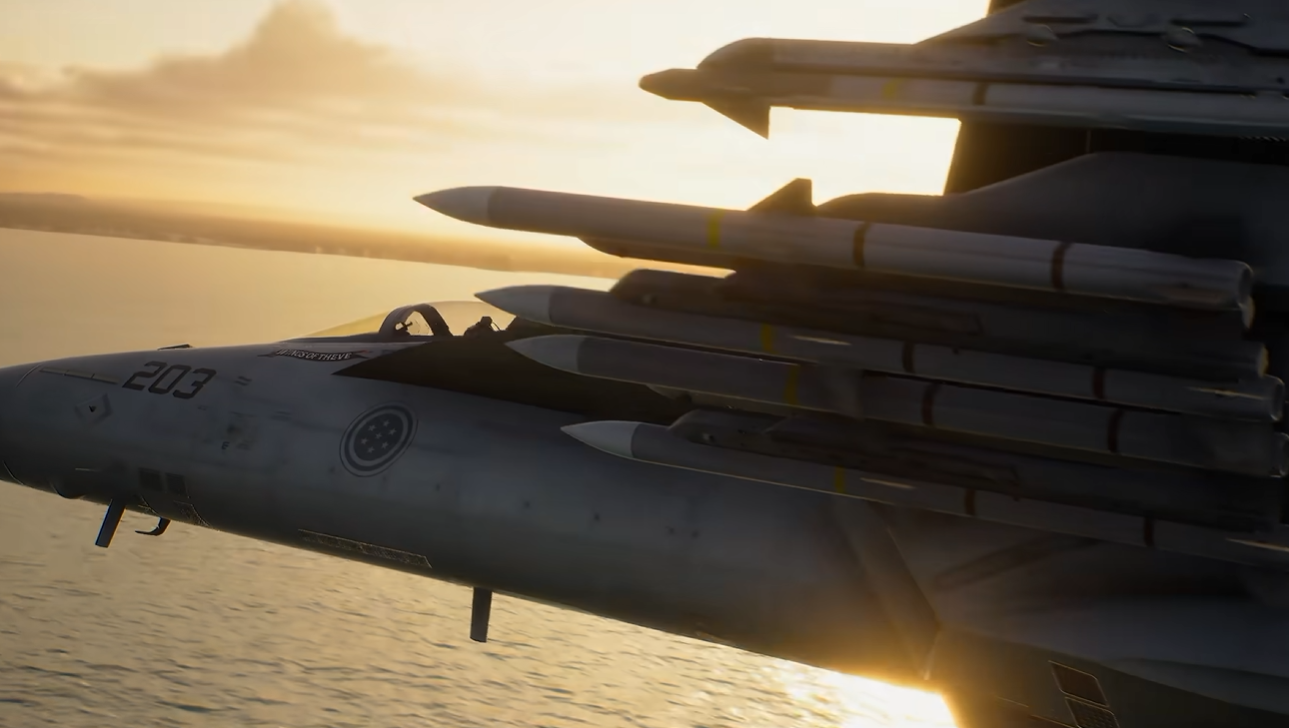
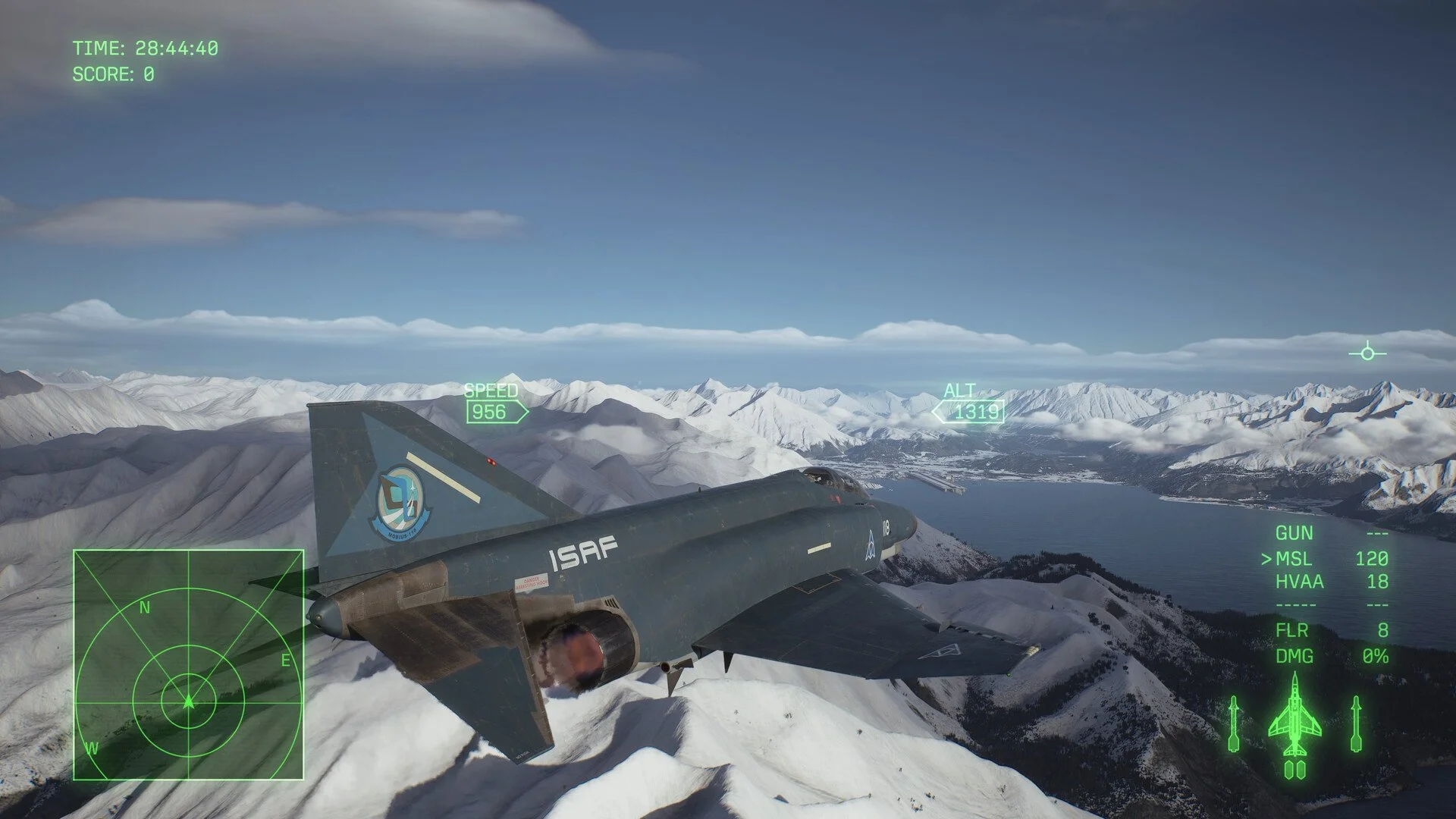
In third-person, community testing found very little performance movement from changing reflections. In cockpit view, lowering Reflection Quality produced a much larger improvement because the game is constantly rendering reflective cockpit surfaces directly in front of the camera.
That means there should not really be one universal Reflection Quality recommendation.
Reflection Quality
Mostly third-person → High is reasonable if performance is already good
Mostly cockpit → Low or Medium
Switch between views often → Medium is the safest compromise
This is one of the more useful optimizations because you can tune the setting around how you actually fly instead of lowering it simply because a generic PC guide says reflections are expensive.
If you haven't tried the different cameras yet, my Ace Combat 8 change view guide covers third-person, cockpit, and HUD view switching.
Do Not Lower Textures First
Texture Quality should be one of the last settings you sacrifice unless you're running into VRAM limitations.
Ace Combat 8 relies heavily on aircraft liveries, cockpit surfaces, terrain detail, carriers, and ground objects, so dropping Texture Quality can make the entire game visibly softer without necessarily solving the actual performance bottleneck.
If you have enough VRAM, I would keep textures on High even when several other settings are at Medium.
This is especially useful on mid-range hardware where an all-Medium preset may leave image quality on the table. You can run High textures while reducing Cloud Quality and other expensive rendering work instead.
If you start seeing obvious texture streaming problems, VRAM warnings, severe hitching, or instability, then lower textures. Otherwise, don't use them as your first FPS button.
Model Quality Can Usually Stay High
Model Quality is another setting I would preserve before clouds or cockpit reflections.
Lowering it may simplify aircraft and environmental detail, but current testing suggests it is not one of the game's strongest performance controls during normal flight.
High is therefore a good optimized setting even if you are not using the High preset everywhere else.
That gives you a useful general rule for AC8:
Keep Visual Detail, Cut Rendering Cost
Keep Textures higher
Keep Models higher
Lower Clouds first
Lower cockpit Reflections if needed
Then reduce Shadows or Effects if you still need more performance
Shadows, Effects, and Post-Processing
These are the middle of the optimization stack rather than the first settings I would touch.
Medium Shadows are a sensible starting point because you still retain useful depth around terrain and aircraft without spending extra GPU time on details that are easy to miss at several hundred knots.
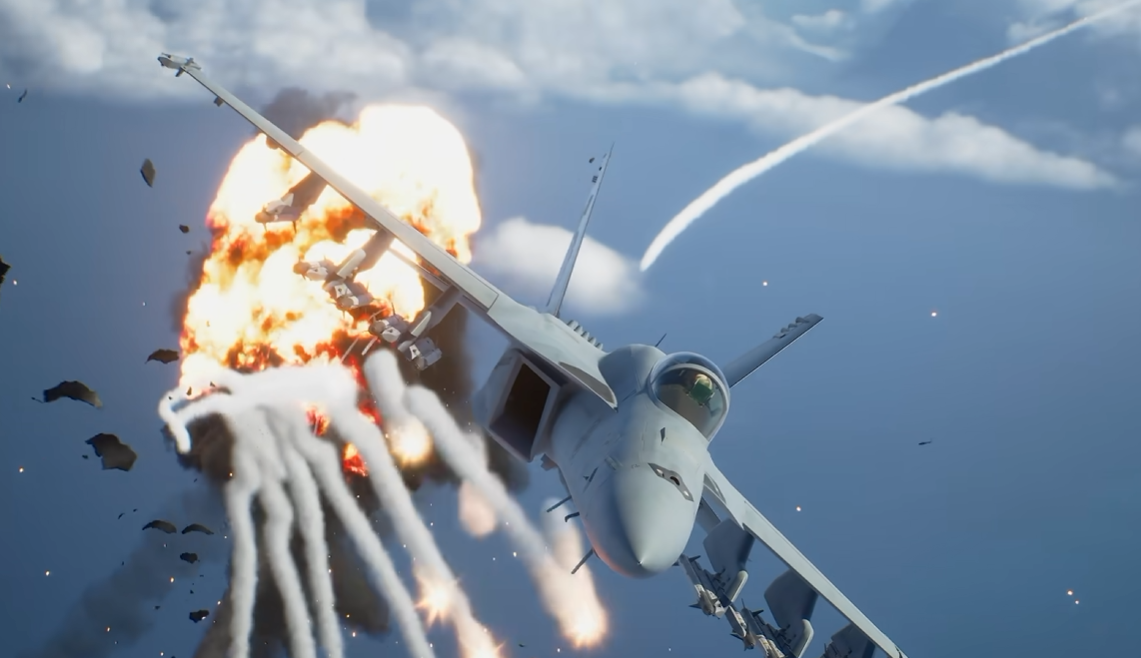
I would leave Effects on High initially. Explosions, missiles, weather, and combat effects are a major part of Ace Combat 8's presentation, and lowering them before you've tested Cloud Quality gives up visual quality too early.
Post-Processing can also stay High on most mid-range systems unless you're still short of your target after the bigger changes.
Global Illumination is similar. I would not immediately dump it to Low unless your own testing shows that it matters more on your hardware.
Turn Motion Blur Off
I recommend turning Motion Blur off regardless of how powerful your PC is.
This is less about gaining a huge number of frames and more about visibility. Ace Combat 8 involves extremely fast camera movement, target tracking, missile passes, and rapid changes in direction.
Removing extra blur makes enemy aircraft and terrain easier to read during aggressive turns.
Bloom is more preference-based. If you like the effect, keep it. If bright skies and explosions feel excessive, disabling it can clean up the image, but I would not treat Bloom as a major performance fix.
Best DLSS, FSR, or TSR Setting
Ace Combat 8's official PC targets already assume an upscaled image rather than native rendering, so upscaling should be treated as part of the normal optimization process rather than a last-resort setting.
Start with Quality mode.
At 1440p and 4K especially, Quality upscaling can reduce GPU load while maintaining a much cleaner image than aggressively lowering several graphics settings.
If Quality is still not enough, move to Balanced before dropping major visual settings further.
I would avoid Performance or Ultra Performance at 1080p unless you have no other option. At lower output resolutions, the internal rendering resolution becomes low enough that distant aircraft, terrain, clouds, and fine HUD-adjacent detail can become noticeably softer.
Upscaling Starting Point
1080p → Quality, or native if performance allows
1440p → Quality
4K → Quality first, Balanced if needed
Still GPU-limited → Balanced before lowering everything else
Use DLSS on supported NVIDIA hardware or FSR/TSR when those produce the better result on your system. I would compare them during actual movement rather than choosing whichever looks sharpest while parked on a menu screen.
A Stable Frame Cap Can Be Better Than Maximum FPS
Do not optimize Ace Combat 8 solely around the highest number you can produce while staring at the sky.
The better target is a frame rate your PC can maintain when clouds, terrain, explosions, and multiple aircraft are all on-screen.
If your system swings between much higher FPS and sudden drops, cap the game around a level it can actually hold during demanding missions.
That can produce more consistent frame pacing and also stops the GPU from rendering unnecessary frames during lighter scenes.
If you're using a VRR display such as G-Sync or FreeSync, I would generally prefer that plus a sensible frame cap over forcing V-Sync solely to control GPU usage.
Best Ace Combat 8 Settings by Resolution
The official PC requirements put the recommended RTX 3070 or RX 6800 class around an upscaled 1080p/60 FPS Medium target, so I would not treat the recommended specification as an automatic 1440p Ultra machine. Steam also lists an SSD, Windows 11, DirectX 12 with Shader Model 6.6 or newer, and hardware ray tracing support as requirements.
1080p Optimized
Upscaling → Quality or Native
Textures → High
Models → High
Clouds → Medium or High
Shadows → Medium
Reflections → Medium, Low for cockpit-heavy play
Effects → High
1440p Optimized
Upscaling → Quality
Textures → High
Models → High
Clouds → Medium
Shadows → Medium
Reflections → Low or Medium
Effects → High
Post-Processing → High
4K Optimized
Upscaling → Quality, then Balanced if needed
Textures → High if VRAM allows
Models → High
Clouds → Medium
Shadows → Medium
Reflections → Low or Medium
Effects → Medium or High
Avoid treating native 4K Ultra as the default target
Best Settings for RTX 3070, RX 6700 XT, and Similar GPUs
This is probably the most useful hardware range to optimize manually because these cards can make Ace Combat 8 look much better than Low without having enough headroom to simply max everything.
For GPUs around the RTX 3070, RX 6700 XT, RX 6800, and nearby performance tiers, I would start with Quality upscaling, High textures, High models, Medium clouds, Medium shadows, and High effects.
If you primarily use cockpit view, lower Reflections to Low or Medium before dropping Texture Quality.
There are also RX 6700 XT player reports of holding roughly 60 FPS during flight using FSR Quality with High textures, Medium models and shadows, and lower settings elsewhere, reinforcing that you do not need to make every visual option equally low on this class of card.
Do Not Benchmark Ace Combat 8 in the Menu
The best optimized settings are the ones that survive an actual mission.
I would pick one repeatable mission or Free Mission route with clouds, terrain, several aircraft, and some combat effects. Use the same aircraft, the same camera view, and roughly the same flight path every time you test a setting.
Then change one option at a time.
Better AC8 Benchmark
Use the same mission
Use the same aircraft
Use the same camera view
Fly through clouds and near terrain
Include actual combat
Change one setting at a time
Restart the mission after major changes
This is particularly important with Reflection Quality. A third-person benchmark can tell you that reflections do almost nothing, while cockpit view on the same PC can produce a completely different result.
It also prevents cutscene performance from distorting your settings decisions. If your gameplay is smooth but one cinematic runs substantially slower, I would not destroy the entire graphics preset just to optimize that cutscene.
Is 95% to 100% GPU Usage Bad?
No. High GPU utilization while gaming is normally what you want when the graphics card is the performance limit.
A GPU sitting around 95% to 100% usage does not by itself indicate that Ace Combat 8 is damaging your hardware. Temperature, cooling, power limits, stability, and actual performance matter more than the utilization percentage by itself.
If you specifically want lower power consumption, though, that is a different optimization goal. Use a frame cap so the GPU stops rendering frames you do not need rather than intentionally crippling image quality just to force utilization downward.
Watch the AMD Driver Warning
AMD users should pay attention if Ace Combat 8 displays a driver-version warning.
At launch, players have reported the game recommending AMD Adrenalin 26.3.1 even on systems running newer drivers. Some systems work normally on newer releases, while others have fixed crashes only after using DDU and installing the recommended driver cleanly.
I would not downgrade a stable system simply because another player did. But if AC8 specifically warns about your driver and you're also getting crashes or severe instability, testing the recommended version becomes reasonable.
If you're seeing UE Live Error 01 or out-of-memory crashes rather than simple low FPS, my Ace Combat 8 Error 01 fix guide covers that separately.
The Best Optimization Order
The biggest mistake with Ace Combat 8 is starting at the bottom of every graphics slider and then slowly raising everything.
Start from the image quality you actually want and remove the expensive settings in order.
Ace Combat 8 Optimization Order
1. Enable Quality upscaling
2. Lower Cloud Quality to Medium
3. Lower Reflections if you use cockpit view
4. Set Shadows to Medium
5. Use a stable FPS cap
6. Lower Effects if you still need performance
7. Reduce Models only after the bigger settings
8. Lower Textures last unless VRAM is the problem
That keeps the aircraft, terrain, and cockpit looking sharp while attacking the settings that are much more likely to be limiting your frame rate.