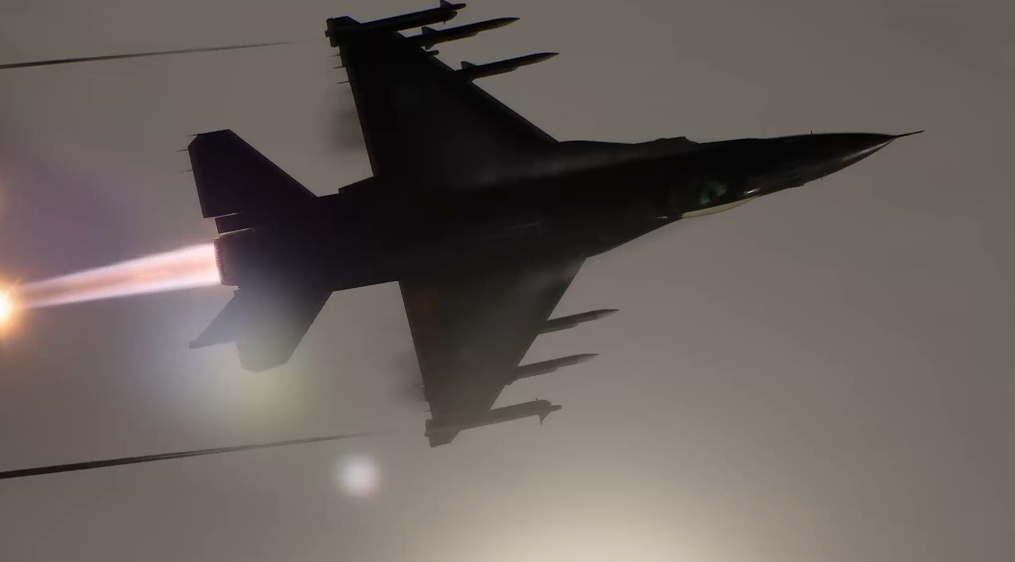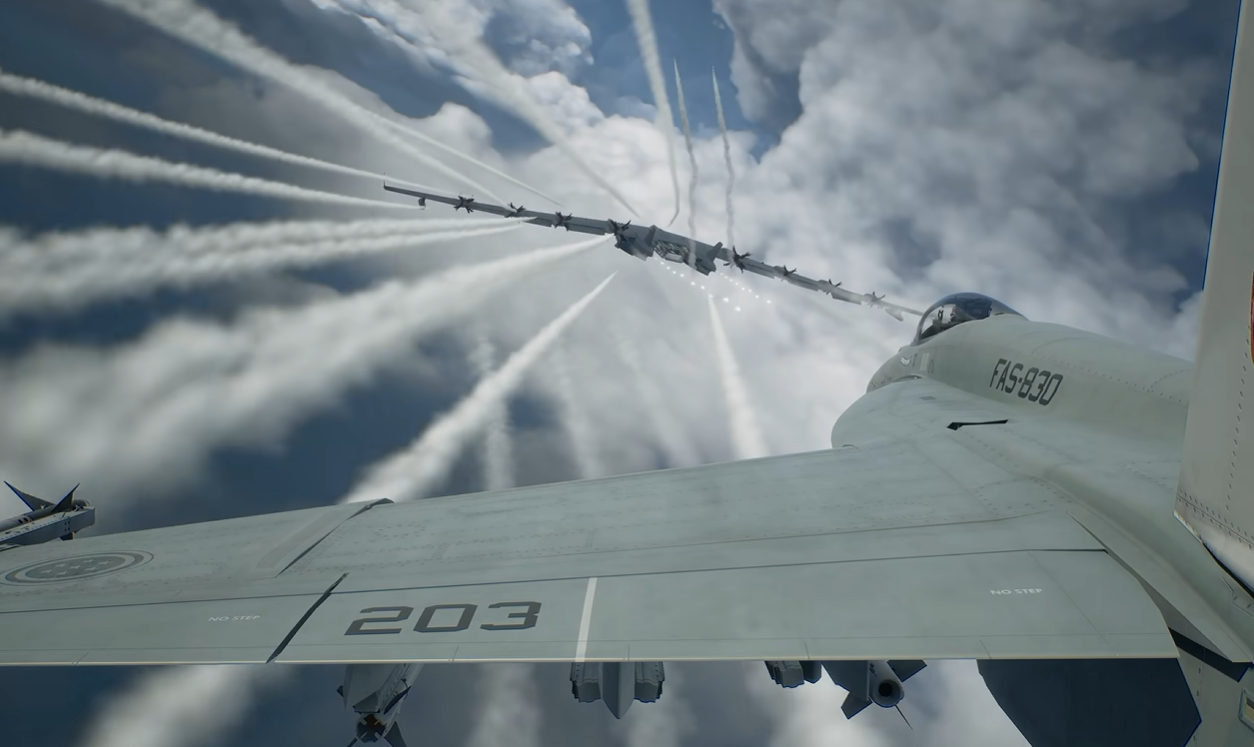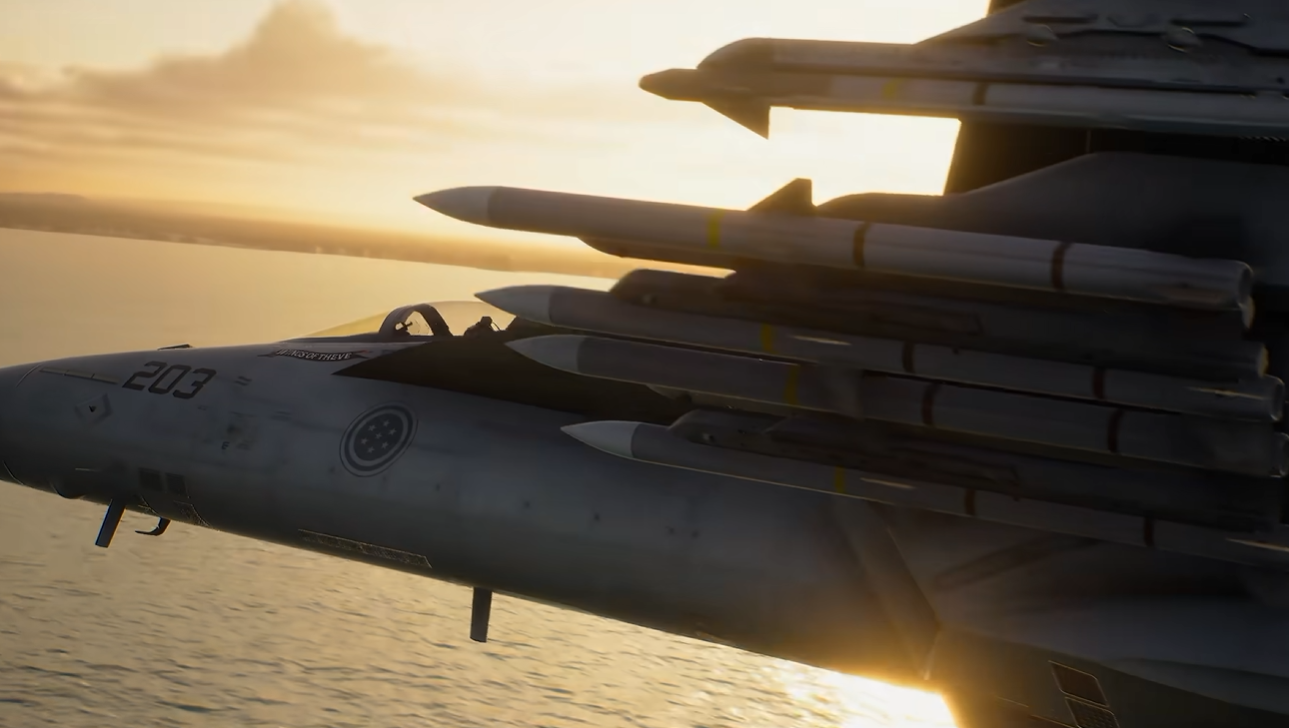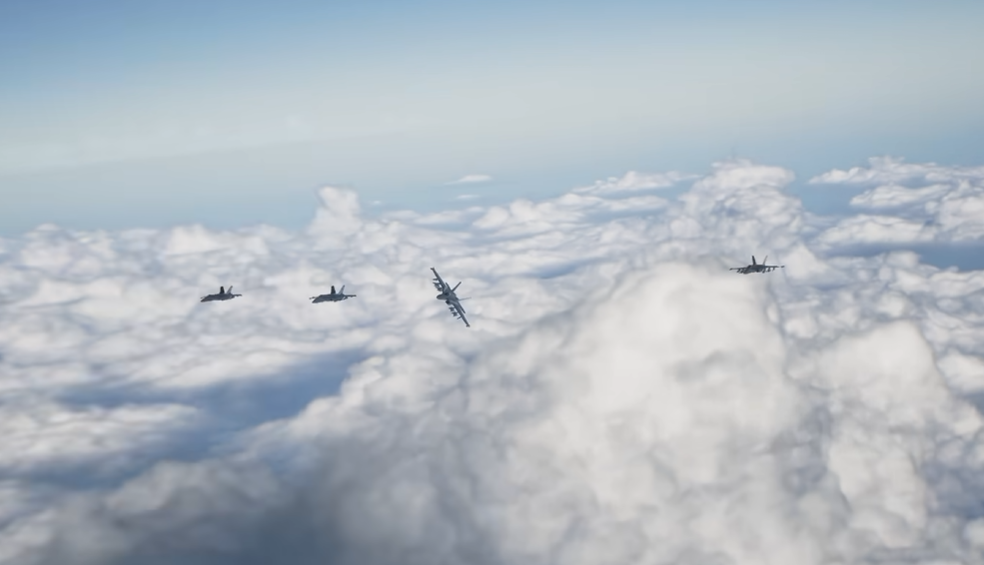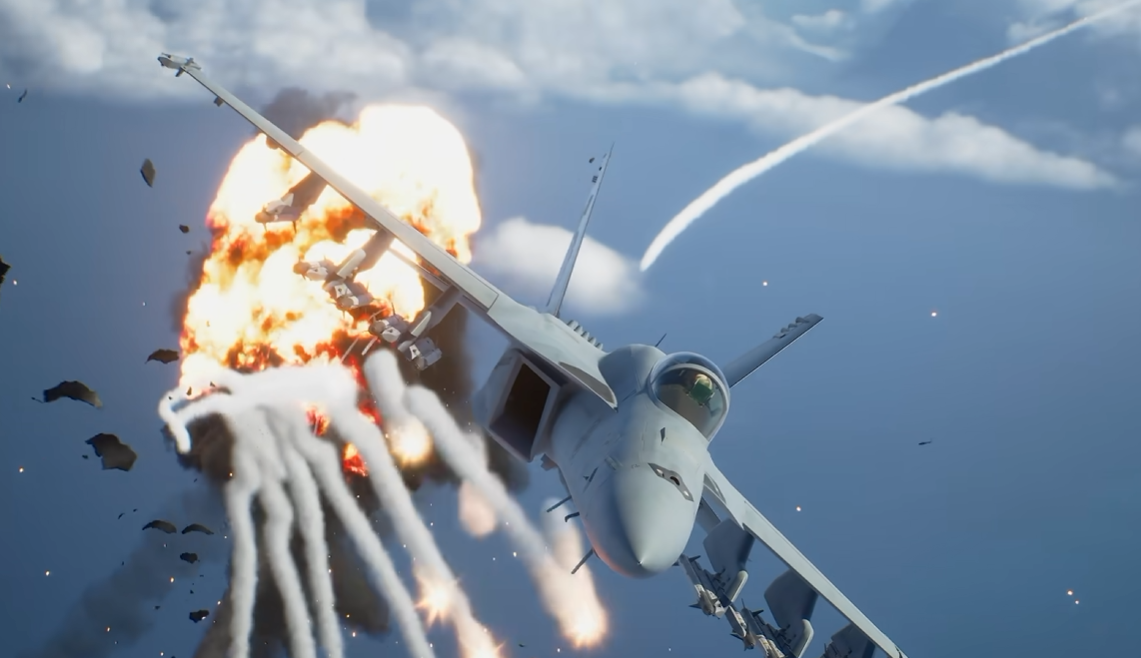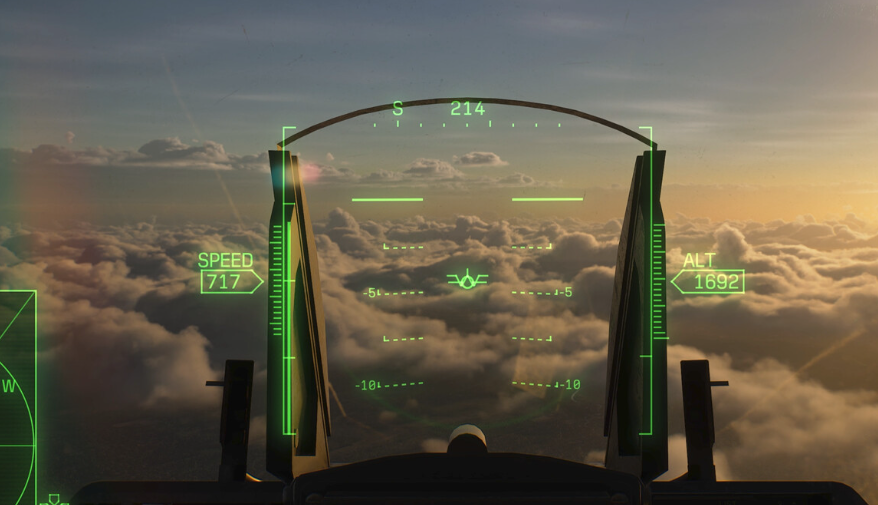
Ace Combat 8 has three different flight views you can switch between while flying. You can stay behind the aircraft, move into the cockpit, or use the cleaner first-person HUD view depending on how you prefer to play.
Jump To Section:
How to Change View
All Camera Views
Best View to Use
Camera Controls Explained
Can You Change FOV?
PC FOV Mods
How to Change View in Ace Combat 8
Press R3 while flying to change your camera view in Ace Combat 8 on PlayStation. Each press cycles between the game's three normal flight cameras.
Change View on PlayStation
Press R3 while flying
Third-Person → Cockpit → HUD
R3 means clicking the right analog stick inward. You do not need to pause the game or open the settings menu every time you want to switch.
If you're playing on PC or using a remapped controller, check the game's control settings for your equivalent view-change binding rather than assuming it will use the same button label.
All Three Camera Views in Ace Combat 8
Ace Combat 8 gives you third-person, cockpit, and HUD views.
Third-person view places the camera behind your aircraft so you can see the entire plane. This gives you the clearest look at your aircraft's orientation and makes it easier to judge pitch, roll, terrain, and nearby enemies.
It's also the best view if you actually want to see the liveries you're using. If you're trying to change one, my Ace Combat 8 how to change skins guide covers the Campaign skin menu and cosmetic availability.
Cockpit view puts you inside the aircraft. You get the full cockpit around you, making it the most immersive option, but some of your screen space is naturally occupied by the aircraft interior.
HUD view gives you the forward-facing first-person perspective without displaying the physical cockpit. You still have your flight and targeting information while getting a much more open view ahead.
What Is the Best View in Ace Combat 8?
For most players, I would start with third-person.
Being able to see the entire aircraft makes it much easier to understand exactly what your plane is doing, especially under Expert Controls where left and right stick movement rolls the aircraft instead of automatically turning it.
That becomes particularly useful when learning more advanced maneuvers. My Ace Combat 8 barrel roll guide covers how pitch and roll work together, while my PSM guide covers Post-Stall Maneuvers separately.
HUD view is a good choice if you want a first-person perspective without sacrificing as much visibility to the cockpit model.
Cockpit view is mainly the immersion option. It works perfectly well for normal flying, but third-person can make difficult dogfights easier simply because you have a clearer visual reference for your aircraft's position.
The important part is that you are not locked into one choice. You can switch during a mission whenever another view would work better.
Camera View and Flight Controls Are Separate
Changing your camera does not change how the aircraft controls.
Ace Combat 8 still uses the left stick for flying, with its behavior depending on whether you selected Standard or Expert Controls.
Under Standard Controls, moving the left stick left or right turns the aircraft in that direction and the wings level when you release it.
Under Expert Controls, left and right roll the aircraft while up and down control pitch. That gives you much more direct control over your aircraft's orientation.
Useful PlayStation Controls
Left Stick → Fly aircraft
R2 → Accelerate
L2 → Decelerate
L2 + R2 → High-G turn
Circle → Fire missile or selected special weapon
Cross → Machine gun
Triangle → Change target
Square → Change weapon
D-Pad → Squadron orders
R3 → Change camera view
So if switching into cockpit or HUD view suddenly feels harder, the aircraft itself has not changed. You're simply losing some of the visual reference points you get from seeing the plane in third-person.
My Ace Combat 8 tips and tricks guide covers more of the controls and campaign systems that are worth learning early.
Can You Change the FOV in Ace Combat 8?
Changing view and changing field of view are two different things.
The camera button switches between third-person, cockpit, and HUD perspectives. FOV controls how wide the visible area is inside whichever camera you're currently using.
On PC, Ace Combat 8 does not currently include a normal FOV slider in the game's settings.
That means switching to third-person may feel wider than cockpit view, but you're still choosing between the game's preset camera perspectives rather than manually setting an FOV value.
How PC Players Are Changing FOV
Community tools have already been released that can modify Ace Combat 8's FOV on PC.
One current AC8 Tweaks tool allows separate FOV values for cockpit, HUD, and third-person view, with a reported adjustable range from 40 to 130 degrees. Each camera remembers its own setting, so you do not have to use the same field of view everywhere.
This actually highlights the difference between camera selection and FOV nicely: Ace Combat 8 already treats those three cameras separately even though the retail settings menu does not expose an FOV slider for them.
There is one major catch. The current tool is designed for offline single-player use and launches the game without Easy Anti-Cheat, which means ACE COMBAT ONLINE is unavailable while the modded setup is active.
PC FOV
No built-in FOV slider
Community tools can change FOV per camera
Third-person, cockpit, and HUD can use separate values
Current tools are intended for offline play
Disabling Easy Anti-Cheat prevents Online access
Ultrawide players should also be aware that widening the FOV does not necessarily reposition the HUD. Current community tools can expose more of the game world while leaving the interface where Ace Combat 8 normally places it.
Ace Combat 8 View Controls in Short
If you only want to change the normal camera, you do not need to install anything or change a graphics setting.
In Short
Press R3 → Cycle camera views
Third-person → Best view of the aircraft and its orientation
Cockpit → Full first-person cockpit experience
HUD → First-person flying without the cockpit model
FOV → Separate setting with no normal PC slider currently