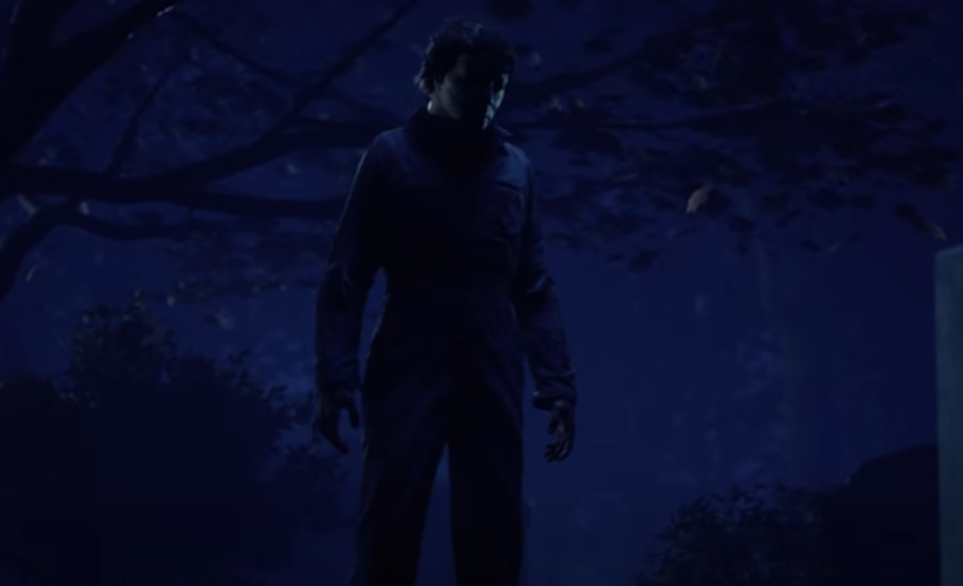
Halloween The Game Best Settings for Performance
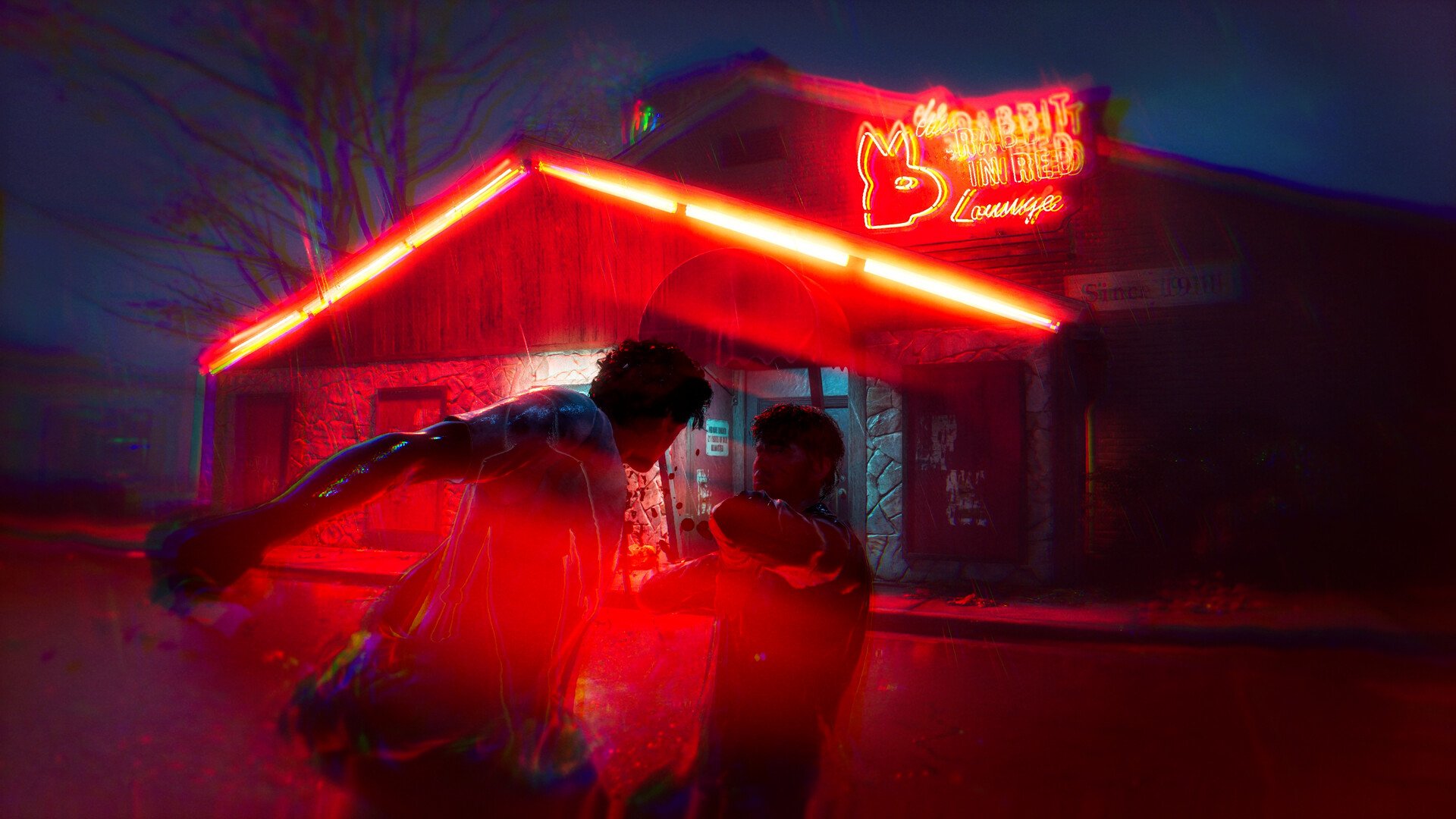
The best Halloween The Game settings depend on what your PC is struggling with, so I would not use one universal preset for everyone. My default recommendation is a balanced setup that keeps the game readable at night while stripping out the settings that cost performance without adding much practical value. If you are still dropping frames after that, move to the performance preset rather than randomly lowering everything.
Jump To Section:
Best Balanced Settings
Best FPS Settings
Best High-End Settings
5 Settings to Change First
Settings I Would Keep Higher
60 FPS or Uncapped?
When to Use Upscaling
Still Stuttering? Fix It in This Order
Best Balanced Settings for Halloween The Game
This is the preset I would start with on a reasonably modern PC. It prioritizes stable performance without unnecessarily reducing the settings that help keep the image clear.
Resolution: Native
Resolution Scale: 100%
Frame Rate Limit: 60 FPS
Vsync: Off
Motion Blur: Off
Ray Tracing: Off
Anti-Aliasing: Medium
Effects: Low
Foliage: Low
Post-Process: Medium
Shading: Low
Shadows: Low
Textures: Medium
View Distance: Medium
Global Illumination: Low
Reflections: Low
Upscaling: Off
FSR Frame Generation: Off
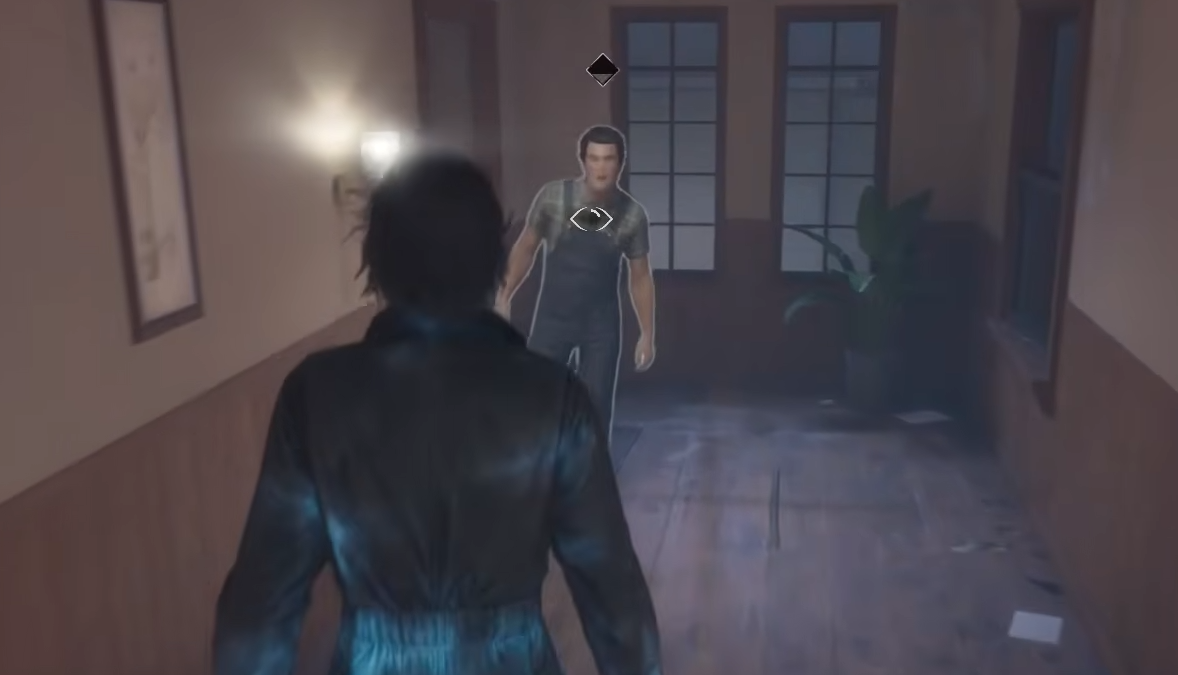
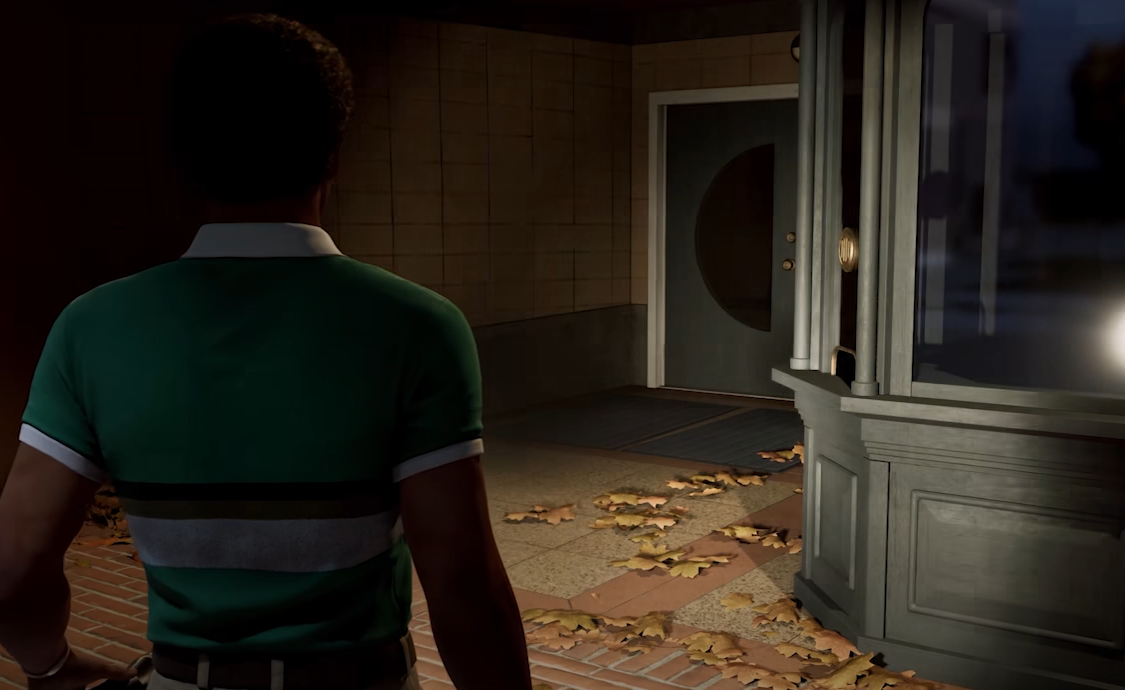
I like this setup because it cuts the visual features I care least about during actual gameplay while leaving enough image quality to comfortably read houses, streets, items, and movement around Haddonfield.
I would rather have consistent frame pacing during a chase than prettier reflections while standing still. Halloween The Game gives you enough moments where one hitch can interrupt a skill check or let Michael close distance that stability has real gameplay value here.
Best FPS Settings for a Lower-End PC
If the balanced preset cannot maintain a comfortable frame rate, use a dedicated performance setup instead of lowering settings one at a time with no plan.
Resolution: Native
Resolution Scale: 100% initially
Frame Rate Limit: 60 FPS
Vsync: Off initially
Motion Blur: Off
Ray Tracing: Off
Anti-Aliasing: Medium
Effects: Low
Foliage: Low
Post-Process: Low to Medium
Shading: Low
Shadows: Low
Textures: Medium
View Distance: Medium
Global Illumination: Low
Reflections: Low
Upscaling: On if needed
Upscaling Quality: Performance
FSR Frame Generation: Off
The biggest difference is that this preset gives you permission to use upscaling once the normal quality reductions stop being enough.
I still would not immediately slash Textures or View Distance. Those settings affect how clean and readable the world feels, while Shadows, Lighting, Reflections, and Foliage are much easier sacrifices when FPS is the priority.
Best Settings for a High-End PC
If your system already holds the 60 FPS cap comfortably, you can raise visual quality without abandoning the same basic logic.
Keep Motion Blur off if you prefer a sharper image during movement, leave Resolution Scale at 100%, and continue using native resolution.
I would raise Textures first, then View Distance, Anti-Aliasing, and Post-Process. After that, increase Effects and Shading if you still have performance headroom.
Shadows, Global Illumination, Reflections, and especially Ray Tracing are the settings I would save for last because they are the easiest places to spend a lot of GPU performance for comparatively little gameplay benefit.
The important point is that a high-end PC does not mean every setting needs to be maxed. Once the image already looks good and the game is smooth, I would protect that consistency rather than chasing Ultra purely because the option exists.
The 5 Settings I Would Change First
If you only want the important changes, this is the order I would use.
1. Cap the Game at 60 FPS
This is the first adjustment I would make because the current PC build can become less consistent when it is allowed to push beyond 60 FPS. A stable cap is more useful than constantly bouncing between much higher and lower numbers.
2. Turn Off Ray Tracing
Ray Tracing is one of the easiest settings to remove when you want performance back. I would not spend GPU headroom on it while the game is still dropping frames or hitching.
3. Lower Global Illumination and Shadows
Lighting and shadow quality are exactly the sort of options I want reduced before sacrificing overall image clarity.
4. Lower Reflections, Foliage, and Effects
These add atmosphere, but they are much less important to actually playing well than seeing the environment clearly and getting consistent input response.
5. Use Upscaling Only If the First Four Are Not Enough
Upscaling is my fallback rather than my starting point. Native resolution looks better, so I would first recover performance through settings that cost less image clarity.
These Are the Settings I Would Not Lower First
Texture Quality is one of the last things I would aggressively reduce unless your GPU is specifically running out of memory.
Medium textures are a good baseline because reducing them does not always solve the kind of frame-time problems people are actually noticing, and blurry surfaces make the game look significantly worse.
I would also try to preserve Medium View Distance. Halloween The Game rewards understanding where things are around you, especially once you are working toward one of the available escape routes.
Anti-Aliasing at Medium is another setting I would keep unless you are truly desperate for additional performance. Jagged edges and shimmering objects can make a dark game harder to read, so some image cleanup is worth retaining.
Should You Use 60 FPS or Uncapped FPS?
I would use 60 FPS right now.
Normally I prefer allowing a competitive or reaction-heavy game to run above 60 when the hardware supports it, but Halloween The Game is currently a case where a higher maximum does not necessarily mean a smoother experience.
If uncapping the frame rate produces uneven pacing or visible stutters, the extra frames are not buying you much.
Once future patches improve performance, this recommendation could change. For the current build, I would take a steady 60 over 90 FPS that repeatedly collapses during heavier moments.
Native Resolution First, Upscaling Second
Start at your monitor's native resolution with 100% Resolution Scale.
If the game stays near your target frame rate, leave it there. You get the cleanest image and avoid unnecessary reconstruction artifacts.
If the game still struggles after Shadows, Global Illumination, Reflections, Foliage, Effects, and Shading are already reduced, then turn on upscaling.
Performance mode is the aggressive option when you need a meaningful boost. The image will be softer than native rendering, but that trade becomes worthwhile if the alternative is frequent drops and hitching.
I would leave FSR Frame Generation disabled. A larger displayed FPS number is not particularly useful if the generated frames introduce latency or visual artifacts at the exact moment you need to track Michael or react to a skill check.
If Halloween The Game Still Stutters, Fix It in This Order
If your average FPS looks fine but the game keeps hitching, do not assume the answer is to keep lowering every graphical option.
First, confirm the 60 FPS cap is active and Ray Tracing is disabled.
Second, make sure Shadows, Global Illumination, Foliage, Reflections, Effects, and Shading are already at Low.
Third, test upscaling. If turning it on noticeably improves consistency, your GPU workload was probably part of the problem.
Fourth, close unnecessary background programs and overlays that may be using memory or GPU resources.
Fifth, update your graphics driver and make sure Halloween The Game is installed on an SSD rather than a mechanical hard drive.
Finally, do not judge the game entirely from the first minute after launching it. Some initial hitching can occur while shaders and assets settle in, so test the same area for a little while before changing another setting.
My rule is simple: once the game stays close to 60 FPS during movement, interaction, and actual multiplayer pressure, stop lowering things. A stable game that still looks good is the goal. The best settings are not the lowest settings; they are the lowest-cost compromises that remove the instability you can actually feel.